Shared Email Templates
Create an attachment reminder in email templates for Outlook
To set up a reminder that prompts you to attach files when you use an Outlook email template, you’ll need the WhatToAttach macro.

Start creating or editing your email template.
On the template editor toolbar, select the
 Insert macro button.
Select What to attach.
Type in any word or phrase that will prompt you to attach the necessary file.
- With the
 Insert nested macro button, you can open a list of macros that can be nested and select the one you need.
 - With a check mark next to Required, your template won’t be inserted into an email message if a file is not selected.
- With a check mark next to Allow multiple files, it will be possible to select more than one file.
When you’re finished, select OK.

- With the
Save your template.
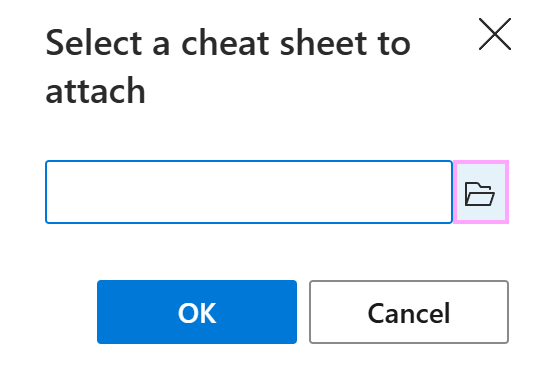
When you insert a message template that contains the WhatToAttach macro into an Outlook email, you’ll see a dialog reminding you that an attachment is needed. To select a file, click Browse.