Single sign-on (SSO) for OneDrive and SharePoint in Shared Email Templates
In this article
If you have only one OneDrive account that is the same as your Microsoft 365 Outlook account, you can take advantage of single sign-on to avoid entering or confirming your credentials each time you attach files or insert images from OneDrive or SharePoint in Shared Email Templates.
With single sign-on, you’ll need to accept required permissions only once. After that, all files will be attached and all images will be inserted without any additional pop-ups.
How to disable SSO #
The single sign-on feature is turned on by default. If you need to attach files or insert images from different OneDrive or SharePoint accounts, turn off single sign-on.
At the bottom of the Shared Email Templates pane in Outlook, click the three dots to open the More menu.
Select Settings.
Clear the Use single sign-on (SSO) where possible checkbox.
Select Save changes.
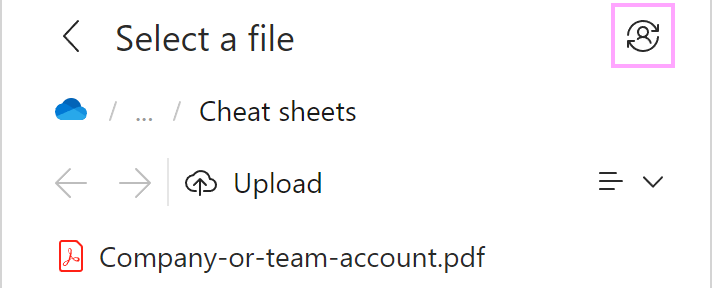
After turning single sign-on off, you’ll be able to switch between OneDrive/SharePoint accounts when needed by clicking the icon shown in the screenshot below.