
Auto-fill Outlook email fields: To, Cc, Bcc
In this article
With Shared Email Templates, you can automatically fill in the To, Cc, and Bcc fields in your Outlook emails, either replacing the addresses that are already there or adding the new ones alongside them.
Keep existing recipients when auto-filling To, Cc, or Bcc #
You can auto-fill the To, Cc, and Bcc fields without deleting the email addresses that those fields already contain by using the Add macro. Just follow the steps below.
In the Outlook email template you’re creating or editing, place the cursor where you want the Add macro placeholder to appear.
On the template editor toolbar, select the
 Insert macro button.
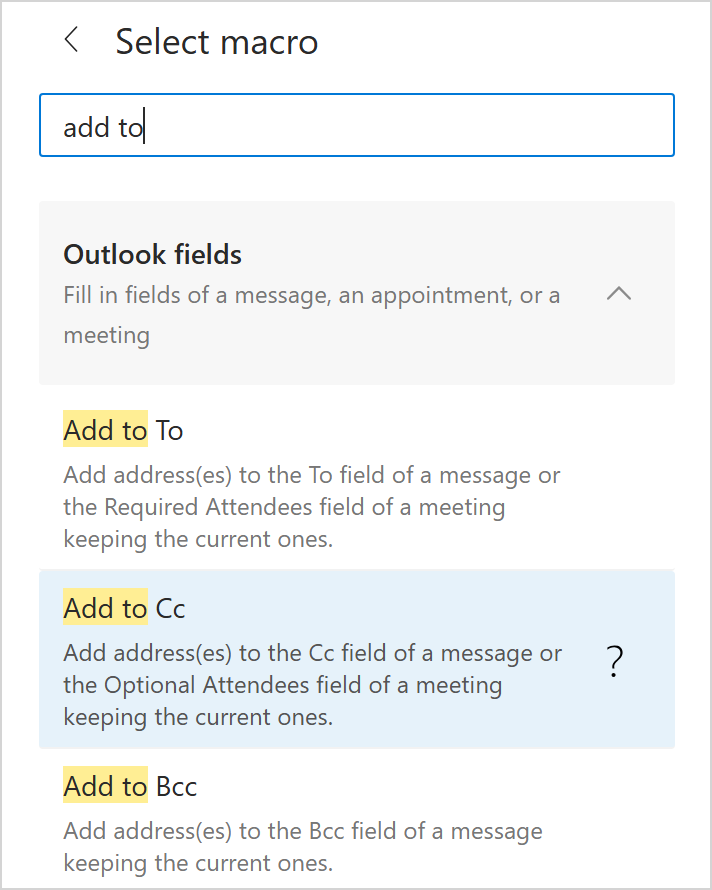
In the search box, enter add to. Then select the option you need (Add to To, Add to Cc, or Add to Bcc) by double-clicking it.
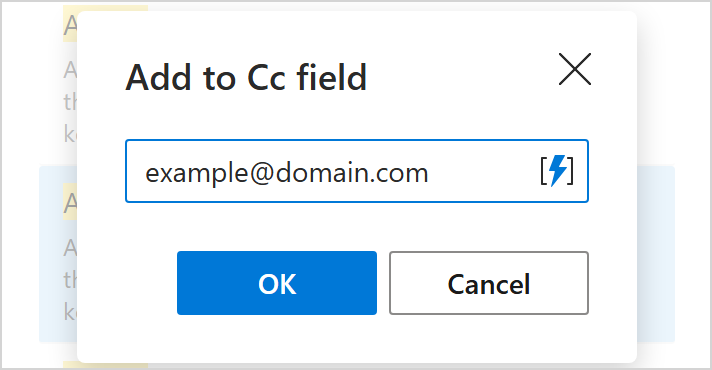
In the dialog that appears, enter the necessary email addresses instead of the sample one. Then select OK.
The Add macro placeholder will be added to your email template. Select Save.
When you use such a template, the specified email addresses will be added to the selected field, and any previously entered addresses in that field will be kept.
Remove existing recipients when auto-filling To, Cc, or Bcc #
You can auto-fill the To, Cc, and Bcc fields of Outlook email messages replacing email addresses that are already there. There are two ways to do this:
- By using the Message fields button
- By using the Fill macro
Using the Message fields button #
Start creating or editing your email template for Outlook.
Select the
 Message fields button on the template editor toolbar.
Enter the required email addresses into the corresponding fields, separating the addresses with a semicolon or a comma.
When finished, select Save.
The Message fields button will be marked with a blue dot:
 . Select Save.
When you use such a template, the specified email addresses will be entered into the selected fields, and any previously entered addresses in those fields will be deleted.
Using the Fill macro #
Start creating or editing your message template and place the cursor where you want to have the Fill macro placeholder.
On the template editor toolbar, select the
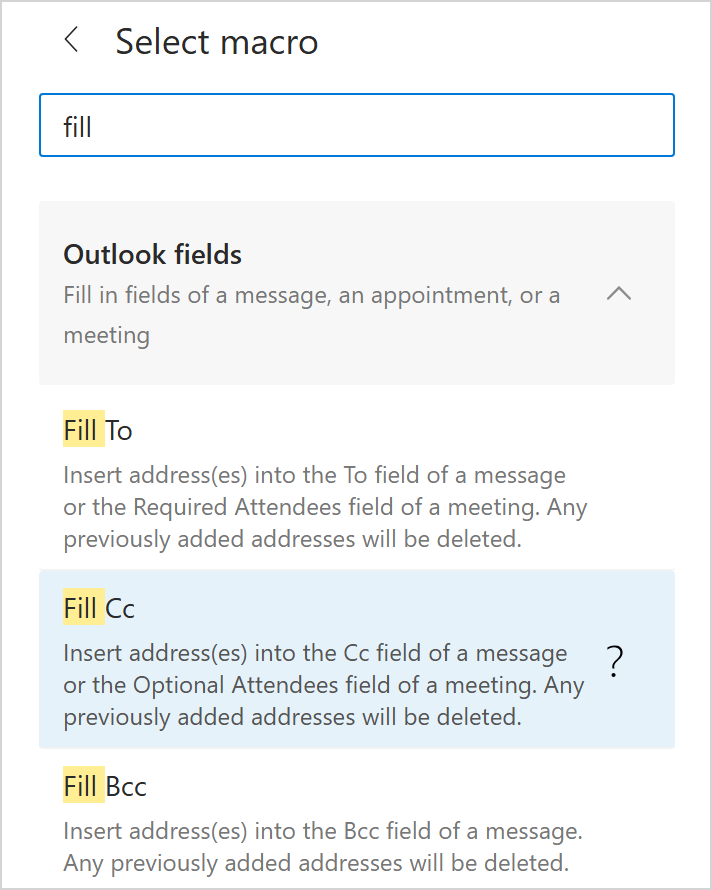
Insert macro button.In the search box, type fill. Then double-click the option you need (Fill To, Fill Cc, or Fill Bcc) to select it.
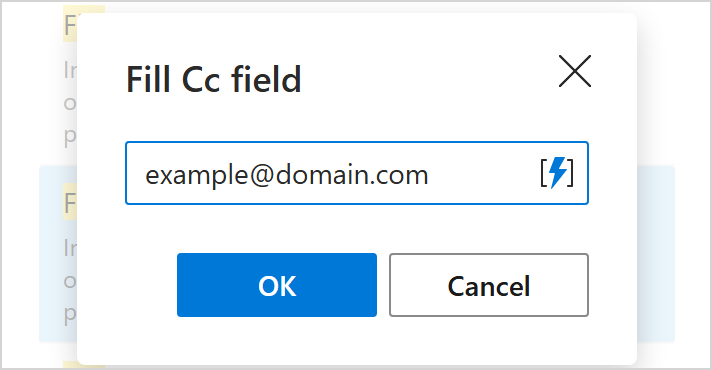
In the dialog that appears, replace the sample email address with the addresses you want to use. Then select OK.
The Fill macro placeholder will appear in your template. Select Save.
When you use such a template, the specified email addresses will be entered into the selected field, and any previously entered addresses in that field will be deleted.