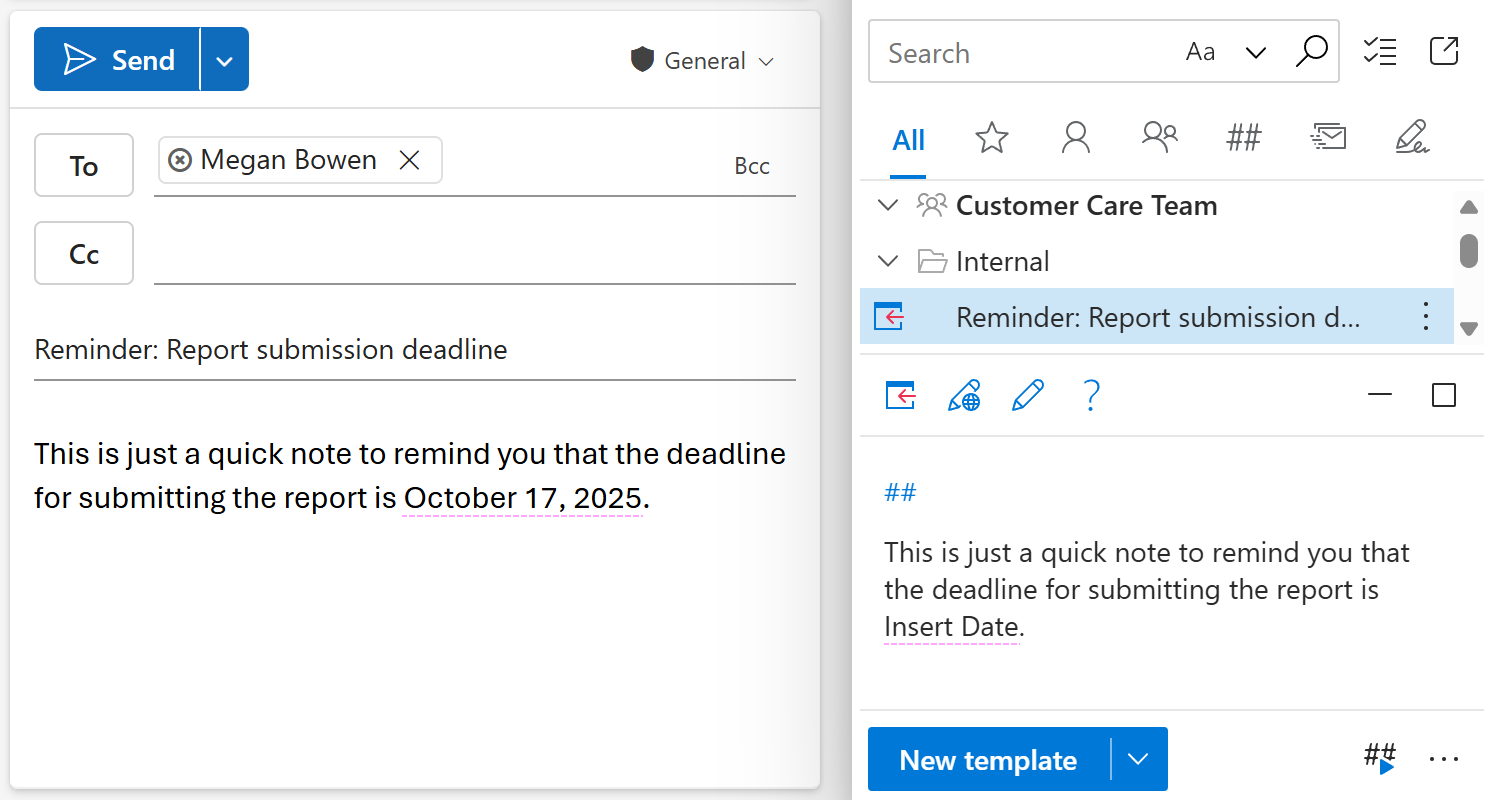
Automatically insert a date in an Outlook email

You can add an auto-fillable date field to your email template so that the current date is automatically inserted into an Outlook email whenever you use the template. You can also have the current date shifted forward or backward by the number of days, months, or years you specify.
In the email template you’re creating or editing, place the cursor where you need a date placeholder.
On the template editor toolbar, select the
 Insert macro button.
Select Insert date.
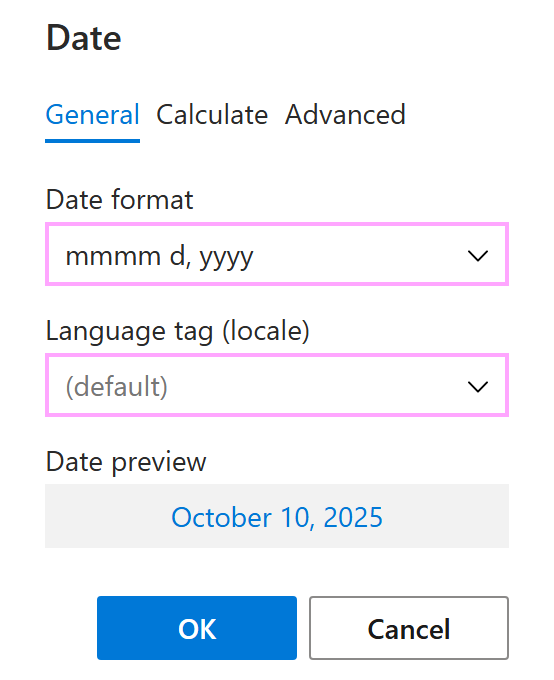
The Date dialog appears.
On the General tab, select a date format and a language.
On the Calculate tab, shift the current date forward or backward if needed.
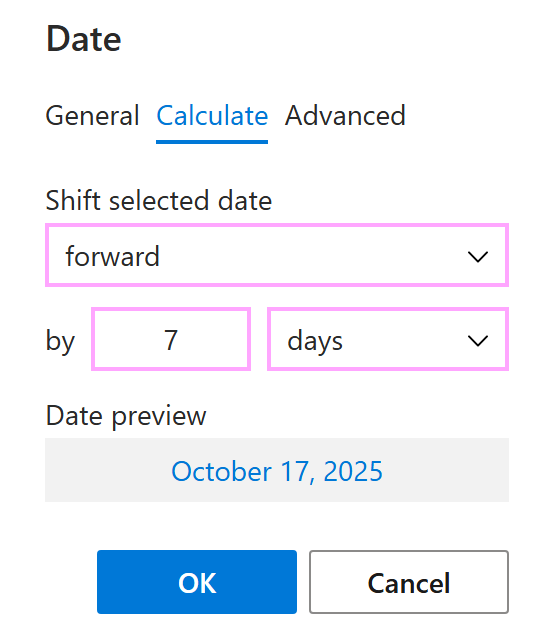
When finished, select OK.
Save your template.
Each time you use this message template in Outlook, the date (either the current date or the shifted date, depending on your settings) is automatically inserted.