
Shared Email Templates
Automatically insert the sender's name into an Outlook email
In your shared email template for Outlook, you can add a field that is automatically populated with the sender’s name when the template is used.
Start creating or editing your Outlook email template.
Place the cursor where the sender’s name should go.
On the template editor toolbar, select the
 Insert macro button.
Decide what you need: the sender’s first name, last name, or full name. Then select the corresponding option.
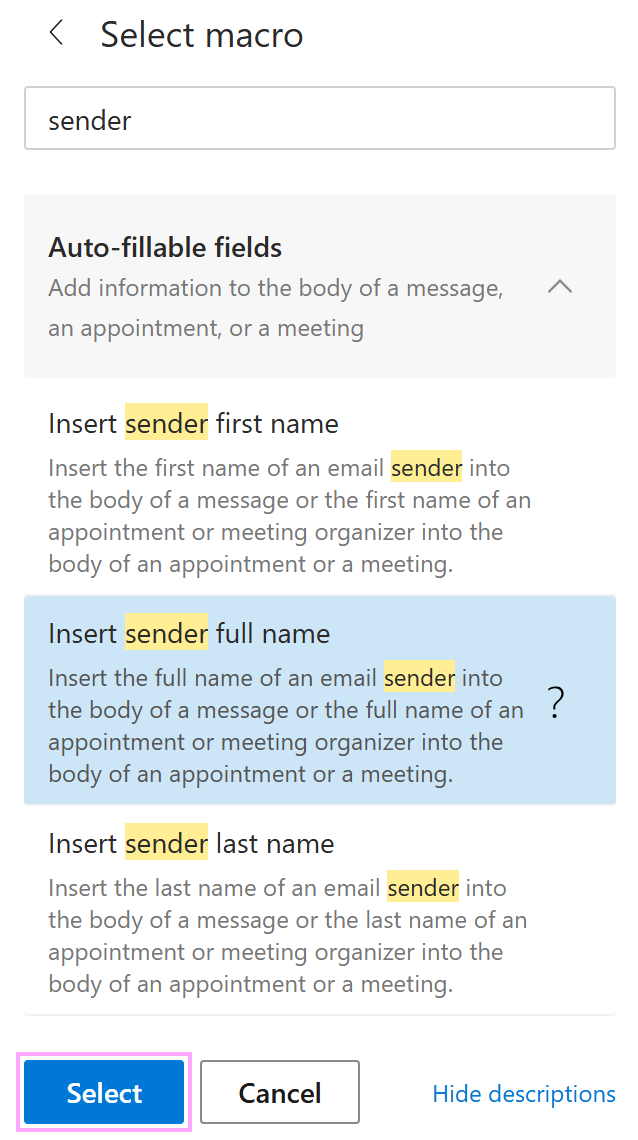
After the macro placeholder appears in your template, save the template.
Each time this message template is used in Outlook, the placeholder is automatically replaced with the sender’s name.