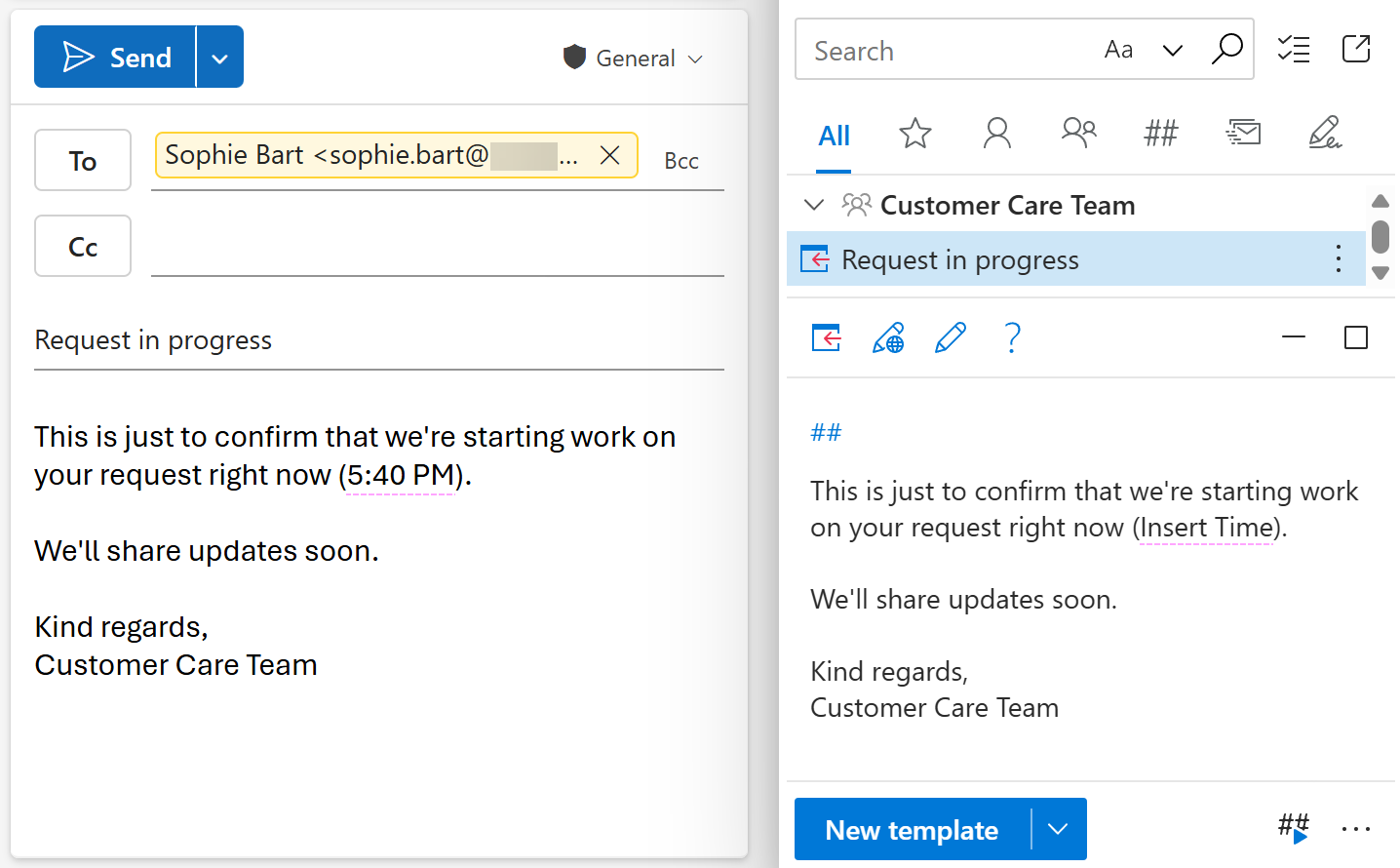
Automatically insert the current time into an Outlook email message

With an auto-fillable time field in your message templates, you can automatically insert the current time into your Outlook emails. You can also set the current time to be shifted forward or backward. Just follow the steps below.
In the Outlook email template you’re creating or editing, place the cursor where you want to have a time placeholder.
On the template editor toolbar, select the
 Insert macro button.
Select Insert time.
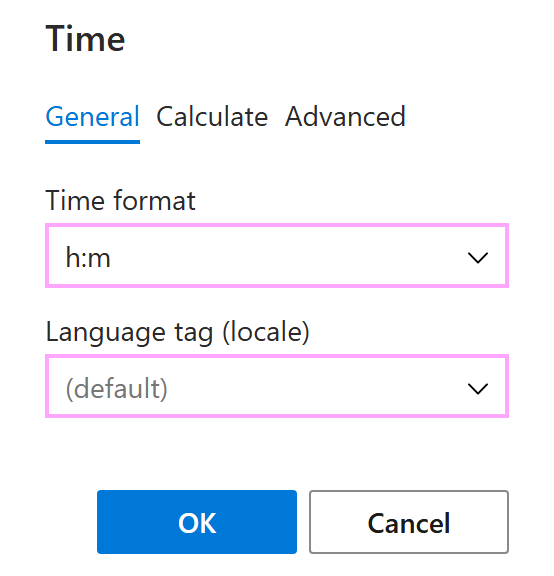
The Time dialog appears.
On the General tab, select a time format and a language.
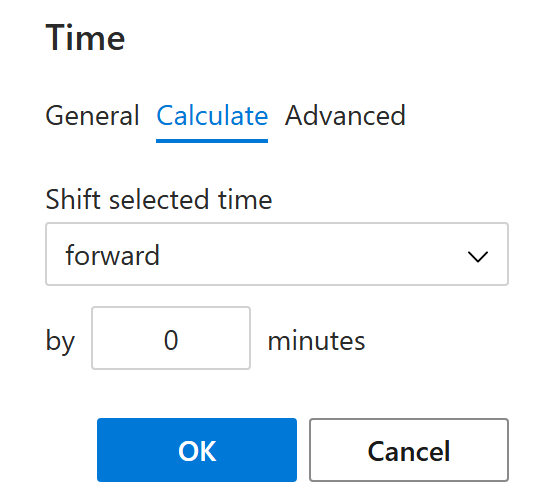
On the Calculate tab, you can shift the current time forward or backward by the number of minutes you specify.
When you’re finished, select OK.
Save your template.
Whenever you insert this template into an Outlook email, the time placeholder is automatically replaced with the current or shifted time, just as you’ve set it.