
Shared Email Templates
How to import .oft files into Shared Email Templates
If you have Outlook emails saved as .oft files and you want to add them to Shared Email Templates, follow these steps:
In the Shared Email Templates pane, right-click My templates or a team and select Import Outlook templates (.oft).
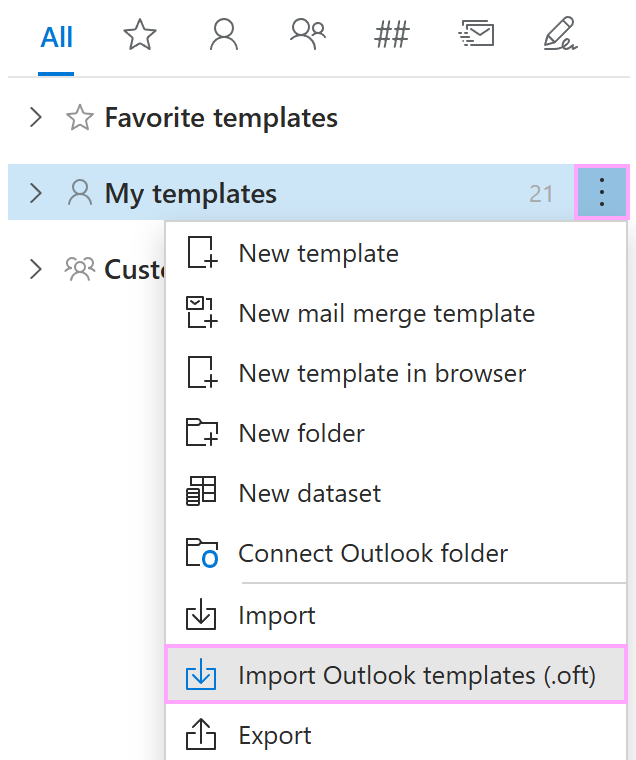
Browse for the .oft files you want to import, select them, and click Open.
Decide whether you want to keep the original formatting and images, use the subject line as the template name, include recipients, and include attachments. Then select or clear the corresponding checkboxes in the Create template dialog.
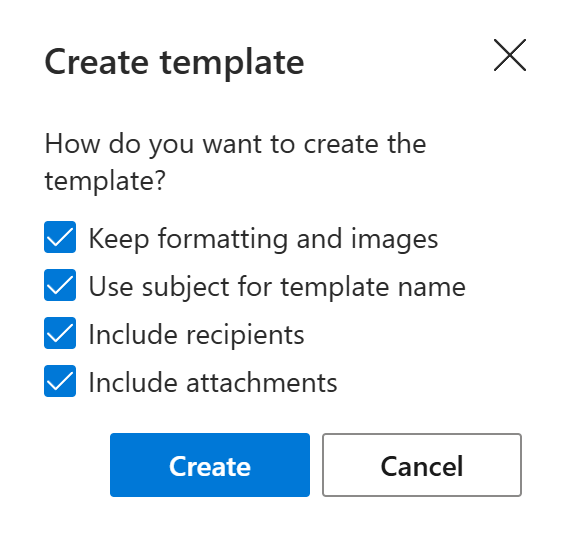
Select Create.