Shared Email Templates
How to create templates for appointments and meetings in Outlook
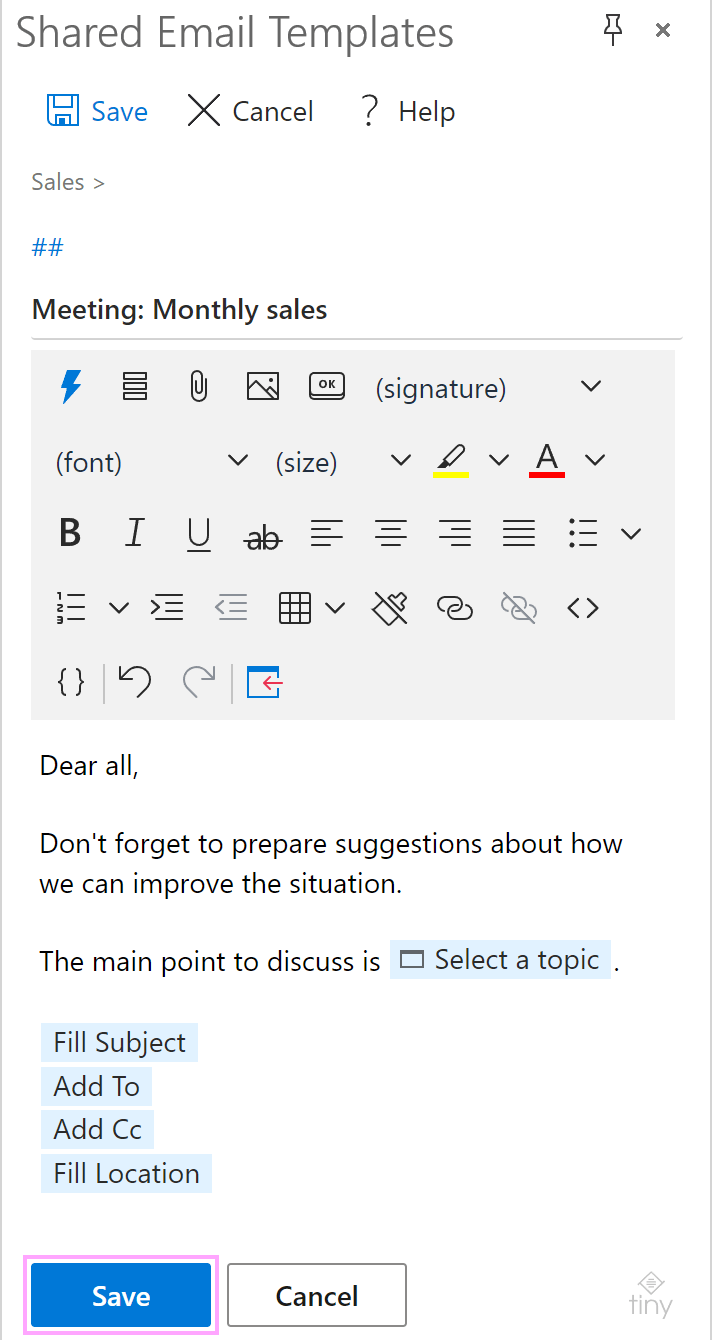
Here’s how to create a shared template for an appointment or meeting in Outlook:
Start creating a new template and fill it with the desired content.
If you want to automatically fill in fields in appointments and meeting requests, add macros to your template.
Helpful macros:
- Fill macro for such fields as Title (Fill Subject), Location (Fill Location), Required Attendees (Fill To), and Optional Attendees (Fill Cc). Please note that the text or email addresses that were added to a field previously will be deleted.
- Add macro for such fields as Title (Add to Subject), Location (Add to Location), Required Attendees (Add to To), and Optional Attendees (Add to Cc). Please note that the text or email addresses that were added to a field previously will be kept.
- Insert macro to automatically insert, for example, the content of the Title (Insert Subject) or Location (Insert Location) field.
When you’re done, save your template.