Shared Email Templates
How to close a company account
Export the templates.
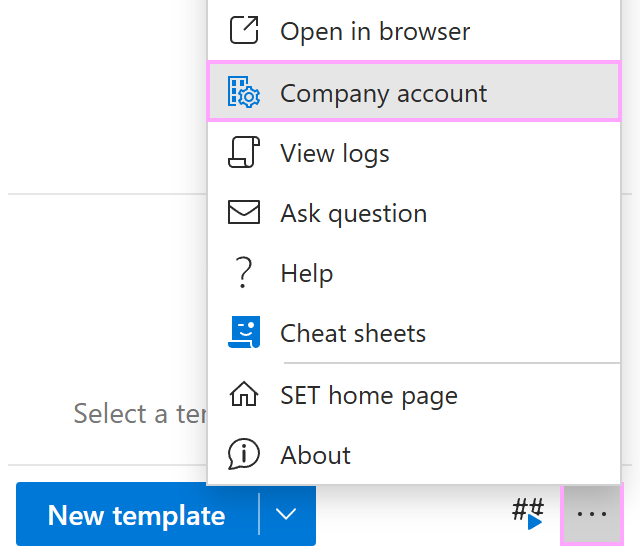
In Outlook, click the three dots in the lower-right corner of the Shared Email Templates pane and select Company account.
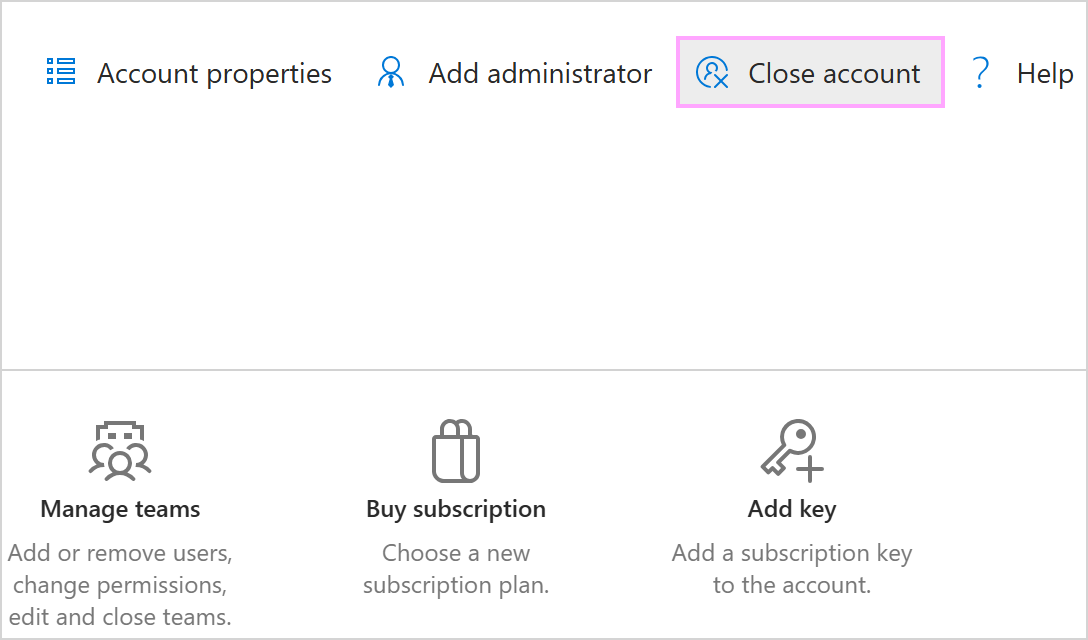
When the Shared Email Templates web app opens in the default browser, select Close account to proceed.
A warning dialog appears informing you that closing the account will permanently delete the account and its associated data.
If you sign in with Microsoft
Select Close account.
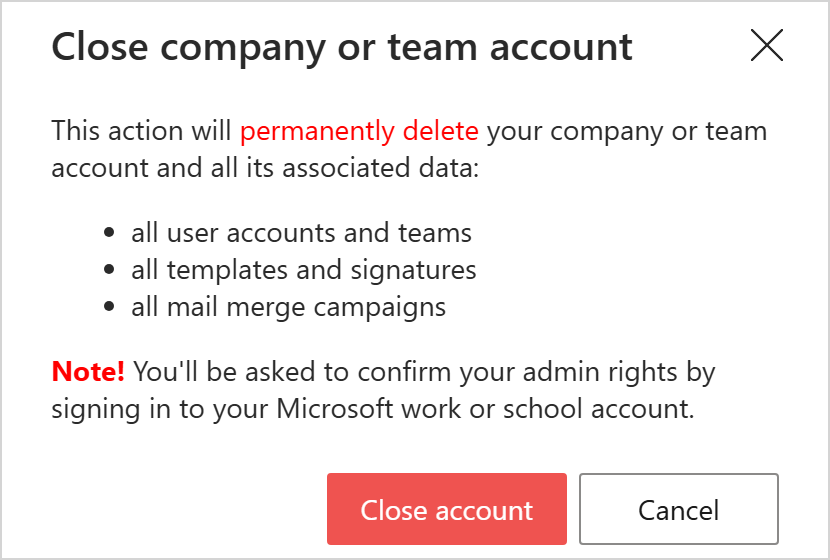
Select your Microsoft work or school account in the Microsoft dialog that will appear.
If you sign in with email
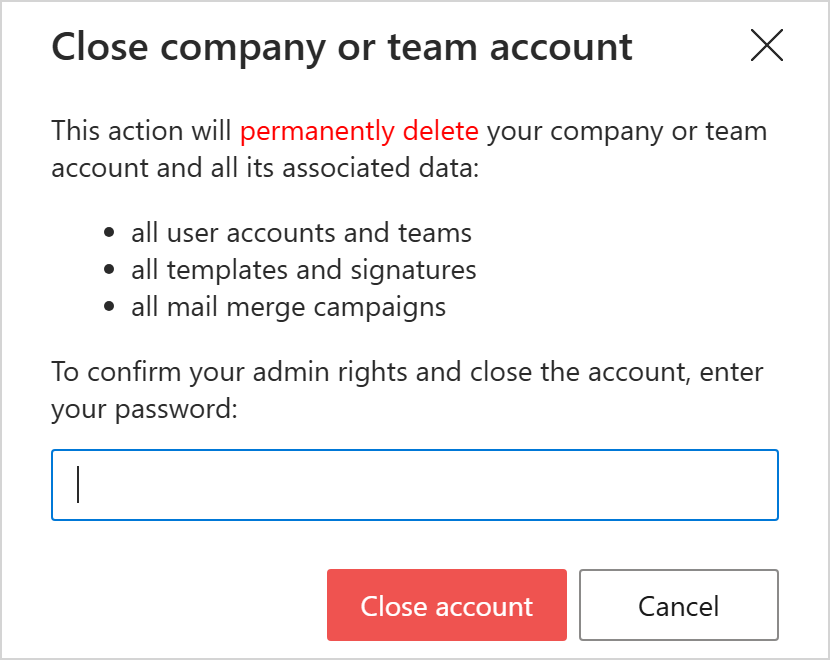
Enter your password.
Select Close account.