
How to manage a company account
If you’re a Shared Email Templates company account admin, you can:
- Create, edit, and delete user accounts.
- Assign and change user permissions.
- Create, encrypt, manage, and close teams.
- Buy and distribute Shared Email Templates subscriptions.
- Edit the company account.
- Close the company account.
Grab cheat sheet instead
To perform these actions, you need the Company account option, which is available only to admins. To access it, click the three dots in the lower-right corner of the Shared Email Templates pane in Outlook.
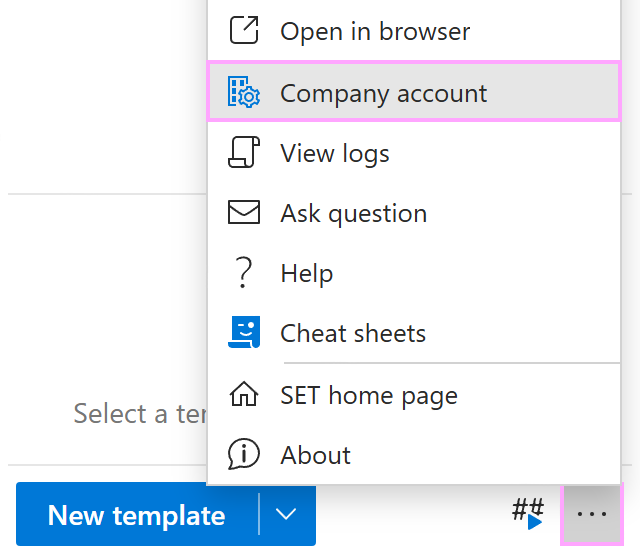
When you select Company account, the Shared Email Templates app opens in your default browser so you can see your company account details. Here’s an example of a company account:
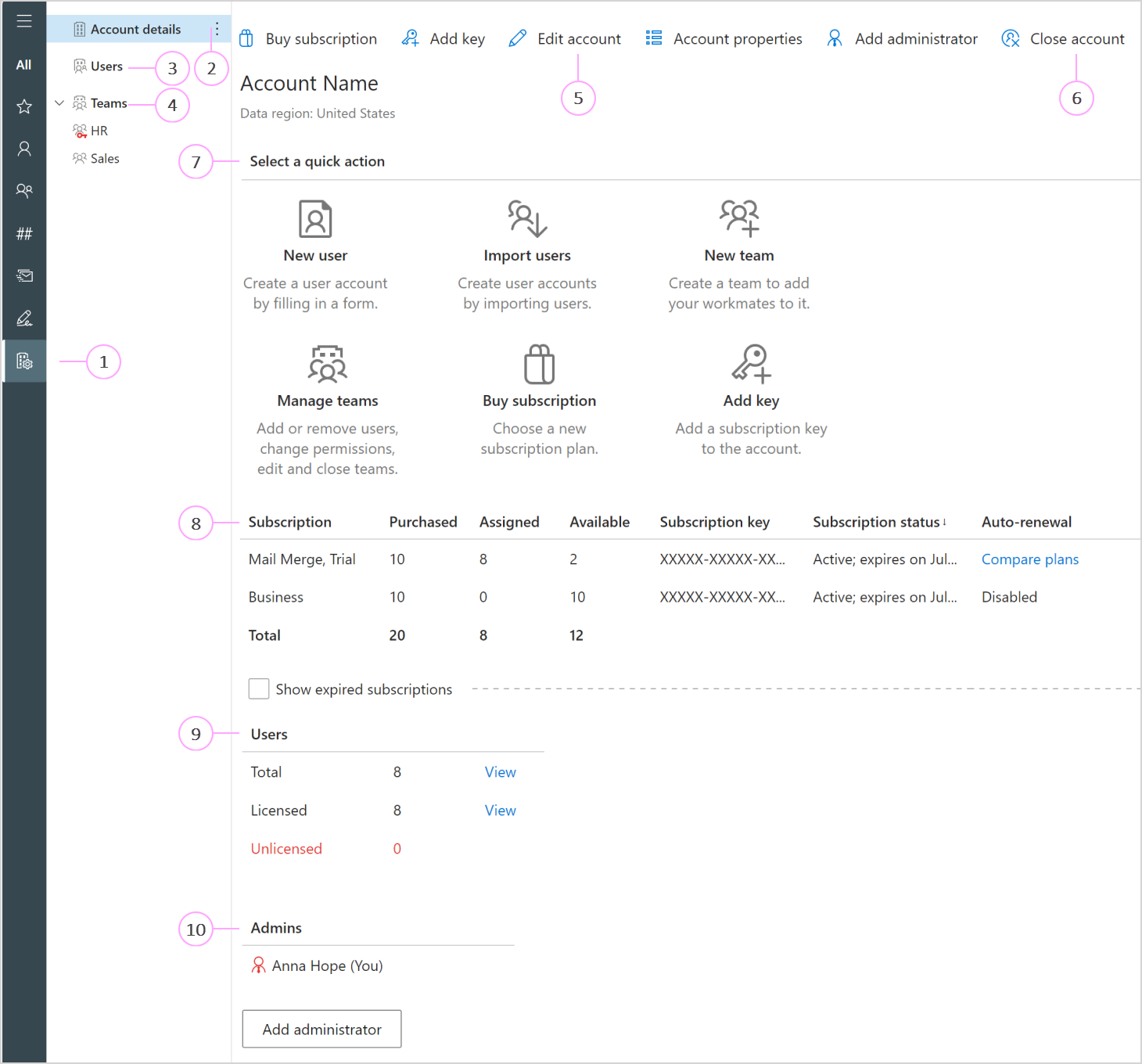
Company account
This is the Company account tab.Account details
In the Account details section, you can see the account name, data region, subscriptions, the total number of users, and a list of company account admins.Users
Here you can access the list of users.Teams
In this section, you can find a list of teams and detailed information about team members, including their roles (User or Editor) and subscriptions.Edit account
Select Edit account if you want to change your company account name or add a website link, email address, phone number, or a postal address.Close account
To permanently delete your company account, select Close account.Quick actions
Quick action buttons are available here so that you can create a new user account or a team, import users, manage teams, choose a subscription plan, and add a subscription key to your company account.Subscription
Under Subscription, you can see subscription plans, the number of assigned and available seats, and subscription keys. You can also check subscription status (active or expired) and renew subscriptions when needed.Users
Here you can see how many user accounts have been created so far. Licensed users’ subscriptions are active. Unlicensed users are those whose subscriptions have already expired and need to be renewed.Admins
Shared Email Templates users with administrative privileges are listed under Admins.
Additional technical contacts #
To assign an additional contact who should receive important technical and security notifications, go to Account details > Additional technical contacts, select Add contact, enter that person’s name and email address, and click OK.
A verification email from the Ablebits Support Team will automatically be sent to the specified email address, asking the recipient to confirm their contact role by clicking Confirm.
In this section #
Manage users in your Shared Email Templates company account
Learn how to grant admin rights, disable features, edit user profiles, delete user accounts, and more.Manage teams
See how to edit teams and their properties, remove team members, and close teams.Manage subscriptions
Learn how to buy and renew subscriptions, assign subscription keys, and change the number of seats.Add company account properties
Find out how to add a property to your company account.How to close your Shared Email Templates company account
Learn how to permanently delete your company account.