
Shared Email Templates
How to change the quantity of seats for a bought subscription
In the Shared Email Templates pane in Outlook, open the More menu, and then select Company account.

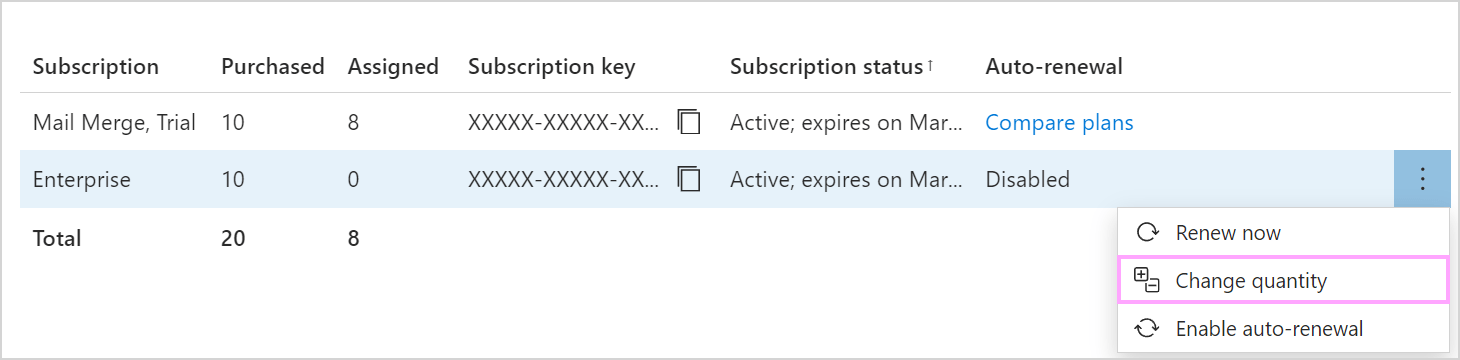
The Shared Email Templates app will open in your browser. In the Account details section, right-click a purchased subscription. Then select Change quantity.
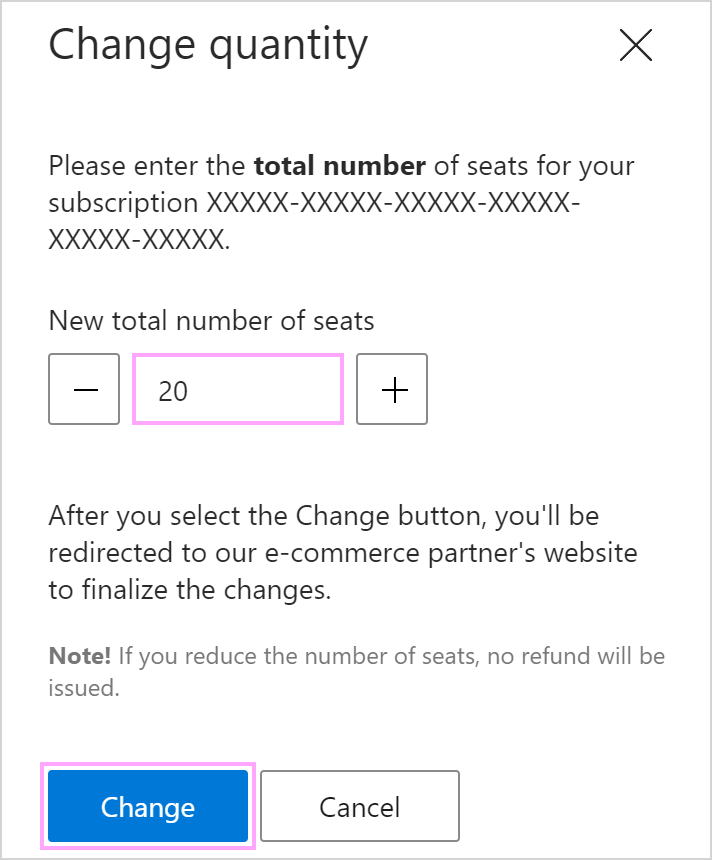
On the sidebar that will appear, specify the total number of seats you need, and then select Change.
Our e-commerce service provider’s page will open in your browser. Enter the delivery email address associated with the original purchase and select Continue to checkout.
Place your order.