Add and assign a subscription key
In this article
Add a subscription key to your company account #
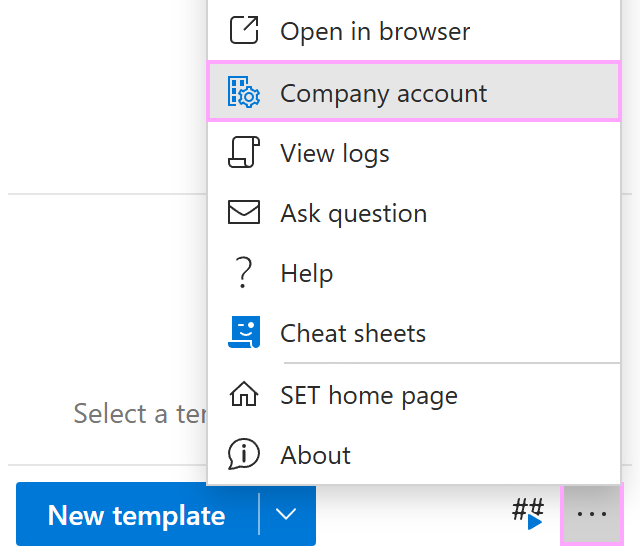
At the bottom of the Shared Email Templates pane in Outlook, click the three dots to open the More menu, and then select Company account.
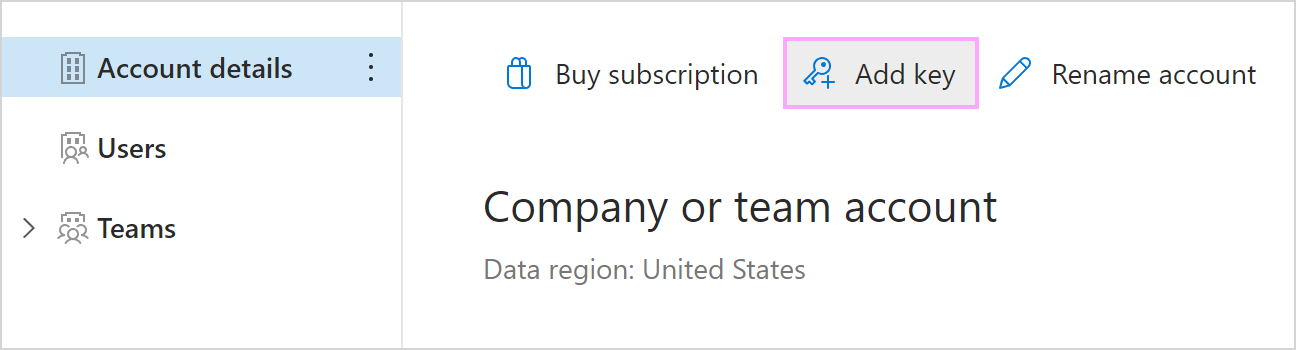
In the Shared Email Templates app that will open in your default browser, select Add key.
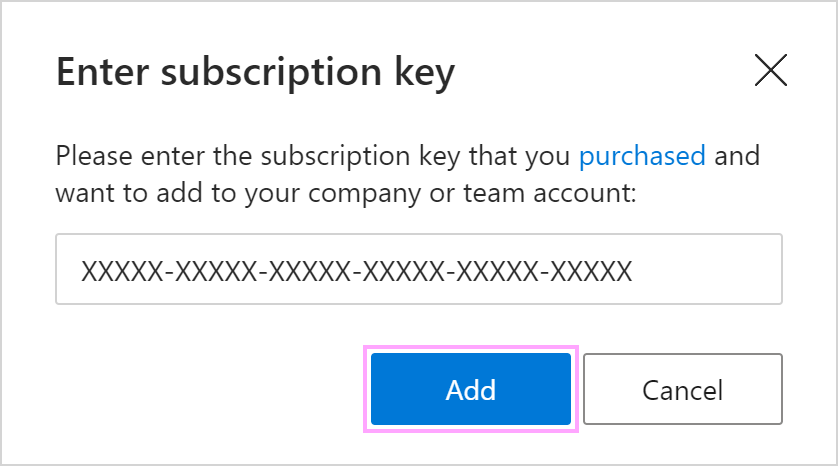
Enter your subscription key in the dialog that will appear, and then select Add.
Assign a subscription key to users #
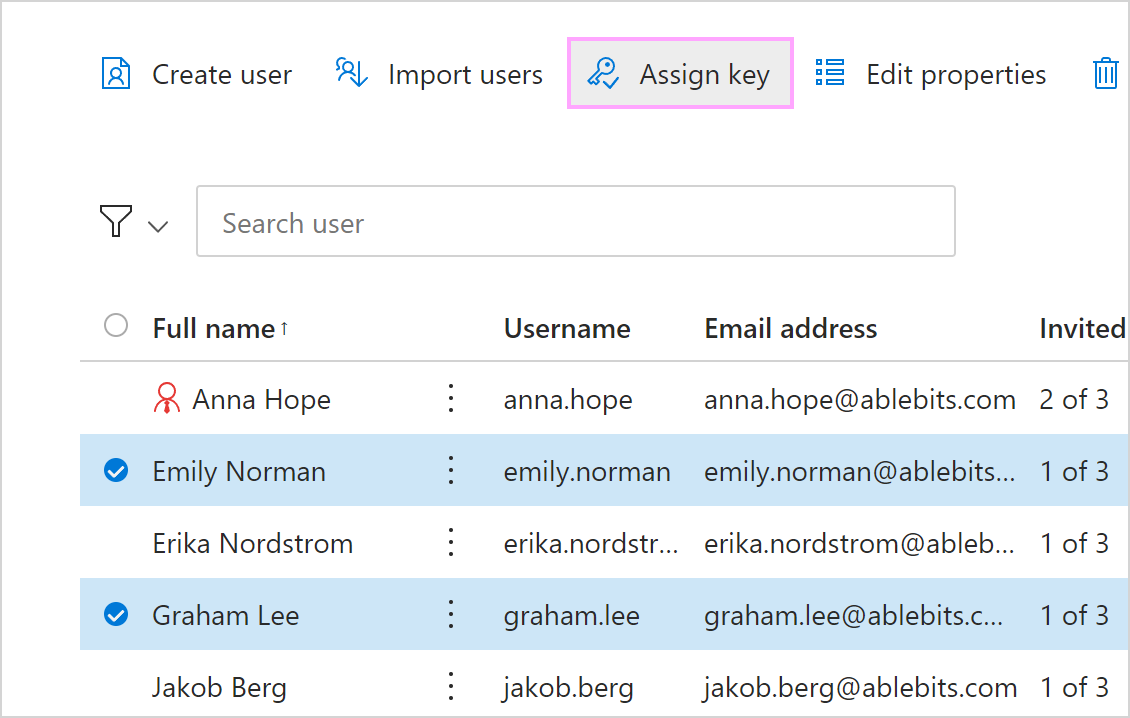
Go to Company account > Users and select the users you want to assign a subscription key to. Then select Assign key.
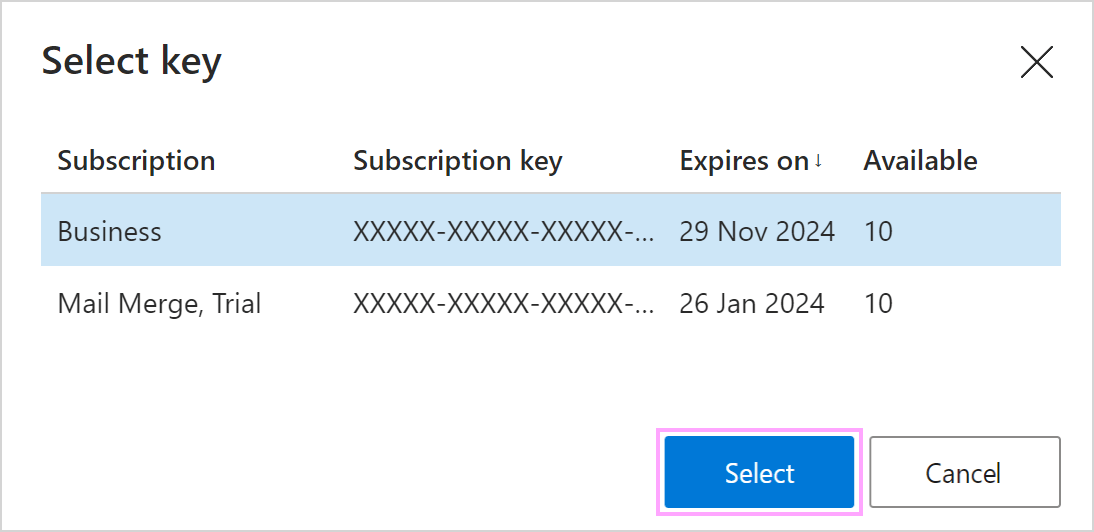
In the Select key dialog, select the key you want to assign.
Assign a subscription key to a large number of users #
Go to Company account > Users.
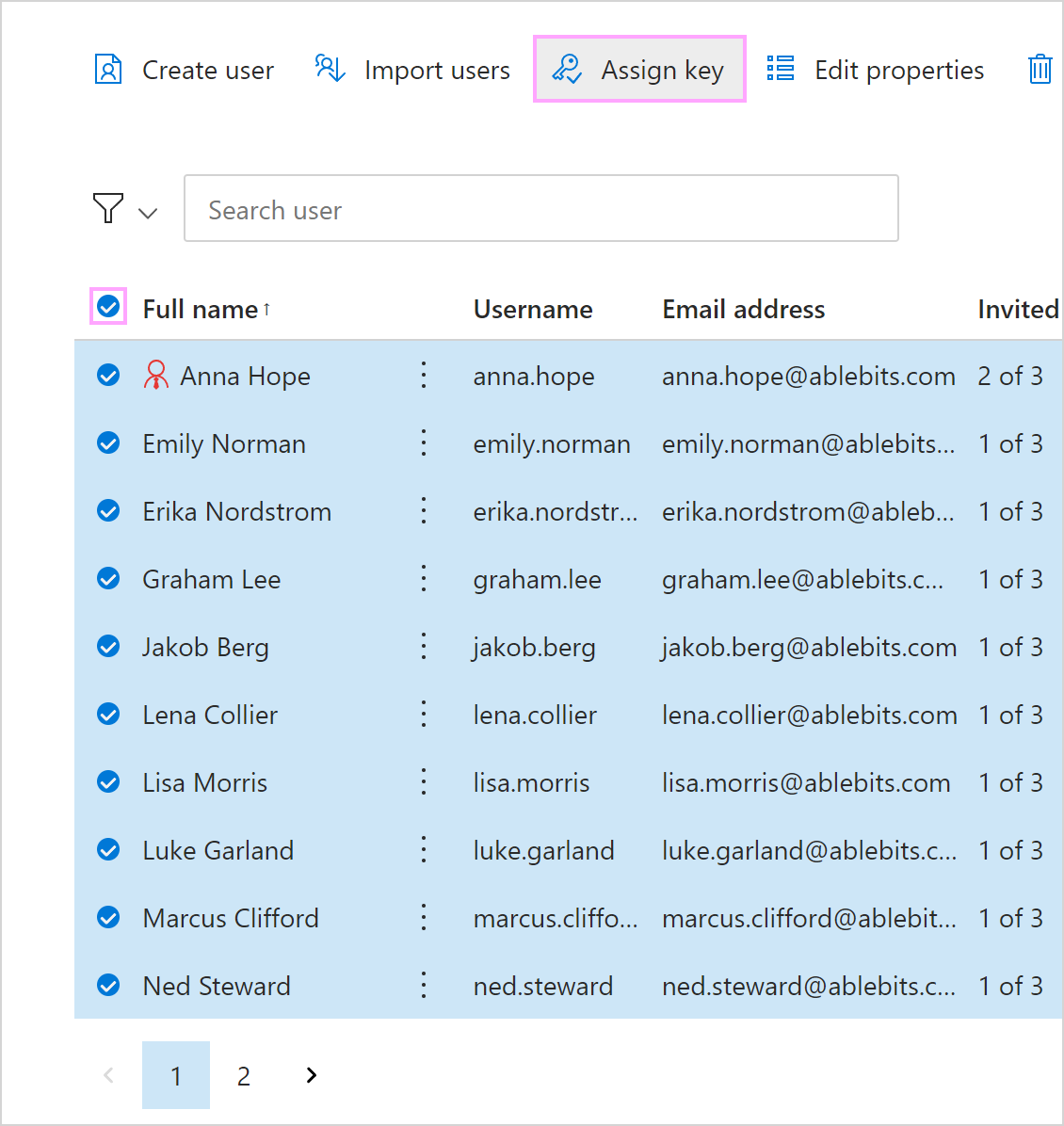
Select all users on the page, and then select Assign key.
In the Select key dialog, select the key you want to assign.
Go to the next page and repeat the above steps.
Unassign a subscription key #
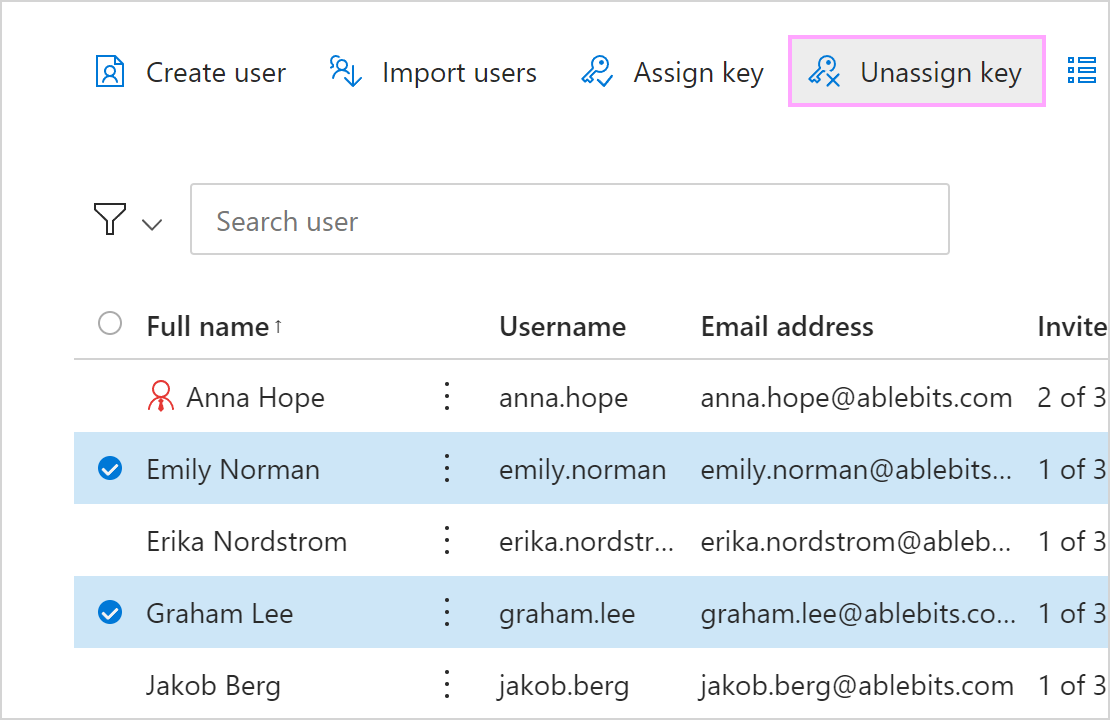
Go to Company account > Users, select users, and then select Unassign key.