
Shared Email Templates
How to locate your team password
If you’re part of an encrypted team and have already got access to its templates, you can find the team password in the Shared Email Templates pane in Outlook.
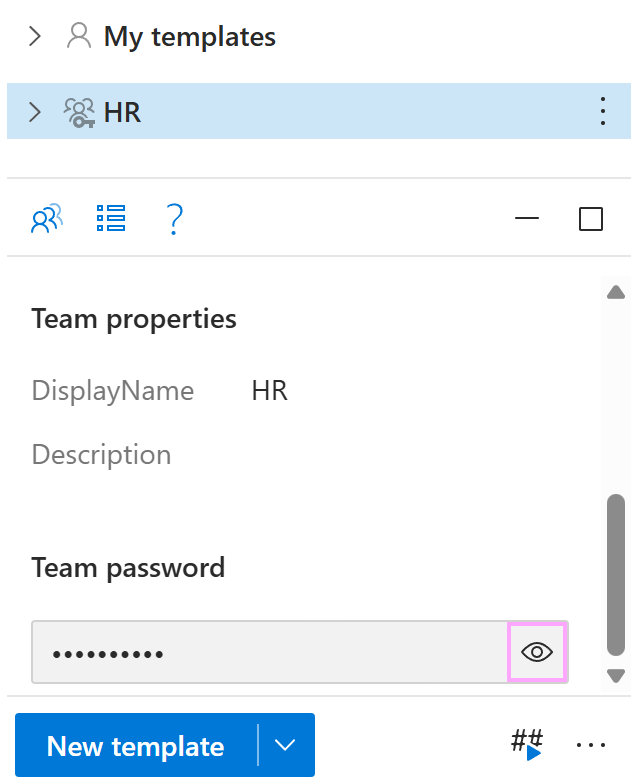
Select an encrypted team and scroll down to the bottom of the team preview.
In the Team password box, click the eye icon.
The View team password dialog appears. For security reasons, you’re prompted to verify your identity:
- If your account was created by signing up with Microsoft, sign in to your Microsoft work or school account.
- If your account was created by signing up with email, enter your Shared Email Templates account password.