Team properties
In this article
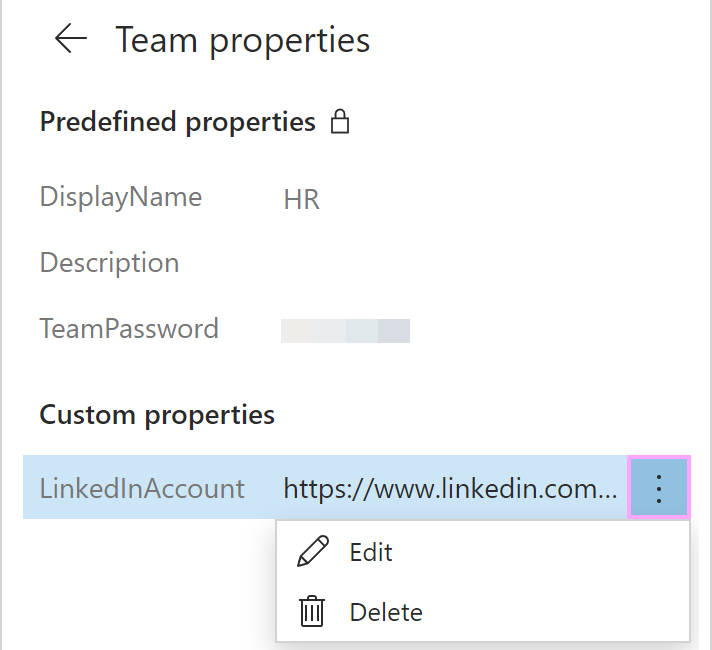
Predefined team properties #
A team can have the following predefined properties:
- DisplayName
- Description
- TeamPassword
Custom team properties #
Creating a custom team property: Steps for admins #
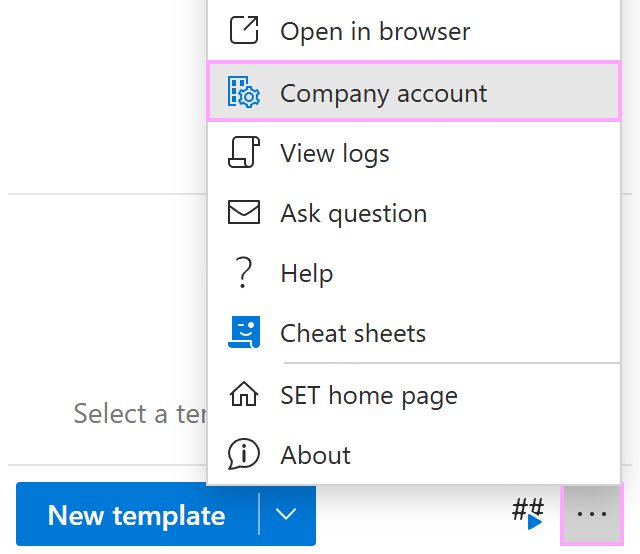
In the Shared Email Templates pane in Outlook, open the More menu and select Company account.
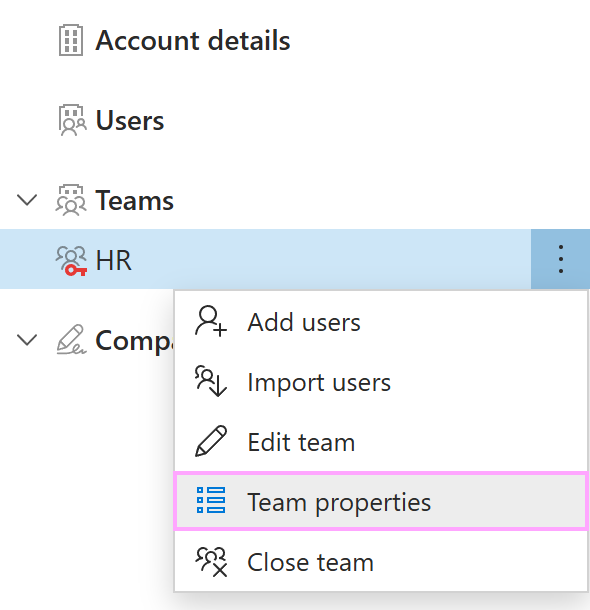
In the Shared Email Templates app that will open in your default browser, right-click a team, and then select Team properties.
A sidebar with team properties will appear. Select Add property.
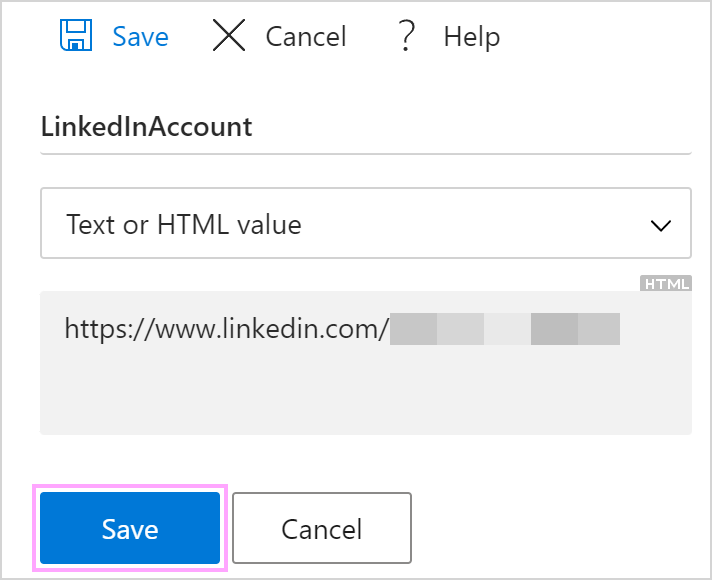
Enter the name and the value of the new property.
If you want to use a picture as a team property, select Picture, open the More menu, and then bind the property to a picture you have on OneDrive or SharePoint.
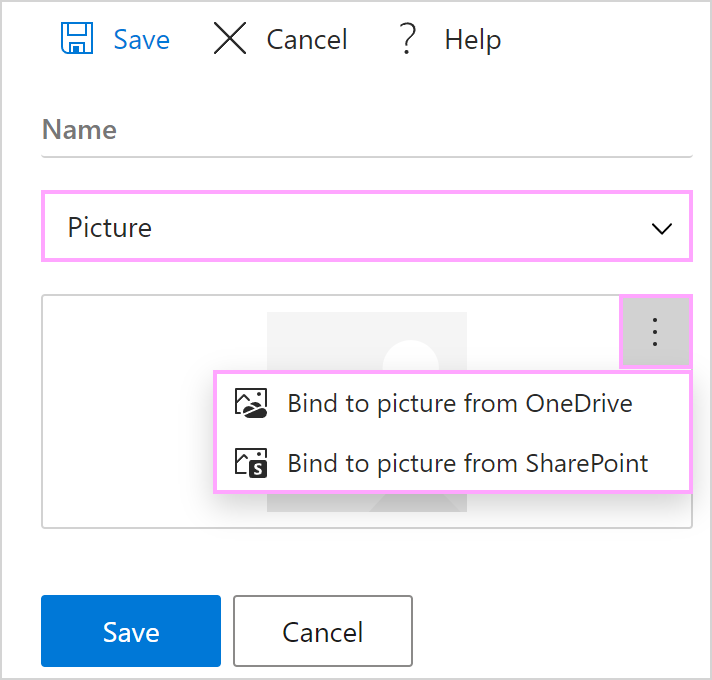
When you’re done, select Save.
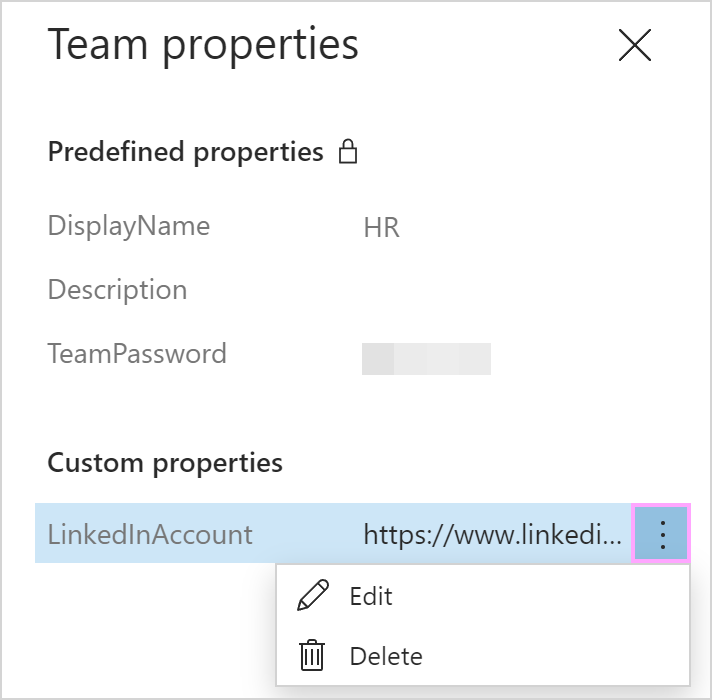
The new team property is in the Custom properties section now. You can edit or delete the property by selecting the corresponding option on the ellipsis menu.
Creating a custom team property: Steps for users with Editor permissions #
In the add-in pane in Outlook, right-click a team and select Team properties.
Select Add property.
Enter the name and the value of the new property.
If you need a picture as a team property, select Picture, open the More menu, and then bind the property to a picture you have on OneDrive or SharePoint.
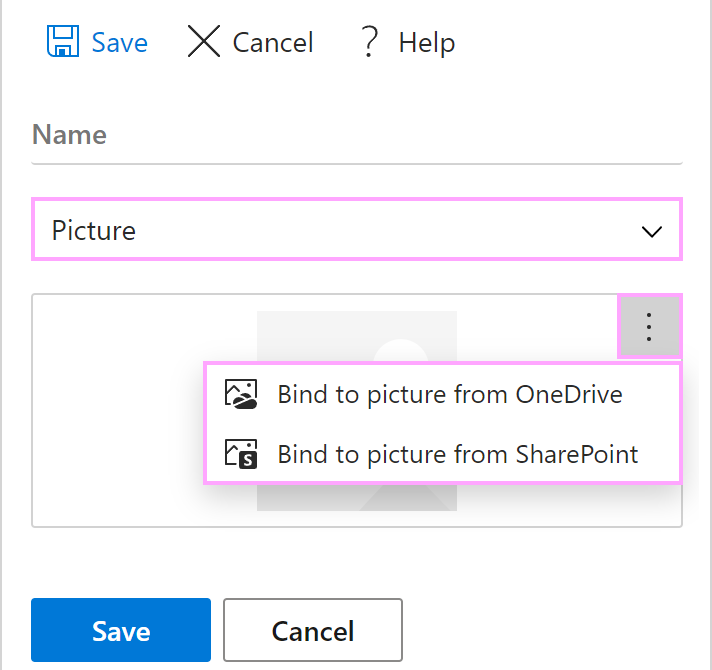
Save the property.
The new team property will appear in the Custom properties section. If you want to edit or delete the property, select the corresponding option on the ellipsis menu.