Change the sign-in method to Sign-in with Microsoft
If you’re an admin of a Shared Email Templates company account created by signing up with email, you can change the sign-in method so that you and your users can sign in with Microsoft work or school account credentials.
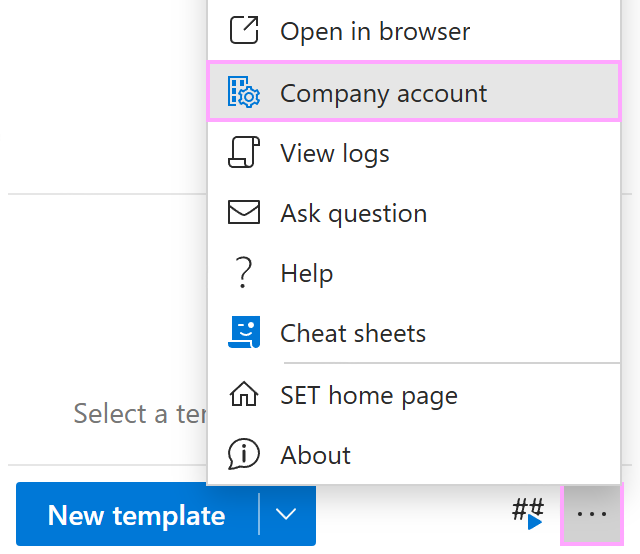
In Outlook, click the three dots in the lower-right corner of the Shared Email Templates pane to open the More (…) menu. Then select Company account.
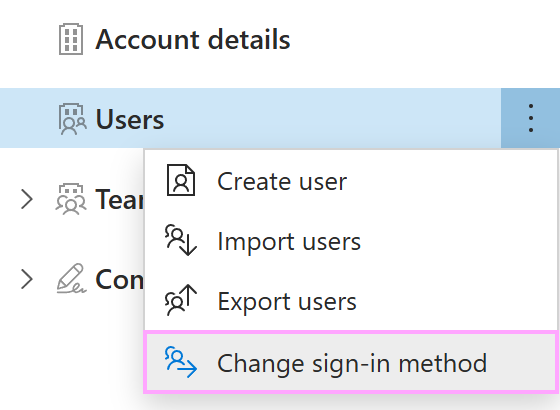
The Shared Email Templates app will open in your default browser. Right-click Users, and then select Change sign-in method.
Using the Microsoft dialog that will appear, select your Microsoft work or school account.
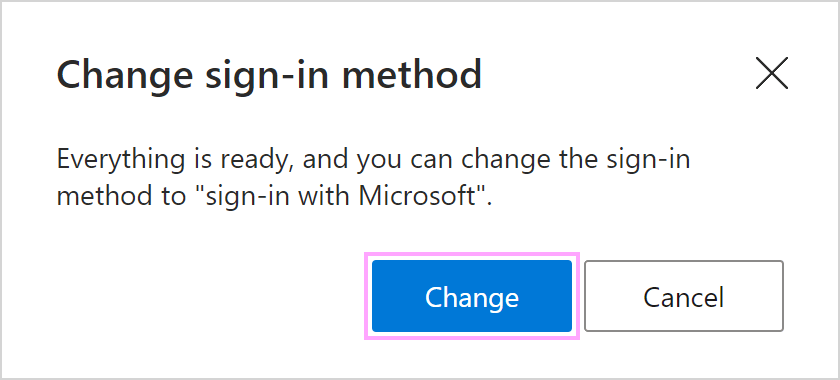
If all the users of your Shared Email Templates company account are found in your Azure Active Directory, you’ll see a dialog informing you that you can change the sign-in method. Select Change.
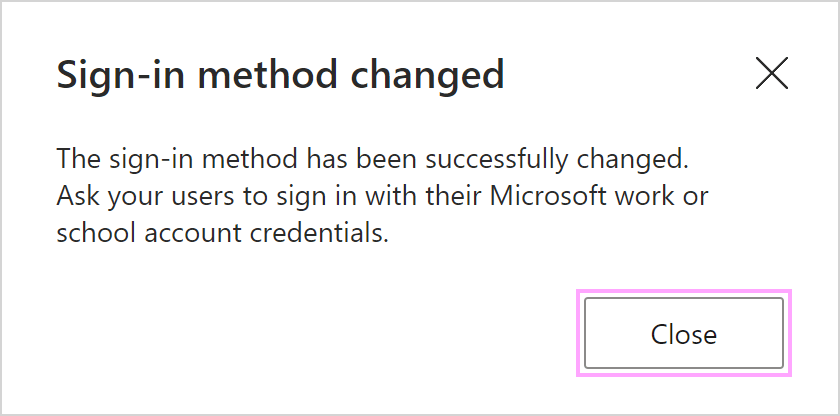
A dialog confirming that the sign-in method has been changed will appear. Select Close.