Shared Email Templates
Disable file attachments and image insertion
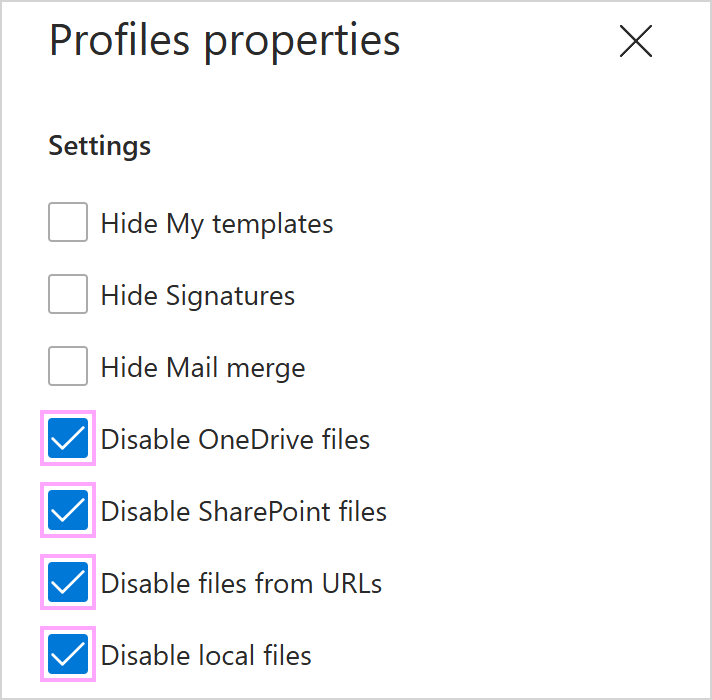
Being a Shared Email Templates company account admin, you can prevent users from attaching files and inserting pictures from OneDrive, SharePoint, local storage, and URLs. This is how:
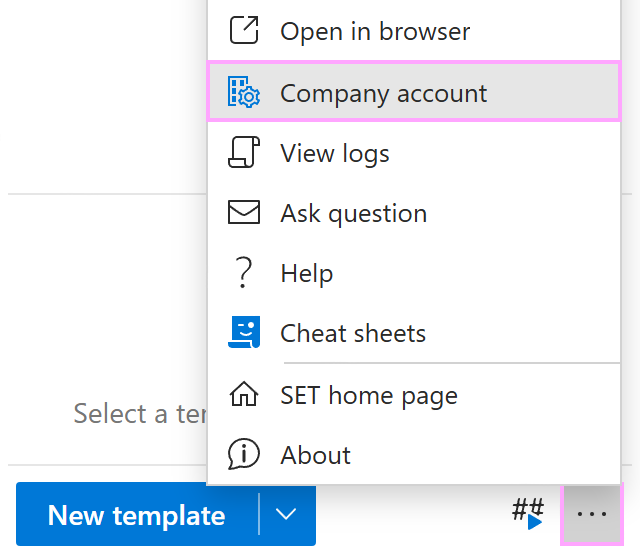
From the More (…) menu in the Shared Email Templates pane in Outlook, select Company account.
When the Shared Email Templates app opens in your default browser, go to the Users section.
Select the users who you want to prevent from attaching files and inserting pictures. Then select Edit properties.

Select the checkboxes for the options you want to disable: OneDrive files, SharePoint files, files from URLs, or local files.