Shared Email Templates
Edit user profiles
To make changes to a user profile, follow these steps:
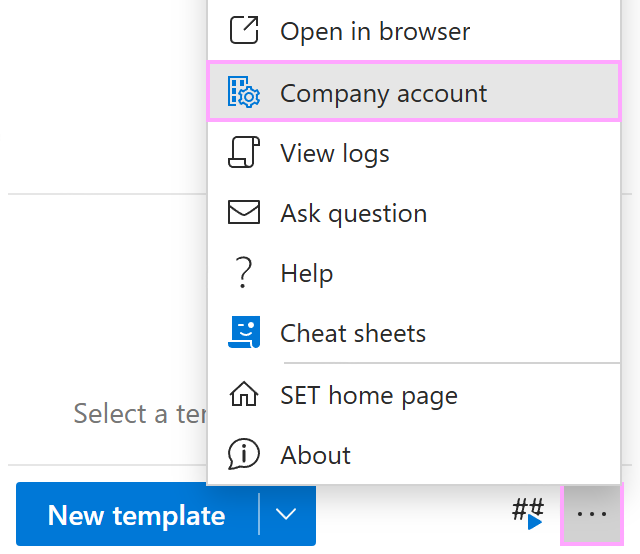
In the Shared Email Templates pane in Outlook, click the three dots in the lower-right corner, and then select Company account.
In the Shared Email Templates app, go to Users.
In the user list, select the user whose details you want to update.
The user profile will appear on a sidebar so that you can:
- Edit the user’s first and last name.
- Assign a new subscription key.
- Create, edit, or delete custom profile properties.
- Add the user to a team or change their role.
- Remove the user from a team.
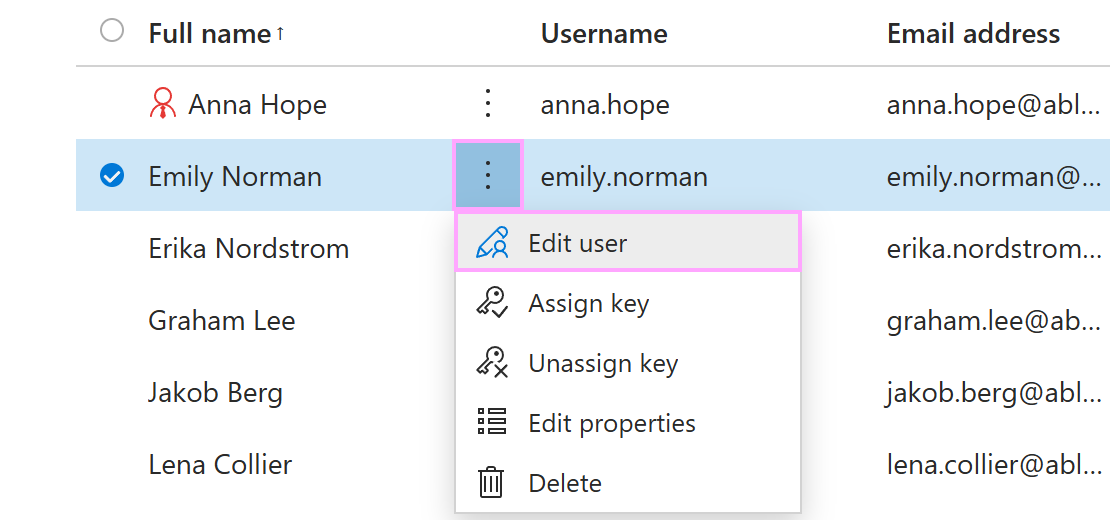
You can also open a user profile from the More menu in the user list. To do this, click the three dots next to the user’s full name, and then select Edit user.