
How to manage users
In this article
If you’re a company account admin, you can access the list of users by opening the More (…) menu in the Shared Email Templates pane in Outlook and selecting Company account.
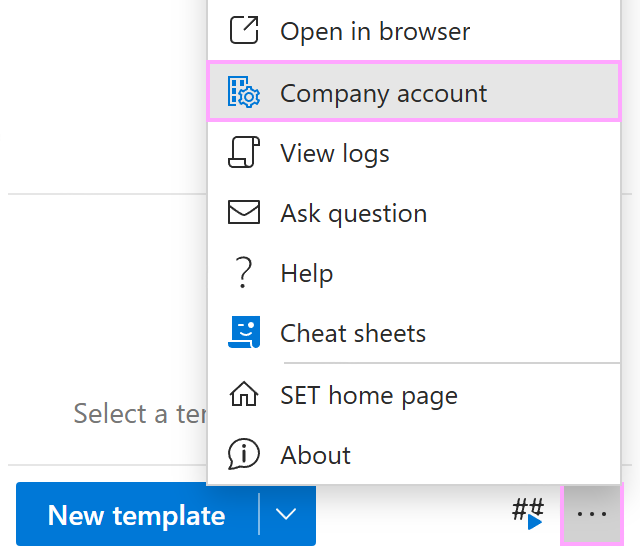
When the Shared Email Templates app opens in your default browser, go to the Users section. You’ll see a table similar to the one shown below.
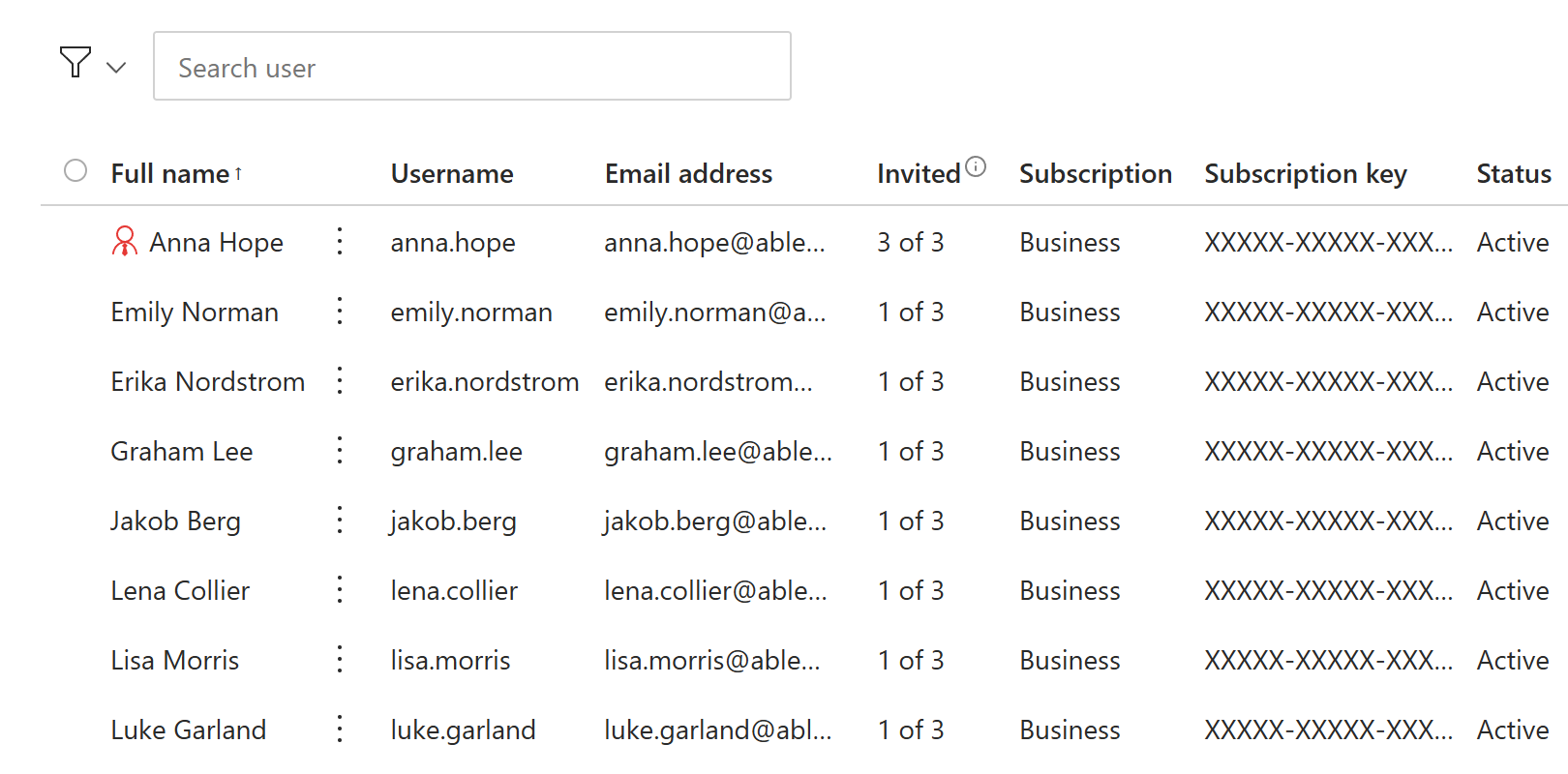
The table includes the following columns:
Full name. The leftmost column contains users’ full names.
Username. If the company account was created by signing up with email, the table includes a column with usernames.
Email address. Users’ email addresses are listed here.
Invited to teams. If a user is a member of a team, it will be indicated in this column. For example, “1 of 3” means that the user has joined one of the three teams allowed by their subscription plan.
Subscription. This column displays each user’s subscription plan.
Subscription key. In this column, you can see the subscription keys assigned to users.
Subscription status. This column shows whether a user’s subscription is active or expired.
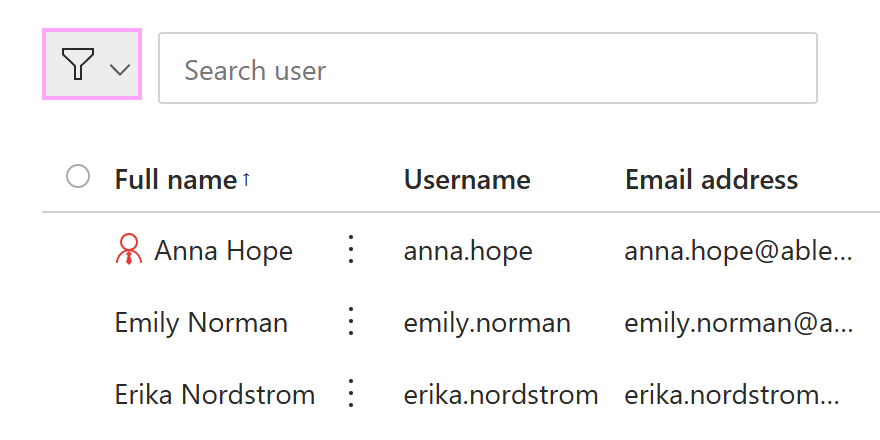
You can filter the user list by subscription status (Active or Expired) and subscription key. To start filtering, click the icon shown below.
Provide a user with admin rights #
If you’re an admin of a Shared Email Templates company account, you can grant admin rights to any user.

From the More (…) menu in the lower-right corner of the Shared Email Templates pane, select Company account.
In the Shared Email Templates app, go to Account details > Admins and select Add administrator.
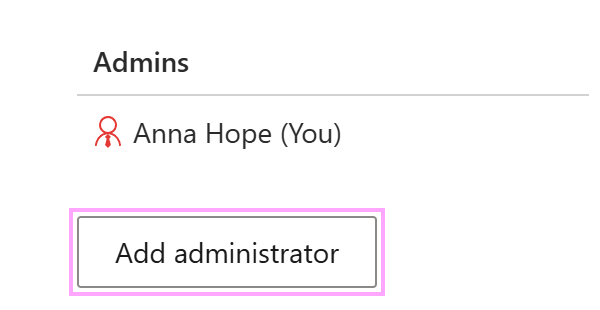
Select the users you want to grant admin rights to, and then select Add.
Delete user accounts #
If you need to delete a user account, follow the steps below.
In Outlook, open the Shared Email Templates pane. Then go to the More (…) menu and select Company account.
In the Shared Email Templates app in your browser, go to the Users section.
In the user list, select the three dots next to the user’s full name and select Delete.
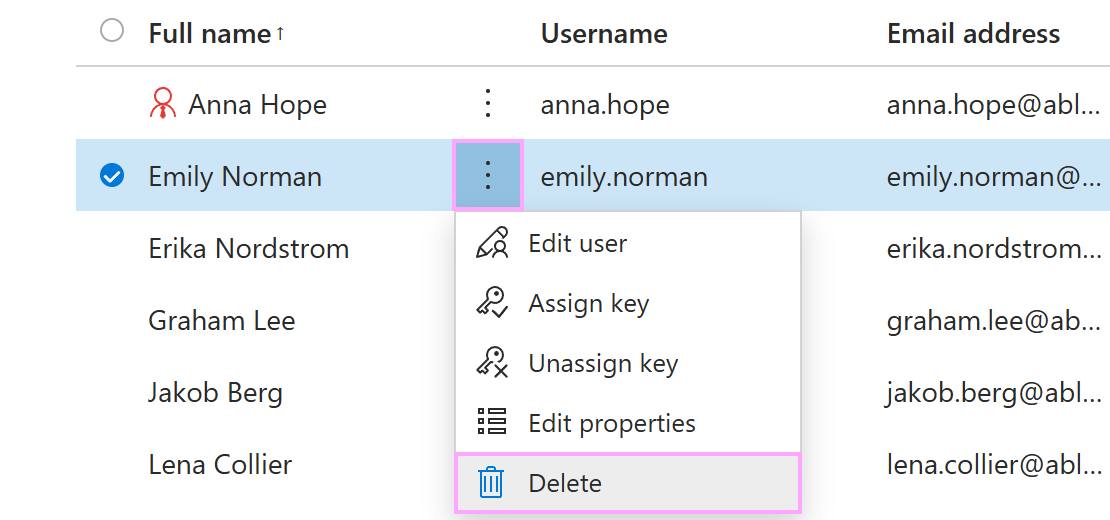
In the Delete dialog, confirm the deletion by selecting Delete.
Restrict access to certain features #
As a company account admin, you can make My templates, Signatures, or Mail merge unavailable to all or selected users. You can also prevent users from attaching files and inserting pictures from OneDrive, SharePoint, local storage, or URLs. Follow these steps:
In the Shared Email Templates pane in Outlook, open the More (…) menu and select Company account.
When the Shared Email Templates app opens in your default browser, go to the Users section.
Select users whose access you want to restrict, and then select Edit properties.
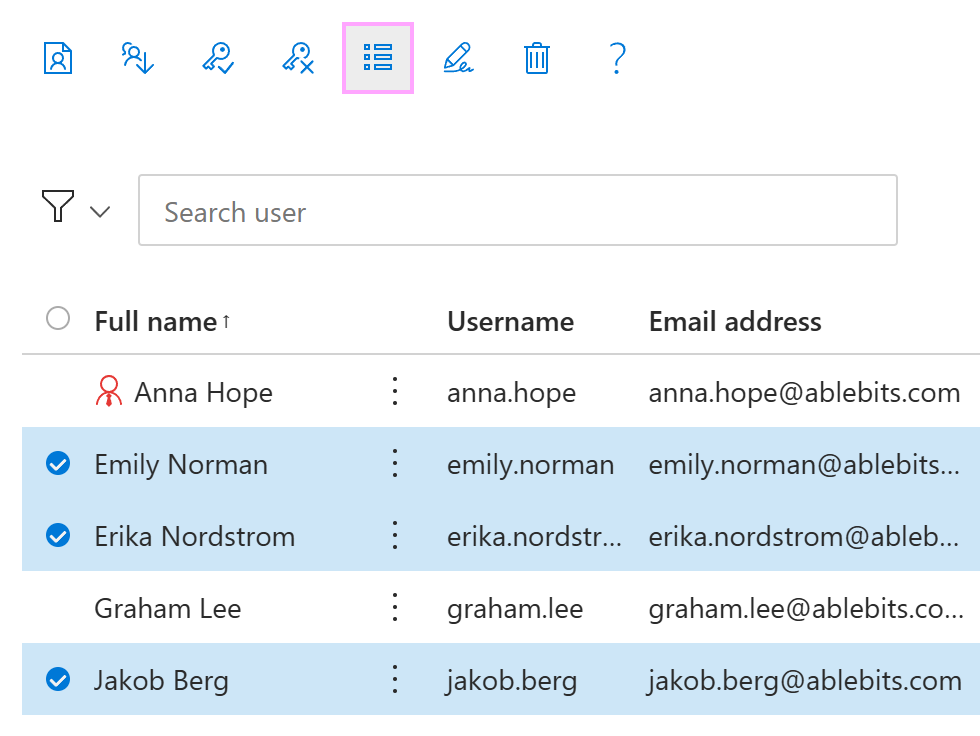
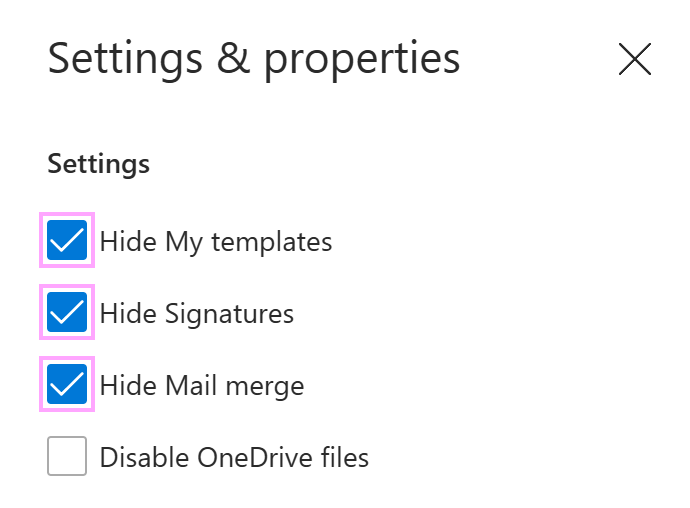
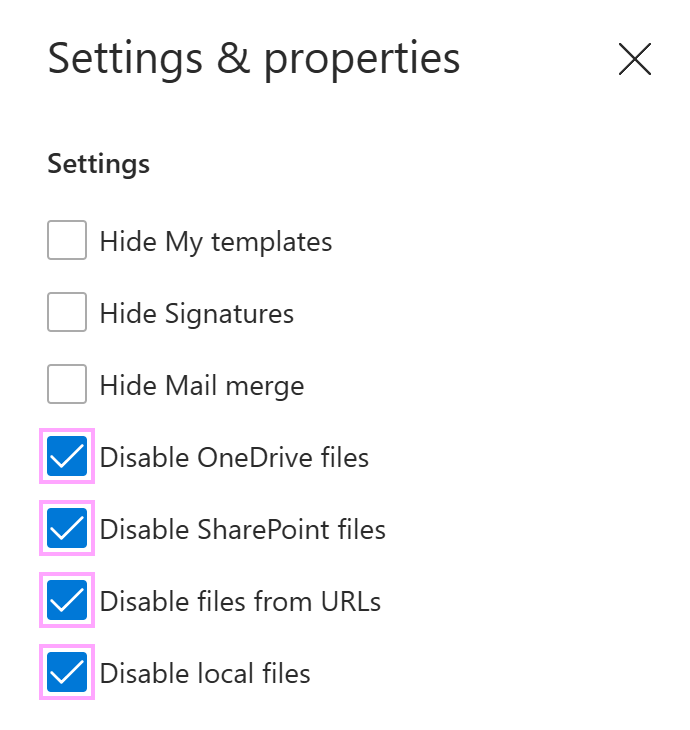
Select the checkboxes for the features you want to restrict.
- You can hide My templates, Signatures, and Mail merge.
- You can disable attaching files and inserting images from OneDrive, SharePoint, local storage, and URLs.
More in this section #
Export users
Learn how to export the user list as a CSV file.Edit user profiles
Find out how to update user profile details.Switch to Sign-in with Microsoft
Find out how to change sign-in with email to sign-in with Microsoft.