
Insert-if sections: Add, change, and remove conditions
In this article
In Shared Email Templates for Outlook, you can add a condition to a paragraph, list, list item, table, or table row. You can also add a condition to multiple sections at once or to selected text within a paragraph, list item, or table cell. A template part that has a condition applied to it becomes an Insert-if section. An Insert-if section is inserted into an Outlook email message along with the rest of the template only if the condition is met.
Read less!Grab cheat sheet instead

How to add a condition #
You can base a condition on text in an email message field or on the result returned by the WhatToEnter macro.
Adding a condition based on text in a message field #
Start creating or editing your Outlook email template.
Right-click the template part you want to add a condition to (a paragraph, list, list item, table, or table row), and then select an option to add a condition.
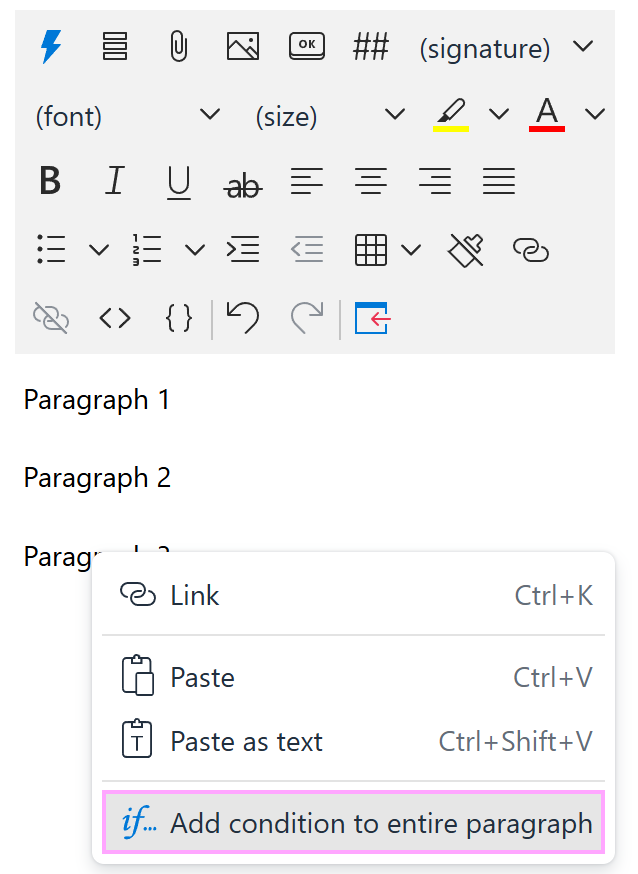
Define the condition:
- Under Find in, keep Message fields selected.
- Choose the fields to check for the condition (
body,from,to,cc,bcc,subject,location,recipient_first_name,recipient_full_name,recipient_last_name,sender_first_name,sender_full_name,sender_last_name). - Select the condition (
contains,doesn't contain,contains any of,contains none of,is equal to,is equal to any of,is equal to none of,is empty,is not empty,matches regex, ordoesn't match regex). - Enter the text or regex to look for.
When you’re ready, select OK.
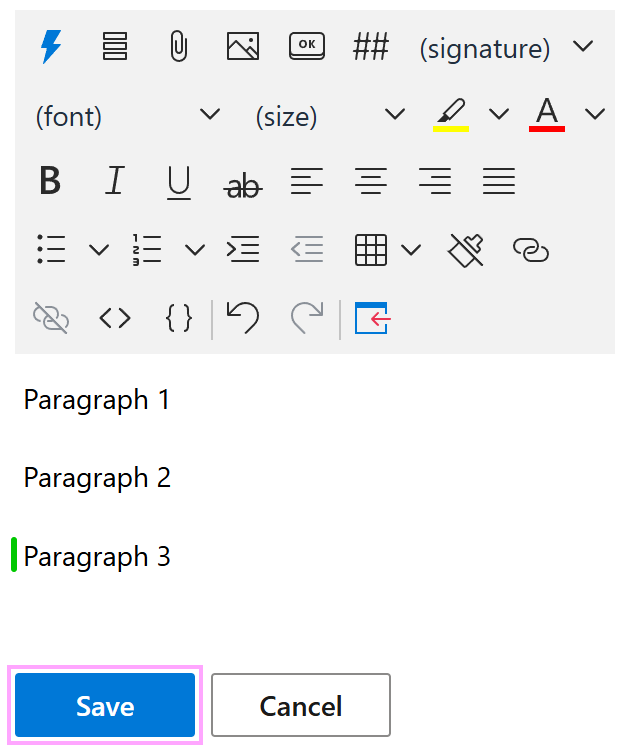
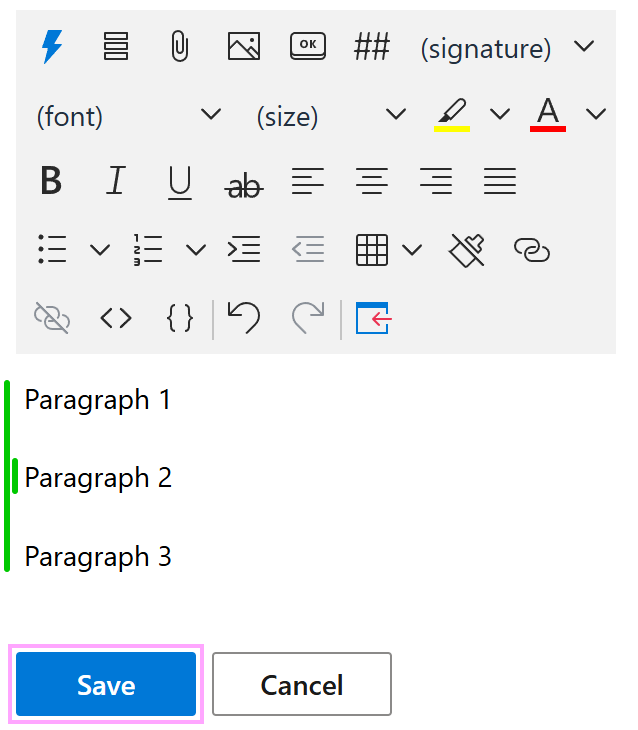
The template part to which the condition is applied will be marked with a green indicator. Save your template.
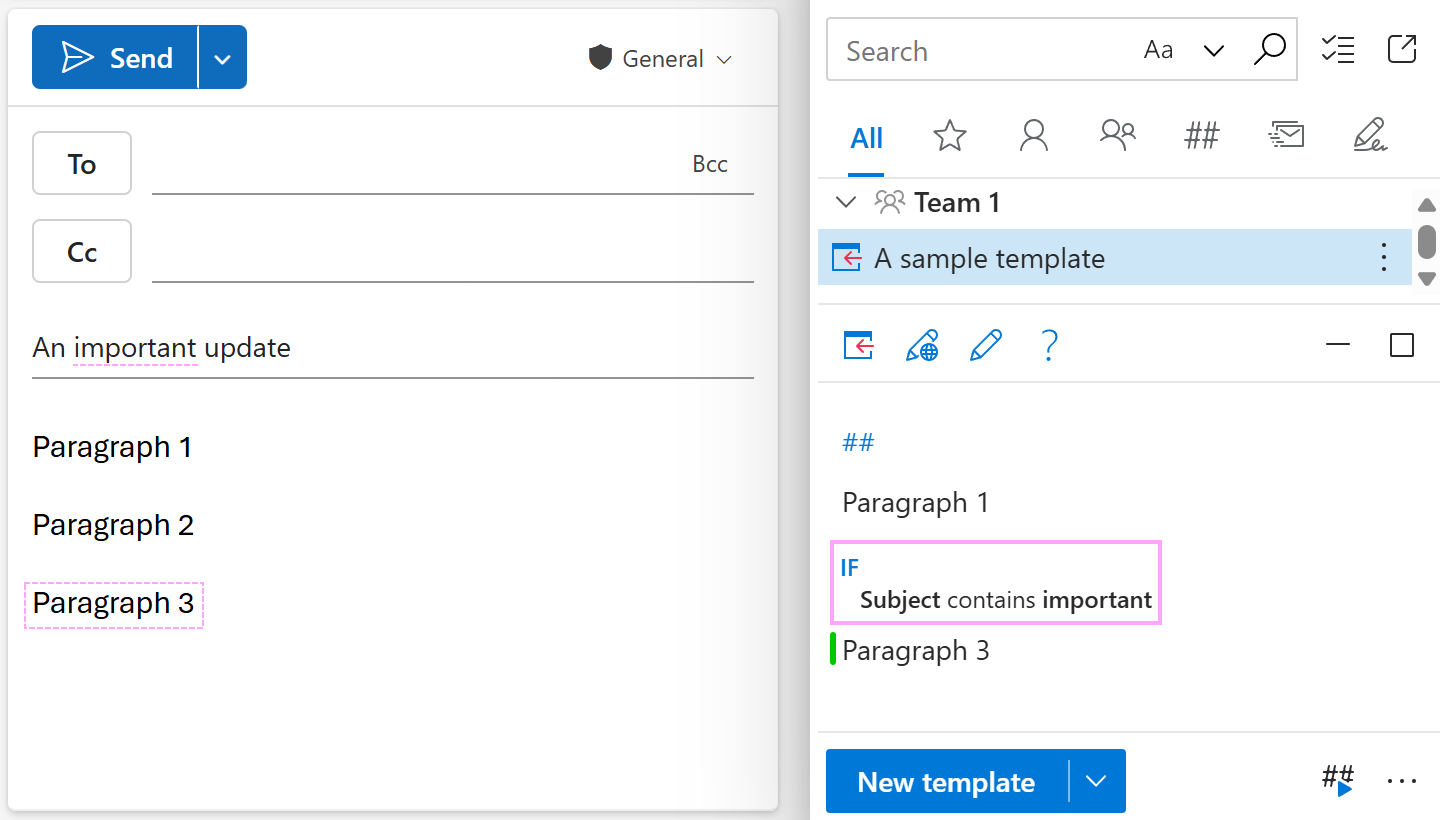
When you insert the template into an Outlook email message, the add-in checks the specified message fields. The Insert-if section is inserted only if the condition is met.
How to add complex conditions #
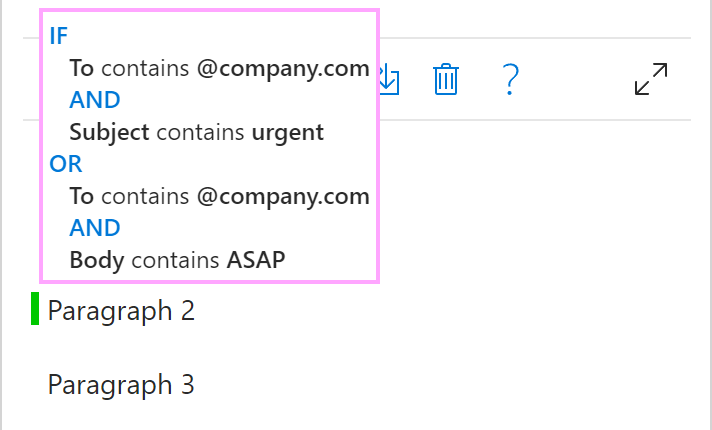
You can combine multiple conditions with the AND and OR logical operators by selecting the corresponding buttons. This allows you to add complex conditions to template parts.
For example, a paragraph will be inserted along with the rest of the message template if the To field contains a specific domain and the subject contains a specific word or phrase, or the To field contains the same domain and the message body contains another specific word or phrase.
Adding a condition based on the WhatToEnter macro result #
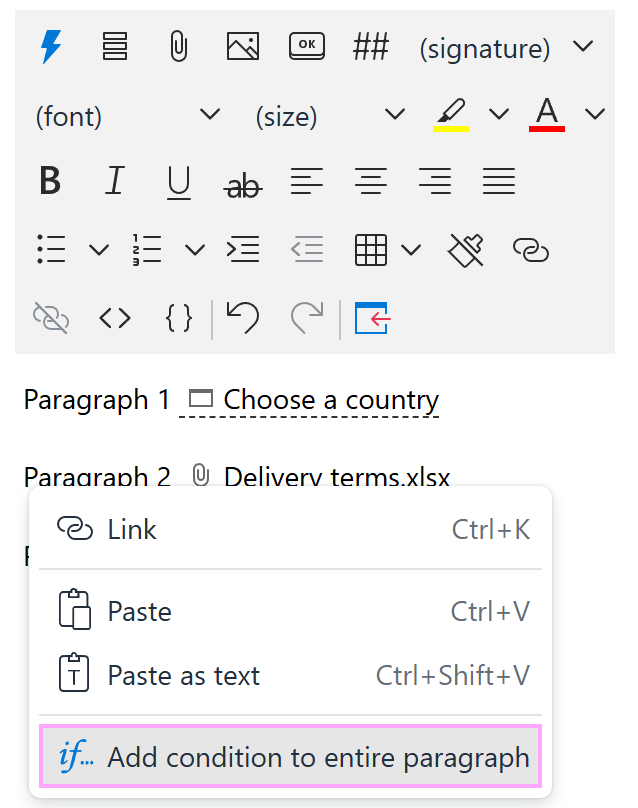
In the Outlook email template you’re creating or editing, right-click a part where a condition is needed: a paragraph, list, list item, table, or table row.
Select an option that adds a condition.
Define the condition:
Under Find in, select WhatToEnter result.
Choose a WhatToEnter macro (the macro for creating custom input fields) to check for the condition. There must be at least one WhatToEnter macro in your template.
Select the condition (
contains,doesn't contain,contains any of,contains none of,is equal to,is equal to any of,is equal to none of,is empty,is not empty,matches regex, ordoesn't match regex).Enter the text or regex to look for.
When you’re done, select OK.
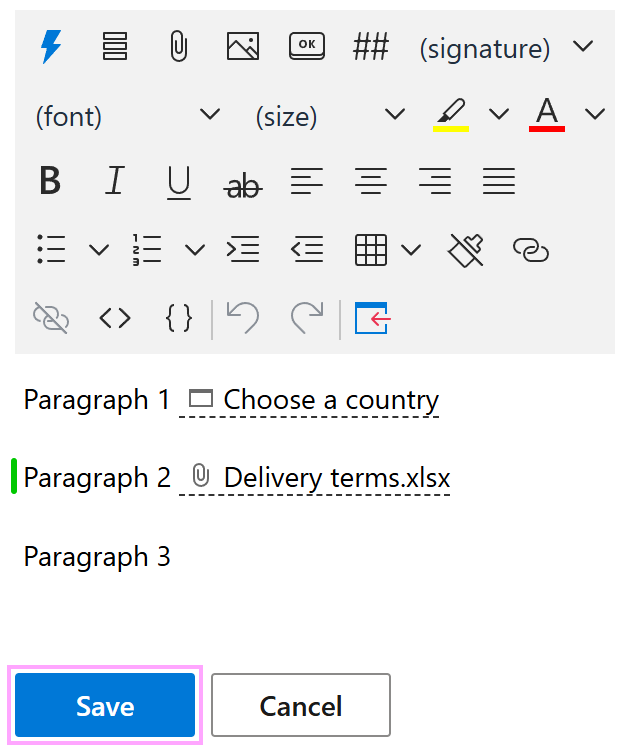
In your email template, a green indicator shows the section that the condition is applied to. Select Save.
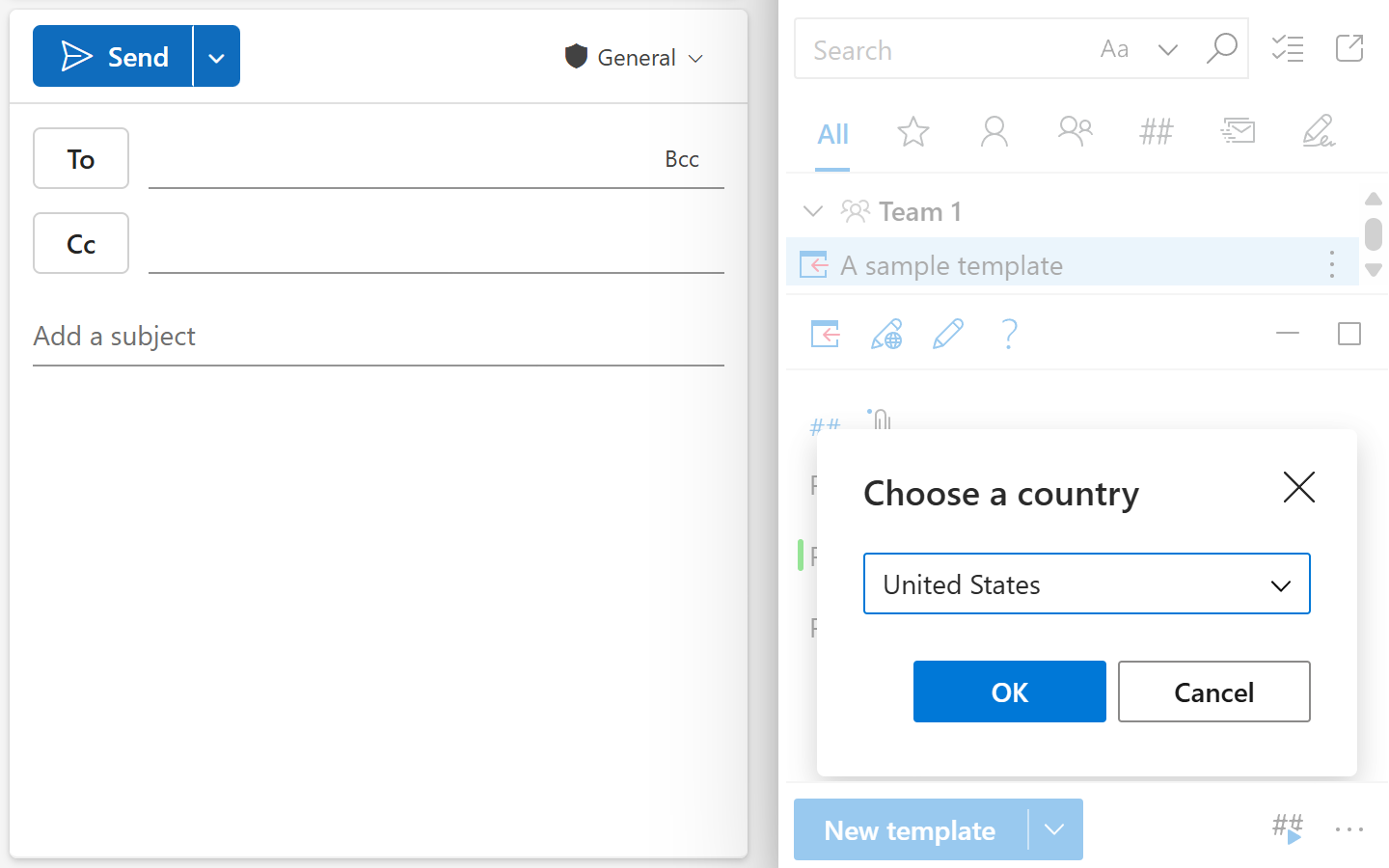
When inserting the template into an Outlook email message, you’ll see a dialog prompting you to select or enter some data. As soon as you do that and click OK, the data you’ve selected or entered (the WhatToEnter result) will be checked for the condition you defined.
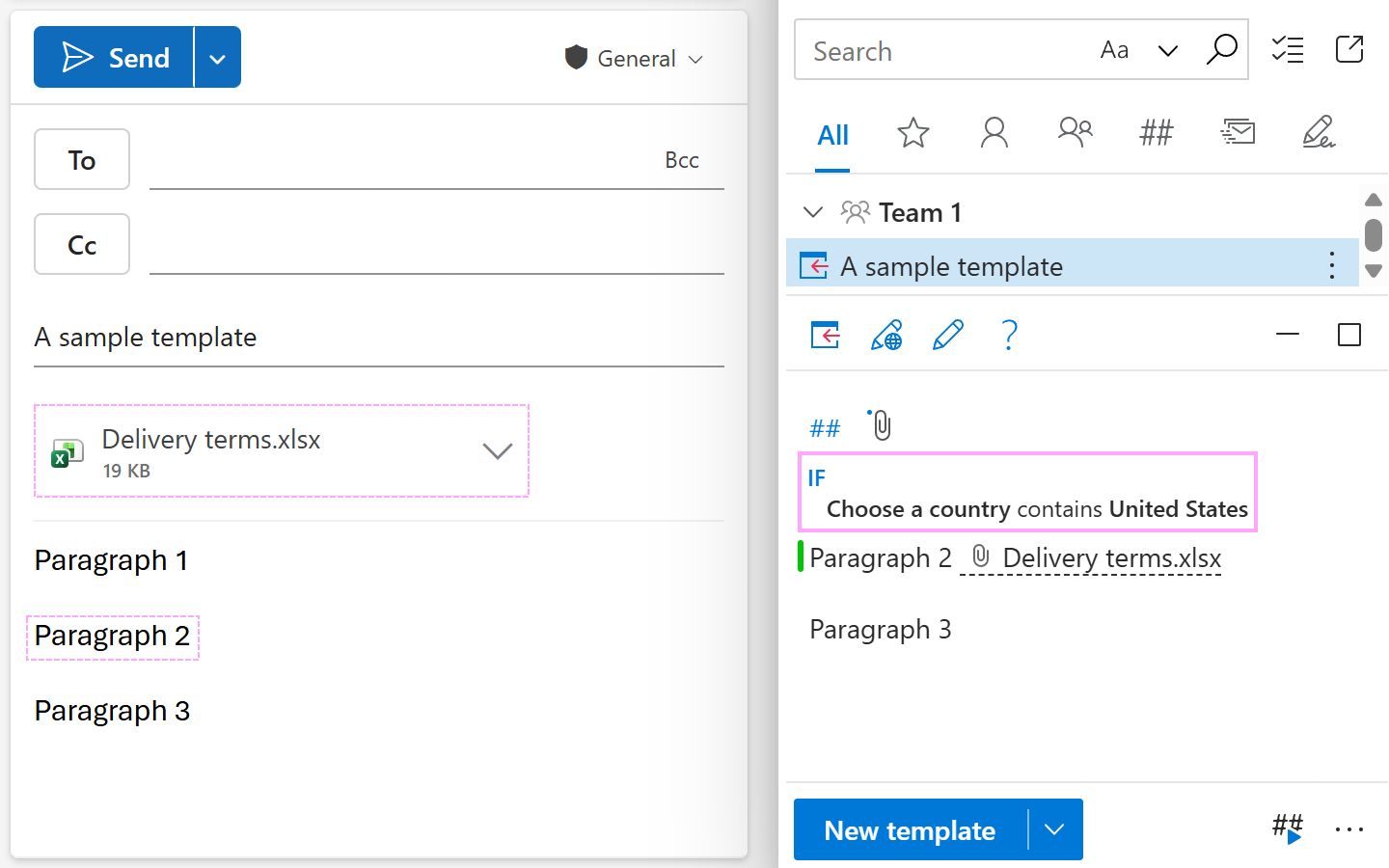
If the condition is met, the part that the condition is applied to will be inserted into the Outlook email message along with the rest of the template.
Nested Insert-if sections #
To add another condition within an Insert-if section, do the following:
Right-click a paragraph, list, list item, table, or table row inside the Insert-if section and select an option that adds a condition.
A green indicator will appear inside the Insert-if section, indicating the presence of a nested Insert-if section. Select Save.
How to change a condition #
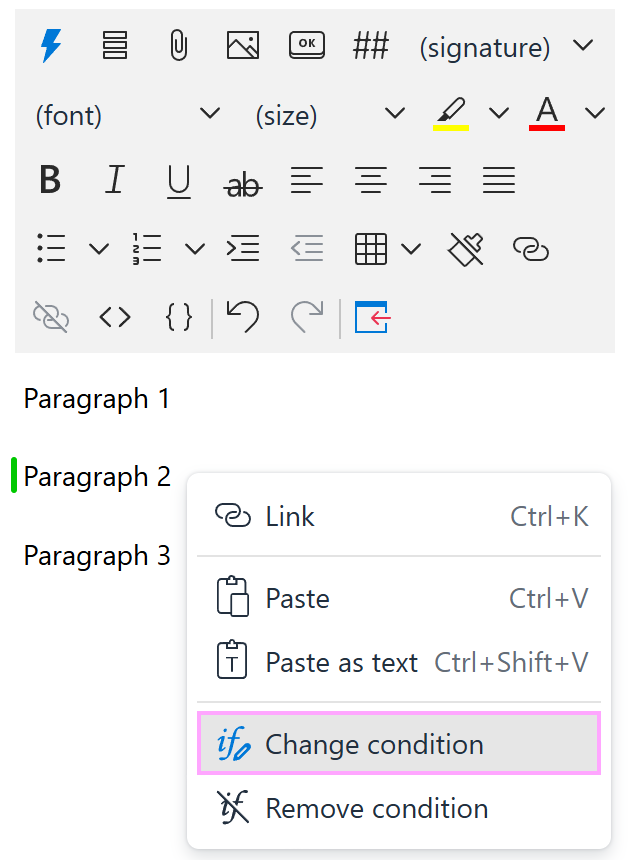
Right-click an Insert-if section in your email template for Outlook and select Change condition.
Make the necessary changes, and then select OK.
Save the template.
How to remove a condition #
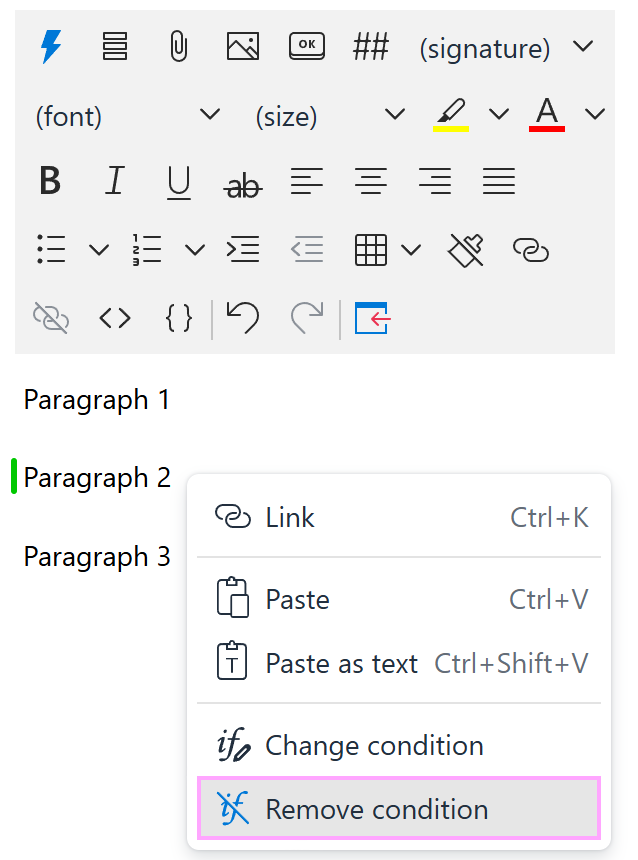
Right-click an Insert-if section in your email template for Outlook and select Remove condition.
Save the template.