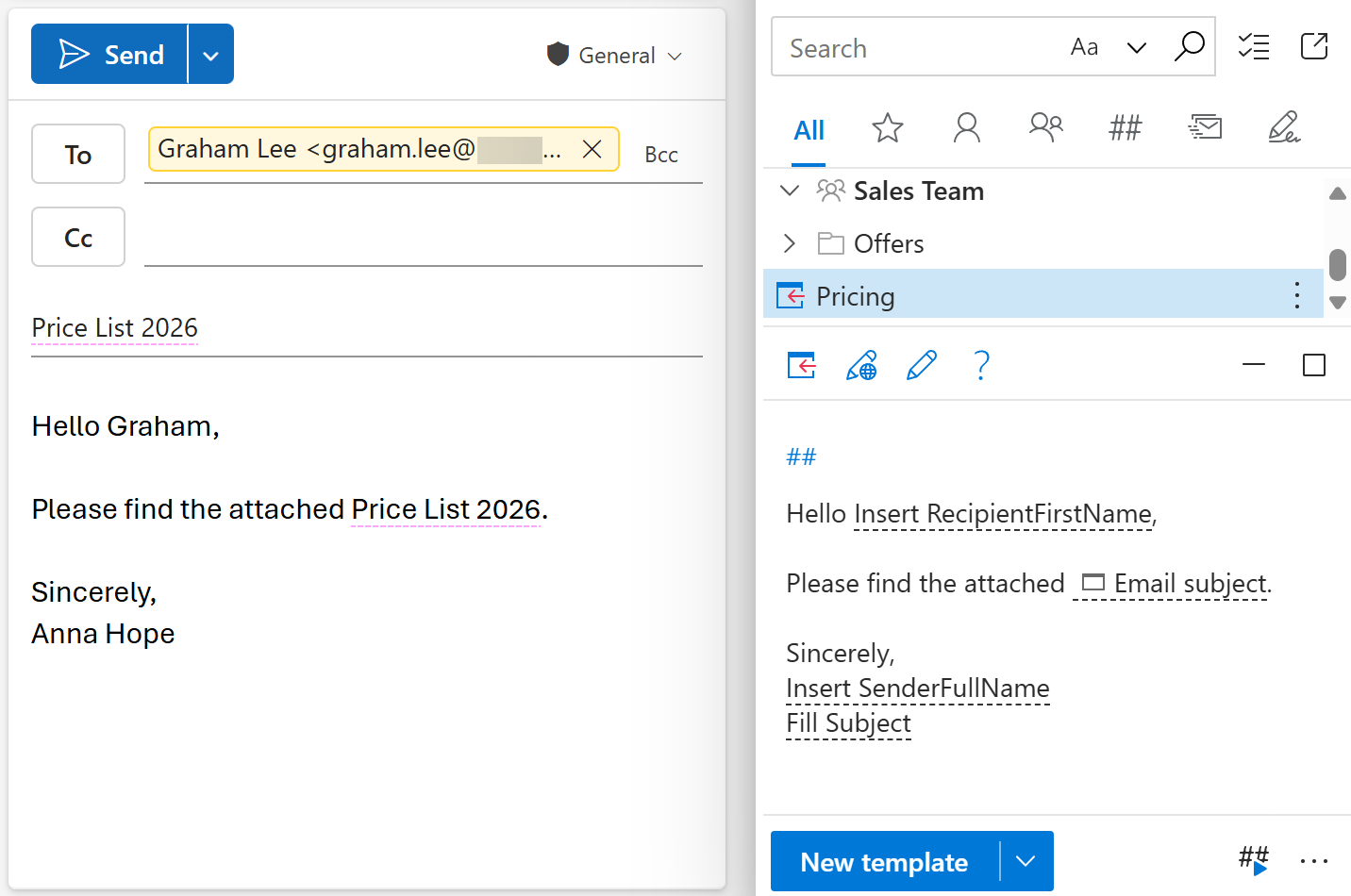
Auto-insert same data in multiple places in an email at once
If you want to insert the same text into several places in your Outlook email message without copying and pasting, you can add several identical input fields to your email template. And what’s more, you can fill them all in one go without having to deal with multiple prompt windows.
For example, you’d like to have a specific phrase in both the message body and the subject line. Besides, you want to enter that phrase only once. To get the job done, you’ll need two macros working together: WhatToEnter and Fill. Just follow the simple steps described below, and you can be sure you’ll get the desired result ;)

Start creating or editing your email template.
Add a fillable text field (the one you need in the message body).
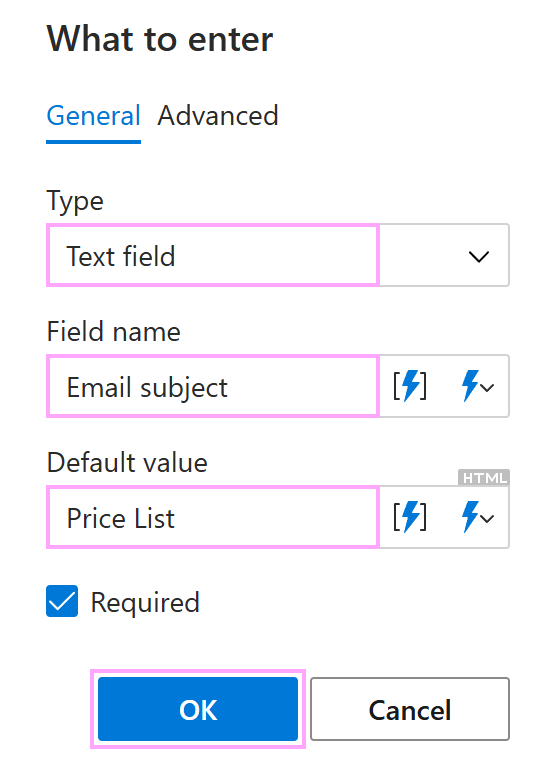
Put the cursor below the text of your message template, and then select the Insert macro button on the template editor toolbar.
Select Fill Subject, and click the button shown in the screenshot below.
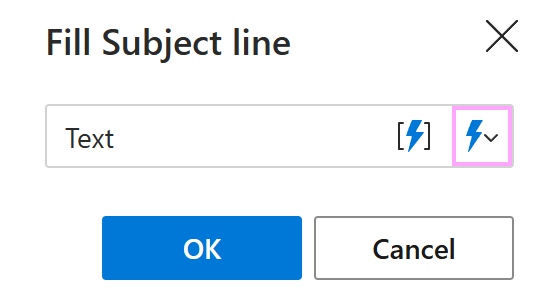
You’ll see a dropdown menu where all the fillable fields you have in your template are listed. Select the fillable text field you created in Step 2, and then click OK.
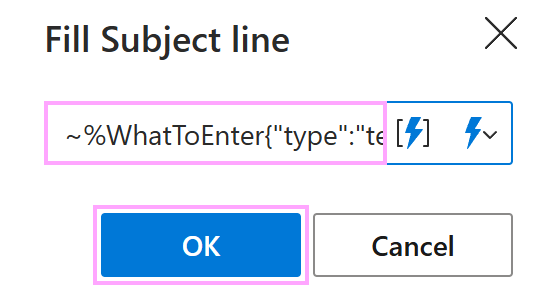
When you insert such a template into an Outlook email message, a dialog prompting you to enter a text phrase will show up. You can either keep the default phrase (the one you specified in Step 2 as a default value) or change it.
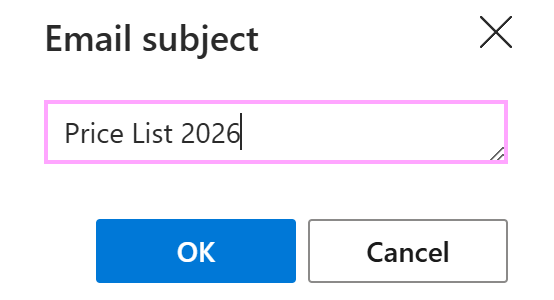
Once you select OK, the text phrase entered in the dialog will appear in both the subject line and the message body.