Checkboxes in Outlook email templates
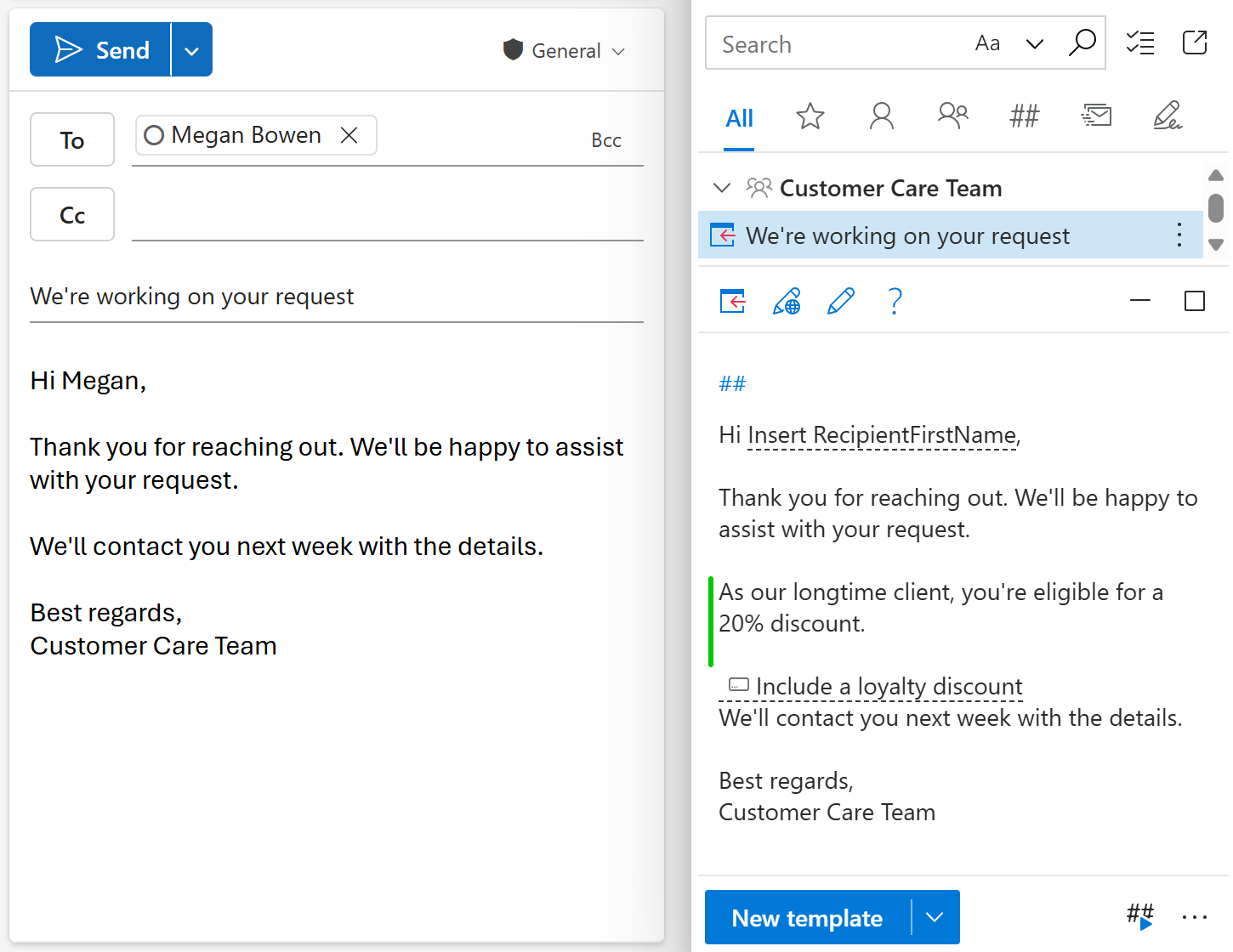
In your Outlook email template, you can create a pop-up dialog with a checkbox. The dialog appears when you insert the template into an email. By selecting or clearing the checkbox, you can control what content is included in the resulting email message. For example, you can choose whether to include or skip a specific section of the template. To set this up, you need:
- Checkbox option of the WhatToEnter macro.
- Insert-if section.
Start creating or editing your message template. Place the cursor where you want to add the WhatToEnter macro placeholder.
On the template editor toolbar, select the Insert macro button.
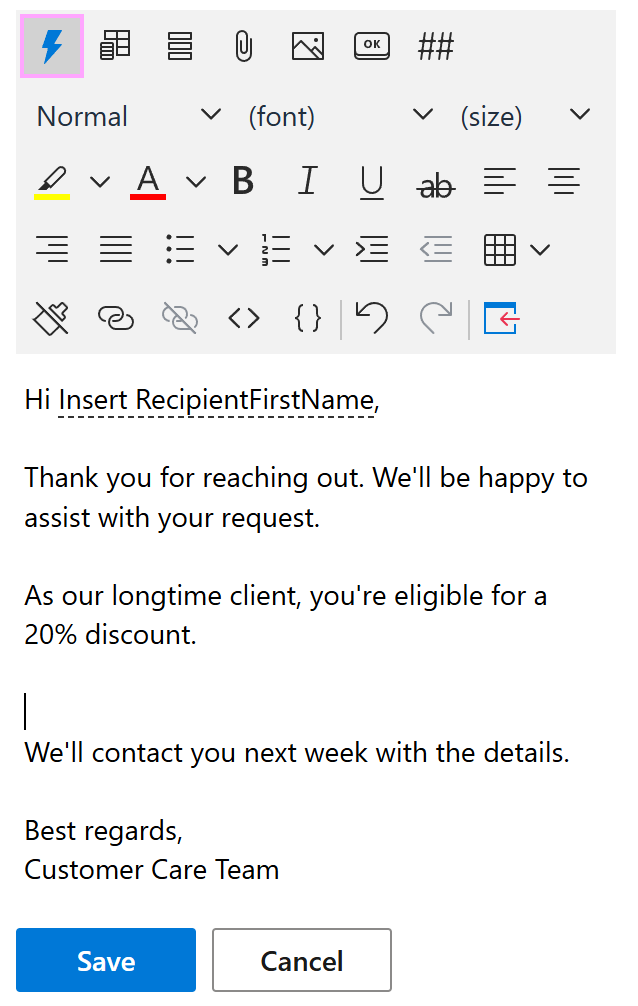
Select What to enter (WTE).
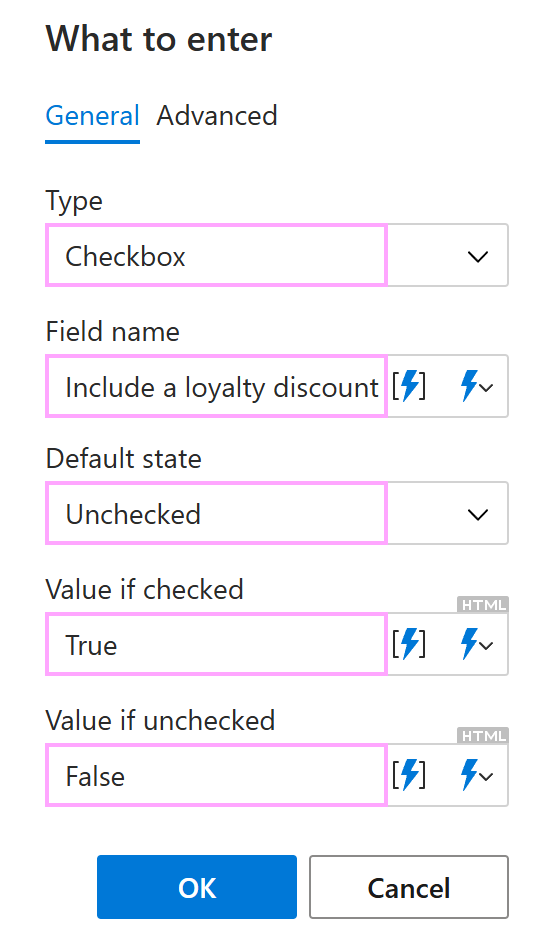
On the General tab of the What to enter dialog:
- Under Type, select Checkbox.
- Under Field name, enter a label for the checkbox.
- Select the default state: Checked or Unchecked.
- Enter the value if checked.
- Enter the value if unchecked.
For example, to create a pop-up dialog with an unchecked checkbox that allows you to include a loyalty discount if the checkbox is selected, do the following:
- Select Checkbox under Type.
- Enter Include a loyalty discount as Field name.
- Select Unchecked as Default state.
- Enter True as Value if checked.
- Enter False as Value if unchecked.
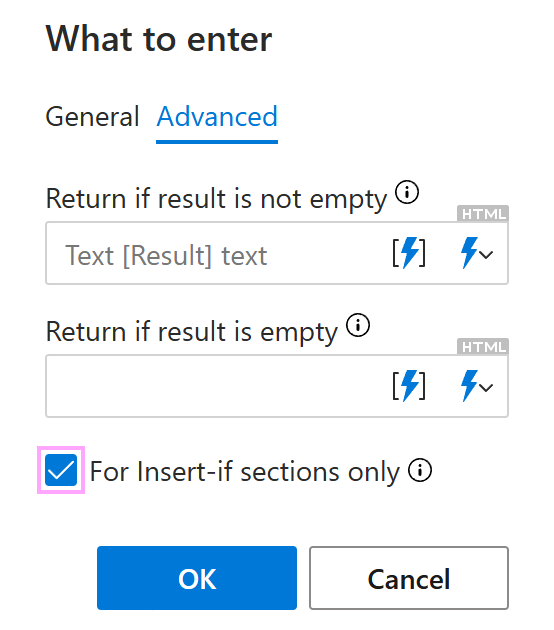
On the Advanced tab of the What to enter dialog, select For Insert-if sections only. In this case, the value returned by the WhatToEnter macro won’t be inserted into an email and will be used only to check the condition.
When ready, select OK.
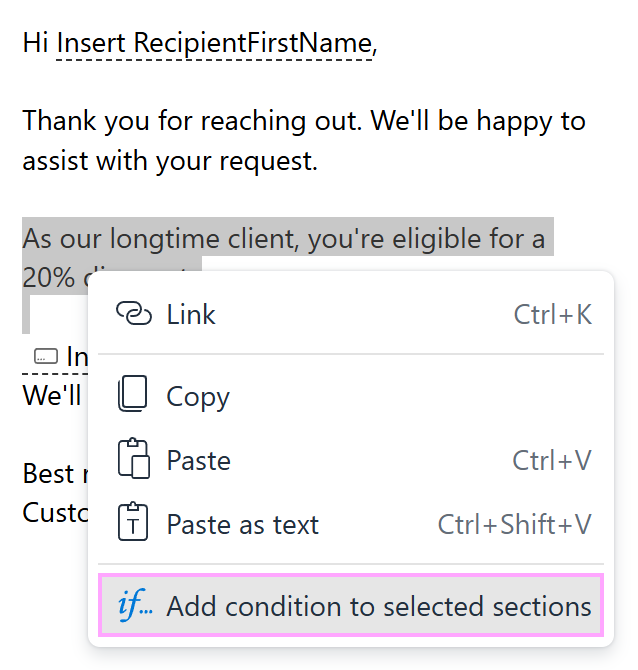
In your email template, select the section you want to control with the checkbox (for example, information about a loyalty discount), right-click it, and select Add condition.
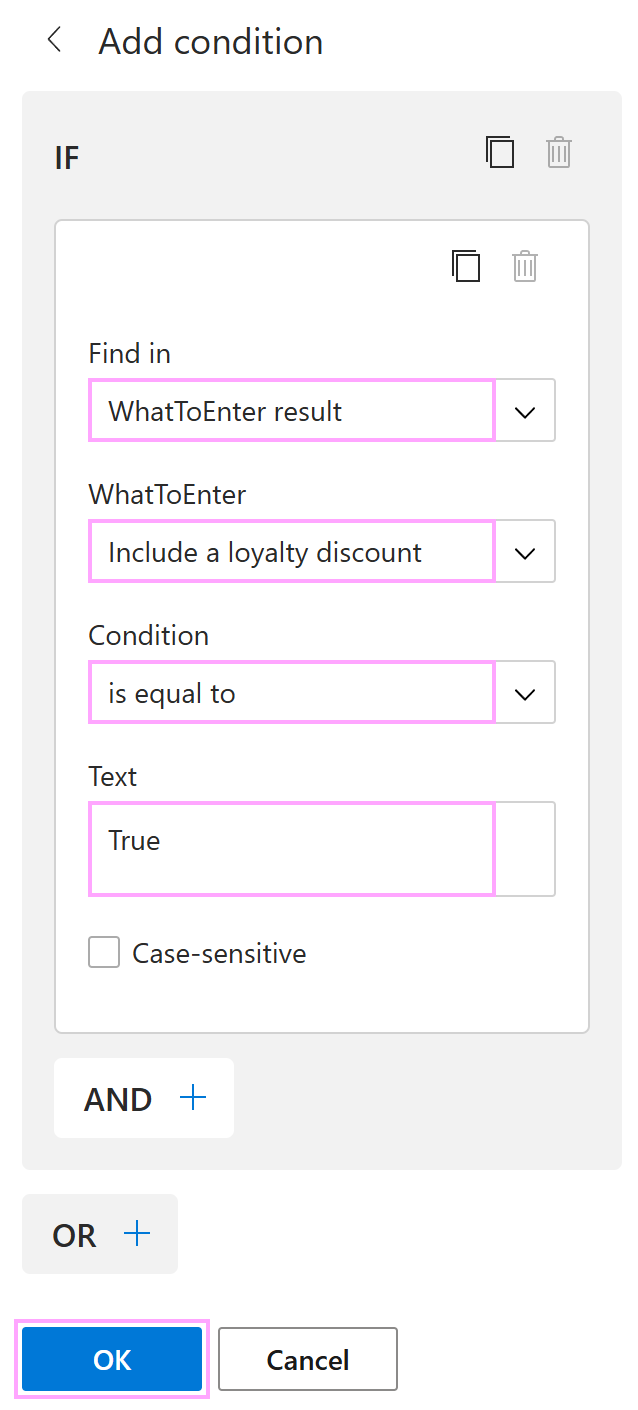
Set up the condition:
- Under Find in, select WhatToEnter result.
- Under WhatToEnter, select the WhatToEnter macro you added by following Steps 3-6.
- Under Condition, select is equal to.
- Under Text, enter the value specified as Value if checked in Step 4.
- Select OK.
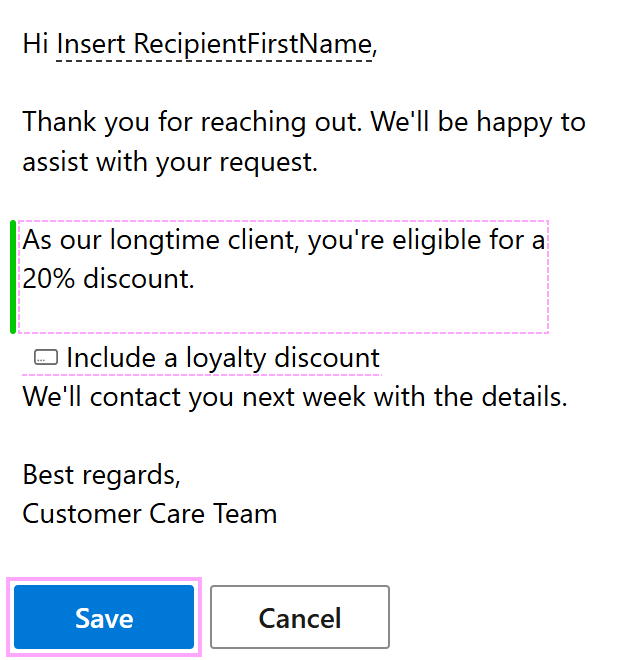
Your email template now includes the WhatToEnter macro placeholder and an Insert-if section. Select Save.
When you insert the template into an Outlook email, the dialog appears allowing you to use the checkbox.
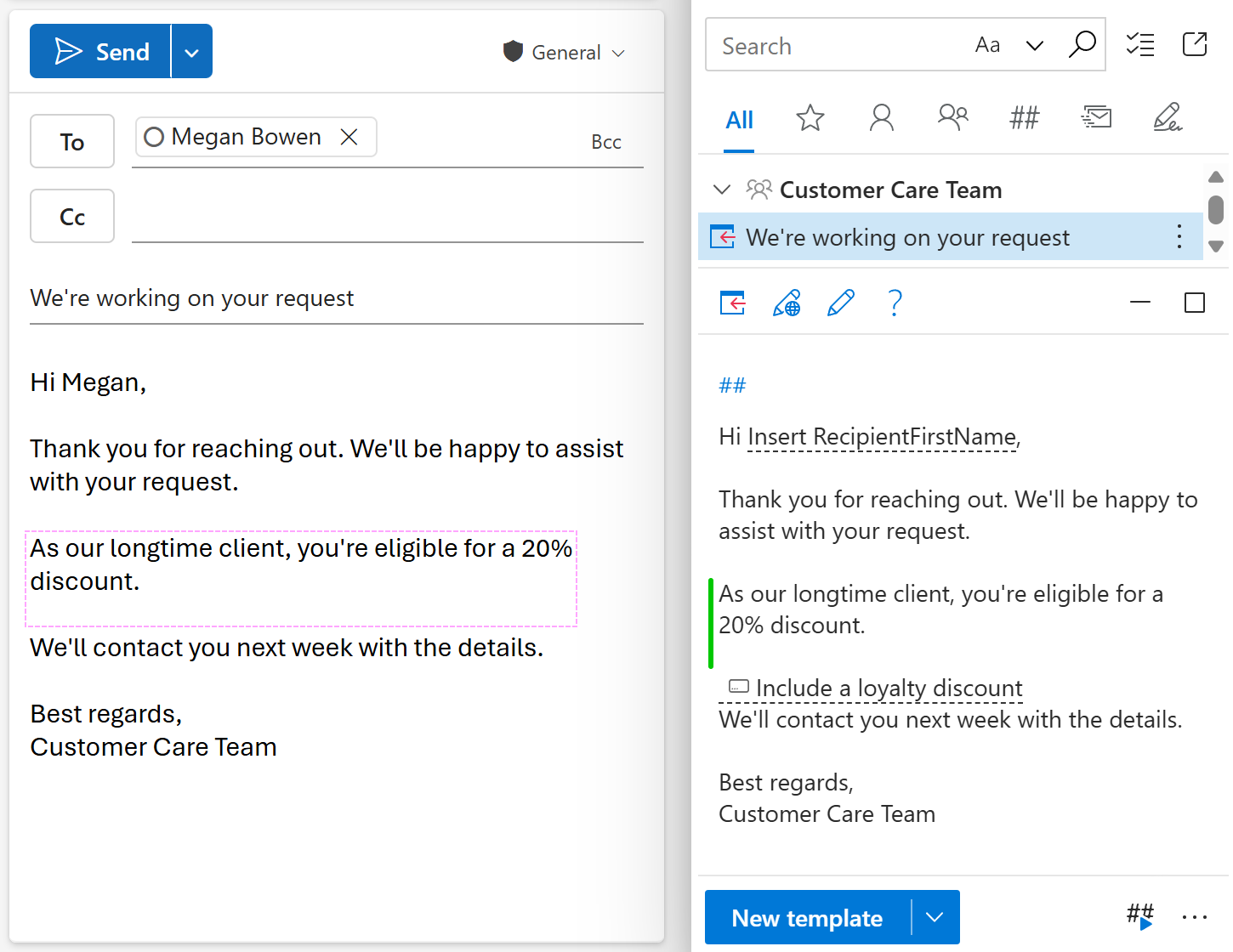
Compare:
The checkbox is selected.
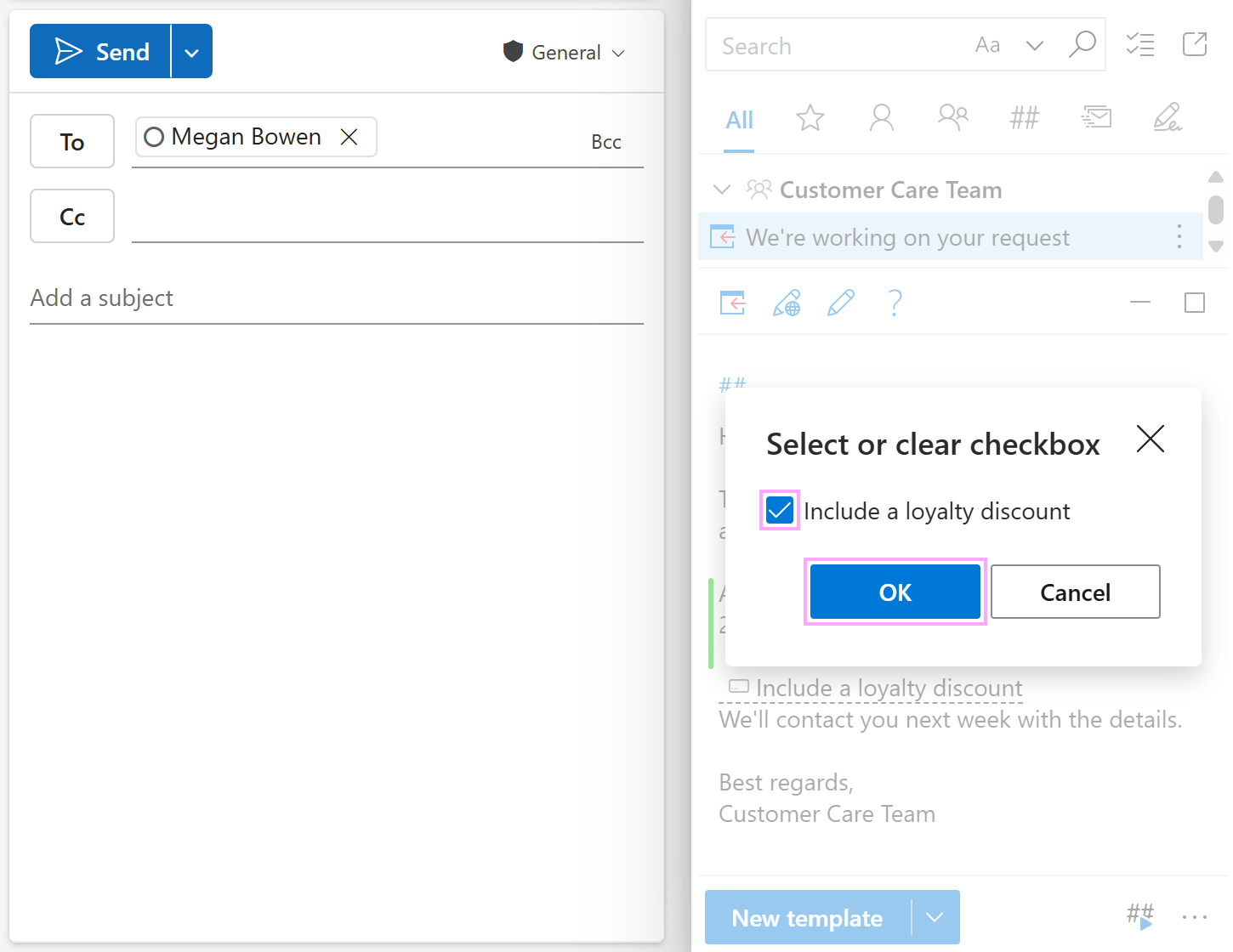
As a result, the condition is met, and the Insert-if section is added to the email message.
The checkbox is not selected.
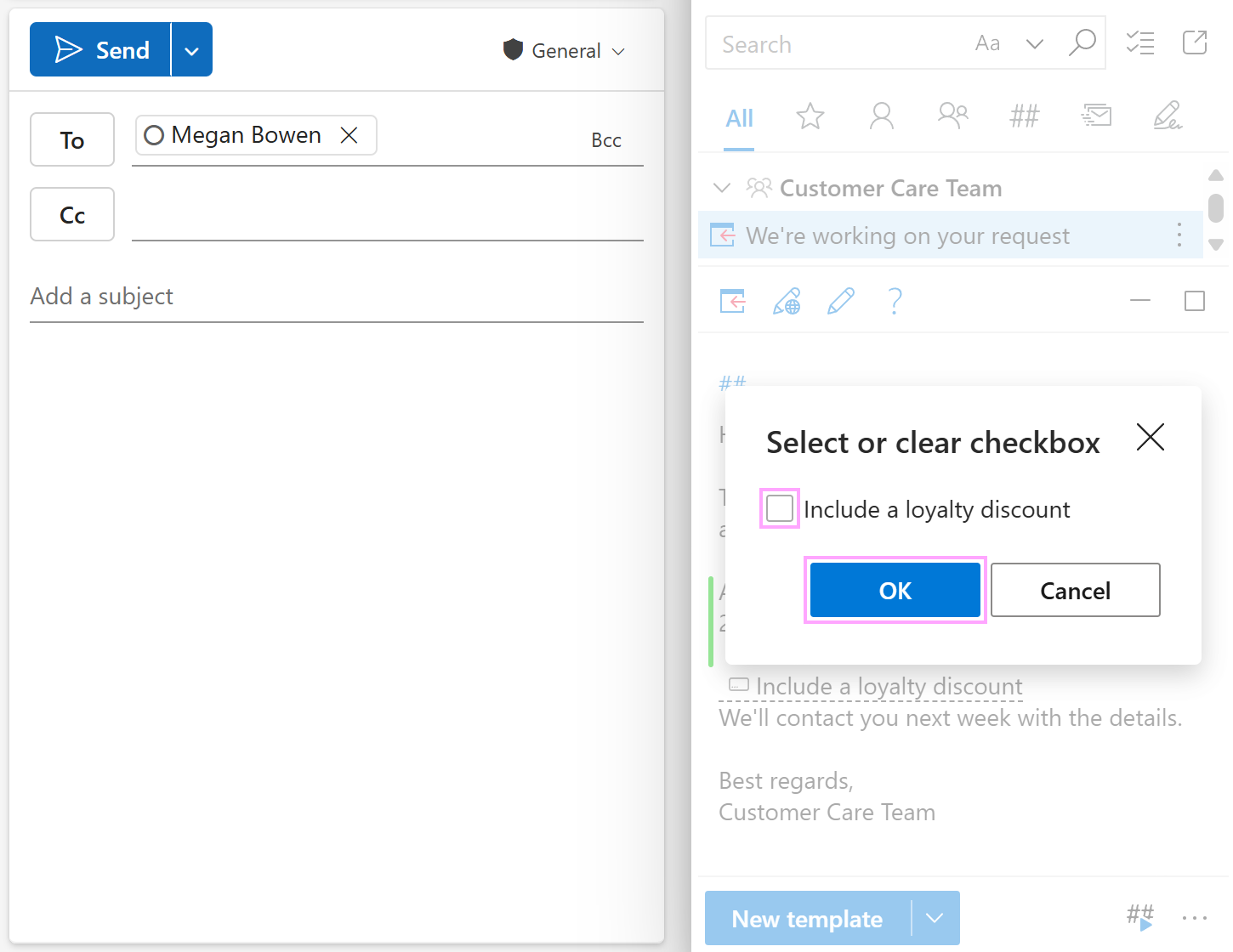
As a result, the condition is not met, and the Insert-if section is not added to the email message.