Outlook email templates with fillable fields for currency amounts
If you want your Outlook email template to contain an input field for a currency amount, follow these steps:
In your email template, place the cursor where you’d like to have a field for a currency amount, and then select the Insert macro button on the template editor toolbar.
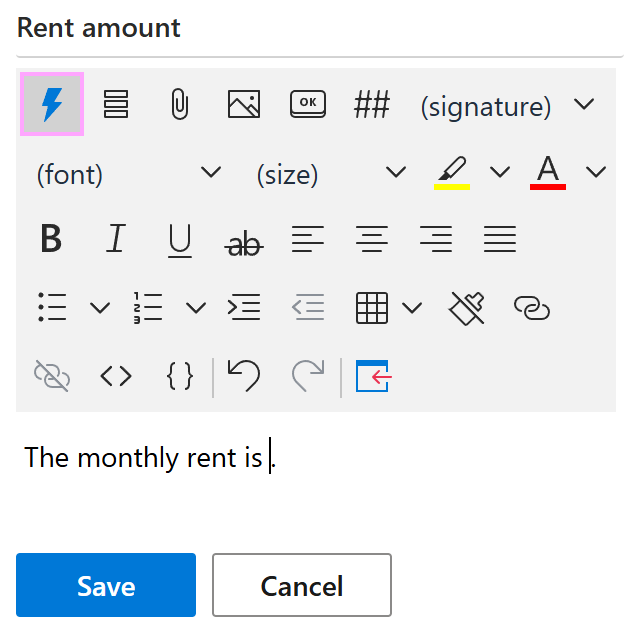
Select What to enter (WTE).
The What to enter dialog will open.
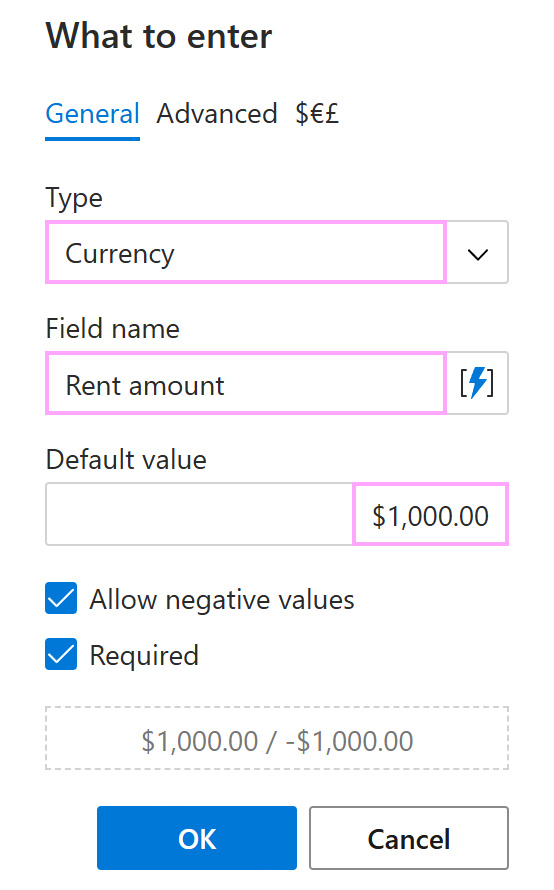
On the General tab, select Currency, enter the field name, and specify a default value.
For example, to create a field for a rent amount, do the following:
- Under Type, select Currency.
- Under Field name, enter Rent amount.
- Under Default value, enter 1,000.00.
On the Advanced tab, you can:
- Specify the value to insert into an email message if the result returned by the WhatToEnter macro is not empty.
- Specify the value to insert into an email message if the result returned by the WhatToEnter macro is empty.
- Enter a minimum value.
- Enter a maximum value.
On the $€£ tab, you can select a language, a currency symbol, the number of decimal places, and choose whether to use a thousands separator.
When you’re finished, select OK.
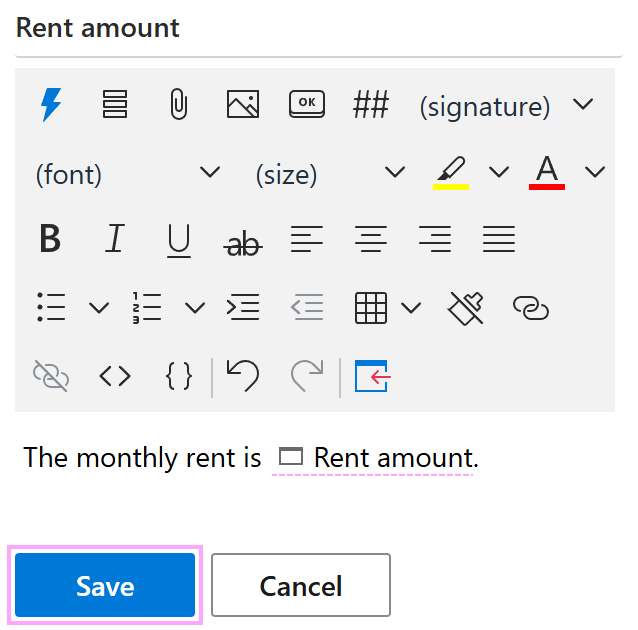
The WhatToEnter macro placeholder is added to the email template. Select Save.
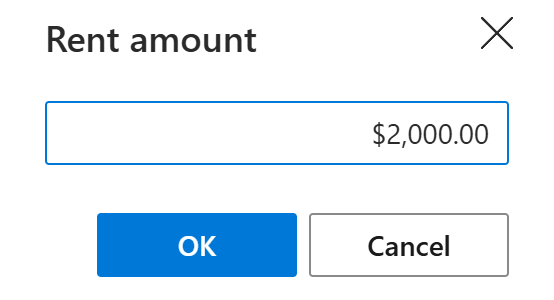
When inserting the template into an email message in Outlook, you’ll see a dialog prompting you to enter a currency amount. Enter the amount and select OK.