
Outlook email templates with a date picker

If you want to have a pop-up calendar (date picker) in your Outlook email template, this is how:
In the email template you’re creating or editing, place the cursor where you’d like to add a date picker. Then select the Insert macro button on the template editor toolbar.
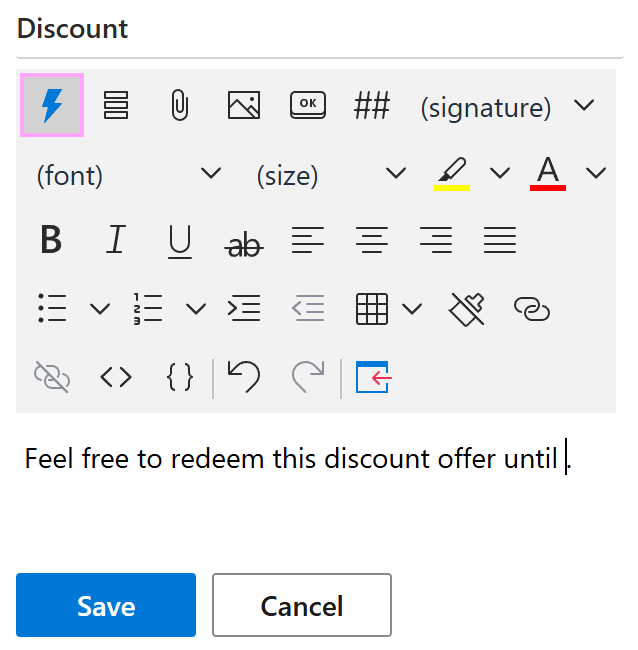
Select What to enter (WTE).
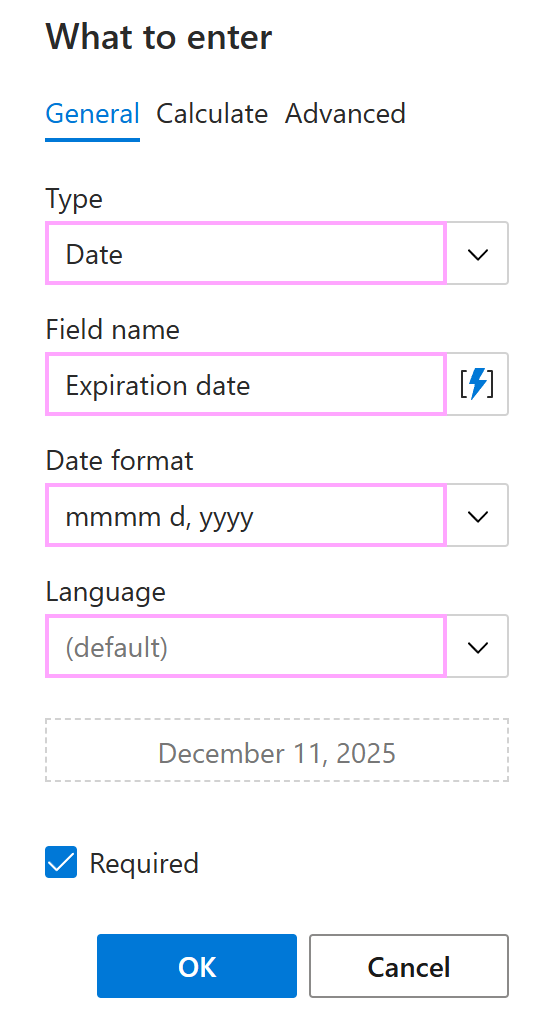
The What to enter dialog appears.
On the General tab:
- Select Date.
- Enter the field name.
- Select a date format.
- Select a language.
For example, to add a pop-up calendar for choosing a discount expiration date displayed in the mmmm d, yyyy format, do the following:
- Under Type, select Date.
- Under Field name, enter Expiration date.
- Under Date format, select mmmm d, yyyy.
- Under Language, leave default selected.
On the Calculate tab, you can shift the current date forward or backward.

On the Advanced tab, you can specify:
- What value to insert into your email message if the result returned by the macro is not empty.
- What value to insert into your email message if the result returned by the macro is empty.
- What regular expression the value that will be entered or selected via the macro dialog must match.
When you’re finished, select OK.
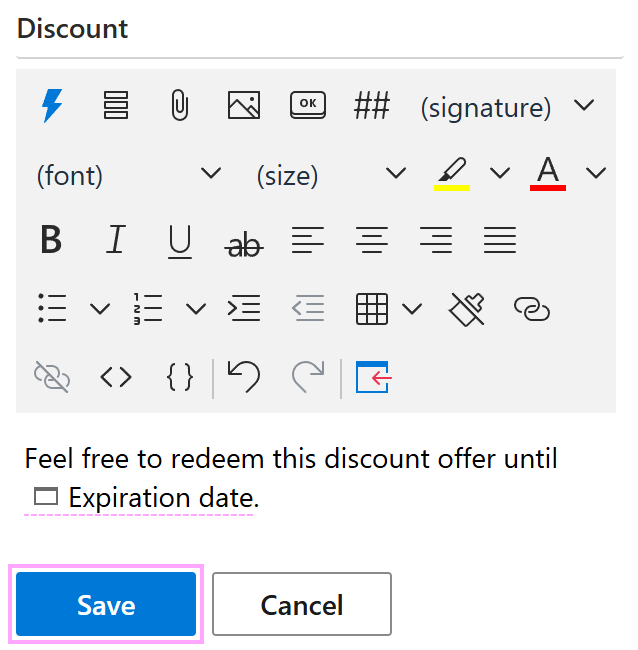
In your email template, a date picker shown with a WhatToEnter macro placeholder will appear. Select Save.
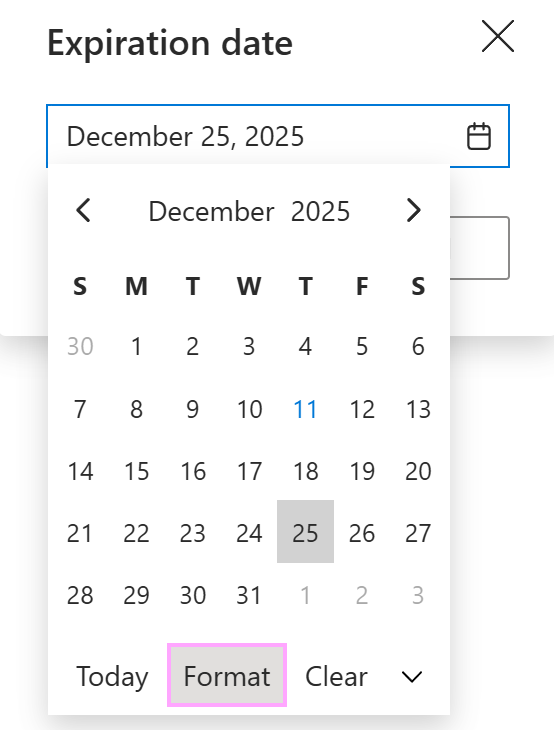
When you insert an Outlook email template with a date picker into an email message, a pop-up dialog appears. You can keep the suggested date or pick another one from the calendar.
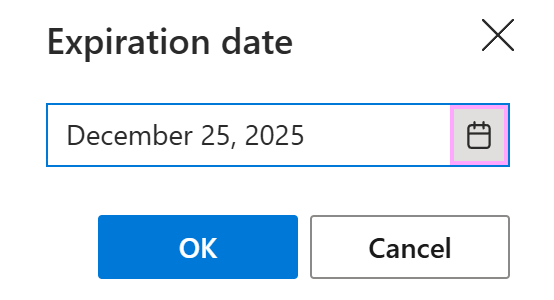
To change your date format preference when selecting another date from the calendar, select Format.
When you’re ready, select OK.