Outlook email templates with fillable fields for numbers
If your email template for Outlook needs a custom input field that accepts only numbers, use the WhatToEnter macro. Follow these steps:
Start creating or editing your template. Place the cursor where you’d like to add a field for numeric values, and then select the Insert macro button on the template editor toolbar.
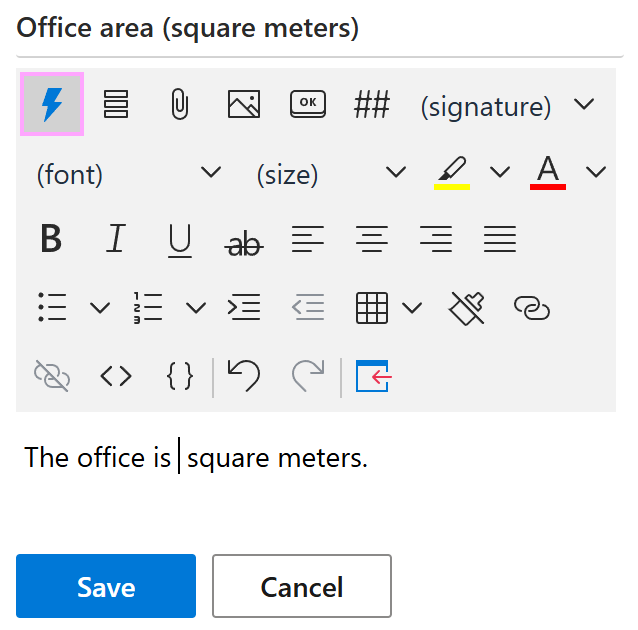
Select What to enter (WTE).
The What to enter dialog will automatically open.
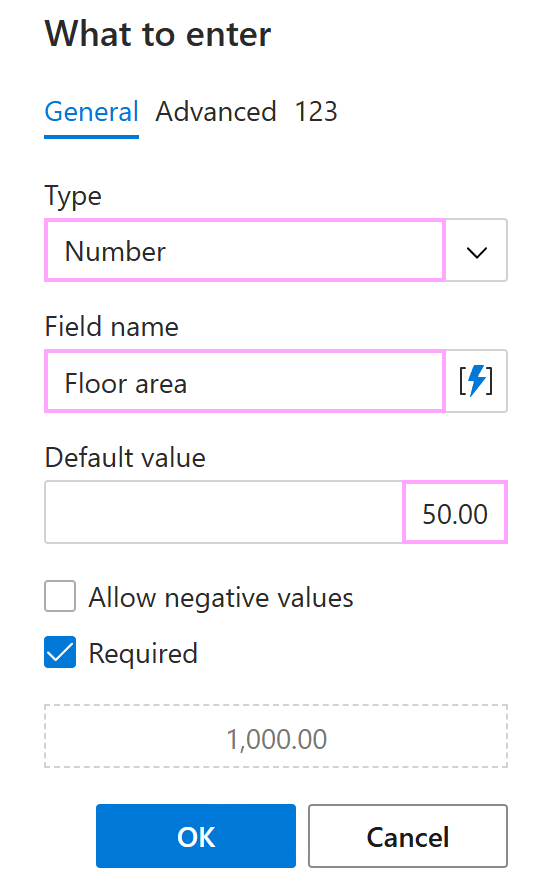
On the General tab, select Number, enter the field name, and specify a default value.
For example, to create a field for entering a floor area, do the following:
- Under Type, select Number.
- Under Field name, enter Floor area.
- Under Default value, enter 50.00.
On the Advanced tab, you can:
- Specify the value to insert into an email message if the result returned by the WhatToEnter macro is not empty.
- Specify the value to insert into an email message if the result returned by the WhatToEnter macro is empty.
- Enter a minimum value.
- Enter a maximum value.
On the 123 tab, you can select a language, specify the number of decimal places, and choose whether to use a thousands separator.
When you’re done, select OK.
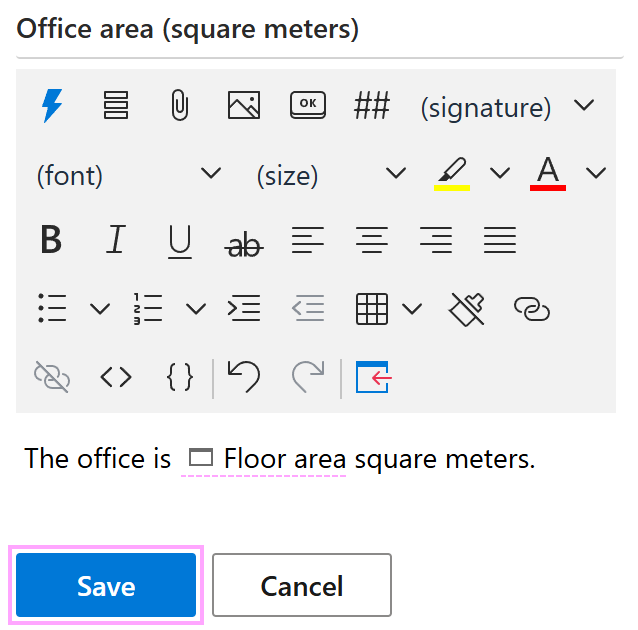
When the macro placeholder appears in your message template, select Save.
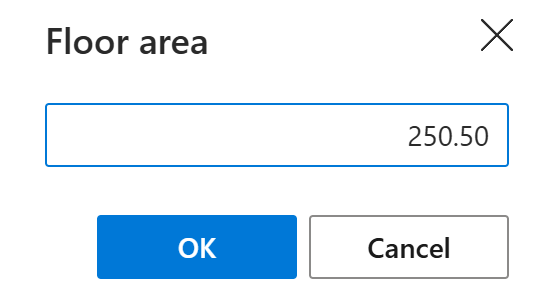
Each time you use the template to compose your Outlook email, a dialog will appear so you can enter the number you need for your message. Enter the necessary value and select OK.