Outlook email templates with fillable text fields

To add a text-entry field to your Outlook email template, follow the steps below.
In your template, place the cursor where a text-entry field is needed. Then select the Insert macro button on the template editor toolbar.
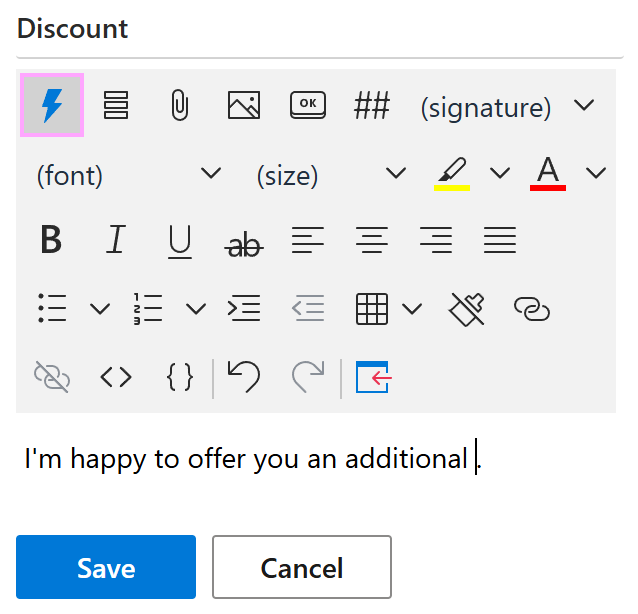
Select What to enter (WTE).
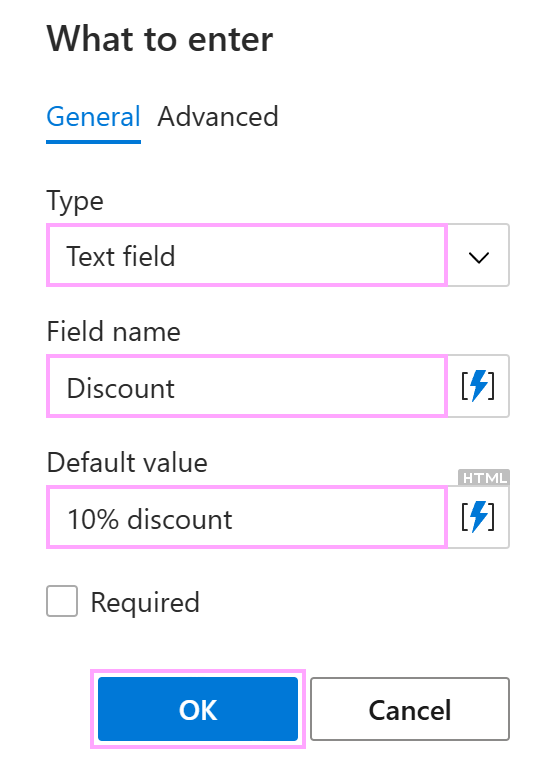
The What to enter dialog appears.
On the General tab, keep Text field selected. Then enter the field name and a default value.
For example, to add a text field for entering a discount, do the following:
- Under Type, make sure Text field is selected.
- Under Field name, enter Discount.
- Under Default value, enter 10% discount.
If you switch to the Advanced tab, you can specify:
- What value to insert into your email message if the result returned by the macro is not empty.
- What value to insert into your email message if the result returned by the macro is empty.
- What regular expression the value that will be entered or selected via the macro dialog must match.
When you’re done, select OK.
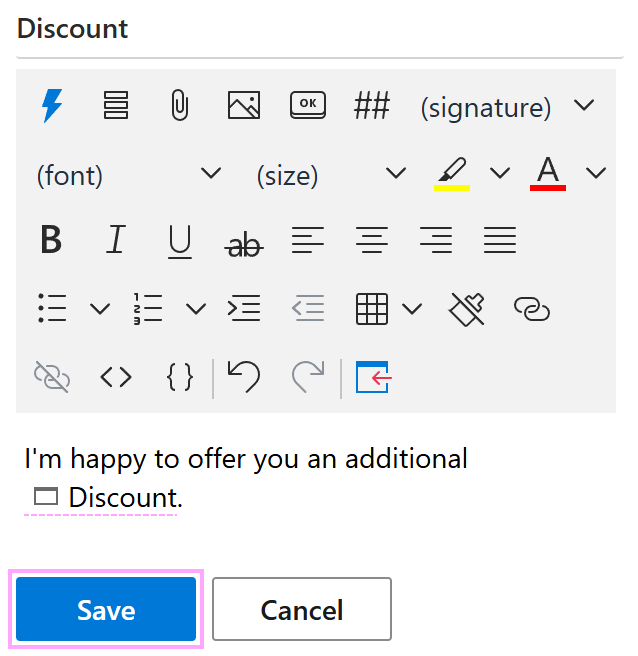
In your email template, a fillable text field shown with a WhatToEnter macro placeholder will appear. Select Save.
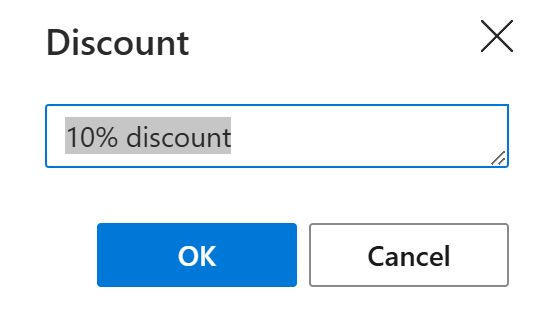
When you insert the template into an Outlook email message, a dialog will appear allowing you to enter new text or keep the default value. When you’re ready, select OK.