Attach files from datasets to your Outlook emails
In this article
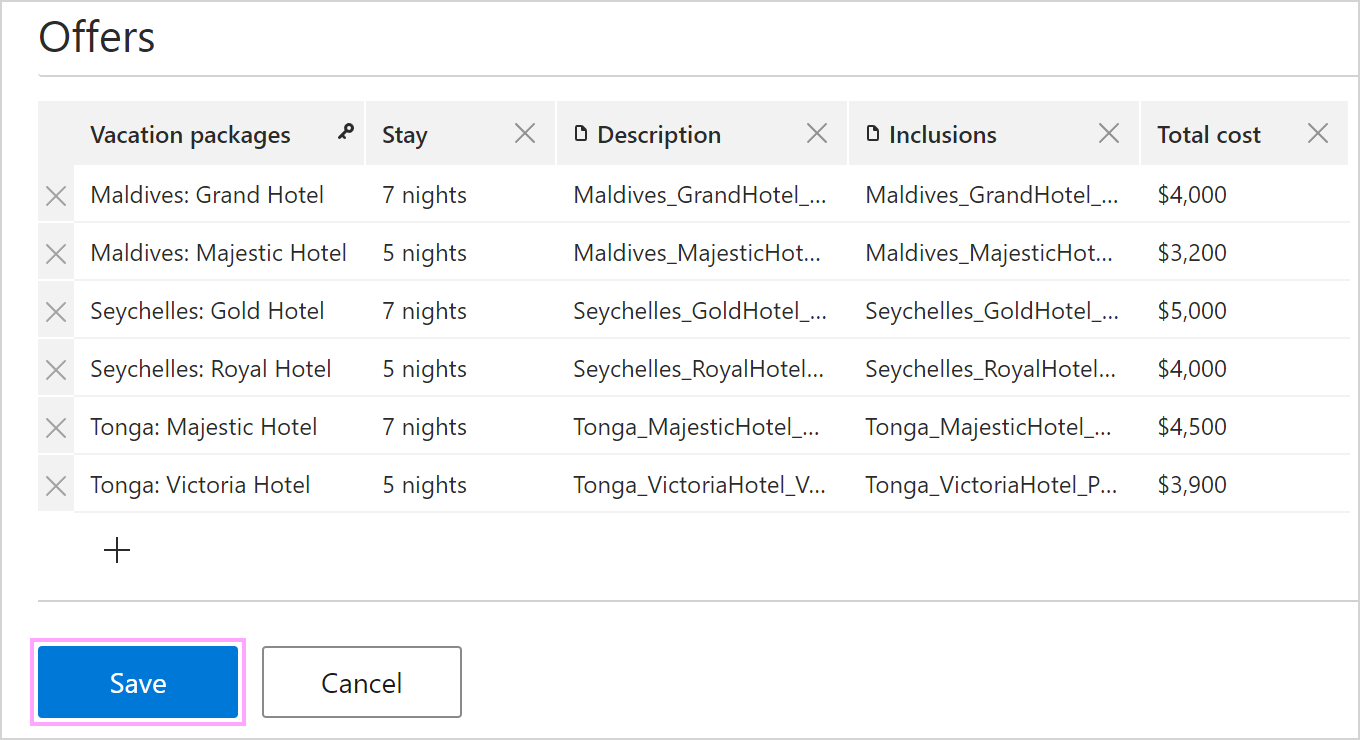
With simple datasets in Shared Email Templates for Outlook, you can easily retrieve not only text values but also files for your email messages. If your dataset contains a file column, you have several options to choose from: simply attach a file, attach a file while inserting the file name into the message body, select a file via a dialog displayed when a template is being inserted, or attach multiple files using tables and lists bound to the dataset.
How to add a file column to a simple dataset #
In the simple dataset that you’re creating or editing, open a dropdown menu next to the rightmost column and select File.
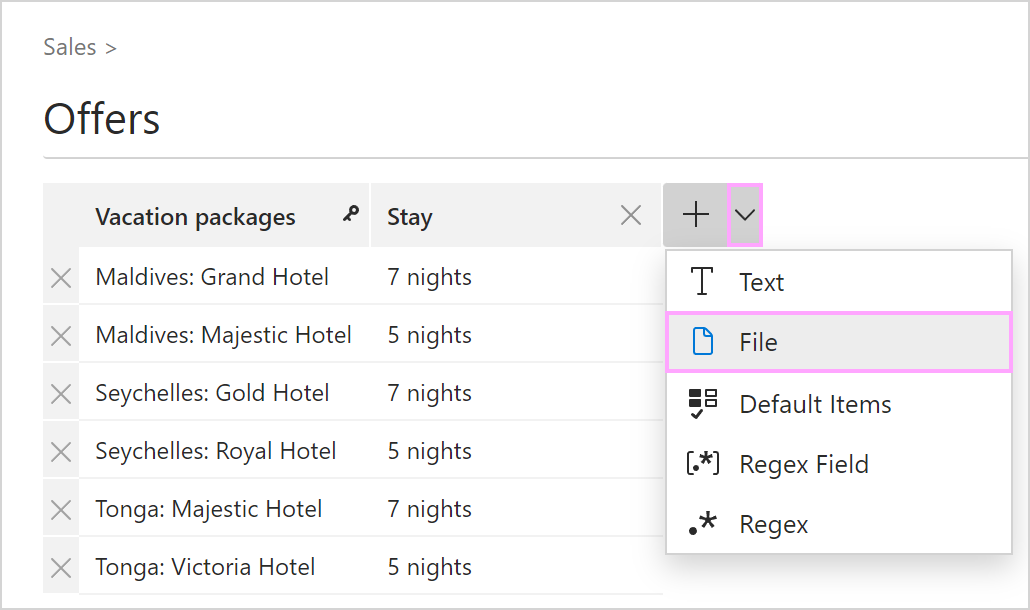
Enter the name of the file column.
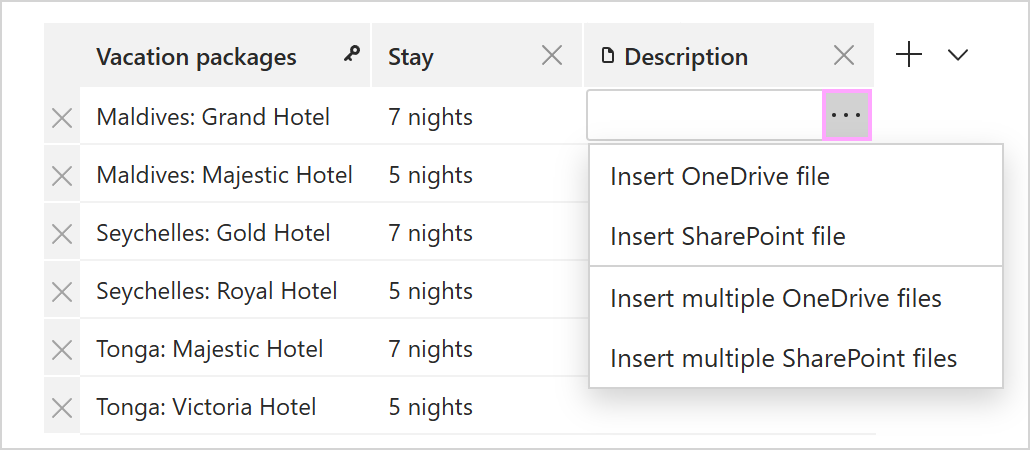
Click a cell and choose what you want to insert: a link to a single OneDrive or SharePoint file or links to multiple OneDrive or SharePoint files. Then select the appropriate option.
Select the necessary file(s).
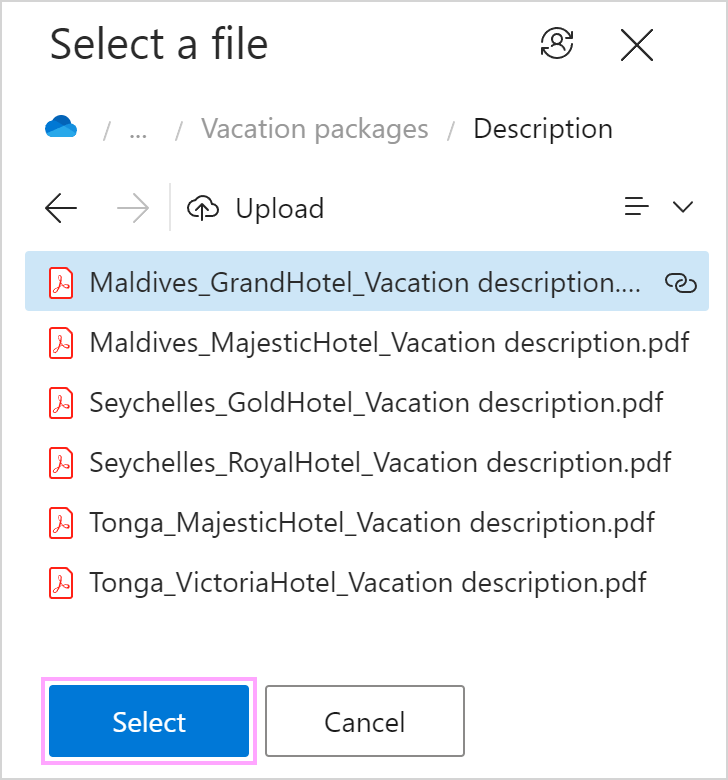
When you’re done, save your dataset.
Attach a file #

In the Outlook email template that you’re creating or editing, select the
 Insert macro button on the template editor toolbar.
Select Attach from dataset.
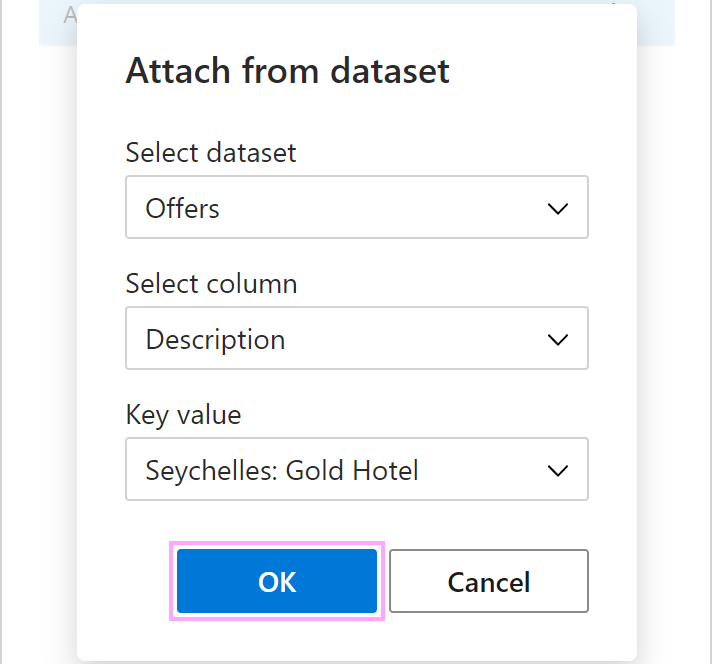
Select a dataset, a file column, and a key value identifying a row where the file to be attached is specified. Then select OK.
Save your template.
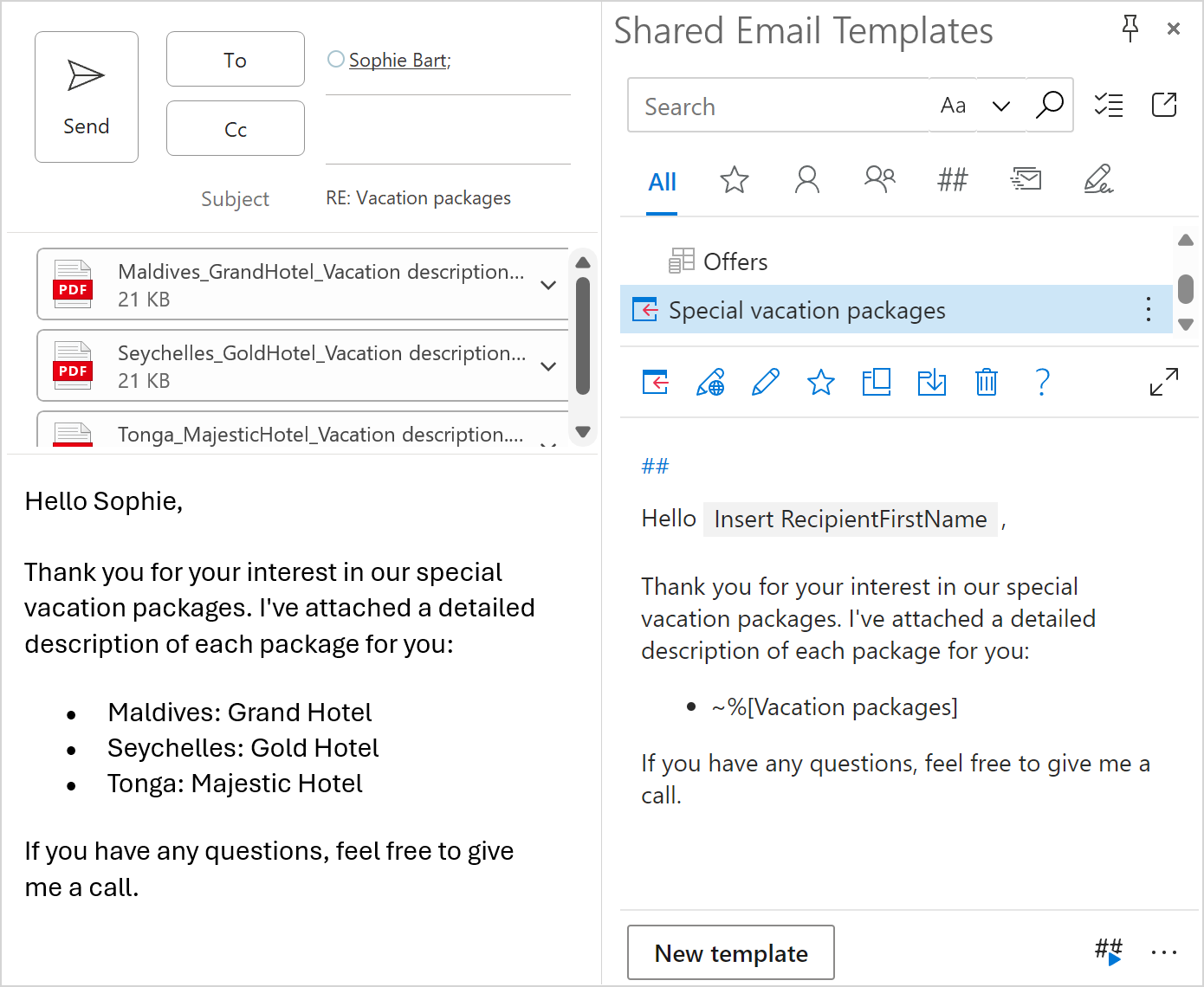
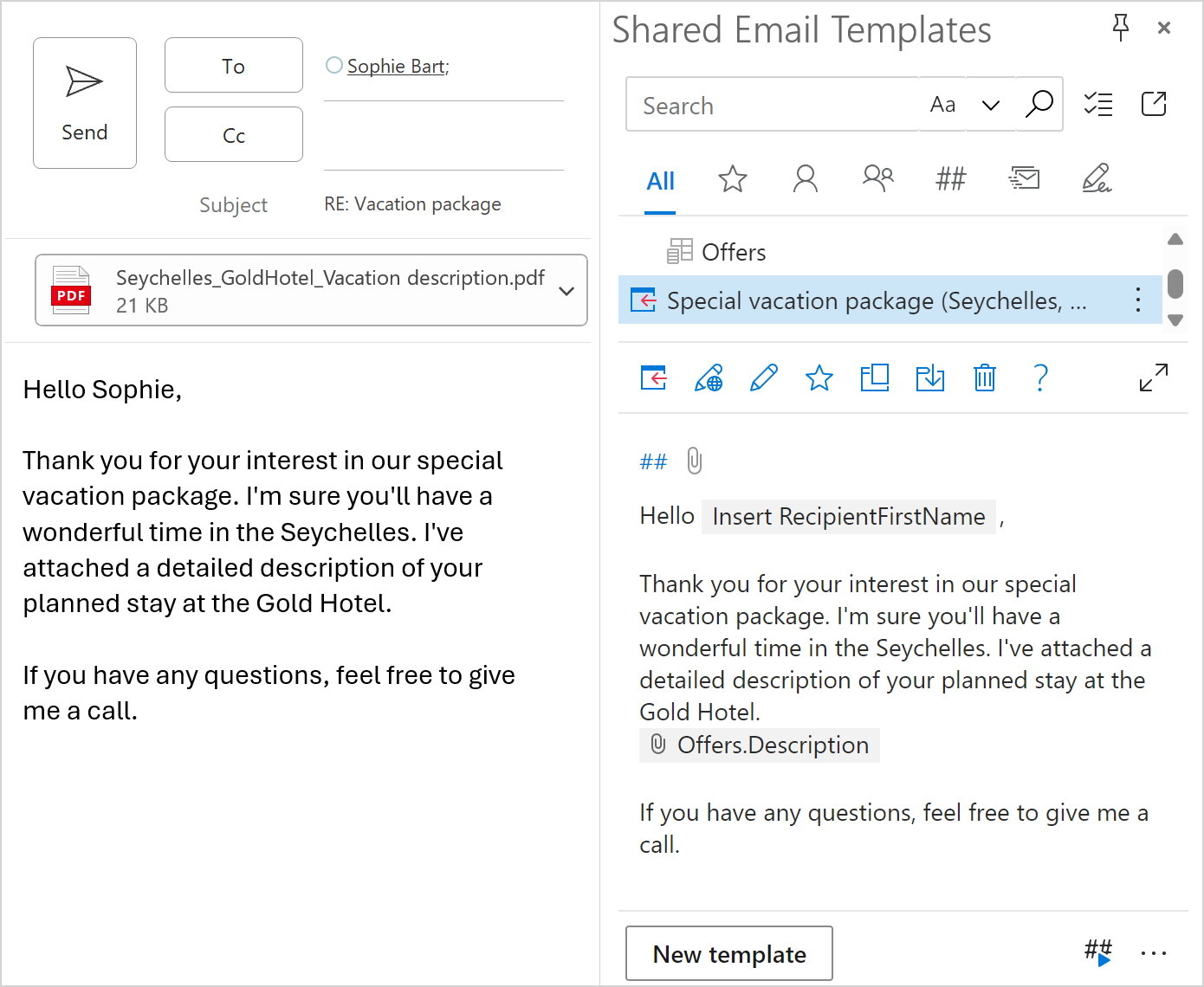
When you insert such a template into an Outlook email message, the Attach macro will automatically attach the necessary file.
Attach a file and insert its name #
Start creating or editing an email template. On the template editor toolbar, select the
Insert macro button.Select Insert dataset value.
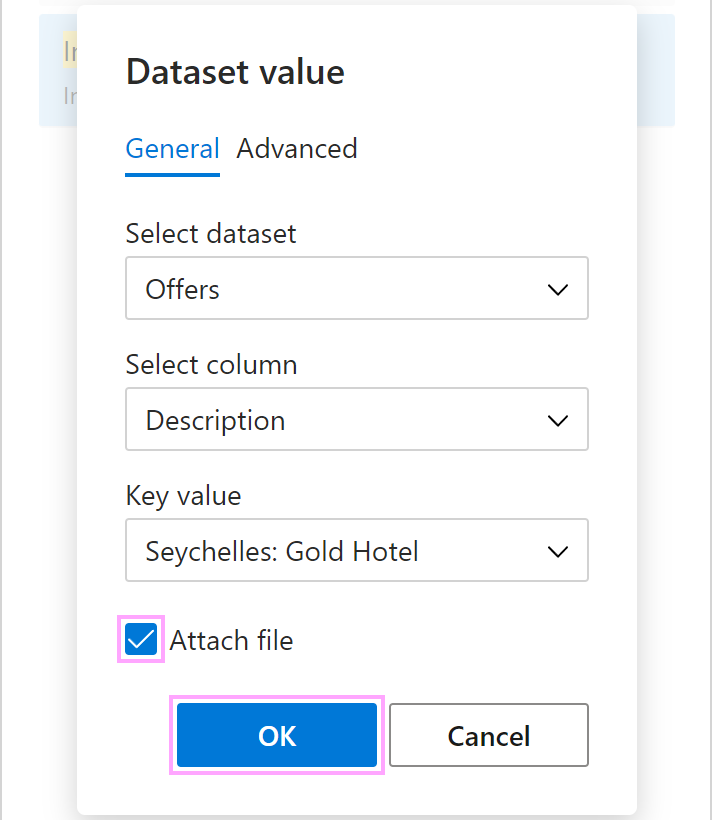
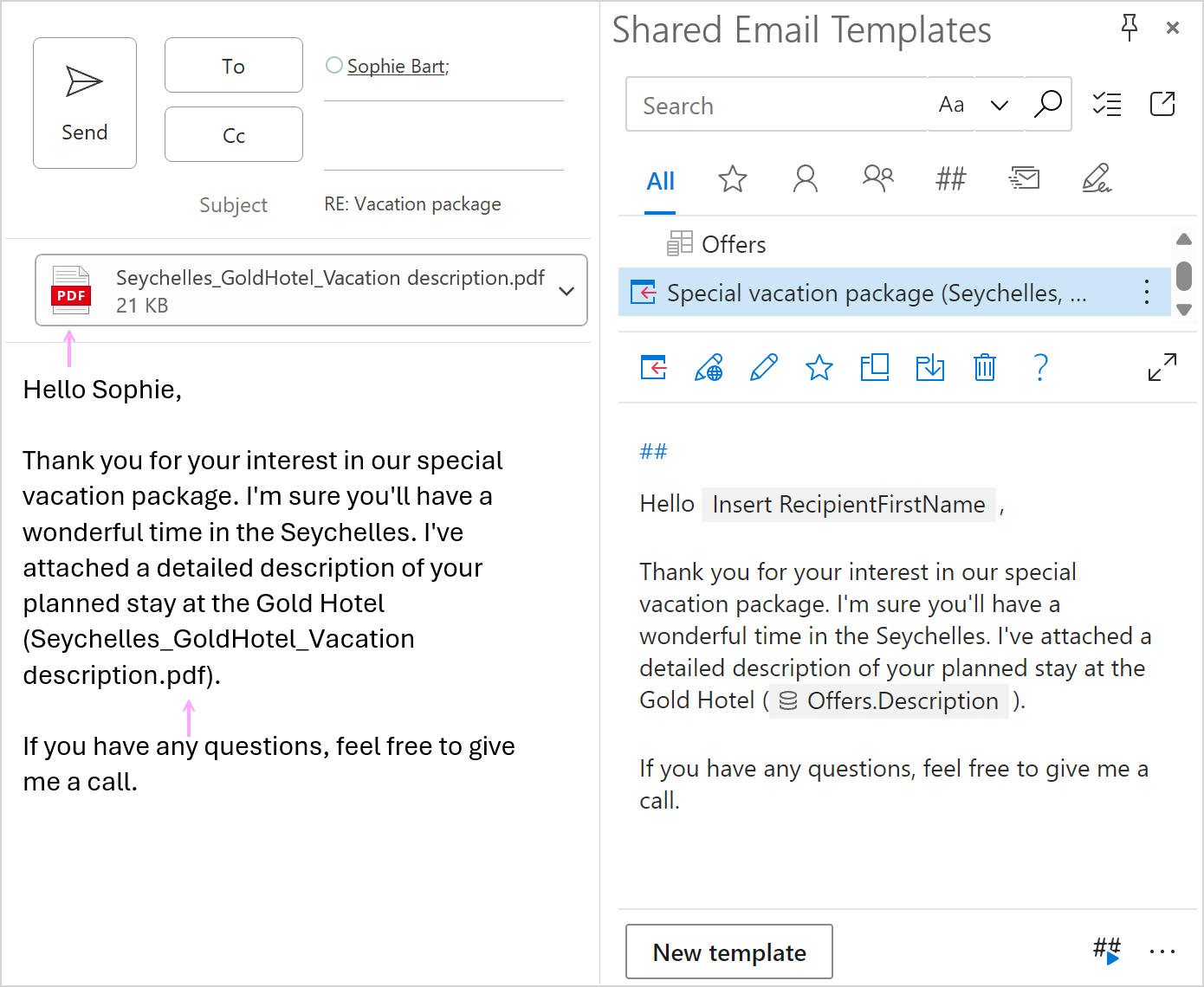
In the Dataset value dialog, select a dataset, a file column, and a key value that the Insert macro will use to identify the row where the file is specified. Also, select the Attach file checkbox. Otherwise the macro will only retrieve the file name. Then select OK.
Save the template.
When you insert such a template into an Outlook email message, the necessary file will be attached, and the macro placeholder will be replaced with the file name.
Select a file to attach #
When creating or editing your message template, select the
Insert macro button on the template editor toolbar.Select What to enter (WTE).
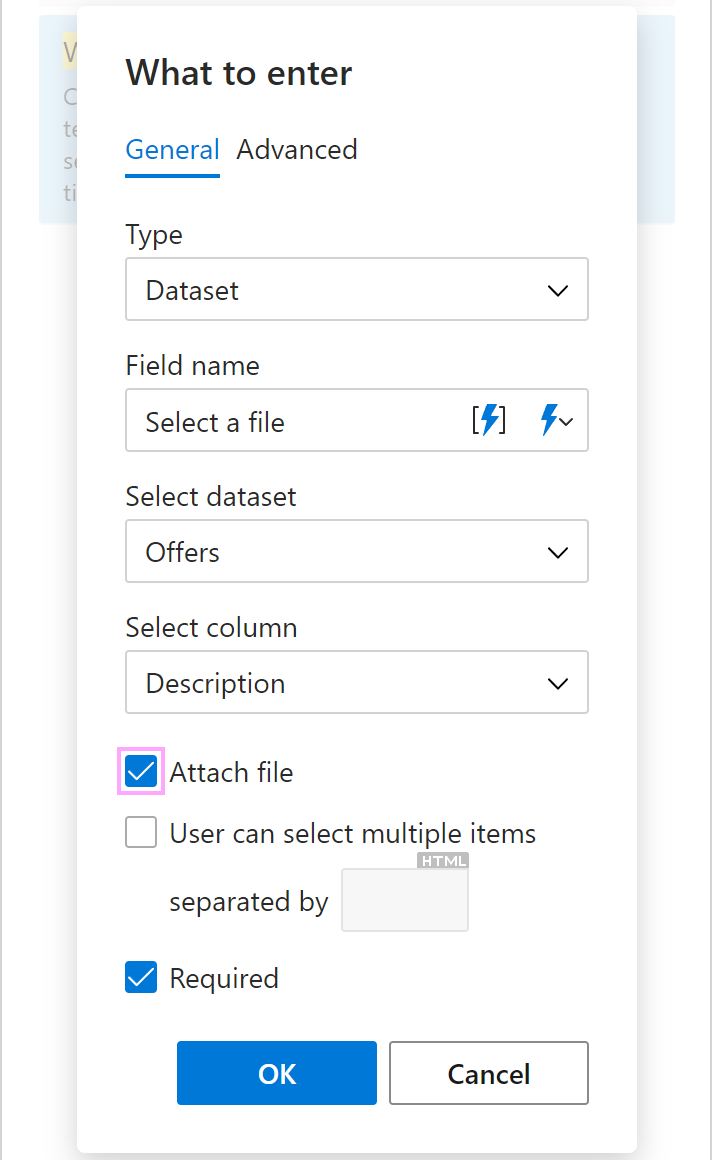
In the What to enter dialog, select Dataset, enter the field name that will be shown in a dialog prompting you to choose an attachment, and then select the dataset and the file column. You also need to select the Attach file checkbox. Without it, only the file name will be added to your email. When you’re done, select OK.
Save your template.
When you insert such a template into an Outlook email message, a dialog prompting you to select a file to attach will show up. To make it possible for the macro to attach the right file, select the corresponding value from the key column of your dataset. Then select OK.
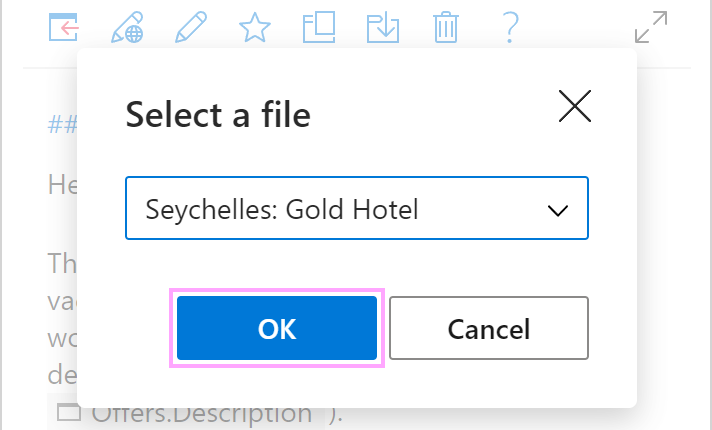
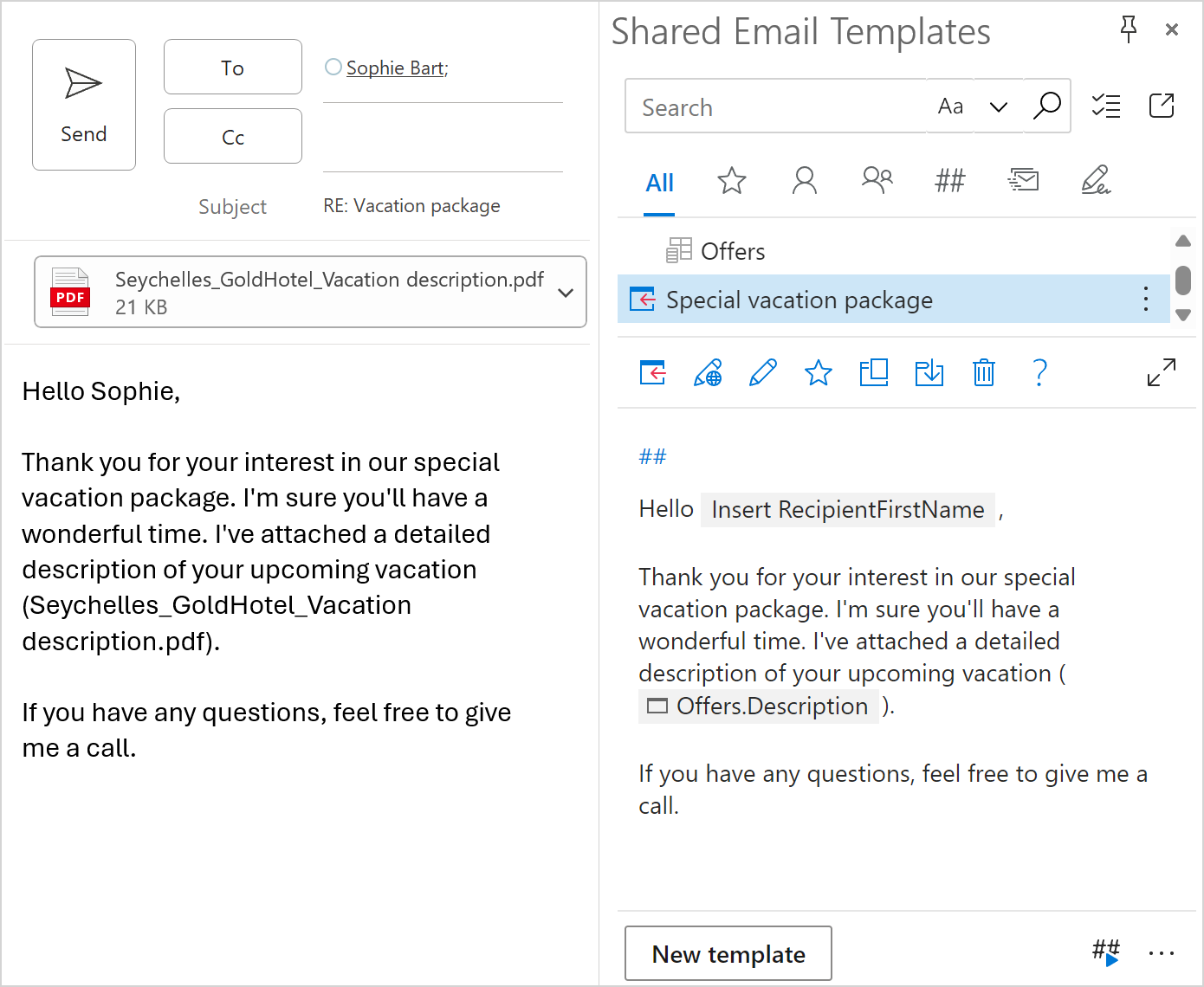
As soon as you select the key value, the macro will attach the necessary file and add its name to the message body.
Attach files using tables #
Add a table to the shared email template you’re creating or editing. Reserve only one row for the details you want to retrieve from your dataset.
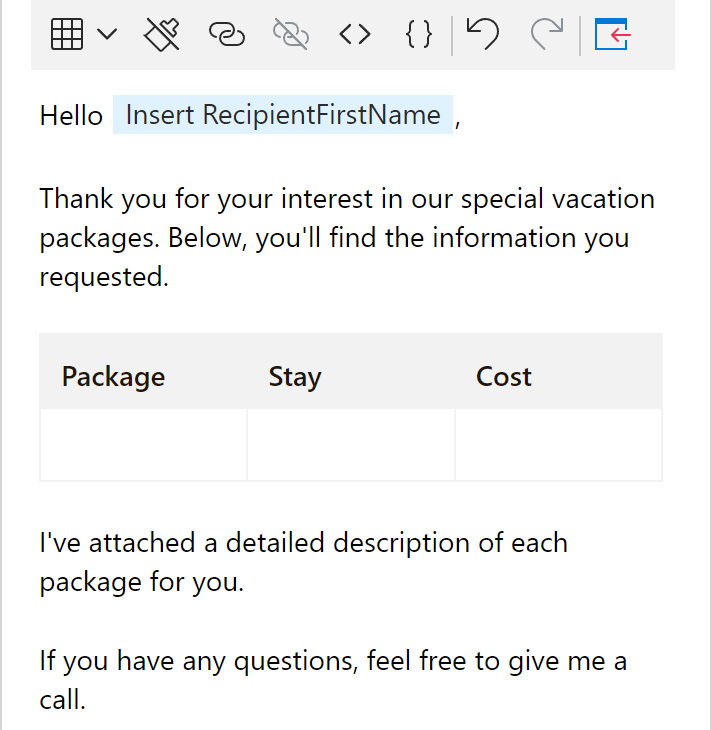
Right-click the row reserved for the details to be retrieved and select Bind to dataset.
In the Select dataset dialog, enter the field name. It will show up in a dialog prompting you to select dataset key values. Select a dataset. Then choose columns that you want to include in the table and columns where the files to be attached are specified. Select OK.
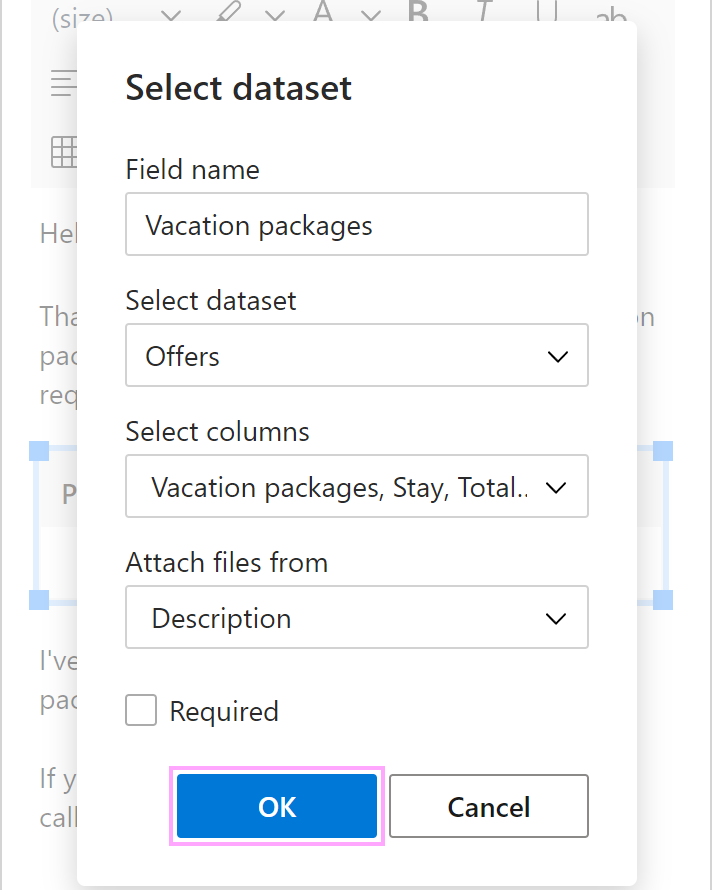
Save your template.
When you insert such a template into an Outlook email message, a dialog will appear making it possible for you to specify dataset rows for the bound table by selecting dataset key values. When you’re done, select OK.
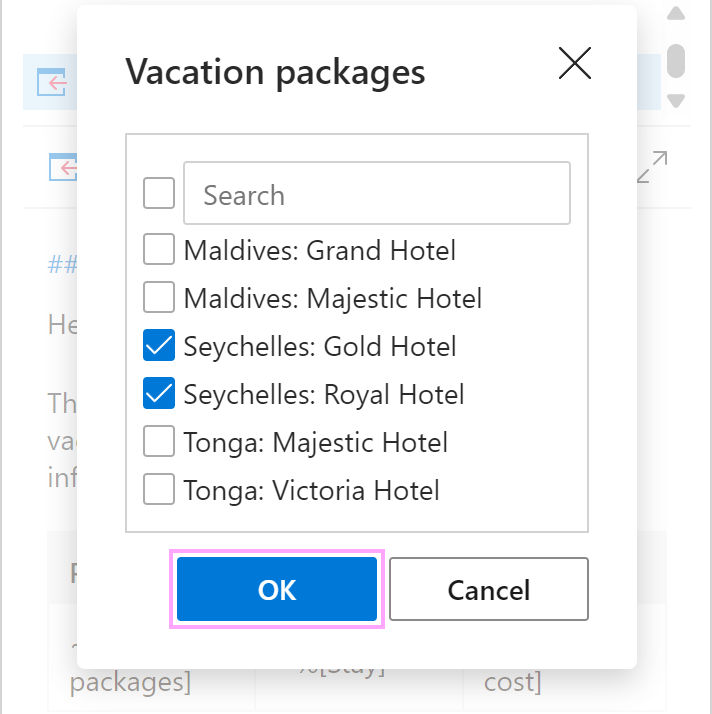
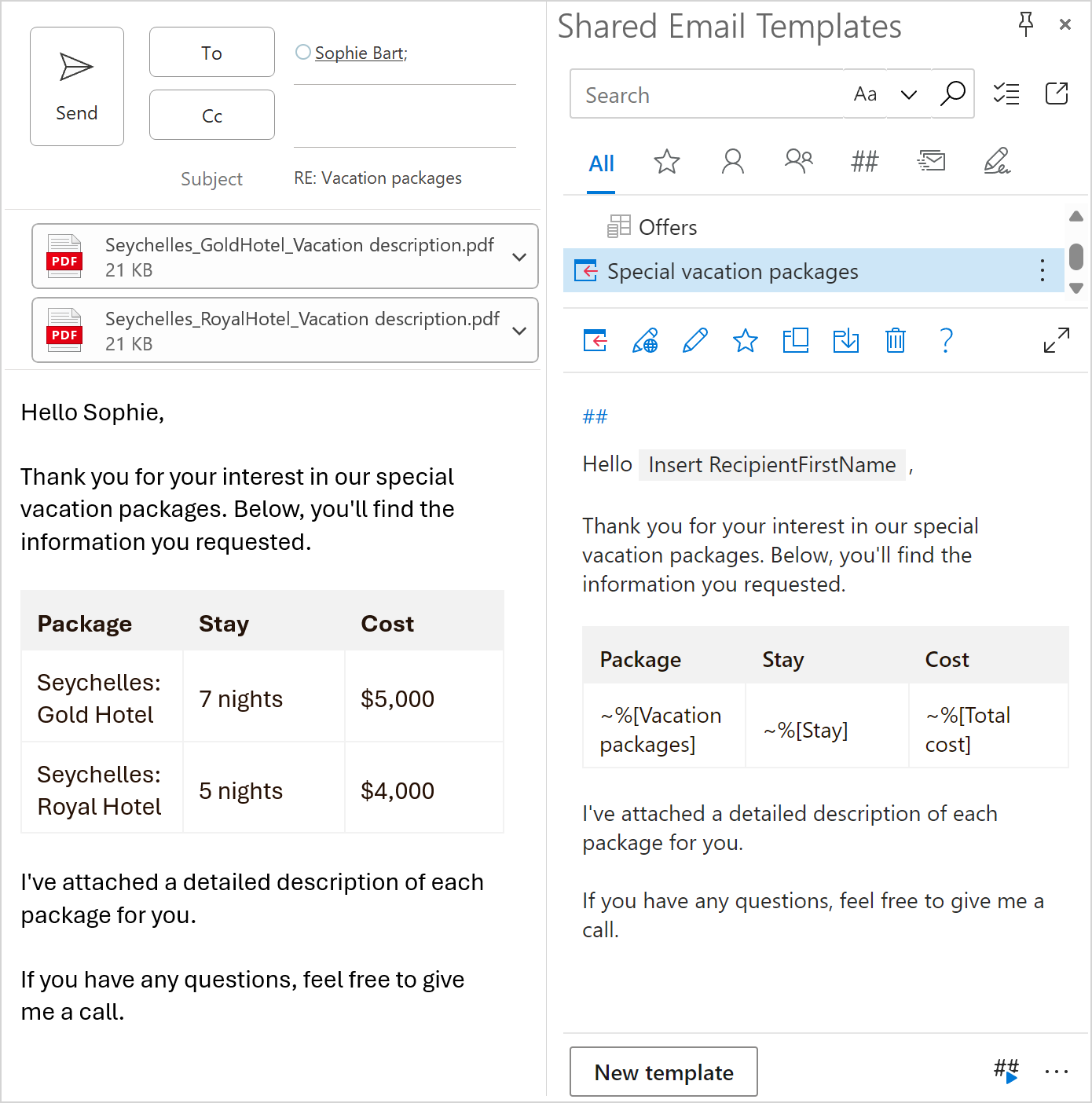
As soon as the dialog closes, data from the specified dataset rows will be added to the table and the specified files will be attached to the email.
Attach files using lists #
In the email template you’re creating or editing, start creating a list.
Right-click the line where the first list item is going to appear and select Bind to dataset.
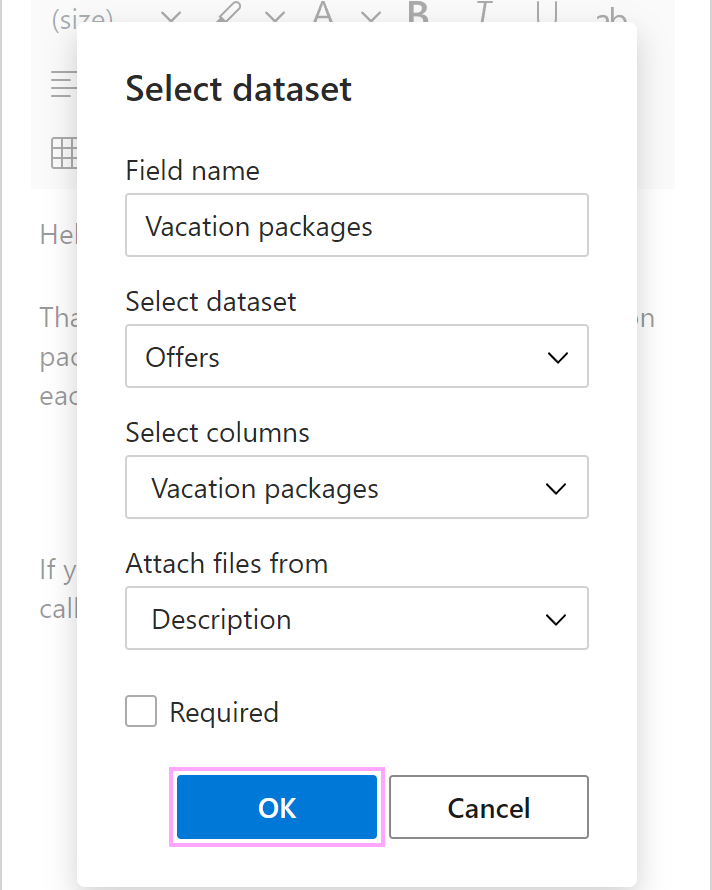
Enter the field name that will be in a dialog asking you to select values from the key column of your dataset, select the dataset itself, choose columns that will form a list and columns where the files to be attached are specified. Then select OK.
Save the template.
When you insert such a template into an Outlook email message, a dialog will show up so that you can select key values from the dataset to specify the rows that must be on the list. When you’re done, select OK.
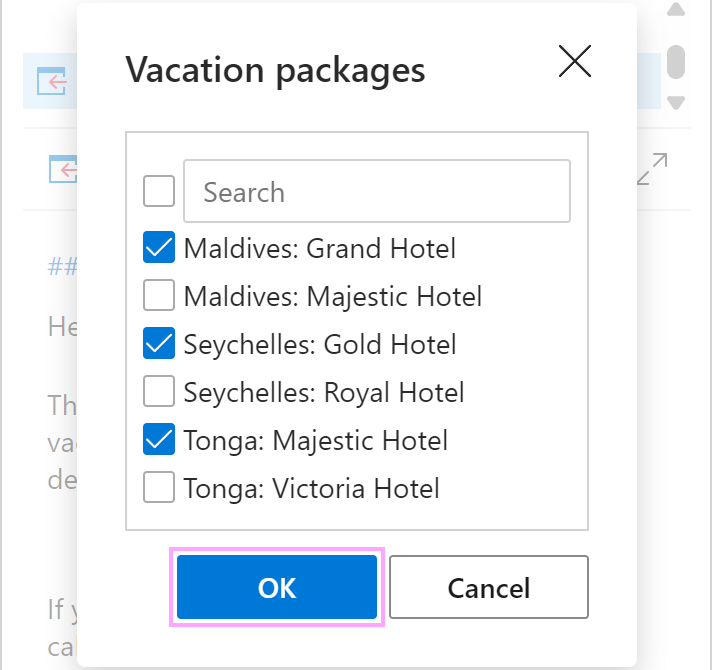
After you select the key values, data from the specified dataset rows will be added to the list and the necessary files will be attached to the email message.