
Auto-fill lists with dataset values
In this article
Bind a list to a dataset #
Start creating or editing your shared email template for Outlook. Decide whether you want to get a bulleted list or a numbered one, and then click the corresponding icon on the template editor toolbar.
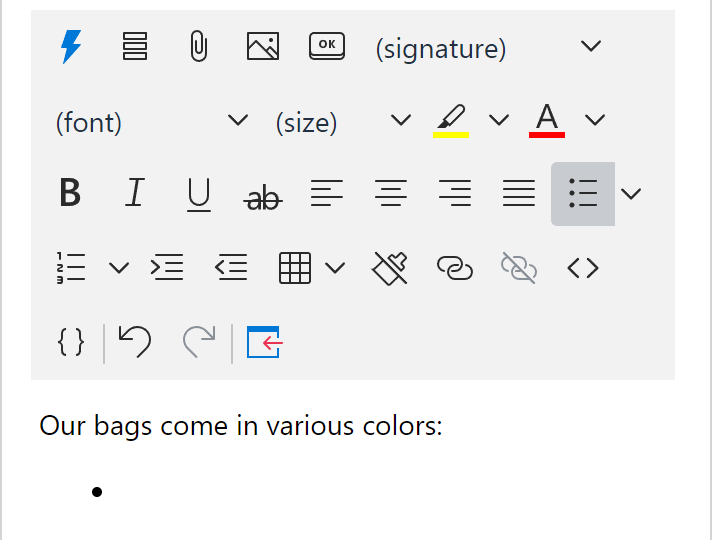
Right-click the line where the first list item is supposed to appear (to the right of the symbol that you already have) and select Bind to dataset.
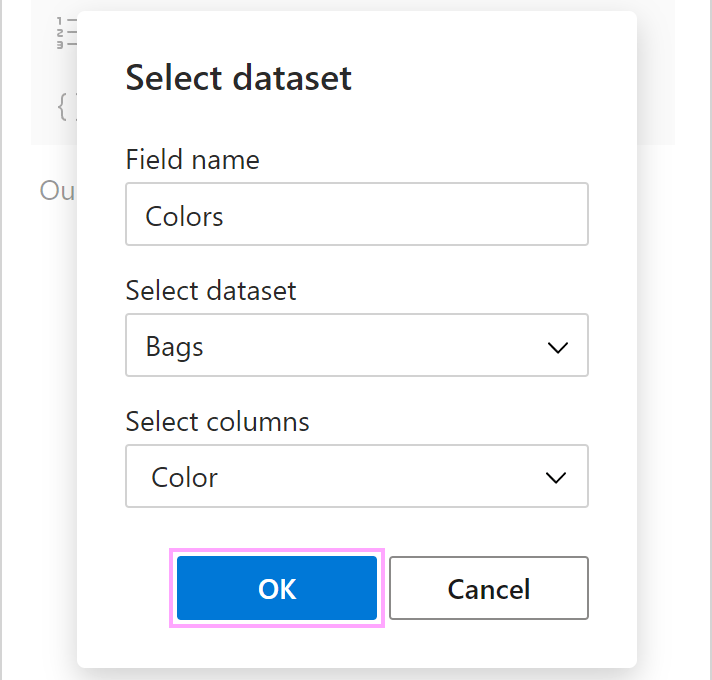
Enter the field name. It will be in a dialog showing up when you insert your template into an email message. Select the necessary dataset and column(s). Click OK.
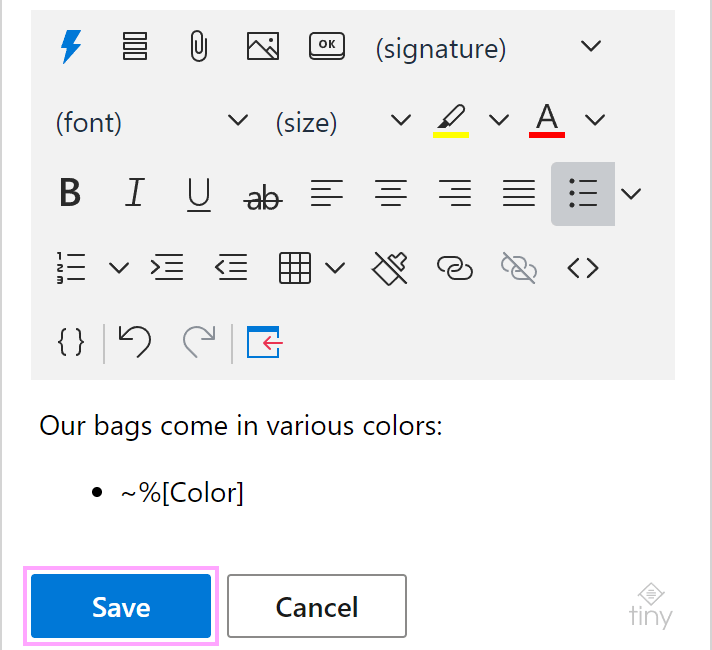
A list item showing the name(s) of the selected column(s) will appear in the email template. Select Save.
When inserting such a template into an Outlook email message, you’ll see a dialog containing a list of key values (values from the key column of the dataset). To specify the rows that will form a list, select the corresponding key values. Then select OK.
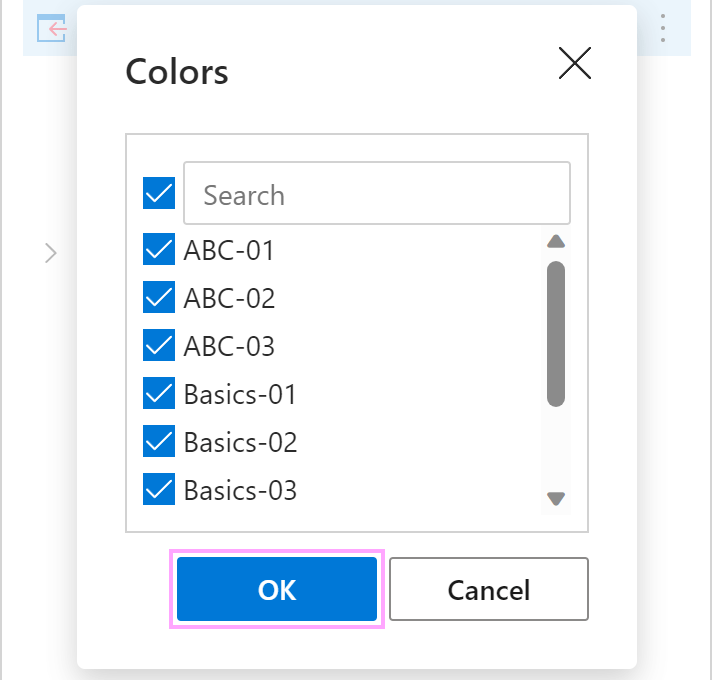
If you want to get key values from some rows selected automatically, set those rows as default ones.
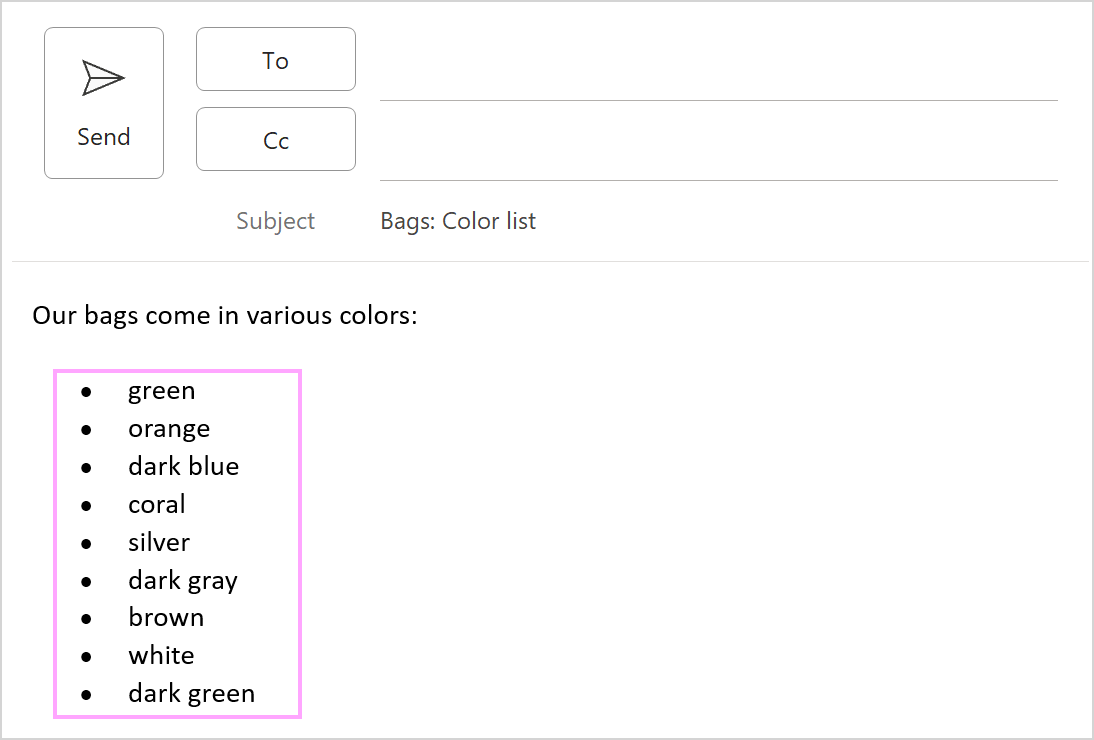
In the email message, a list containing values from the specified rows will appear.
Unbind a list #
To unbind a list from the dataset it’s bound to, start editing your message template, right-click the list item, and then select Unbind from dataset.