
Auto-fill tables with dataset values
In this article

Bind a table to a dataset #
Add a table to the Outlook email template you’re creating or editing. Reserve only one row for dataset values. When you insert the template into an email message, you’ll be able to add as many rows as you need.
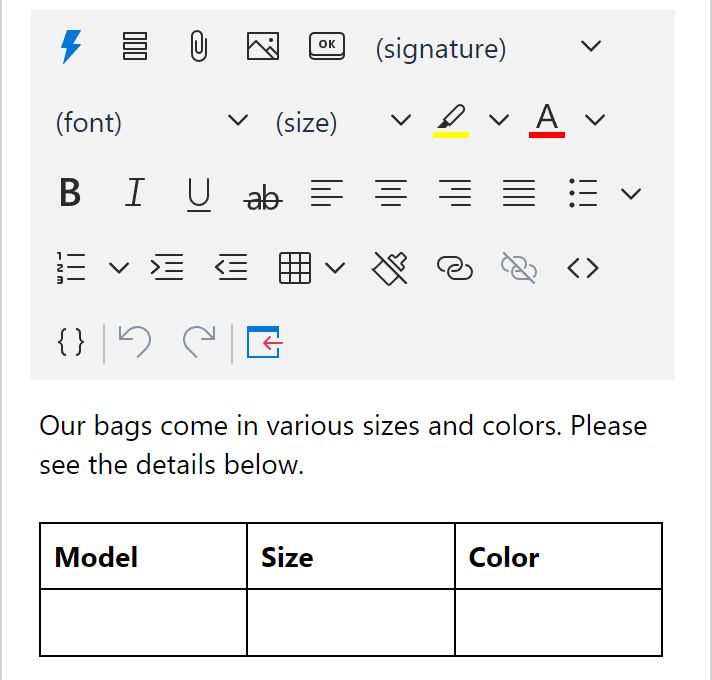
Right-click a row that is going to be populated with dataset values, and then select Bind to dataset.
Enter the field name that will be in a dialog showing up when you insert your message template into an email. Select a dataset and columns. Then click OK.
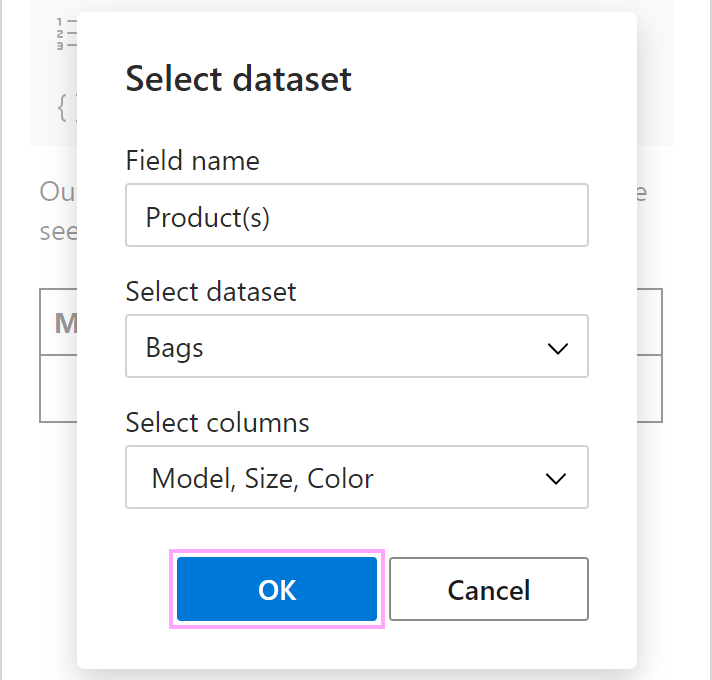
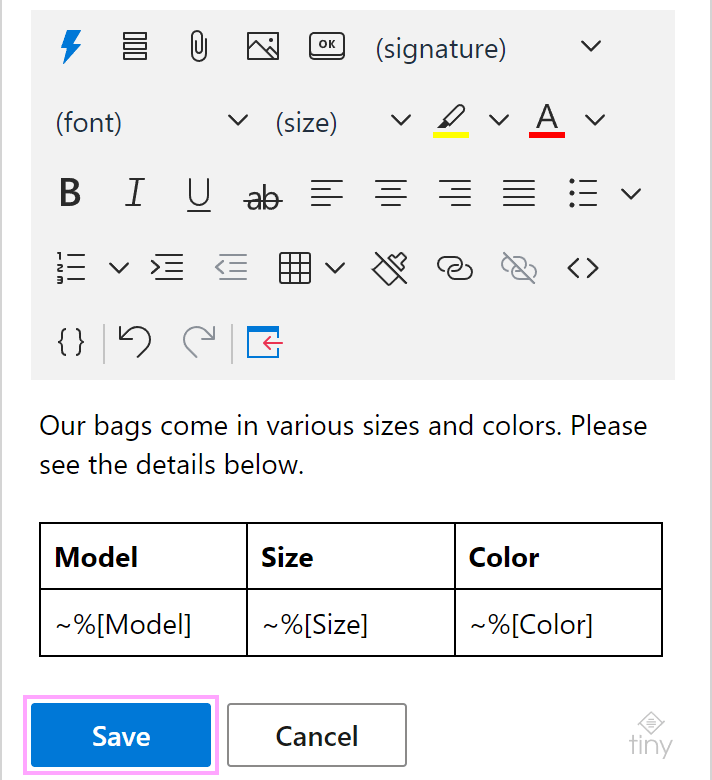
The names of the selected columns will populate the row in the order that they are present in the Select columns box. If a different order is needed, clear all the checkboxes under Select columns, and then select columns in the order required for your table.
The names of the selected columns will appear in the row. Save your template.
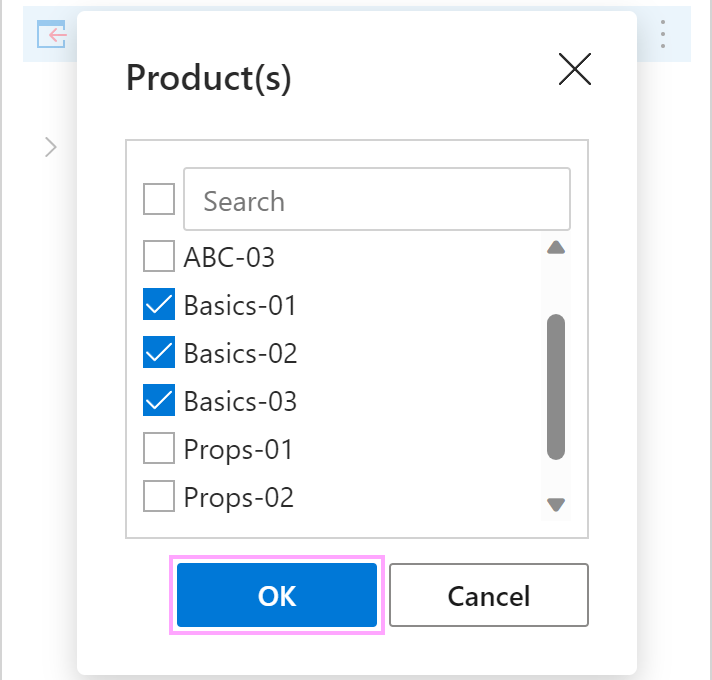
When you insert such a template into an Outlook email message, you’ll see a dialog containing a list of key values (values from the key column of the dataset). To specify the rows that you want to add to the table in your email message, select the corresponding key values. Then click OK.
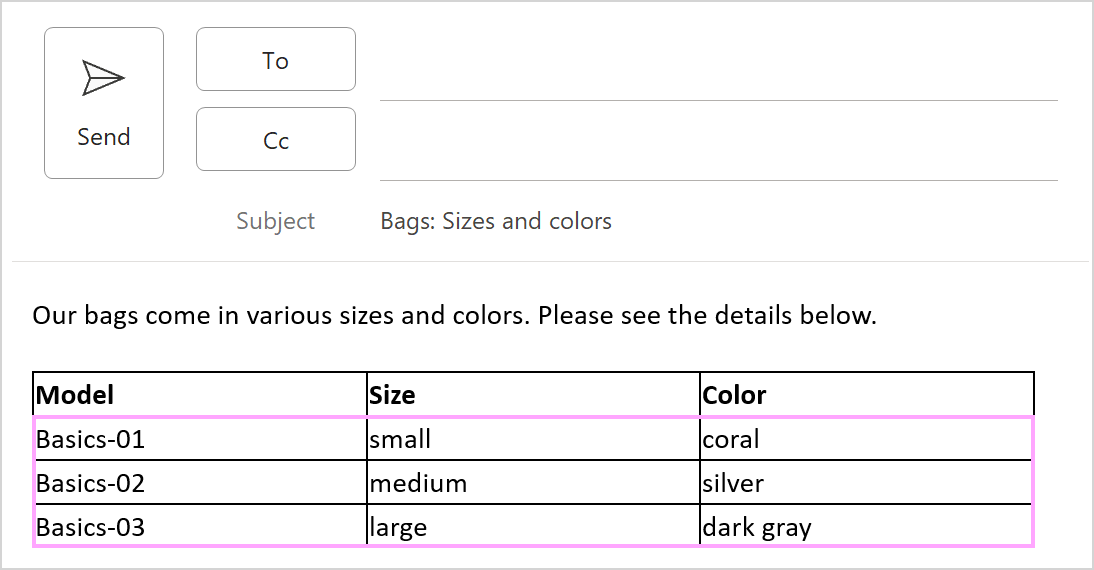
In the email message, values from the specified rows will populate the table.
How to set default rows in a dataset #
If you want to get key values from some rows selected automatically, set those rows as default ones.
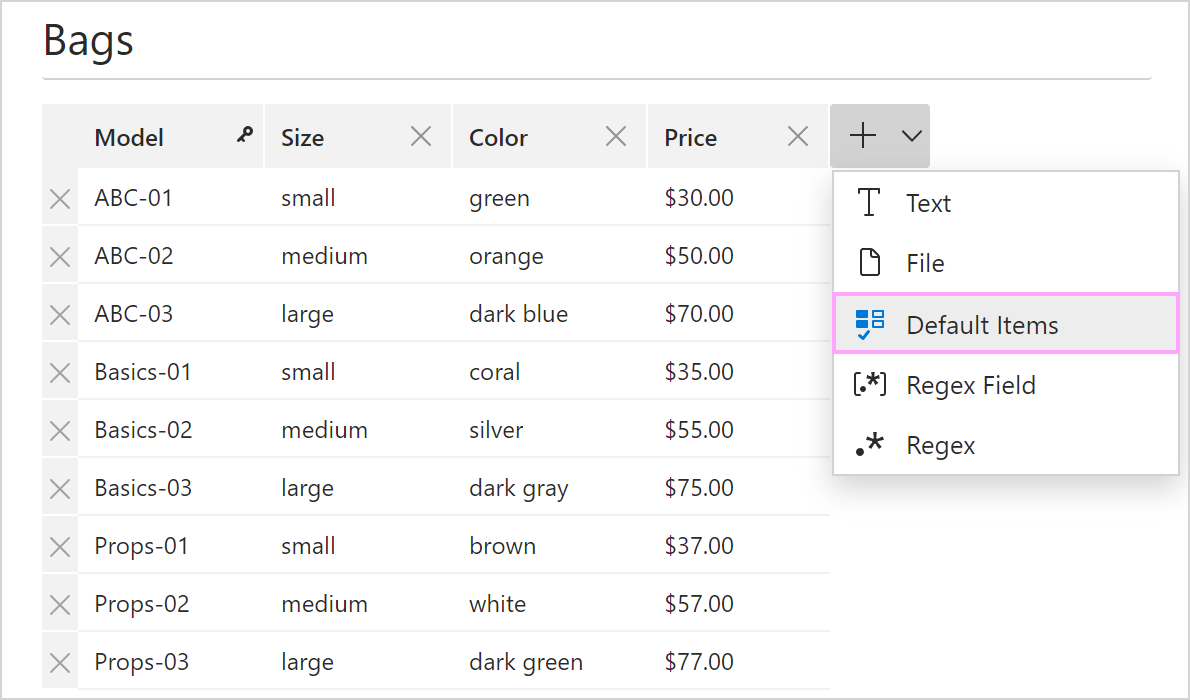
Add the Default Items column to your dataset.
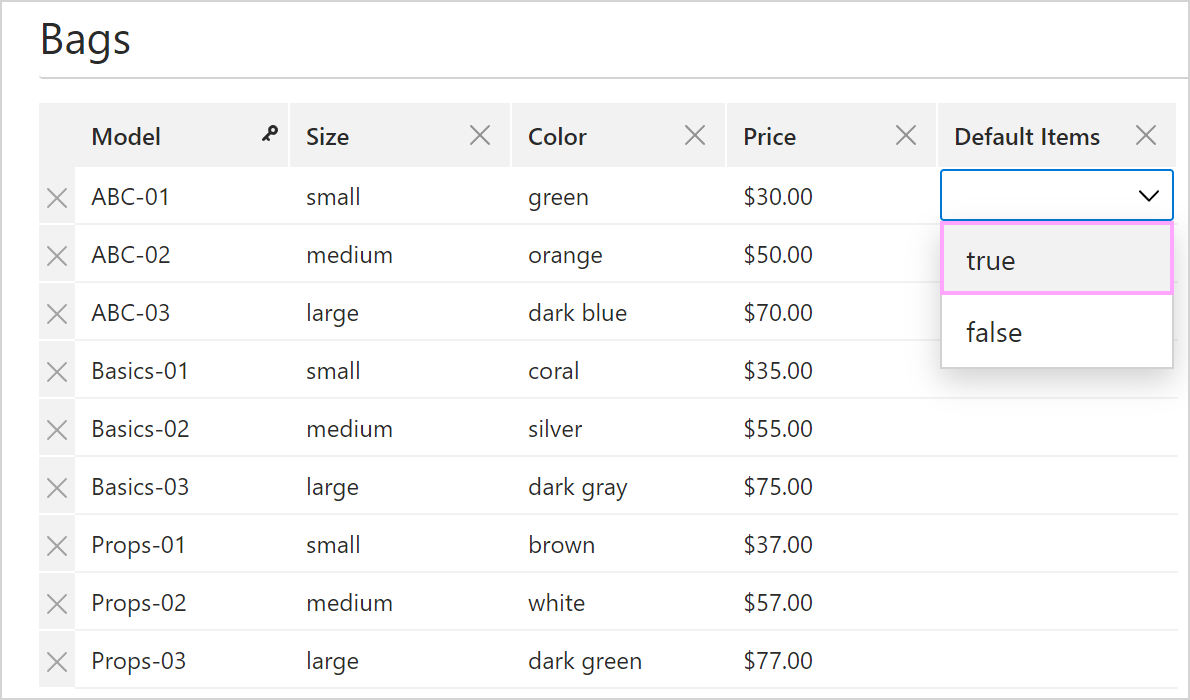
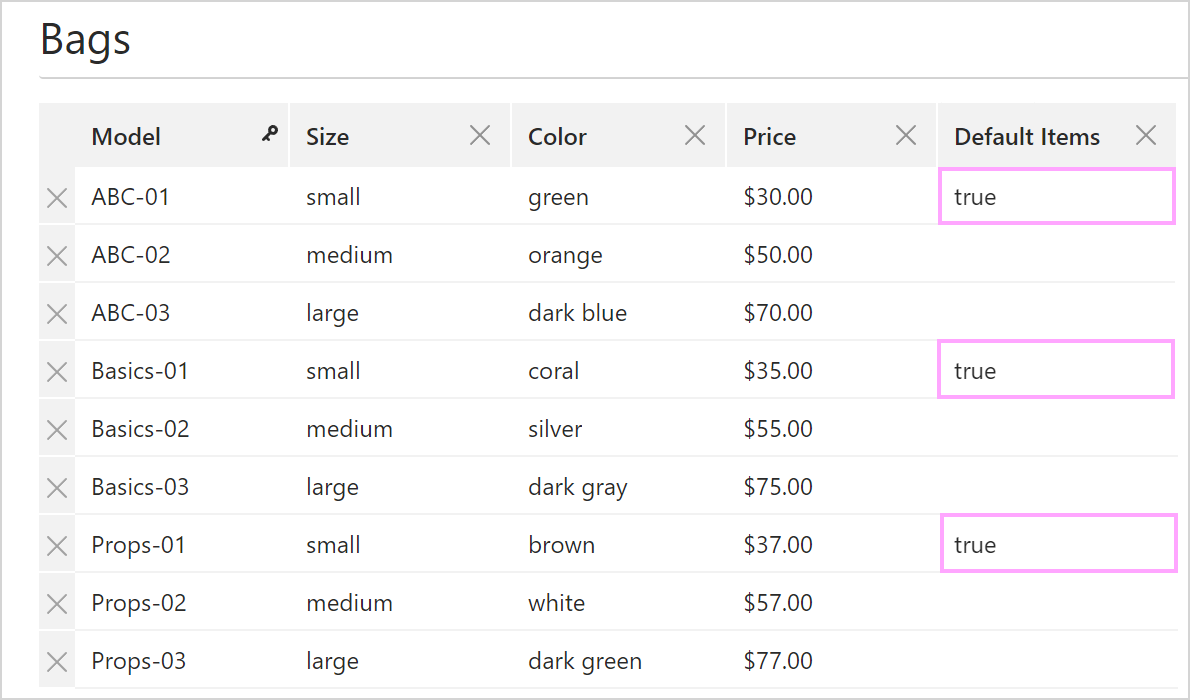
Mark the rows that you want to make default by selecting “true” from the dropdown menu.
Save the changes.
Unbind a table #
To unbind a table from the dataset it’s bound to, start editing your email template, right-click the bound row, and select Unbind from dataset.