Dataset values in custom input fields for your Outlook emails
In this article
In Shared Email Templates for Microsoft Outlook, you can create custom input fields linked to datasets using the WhatToEnter (WTE) macro.
How to add a field for selecting values from a dataset #
Start creating or editing your Outlook email template.
Decide where in the template you want to place a field for selecting a dataset value. Put the cursor there and select the
 Insert macro button on the template editor toolbar.
Select What to enter (WTE).
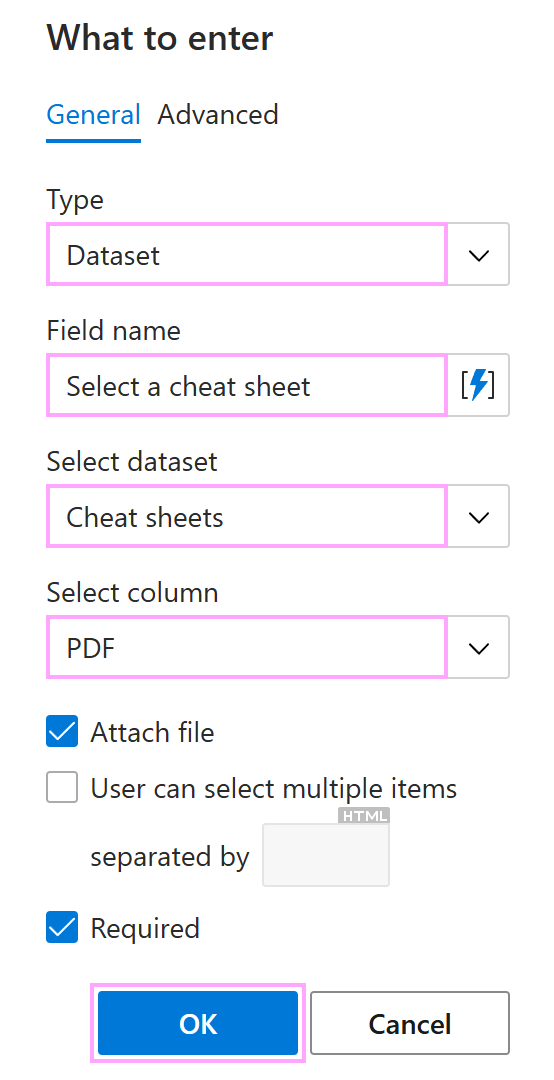
In the What to enter dialog, on the General tab, select Dataset, enter the field name (this name appears in the dialog prompting you to select a dataset value), and choose the dataset and column you want to use.
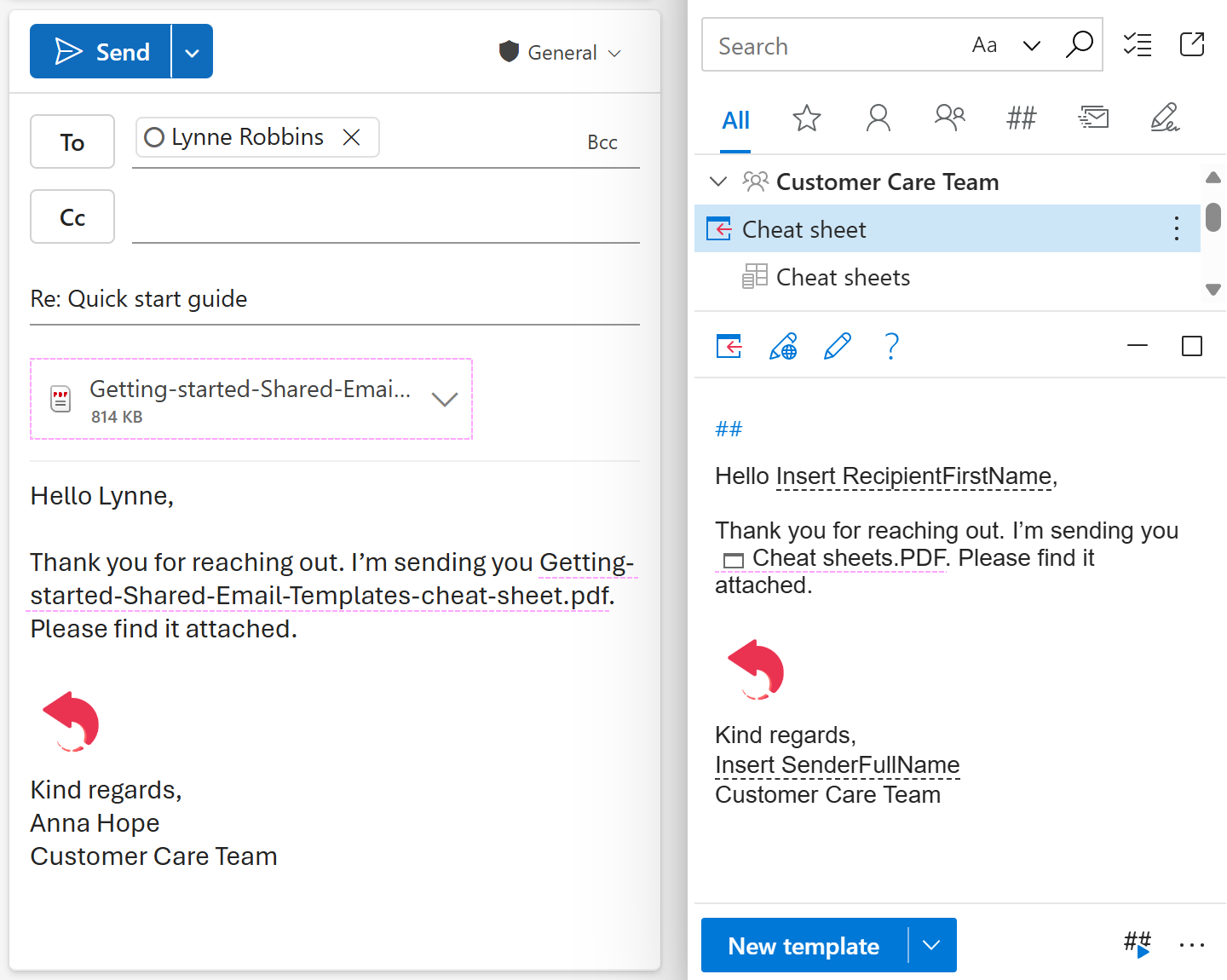
For example, suppose you have a dataset named Cheat sheets with two columns: Topic (a key column containing cheat sheet names) and PDF (a file column containing links to cheat sheets stored on OneDrive). When you insert the template into an Outlook email, you want a dialog to appear so you can select a cheat sheet. When you select one, the corresponding file name should be inserted into the message body, and the file should be attached to the email. To achieve this, do the following:
- Under Type, select Dataset.
- Under Field name, enter Select a cheat sheet.
- Under Select dataset, select Cheat sheets.
- Under Select column, select PDF.
- Select the Attach file checkbox.
If you switch to the Advanced tab, you can specify:
- What value to insert into your email message if the result returned by the WhatToEnter macro is not empty.
- What value to insert into your email message if the result returned by the WhatToEnter macro is empty.
- What regular expression the value that will be entered or selected via the pop-up dialog must match.
When you’re done, select OK.
The field for selecting a value from the specified dataset appears in your template. Select Save.
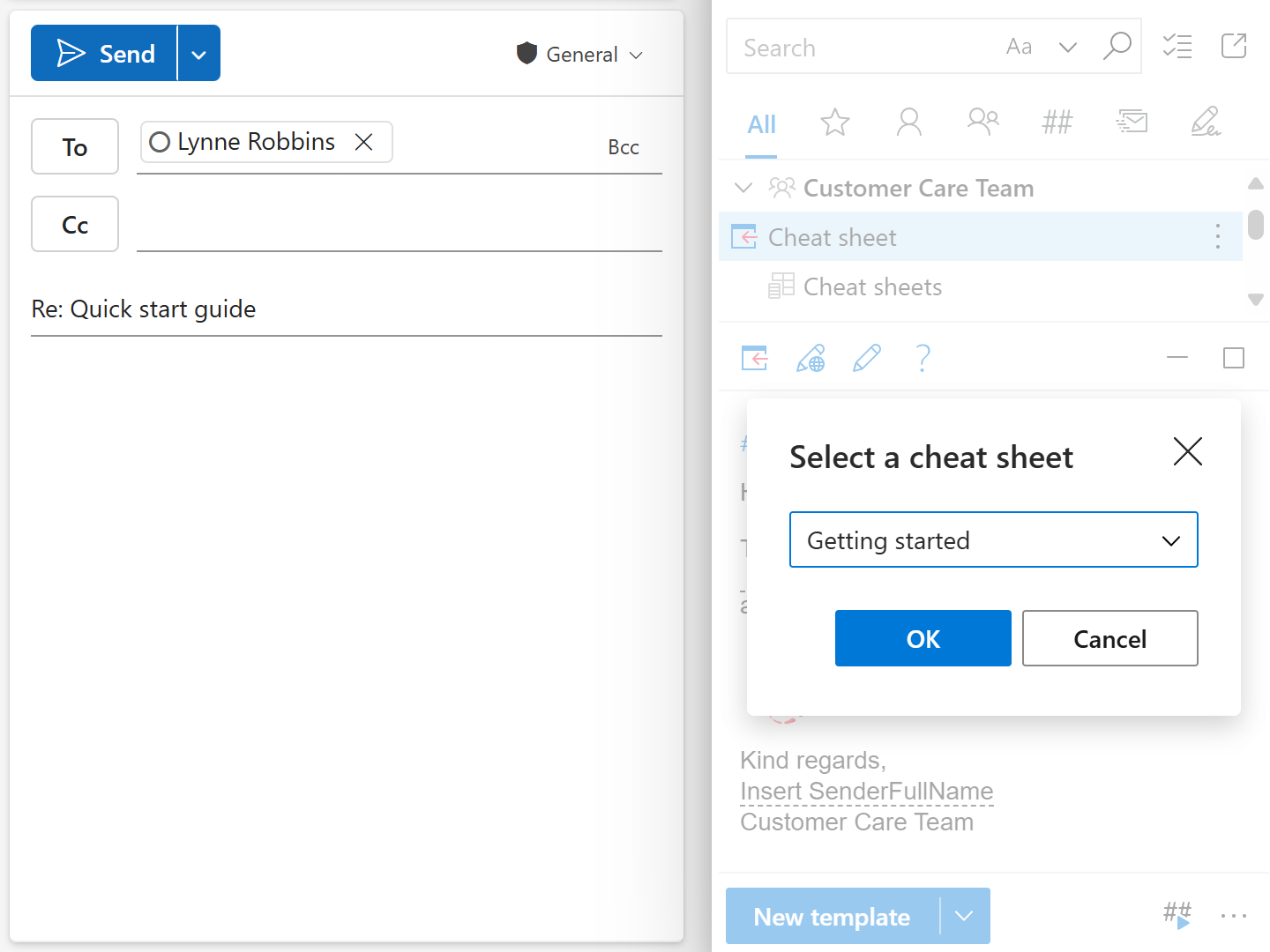
When you insert the template into an Outlook email message, a pop-up dialog appears prompting you to select a value from the key column of the specified dataset.
When you select the key value and click OK, the value from the specified column is inserted into the email message.
How to customize the WhatToEnter macro output #
When adding the WhatToEnter macro to your email template for Outlook, you can specify what text to insert into an email message depending on whether the macro result is empty or not.
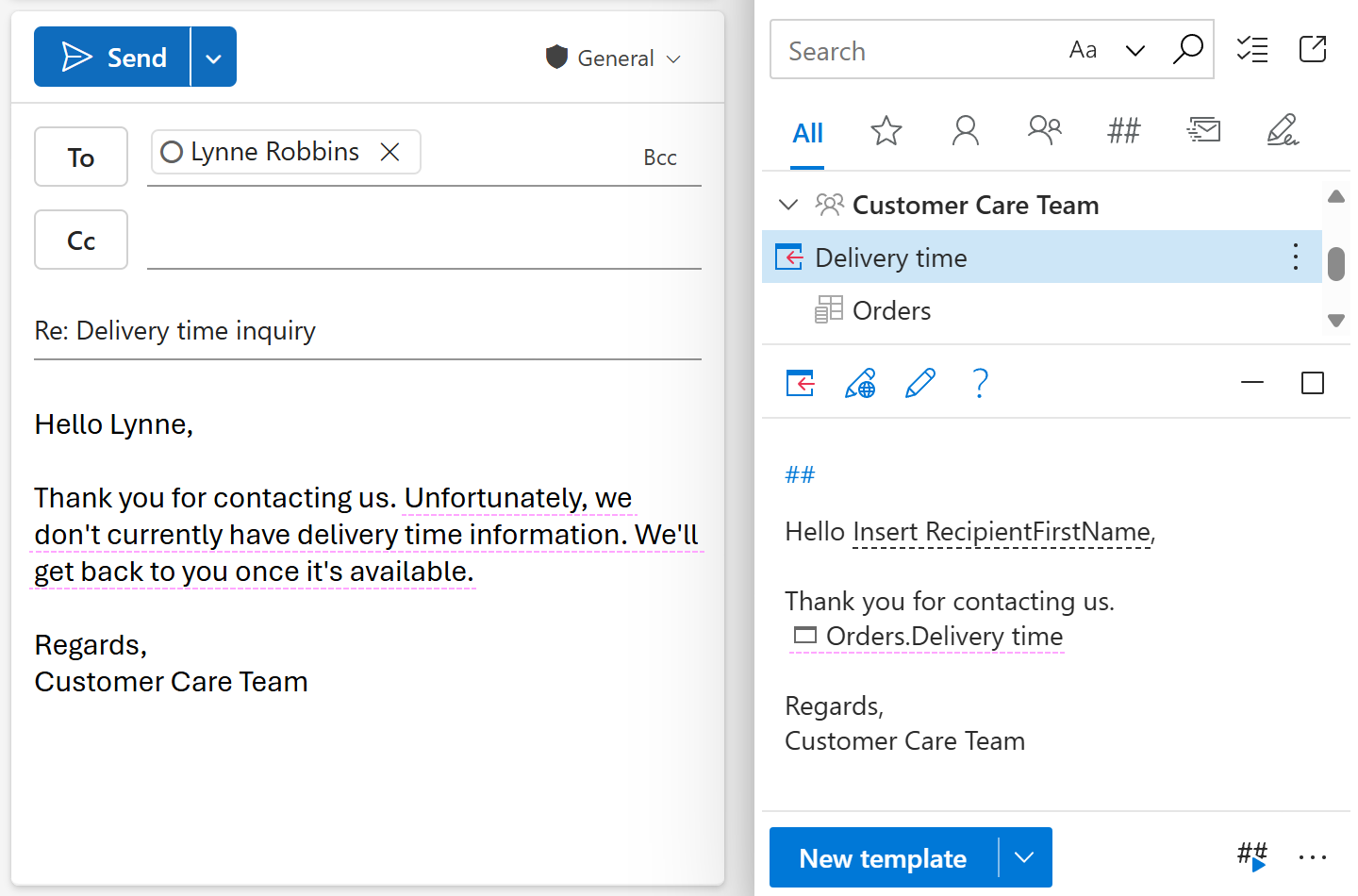
Suppose you have a dataset named Orders that contains the following columns: Country (a key column) and Delivery time. When replying to a customer’s email, you’d like to use a template that allows you to select a country. After you select the country, the add-in checks your dataset and inserts one of two predefined phrases:
- If a delivery time is specified:
The estimated delivery time is [number of business days]. - If delivery time information is missing:
Unfortunately, we don’t currently have delivery time information. We’ll get back to you once it’s available.
To set this up, configure the WhatToEnter macro in your message template as follows:
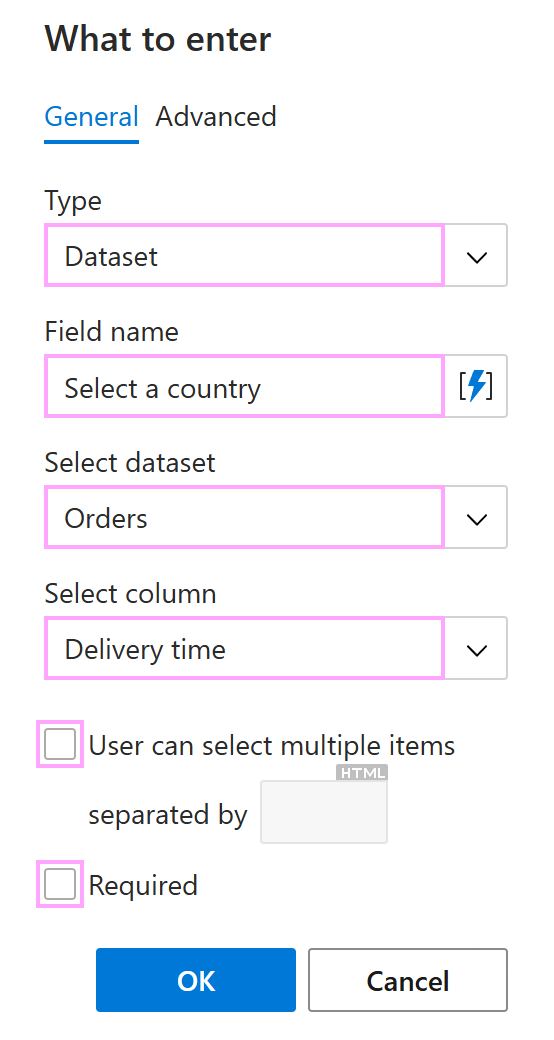
In the What to enter dialog, fill in the fields on the General tab.
For example:
- Under Type, select Dataset.
- Under Field name, enter Select a country.
- Under Select dataset, select Orders.
- Under Select column, select Delivery time.
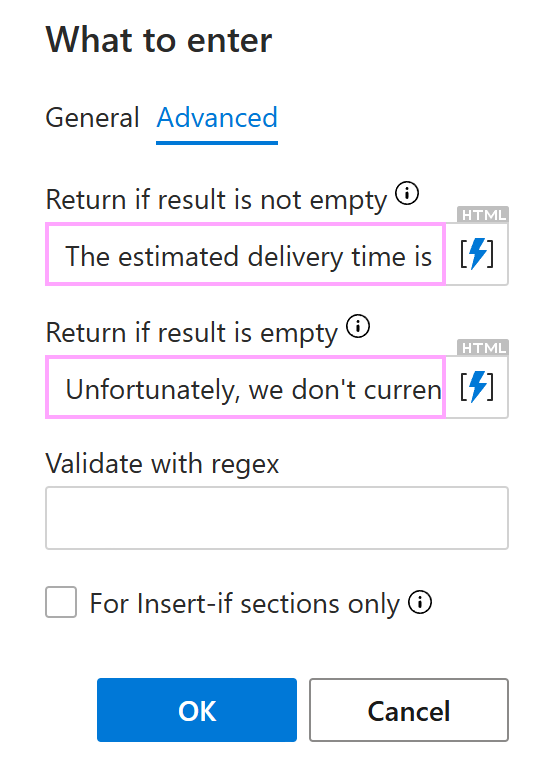
Switch to the Advanced tab.
Under Return if result is not empty, enter the text to be automatically inserted into an Outlook email message together with the macro result, for example this phrase: The estimated delivery time is [Result].
Under Return if result is empty, enter the text to be automatically inserted into an Outlook email message if the macro returns an empty result, for example this phrase: Unfortunately, we don’t currently have delivery time information. We’ll get back to you once it’s available.
Select OK.
Save the template.
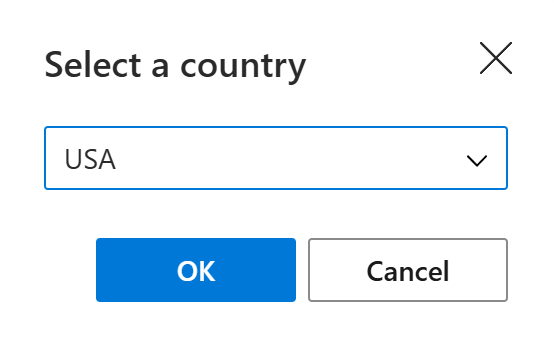
When you insert this template into an email, a dialog appears allowing you to select a value from a key column.
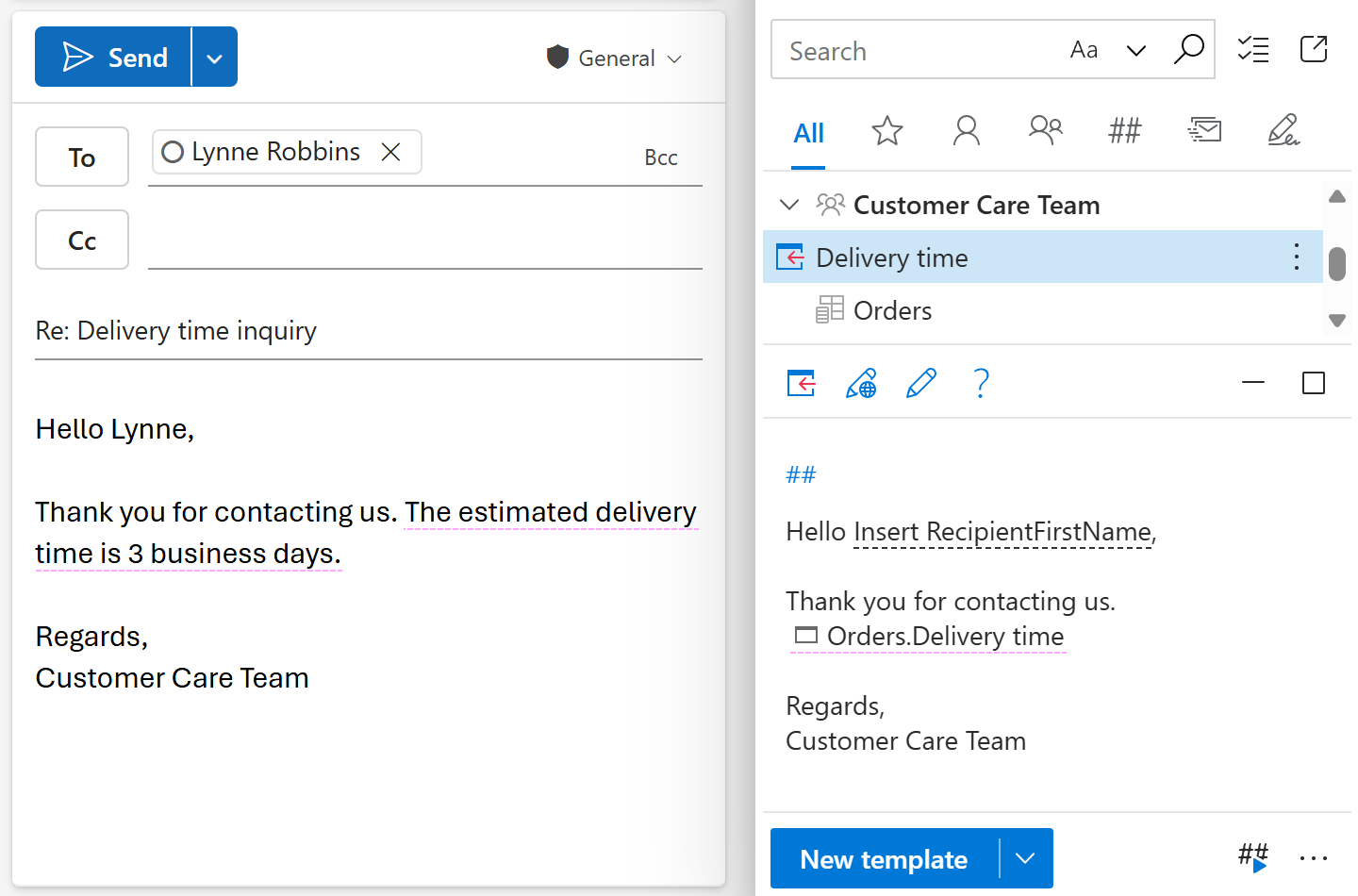
Depending on whether the WhatToEnter result is empty or not, one of the two predefined phrases is automatically inserted into the email. Compare:
When the macro result is not empty
When the macro result is empty