
Shared Email Templates
How to create Excel-based datasets for Outlook email templates
In this article
Before you start #
- Both Excel tables and entire worksheets can be connected to your Outlook email templates. If you connect a worksheet, it’s the used range that gets connected.
- Merged cells are not supported.
- If your Excel table has a column with dates that you want to use in a specific format for your Outlook email messages, format the dates as text in Excel desktop.
- As soon as an Excel workbook is connected, do not remove or move it, otherwise the add-in won’t find it.
- If you use a connected Excel table for a team template, make sure that your teammates have access to the connected Excel workbook.
- If you connect an Excel table that contains more than 1,000 rows, it might slow down the add-in performance.
Connect an Excel table #
In the Shared Email Templates pane in Outlook, right-click My templates, a team (Editor permissions are required), or a subfolder, and then select New dataset.
In your default browser, a new tab with the Shared Email Templates app will open. Name your dataset.
Depending on the location of your Excel file, select either Excel Table from OneDrive or Excel Table from SharePoint.
Select a file and click Open.
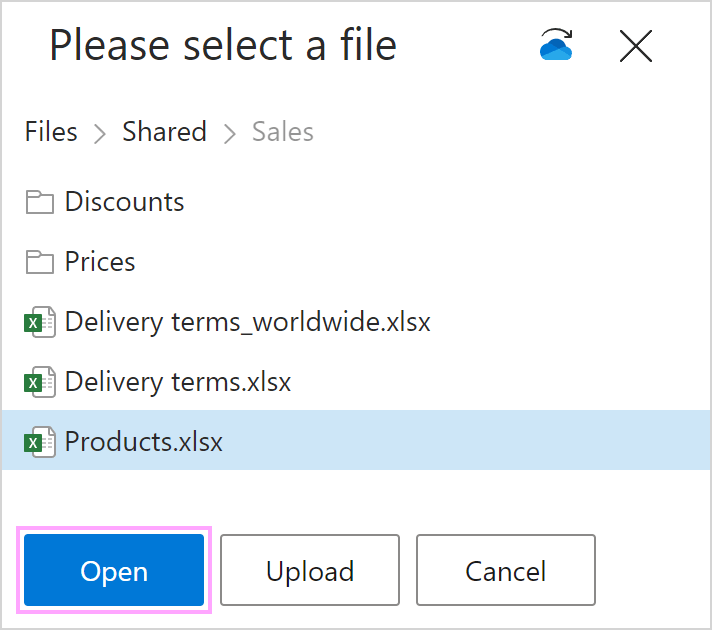
Choose a table or a sheet and click Select.
To save your dataset, select Save.
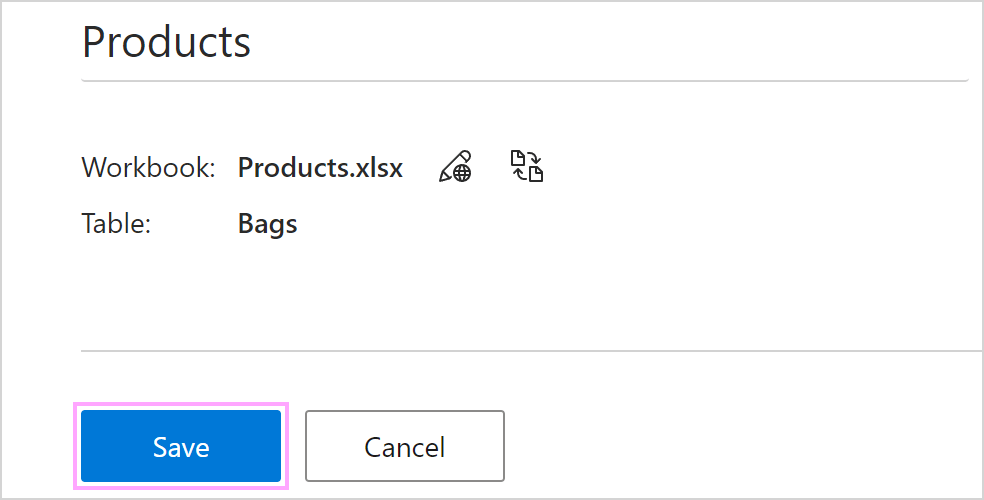
In the Shared Email Templates pane, Excel-based datasets are marked with a special icon:  .
.