How to add dataset values to the message body in Outlook with templates
In this article
You can create fillable fields in your Outlook email templates and populate them with dataset values using macros. The Insert macro adds a dataset value automatically, while the WhatToEnter macro lets you select one in a dialog when you insert the template into an email message.

Add dataset values automatically #
In a message template you’re creating or editing, place the cursor where you’d like to add an auto-fillable field for a dataset value, and then select the
 Insert macro button on the template editor toolbar.
Select Insert dataset value.
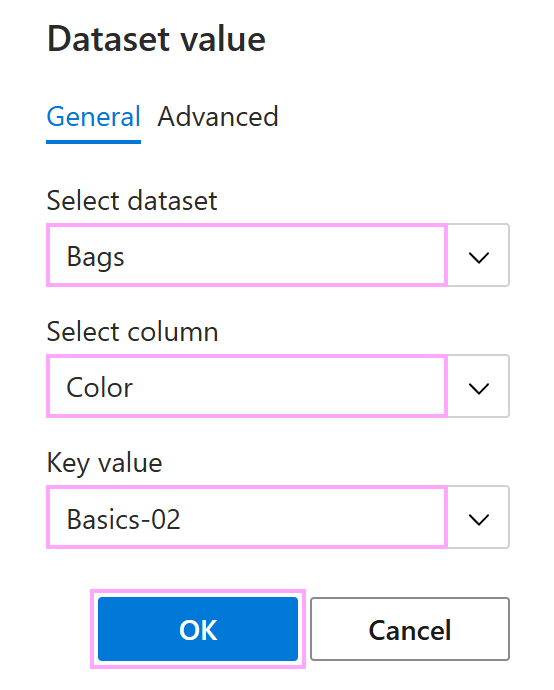
Select a dataset, column, and key value (a value from the key column identifying a row from where to retrieve a dataset value). Then click OK.
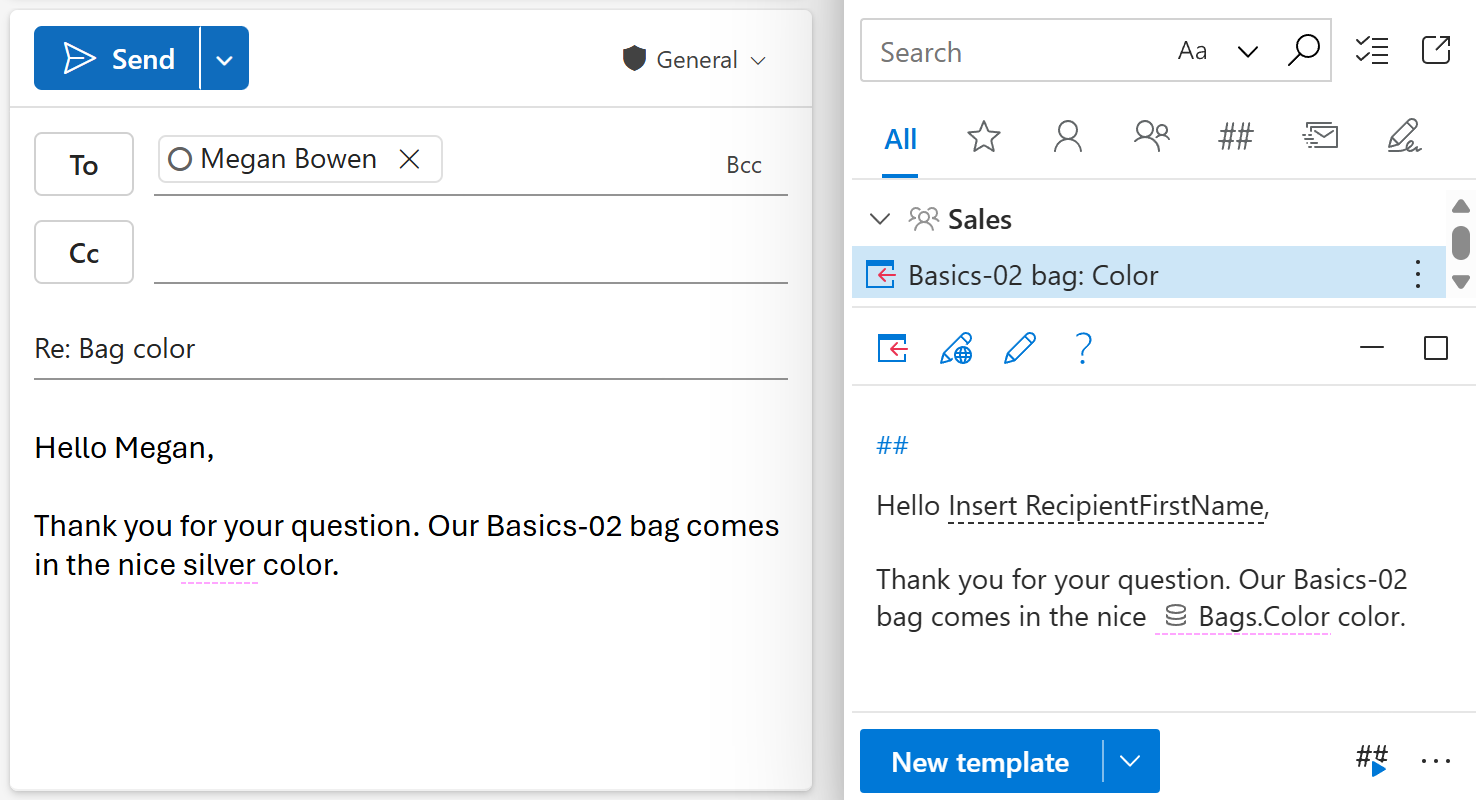
An auto-fillable field will appear in your template. Select Save.
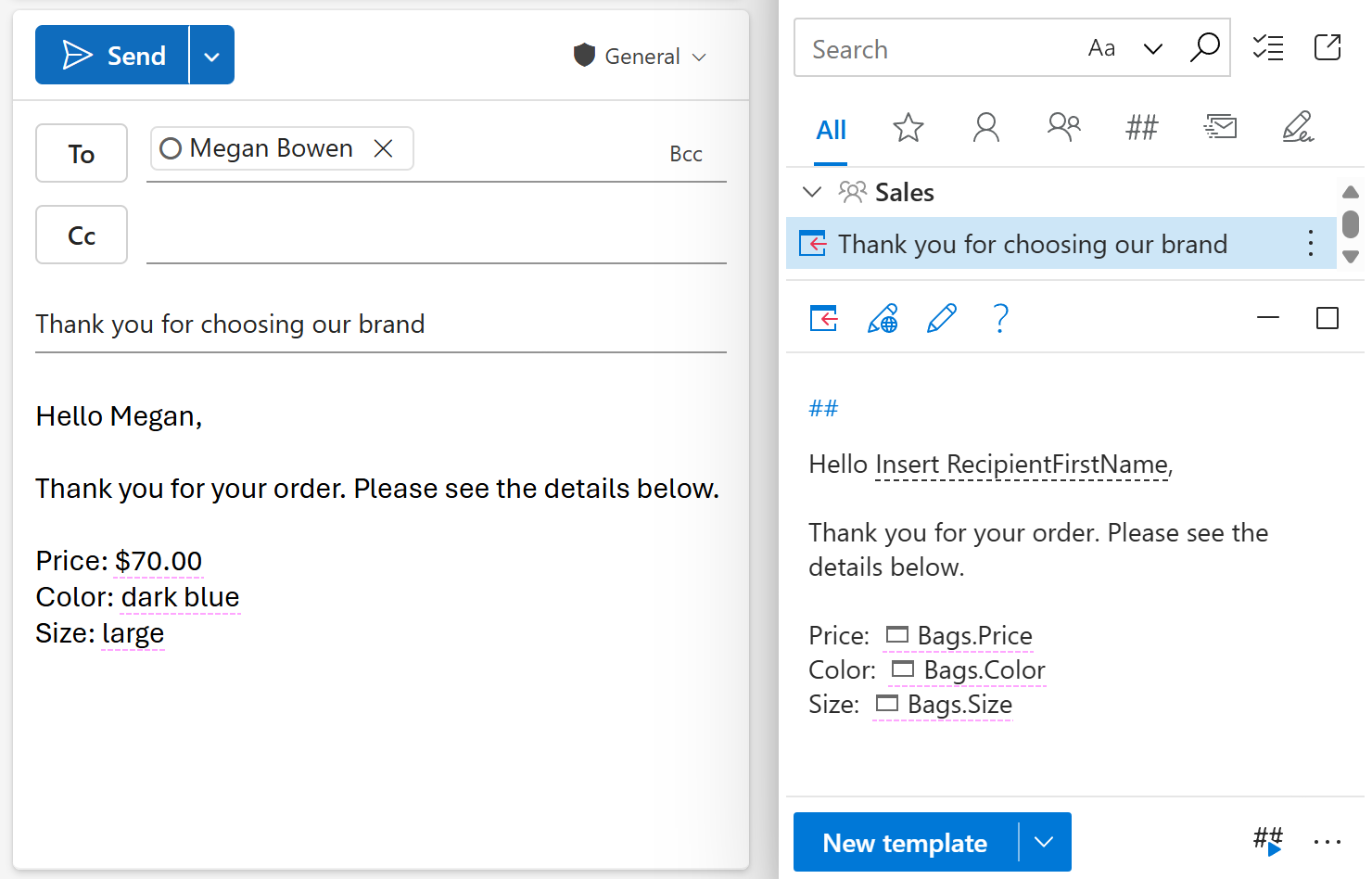
When you insert such a template into an Outlook email message, the auto-fillable field will be automatically replaced with a value from the specified column and row.
Choose what dataset values to add via a dialog #
If you want to fill multiple template fields with values from the same dataset row by selecting a key value only once, follow these steps:
Create a dataset.
In your Outlook email template, create a custom input field for selecting a dataset value with the WhatToEnter (WTE) macro.
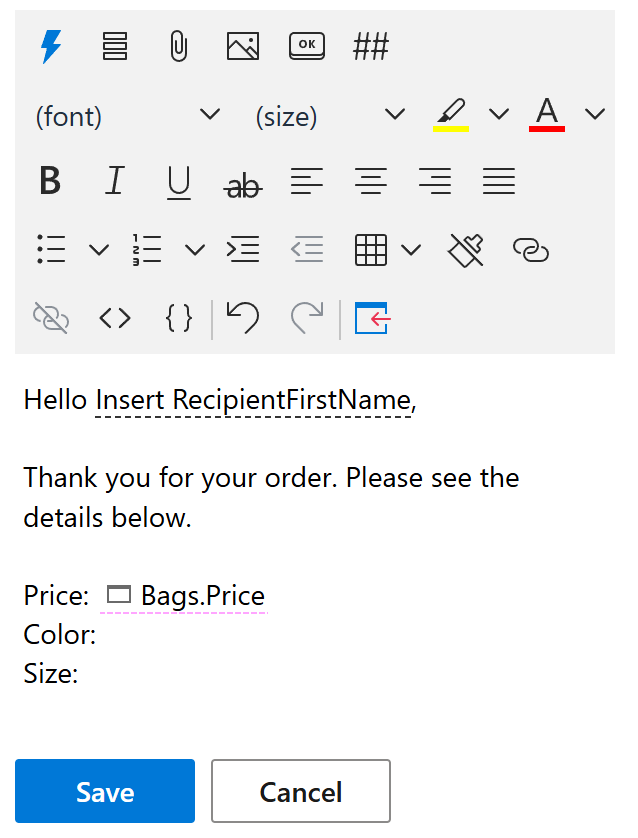
Copy the custom input field using the Copy from another WTE option and change the dataset column from which the value is pulled. Then select OK.
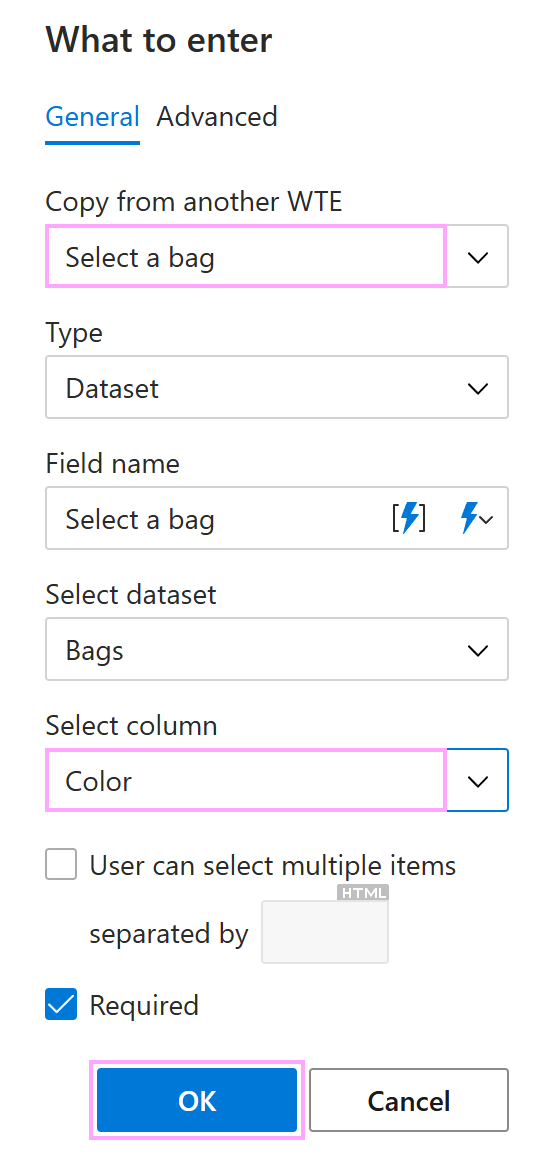
Repeat the previous step for each dataset column from which you want to retrieve a value.
When you’re done, save your template.
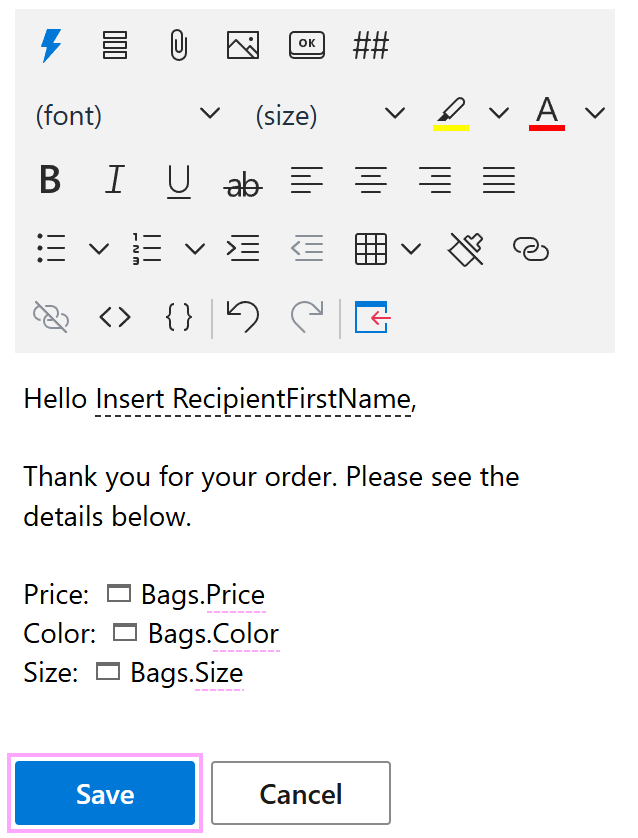
When you insert the template into an Outlook email message, a pop-up dialog will prompt you to select a value from the key column of your dataset. Select the key value to specify the dataset row from which to pull values, and then select OK.
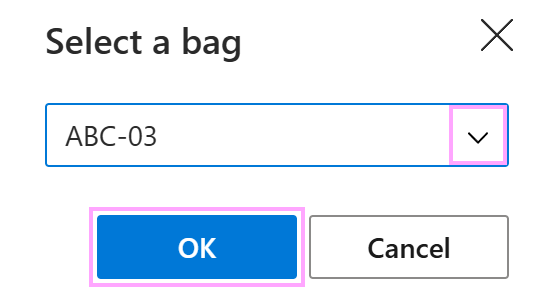
In your email message, all the corresponding custom input fields will be filled with the dataset values in one go.