
Insert pictures from datasets into Outlook emails
In this article
If you often use the same pictures in your Outlook emails, create a simple dataset with a picture column and link it to your shared email templates. Then you can insert pictures from the dataset automatically or choose which picture to insert from a dropdown list. You can also insert pictures into tables and lists.
Add a picture column to a dataset #
In Shared Email Templates, start creating or editing a simple dataset.
Click the dropdown arrow next to the rightmost column.
From the dropdown menu, select Picture.
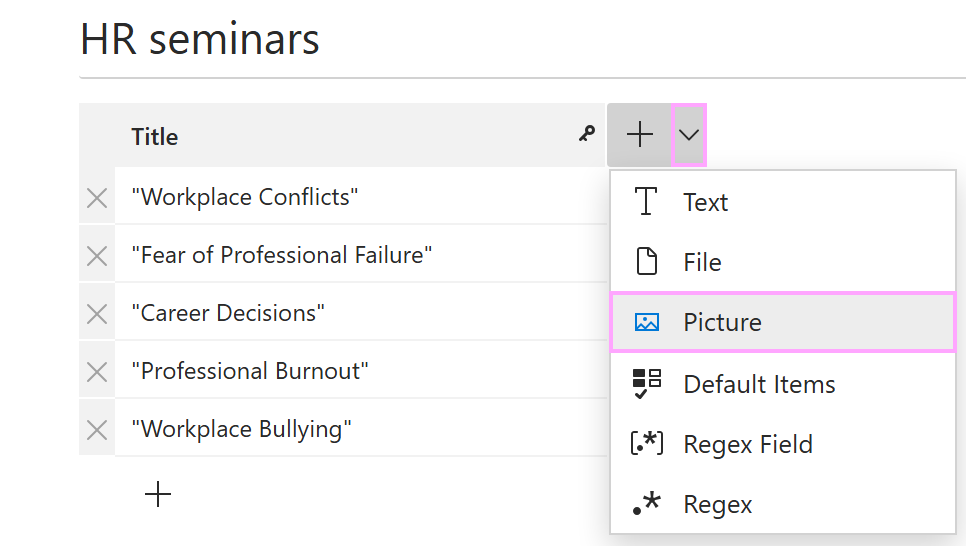
Enter the name of the column.
Click a cell. Then click the ellipsis (…) menu in it and select what you want to insert: a link to a single OneDrive or SharePoint picture or links to multiple OneDrive or SharePoint pictures.
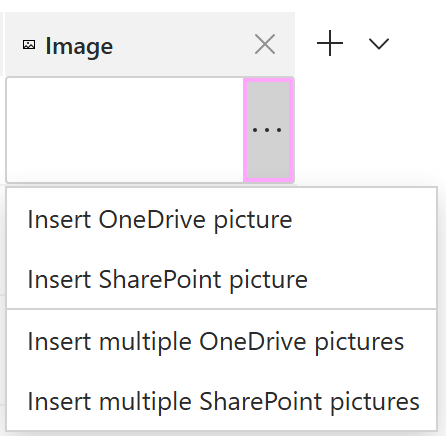
Select the necessary file(s).
When your dataset is ready, select the Save button.
Insert pictures automatically #
In your Outlook email template, place the cursor where an image from a dataset is needed.
On the template editor toolbar, select the
 Insert picture button.
Select Insert picture from dataset.
The Insert picture dialog appears.
On the General tab:
- Select your dataset.
- Select the picture column.
- Select the key value to identify the row that contains the image you need.
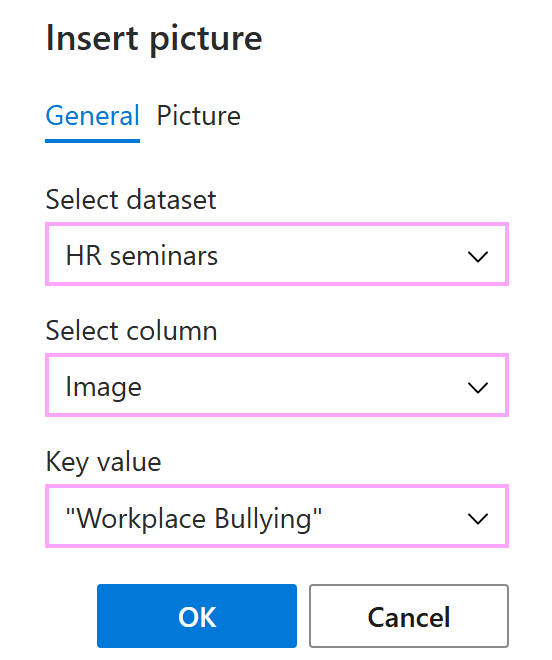
On the Picture tab, you can resize the image and add a link to it if needed.
When you’re finished, select OK.
Save the template.
When you use this template, the add-in will automatically insert the specified picture into your Outlook email.

Choose a picture to insert using a dialog #
Start creating or editing a message template. Place the cursor where you want an image from your dataset to appear.
On the template editor toolbar, select the
 Insert macro button.
Select What to enter (WTE).
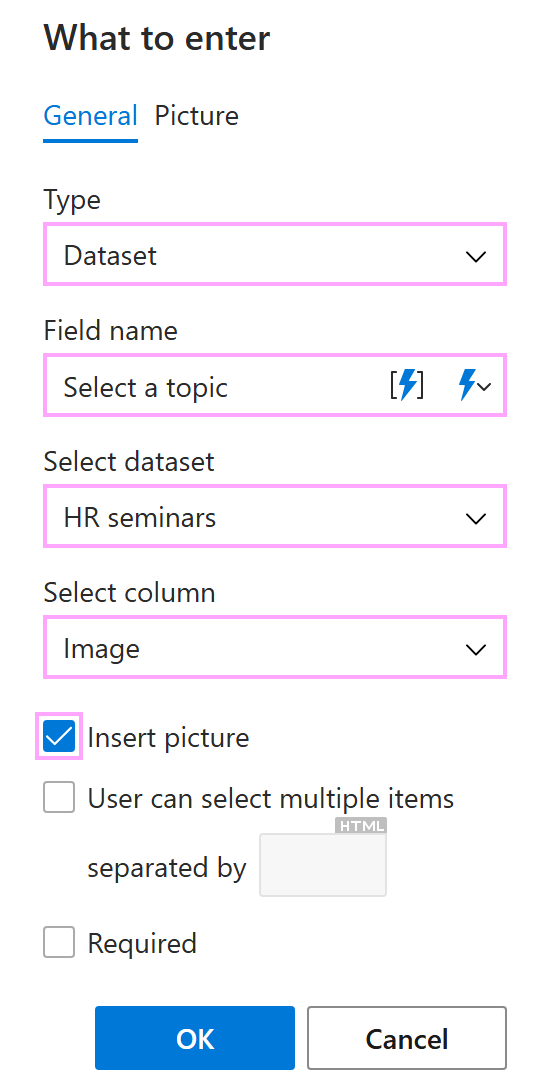
The What to enter dialog appears.
On the General tab:
- Select Dataset.
- Enter the field name (you’ll see it as a prompt when inserting the template into an email).
- Select your dataset.
- Select the picture column.
- Select the Insert picture checkbox, otherwise only the file name will be inserted.
On the Picture tab, you can change the size of the image and add a link if you want to.
When you’re finished, select OK.
To save the changes, select Save.
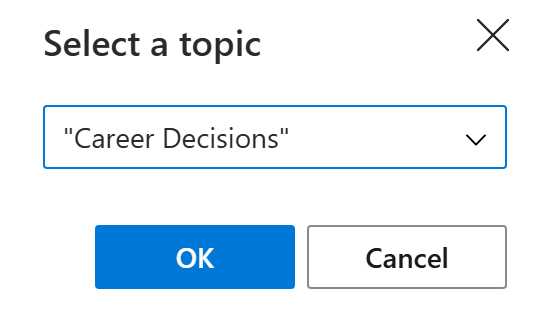
When you insert the template into an Outlook email, a dialog appears. It contains a dropdown list of dataset key values. Select the value that identifies the row with the picture you want to insert. Then select OK.
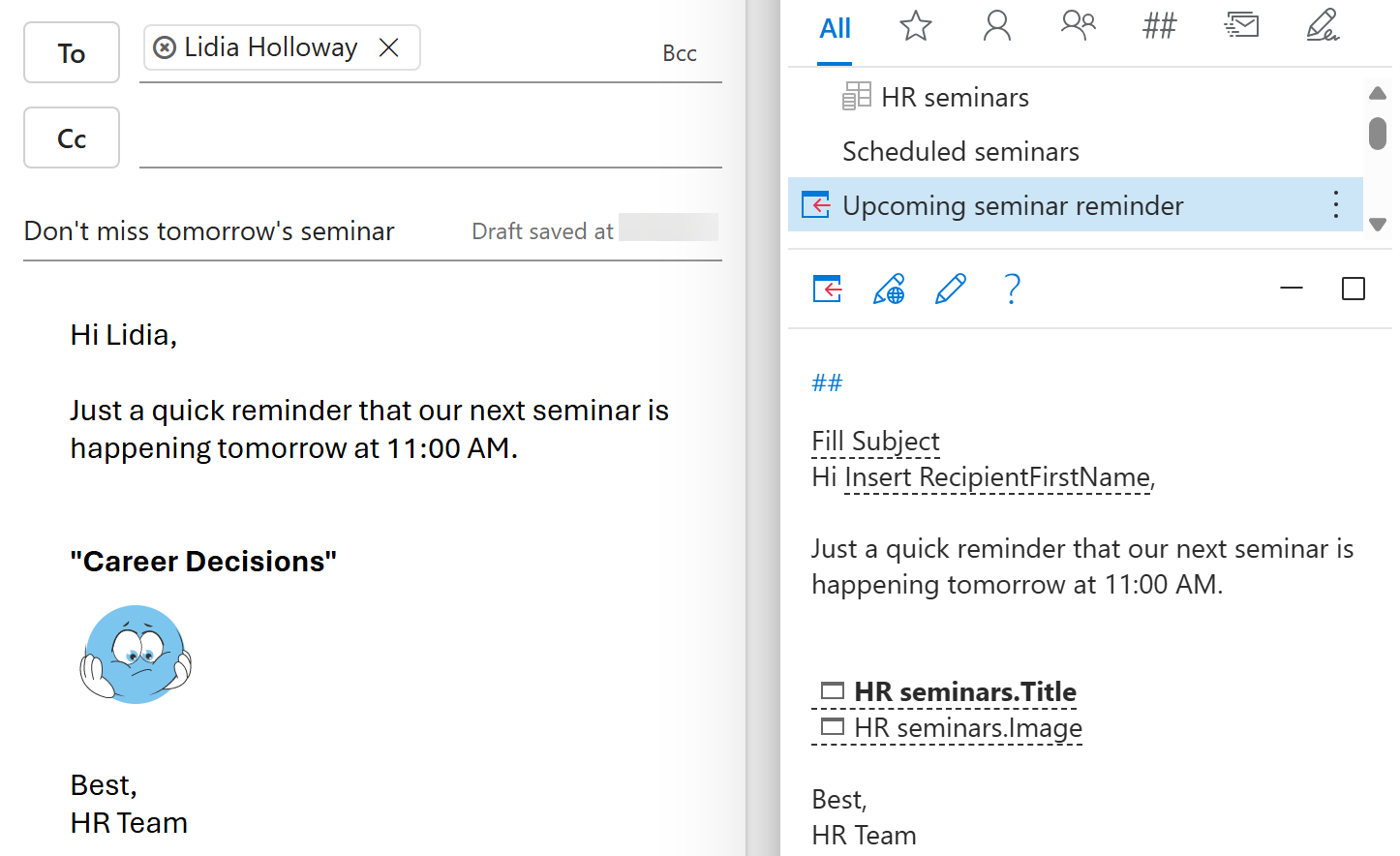
The template will be inserted with the image from the selected dataset row.
Insert pictures in tables and lists #
If you want to include images in tables or lists in your Outlook emails, add a table or list to your message template and bind it to the dataset that contains the images you need. For detailed instructions, see How to auto-fill tables with dataset values and How to auto-fill lists with dataset values.