
How to create simple datasets for Outlook email templates
In this article
Create a dataset #
Follow the steps below to create a simple dataset that you can use in your Outlook email templates.
In the Shared Email Templates pane in Outlook, right-click My templates, a team (Editor permissions are required), or a subfolder, and then select New dataset.
In your default browser, a new tab with the Shared Email Templates app will open. Enter a name for your dataset.
Select Simple as the dataset type.
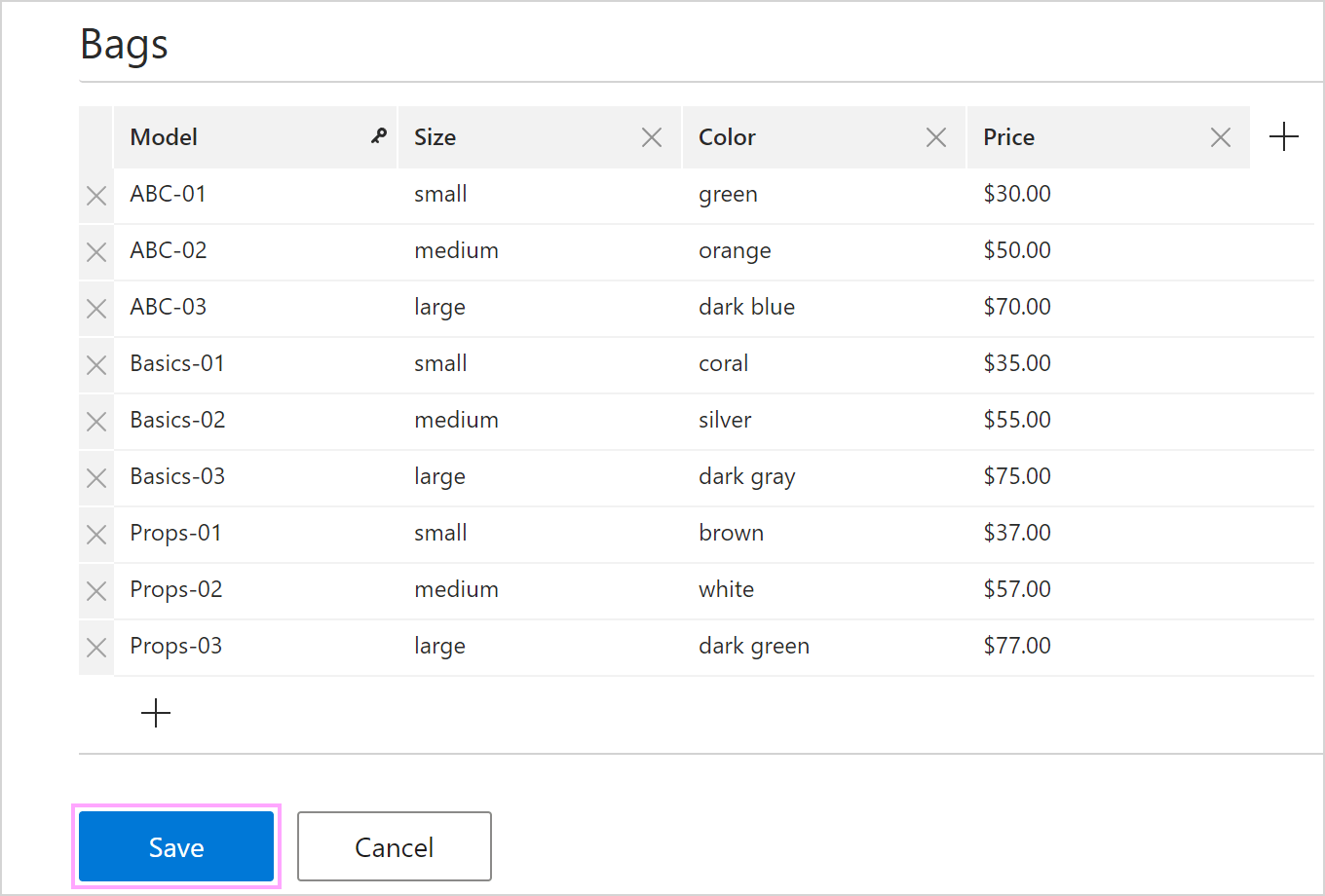
Enter dataset values.
To rename the key column, enter a new name into the column header.
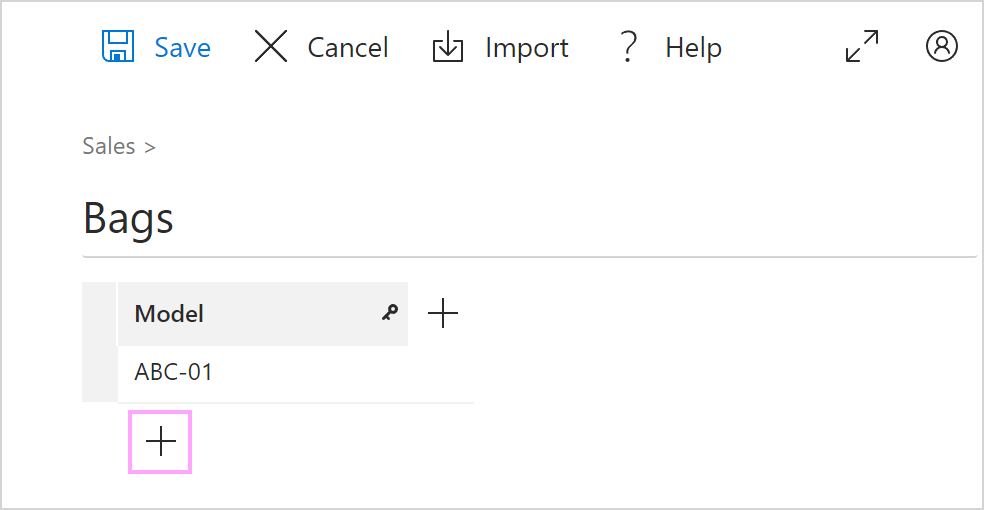
To add a row, click the plus sign below the bottom row.
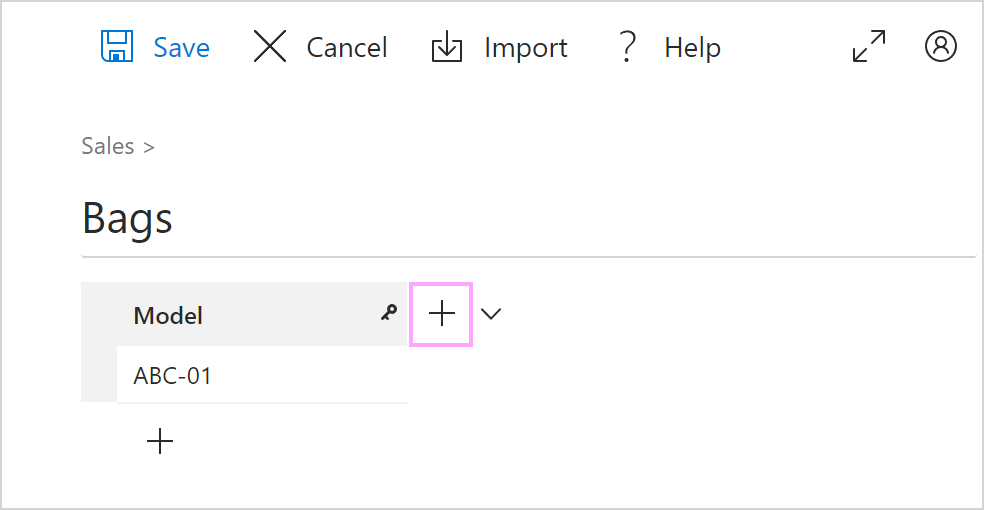
To add a text column, click the plus sign next to the rightmost column.
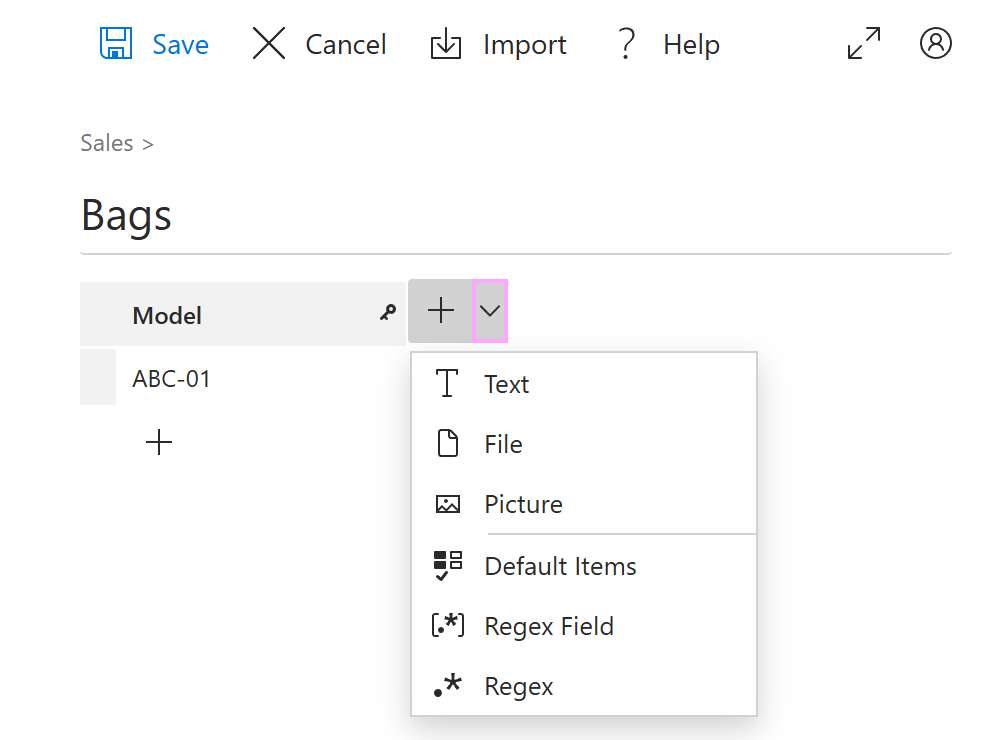
You can also add a file column, a picture column, a Default Items column, a Regex Field column, and a Regex column. To choose a column type, click the down arrow next to the plus sign.
To insert a macro into a cell, click the
 Insert macro button in the cell.
When you’re finished, select Save.
In the Shared Email Templates pane, simple datasets are marked with a special icon:  .
.
Import a dataset from a TXT or CSV file #
You can import datasets to Shared Email Templates in TXT or CSV formats. If your table is in another format, you can convert it.
To import a dataset, right-click My templates, a team (Editor permissions are required), or a subfolder, and then select New dataset.
In the Shared Email Templates app in your browser, enter a name for your dataset, and then select Simple as the dataset type.
Select Import.
In File Explorer, select a file, and then click Open.
Select Save.