Corporate deployment for on-premise Exchange Servers (OWA)
In this article
If you use Outlook on the web for Exchange Server in your organization, follow the steps described below to deploy Shared Email Templates 2 for your Microsoft Outlook users.
Before you start #
Before starting the deployment process, check the system requirements.
Deployment process #
Sign in to the Exchange admin center.
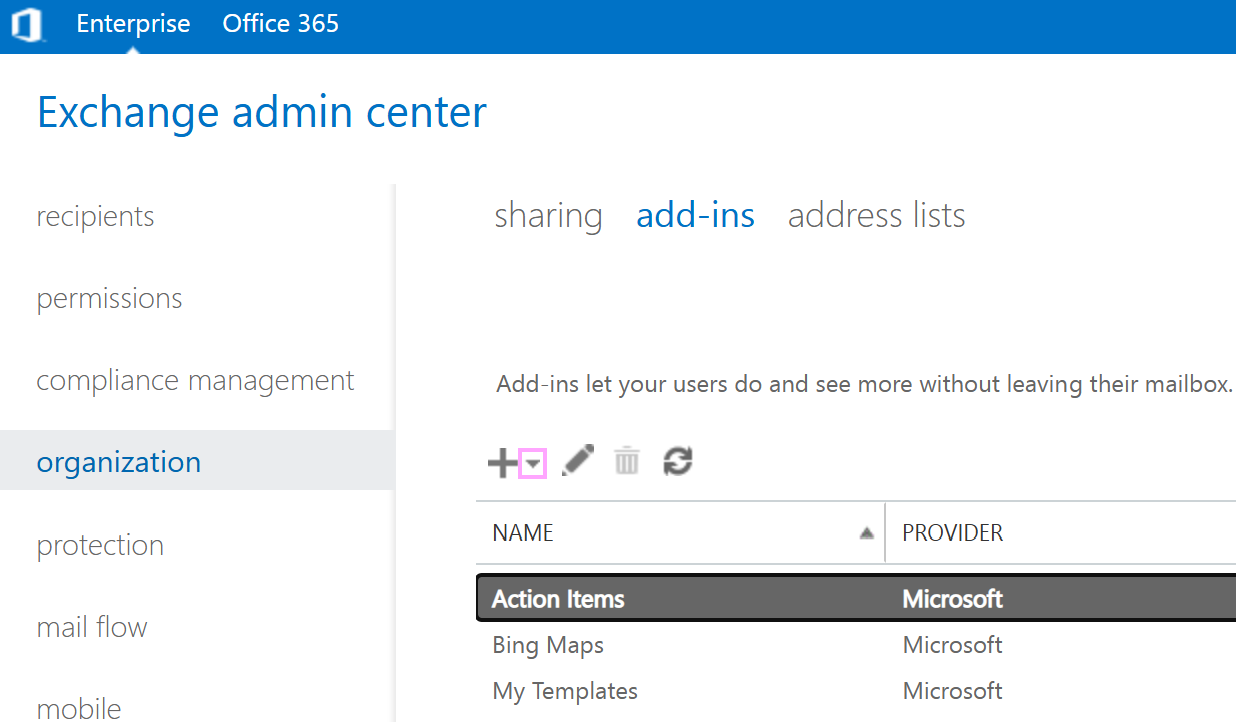
Go to organization > add-ins and click the down arrow next to the plus sign.
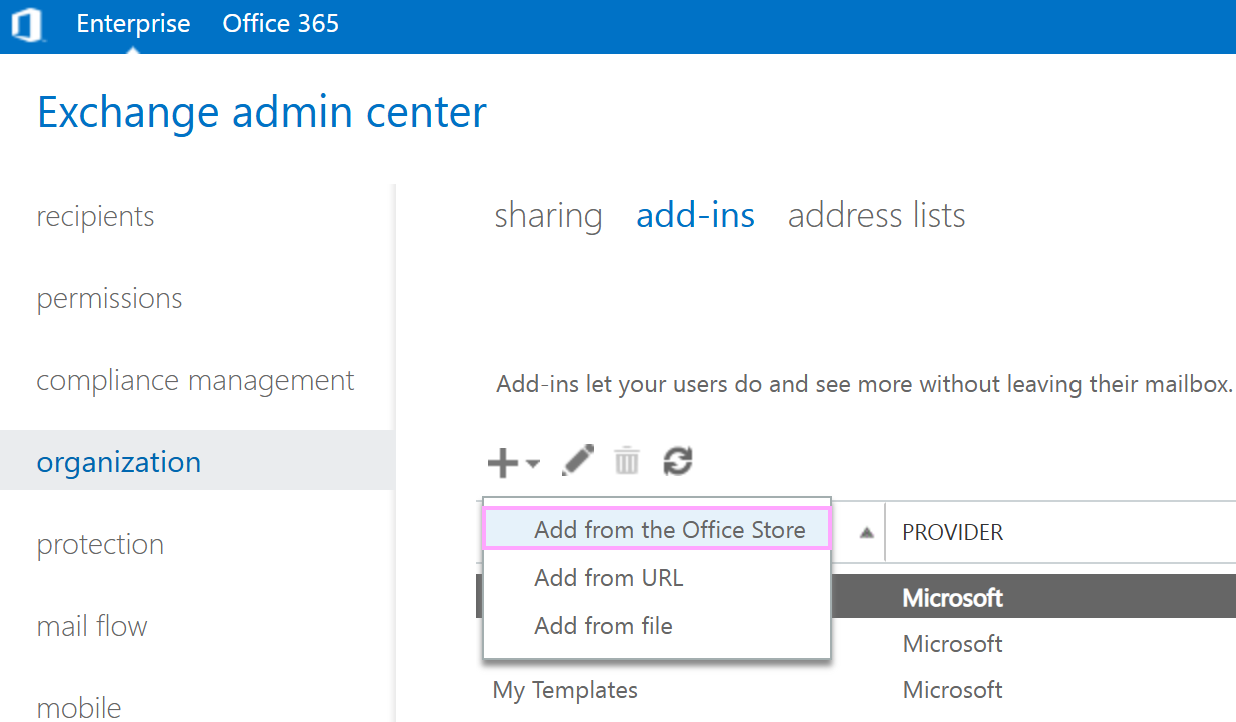
In the dropdown menu, select Add from the Office Store.
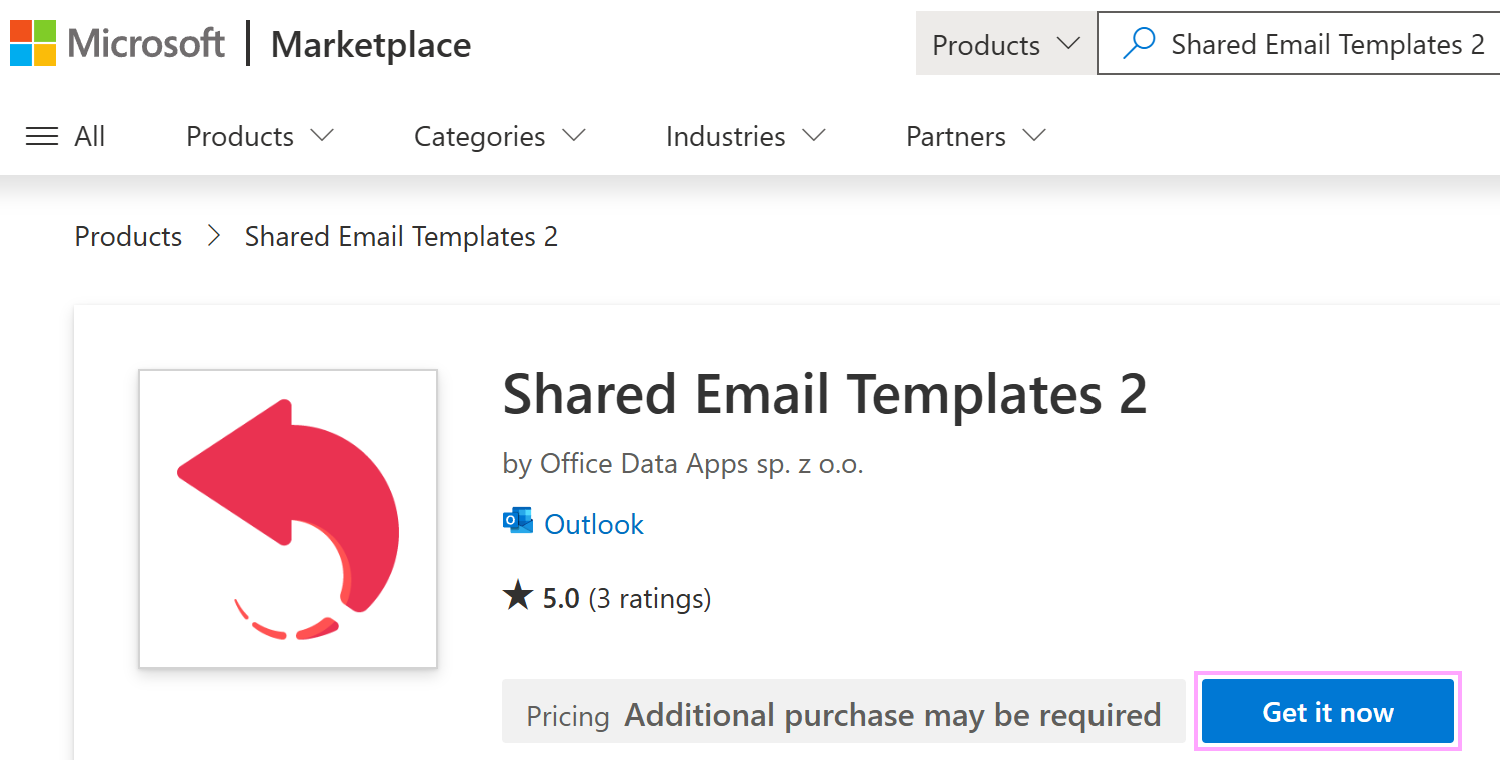
You’ll be taken to the Microsoft Marketplace. In the search box, enter Shared Email Templates 2, and then select the add-in.
On the Shared Email Templates 2 page, select Get it now.
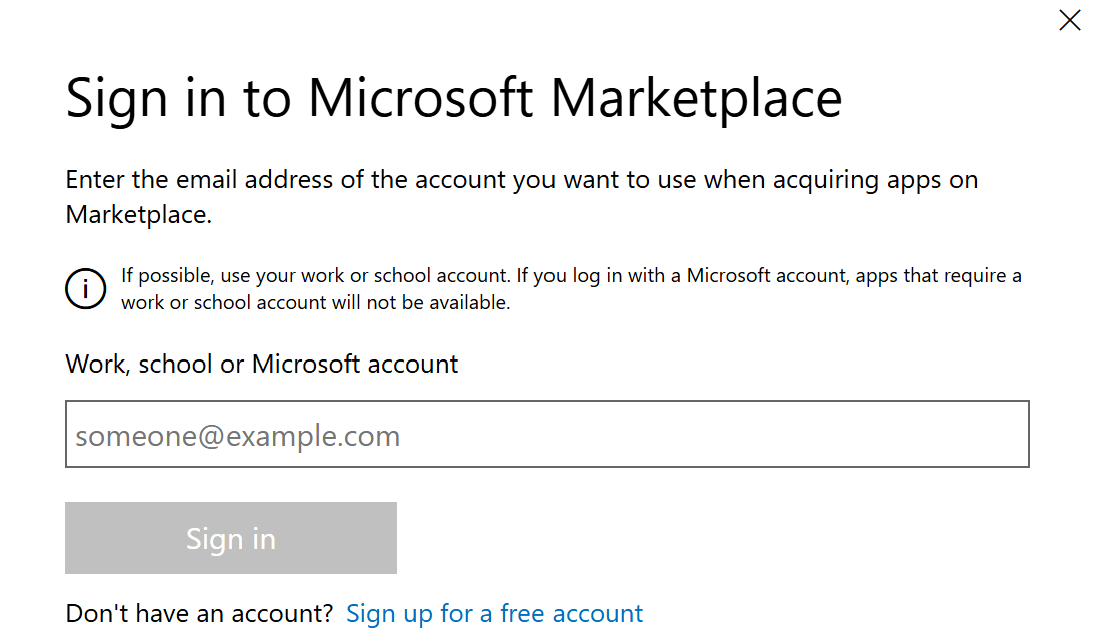
If prompted, sign in to the Microsoft Marketplace.
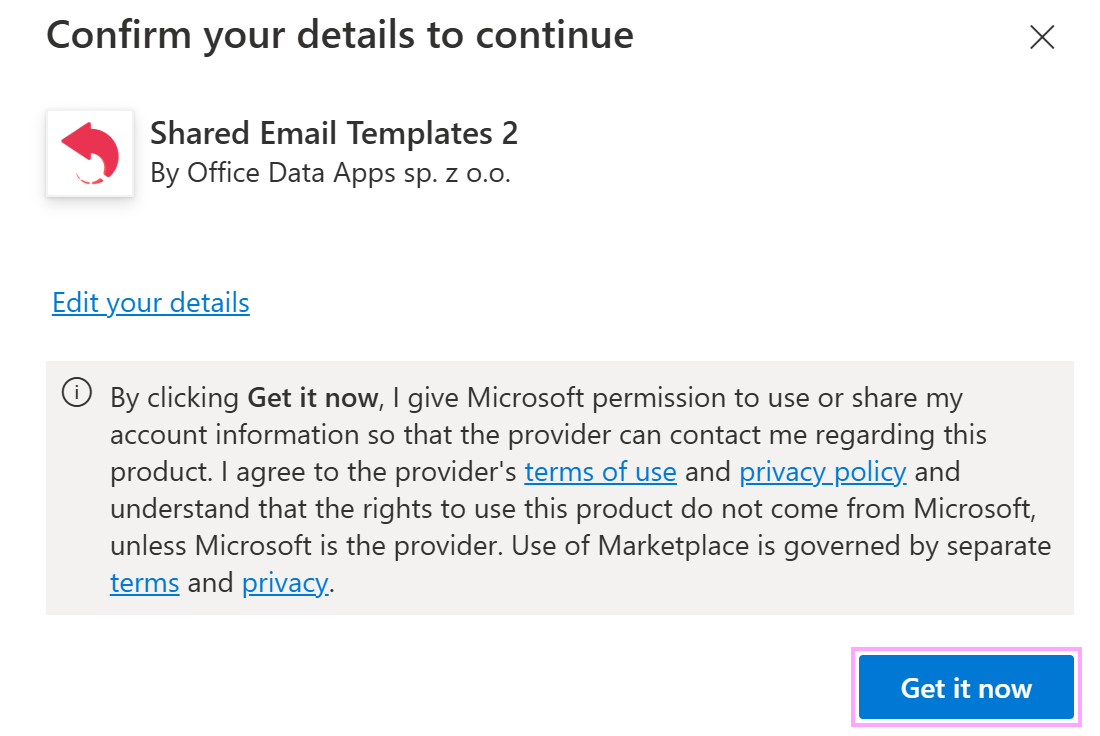
The Microsoft Confirm your details to continue dialog will appear. To proceed, select Get it now.
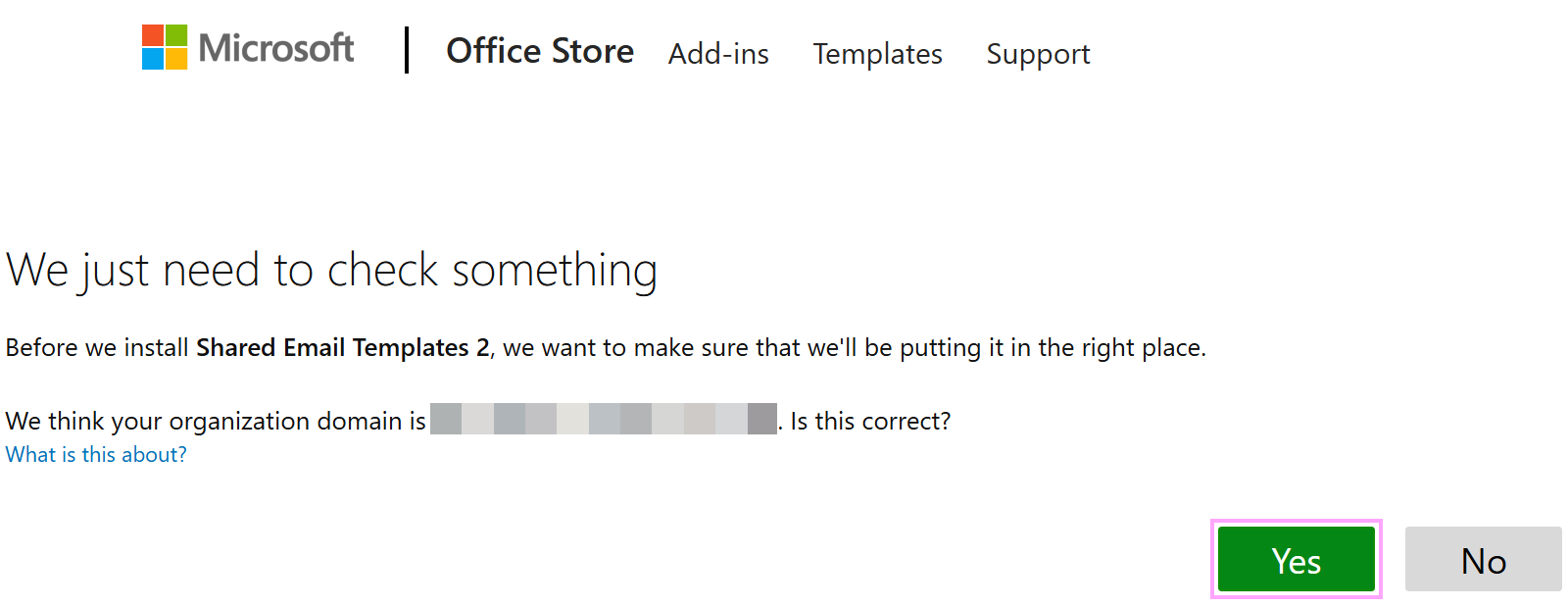
Confirm your organization domain by selecting Yes.
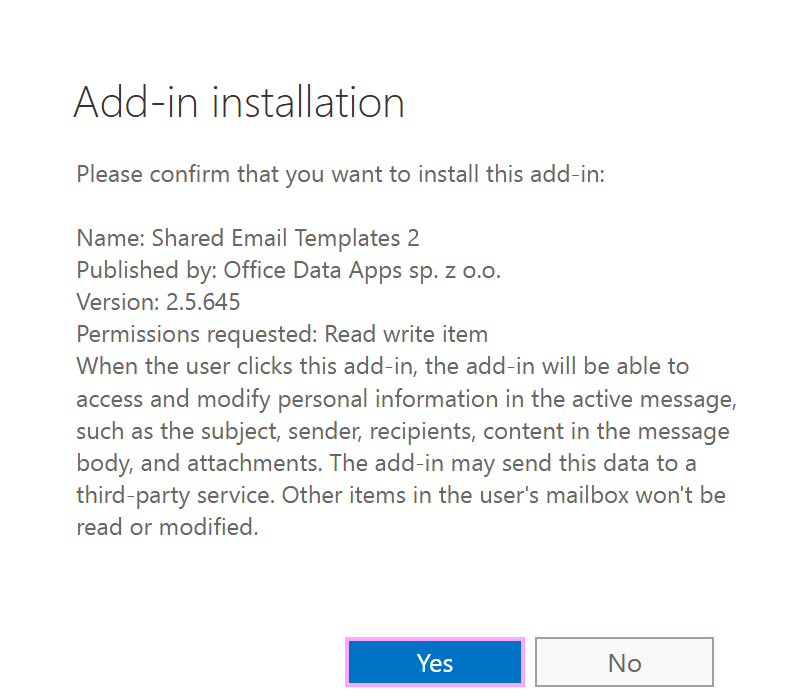
Confirm the add-in installation by selecting Yes.
Once the add-in has been added, return to the Exchange admin center and select Refresh.
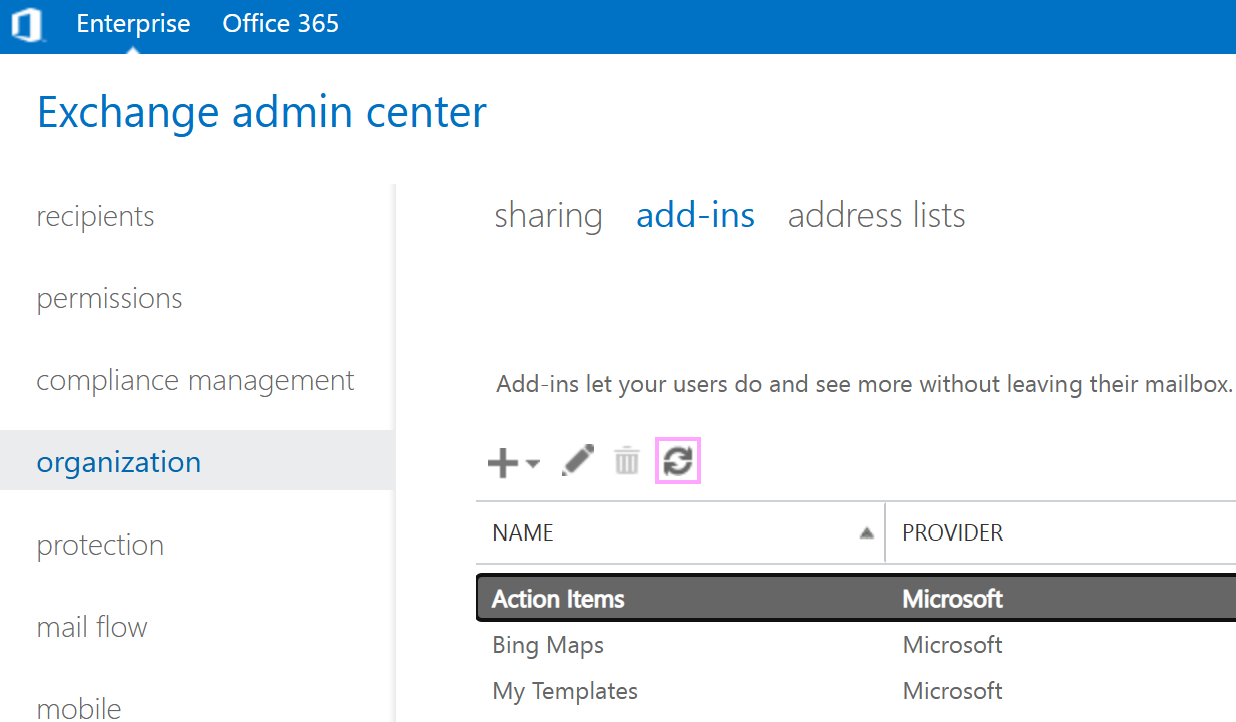
Shared Email Templates 2 will appear in the list of add-ins. Select the add-in, and then select Edit.
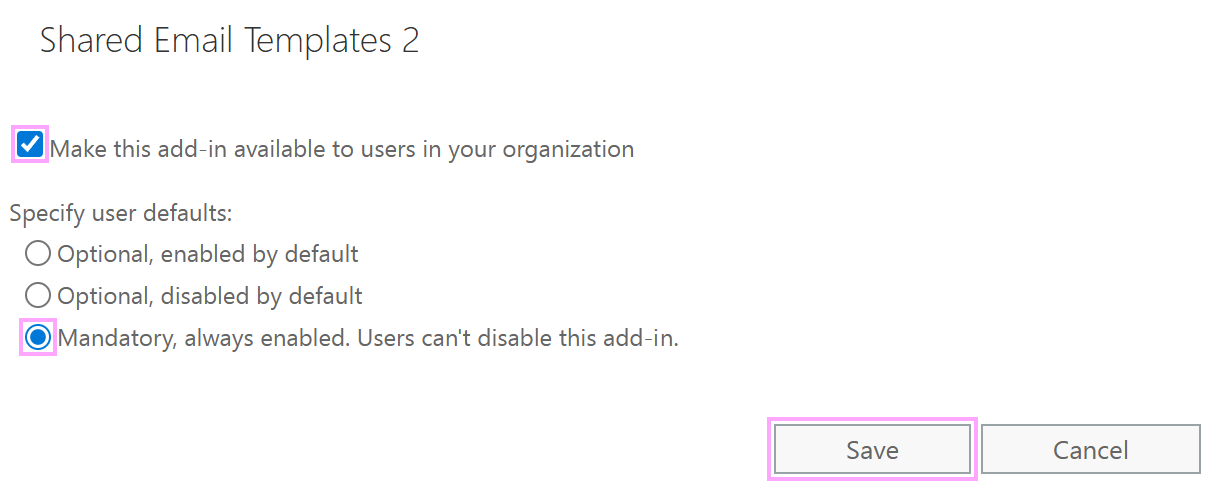
In the Edit Add-in settings window:
- Select Make this add-in available to users in your organization.
- Under Specify user defaults, select Mandatory, always enabled. Users can’t disable this add-in.
- Select Save.
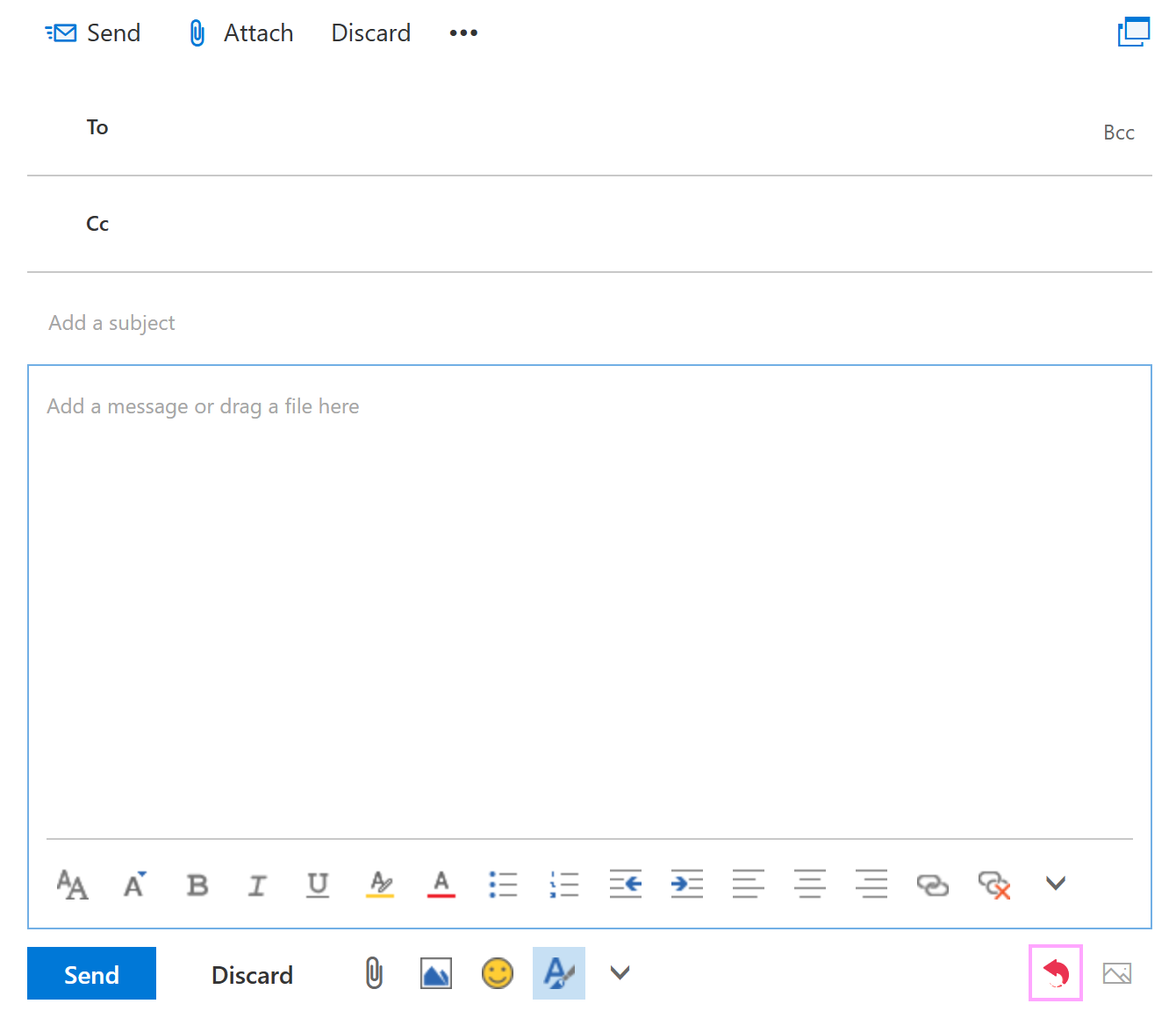
To make sure that the add-in is deployed, open your Outlook mailbox and start composing a new message. Below the message body, select the Shared Email Templates icon.
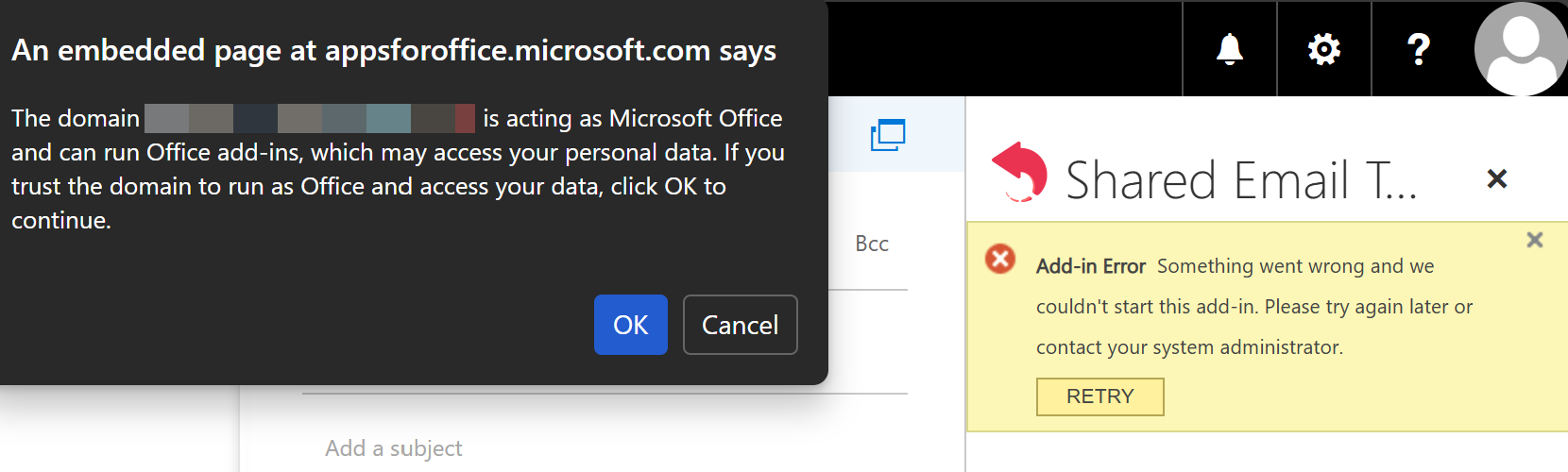
If you see the warning and the error message shown in the screenshot below, select OK, and then select RETRY.