
User consent workflow when "Do not allow user consent" is enabled
In this article
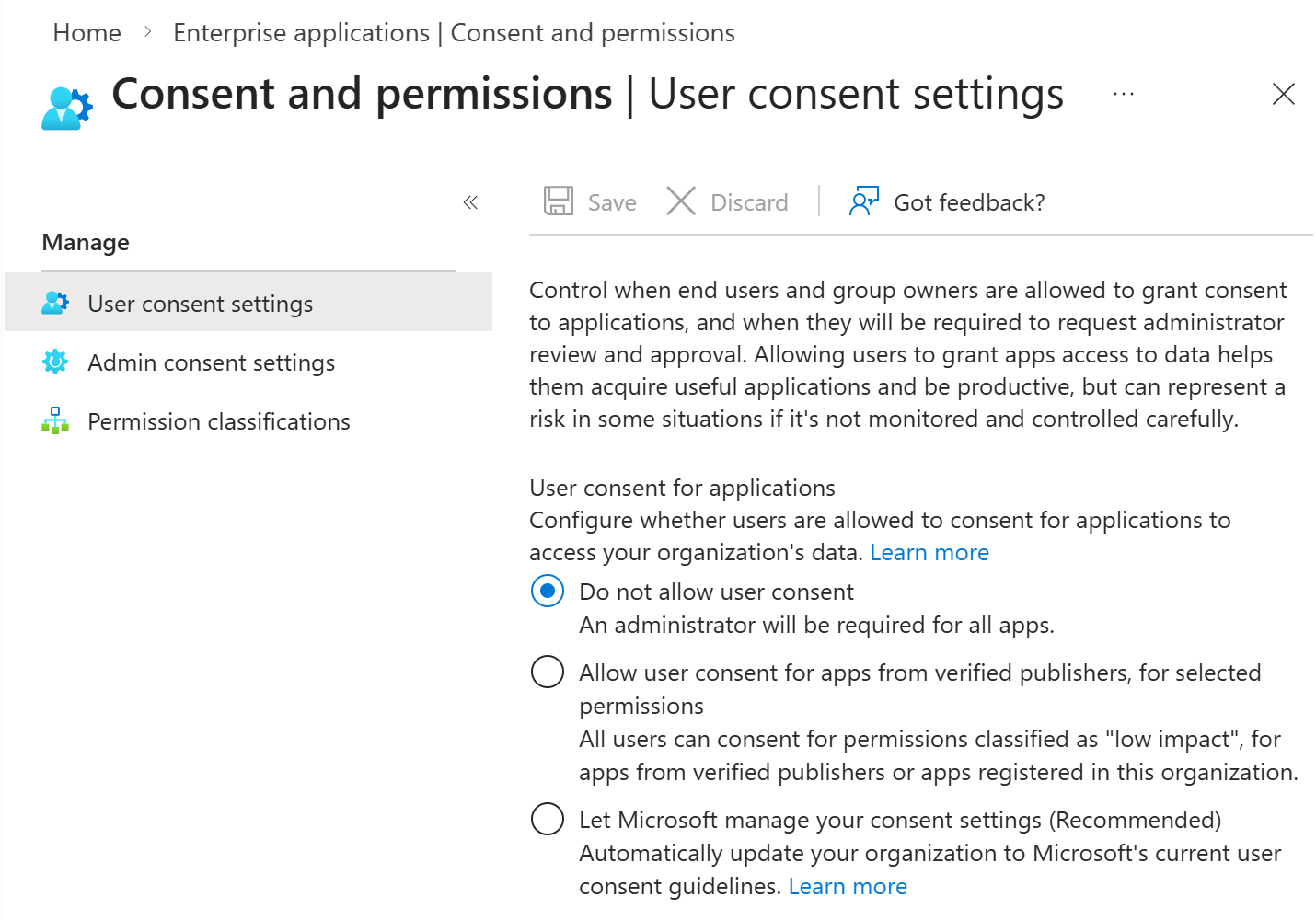
This page describes the user and admin consent workflow when the setting Do not allow user consent is enabled for your organization in the Microsoft Entra admin center (Entra ID > Enterprise apps > Consent and permissions > User consent settings).
You might see the Approval required dialog in the following situations:
- Sign-up or first sign-in
- Access to OneDrive files
- Access to SharePoint files
- Mail merge campaign
- Import from an Azure AD group
- Connecting an Outlook folder (deprecated feature)
Sign-up or first sign-in #
If you sign up or sign in with Microsoft for the first time, you might see the Approval required dialog stating that administrator approval is needed for the following permissions:
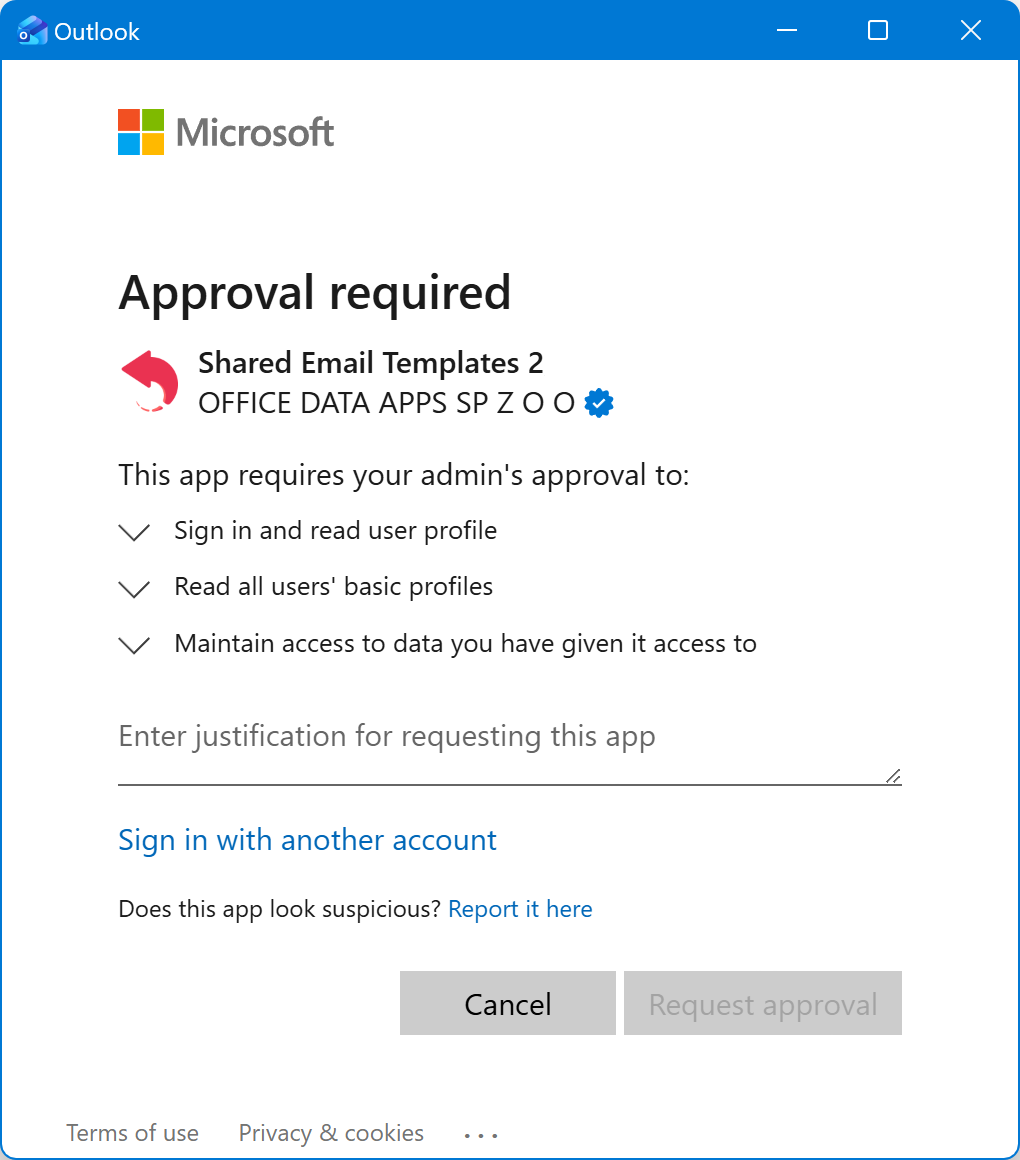
- Sign in and read user profile
- Read all users’ basic profiles
- Maintain access to data you have given it access to
Each permission is described in the Complete list of required permissions. To submit the approval request, enter a justification and select Request approval.
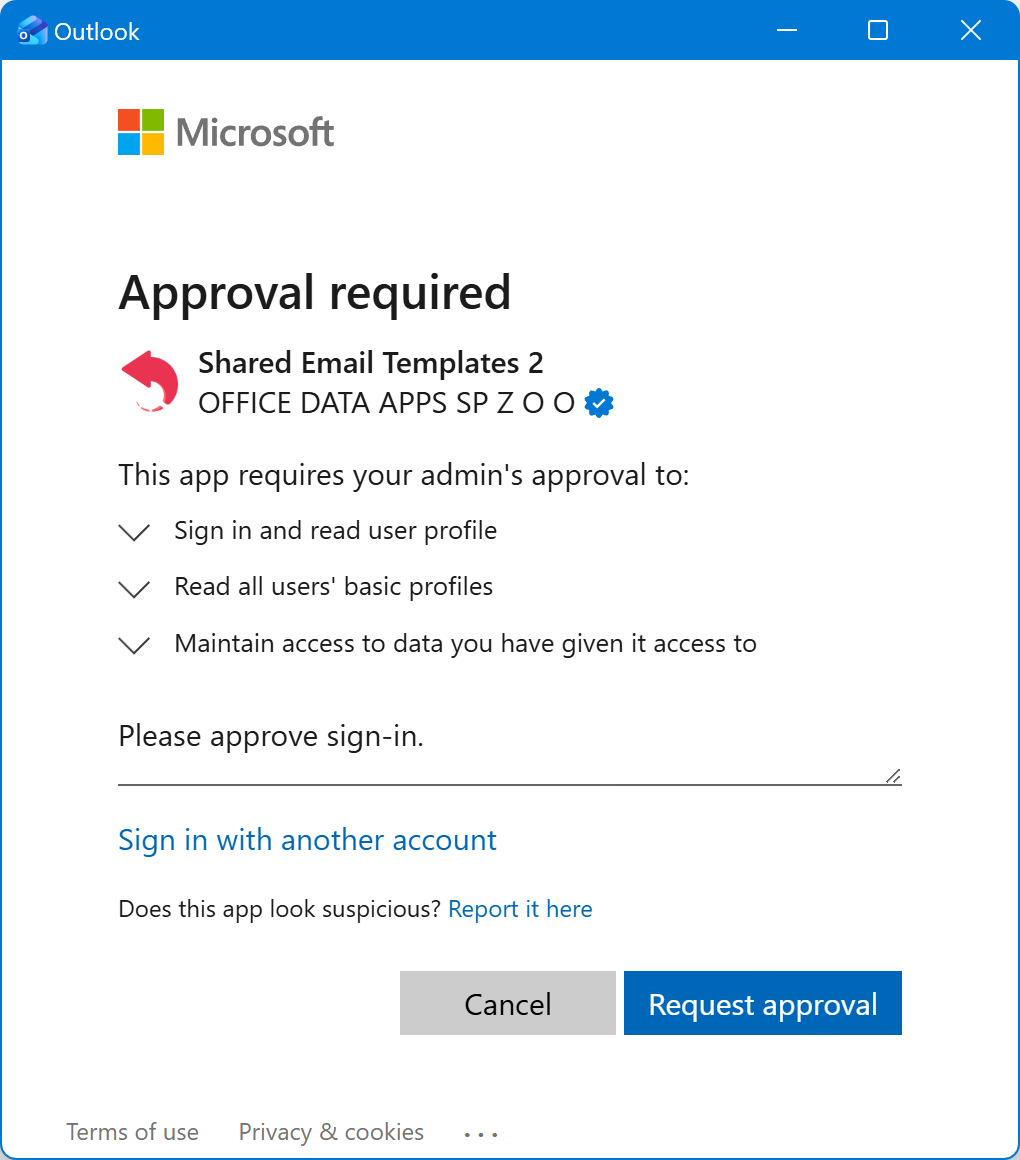
The Request sent dialog will appear. Select Back to app. Once your request is received, you’ll automatically get a confirmation email.
Next, wait for your IT administrator to approve the request. When the request is approved, you’ll get another email.
Steps for IT administrators
If you’re an IT administrator with the required Microsoft Entra role, you’ll automatically receive an email asking you to review the admin consent request. To review and accept the requested permissions in the Microsoft Entra admin center, do the following:
Go to Entra ID > Enterprise apps > Admin consent requests.
On the My Pending tab, select Shared Email Templates 2.
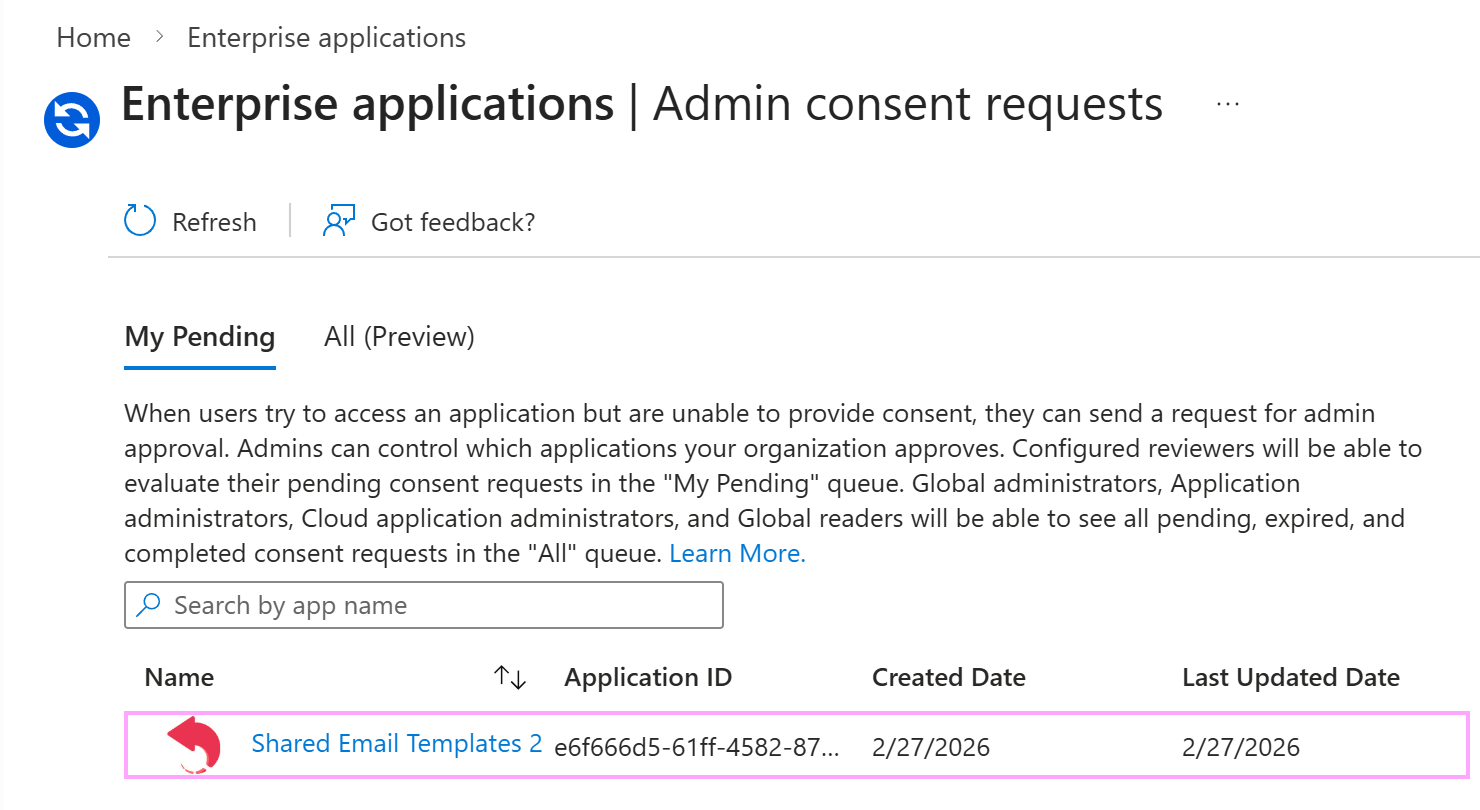
Select Review permissions and consent.
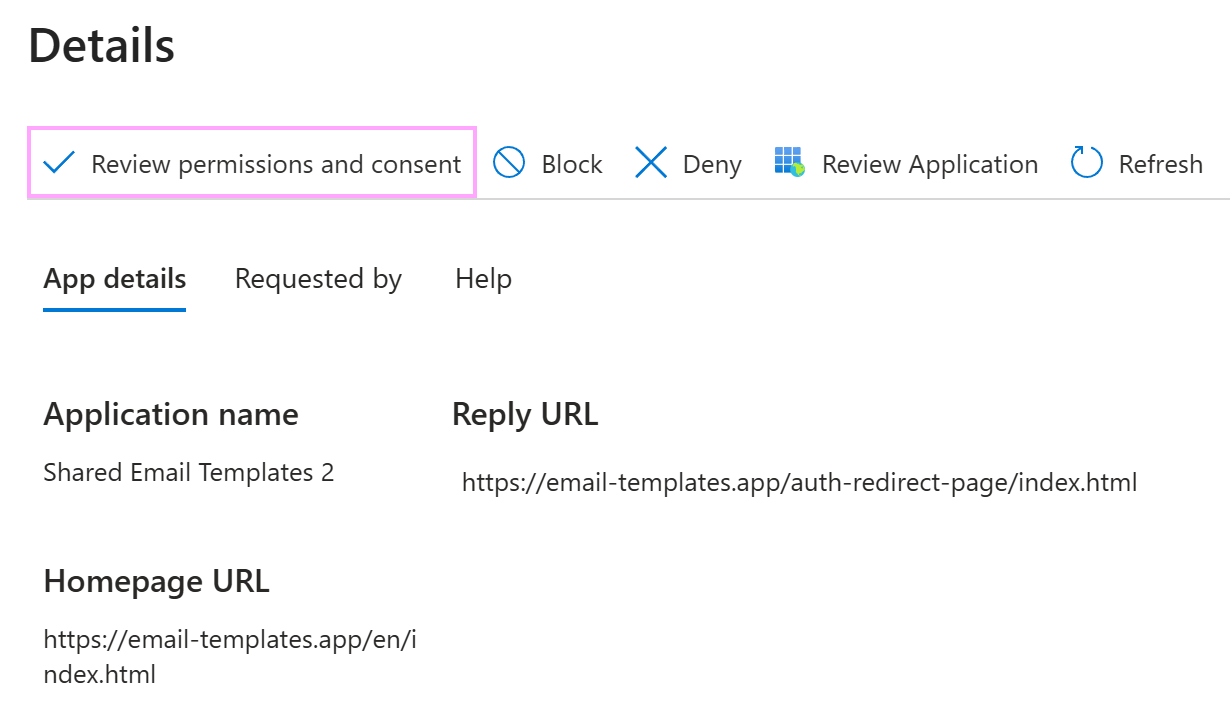
The Permissions requested dialog will appear so that you can review the following permissions:
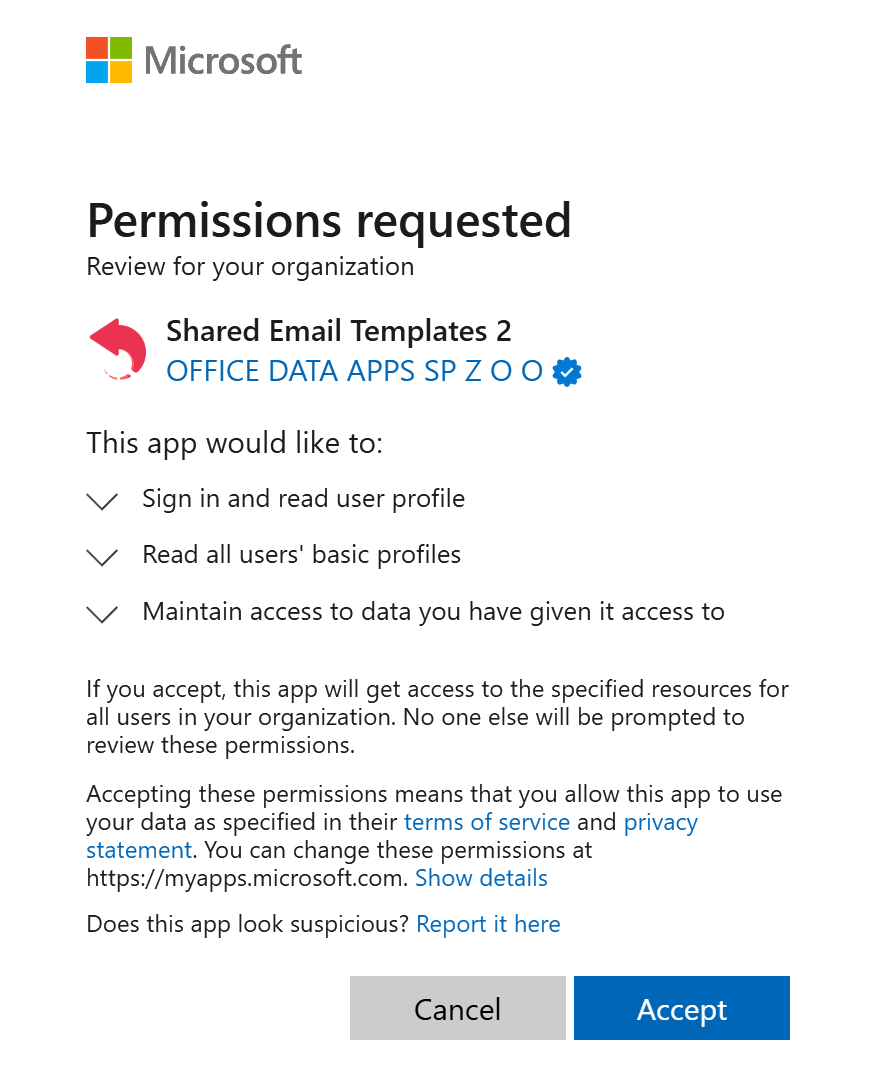
- Sign in and read user profile
- Read all users’ basic profiles
- Maintain access to data you have given it access to
Each permission is described in the Complete list of required permissions.
To grant the requested permissions, select Accept.
Access to OneDrive files #
If you attach a file or insert a picture from OneDrive, you might see the Approval required dialog stating that administrator approval is needed for the following permission:
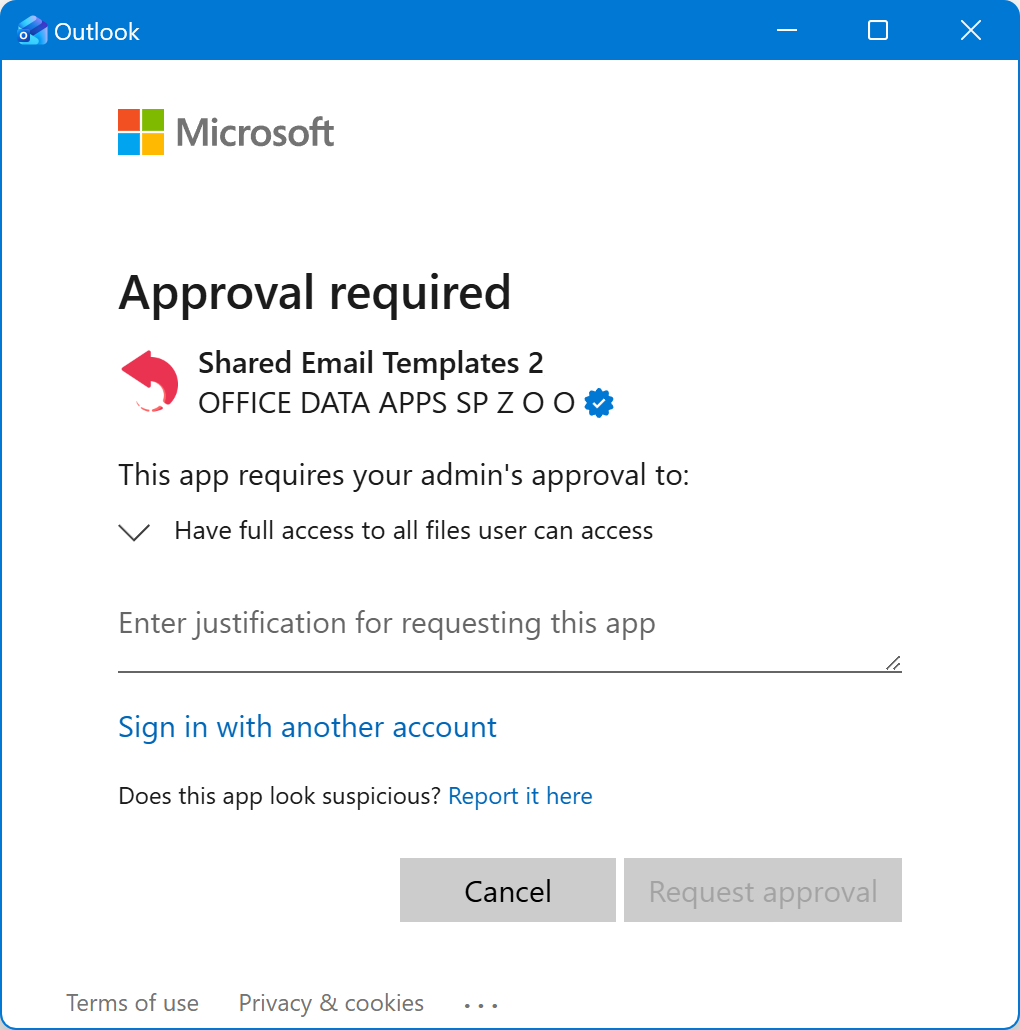
- Have full access to all files user can access
The permission is described in the Complete list of required permissions. To submit the approval request, enter a justification and select Request approval.
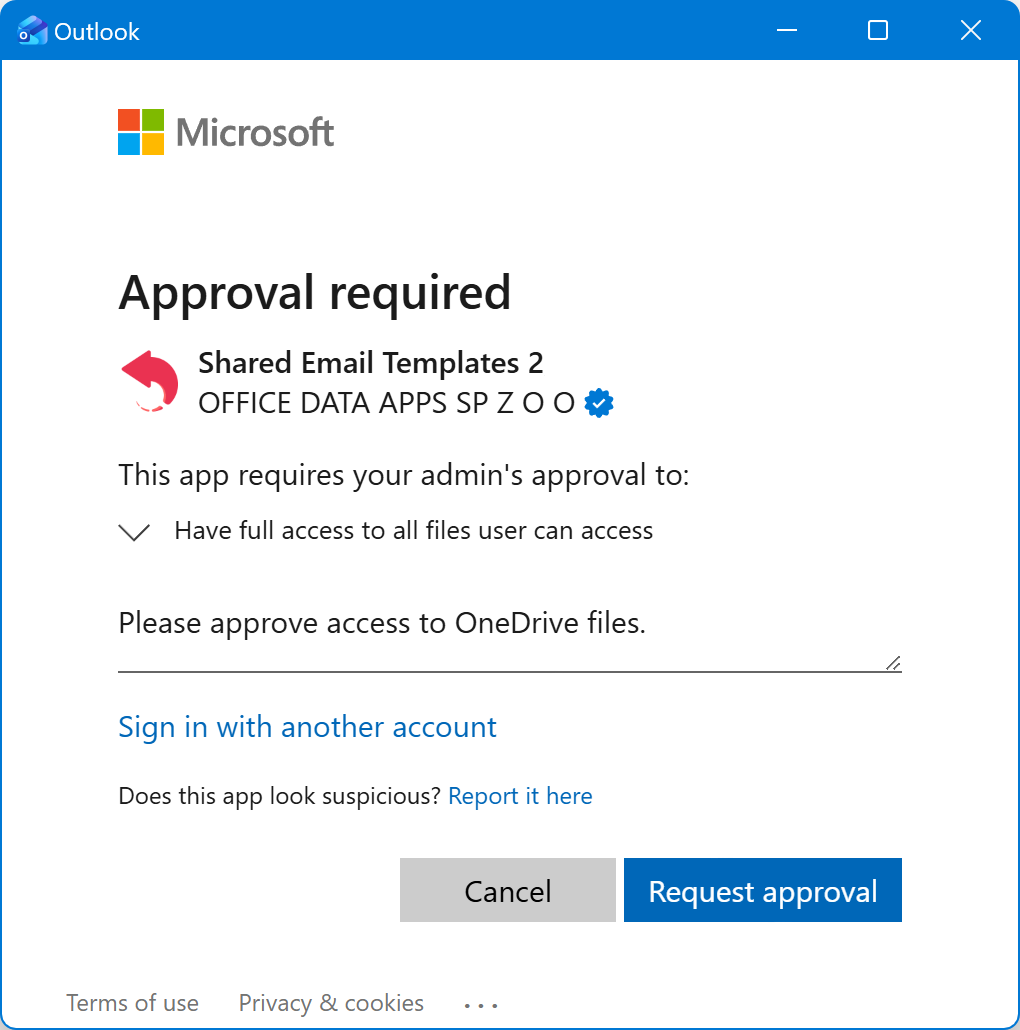
The Request sent dialog will appear. Select Back to app. Once your request is received, you’ll automatically get a confirmation email.
Next, wait for your IT administrator to approve the request. When the request is approved, you’ll get another email.
Steps for IT administrators
If you’re an IT administrator with the required Microsoft Entra role, you’ll automatically receive an email asking you to review the admin consent request. To review and accept the requested permissions in the Microsoft Entra admin center, do the following:
Go to Entra ID > Enterprise apps > Admin consent requests.
On the My Pending tab, select Shared Email Templates 2.
Select Review permissions and consent.
The Permissions requested dialog will appear so that you can review the following permissions:
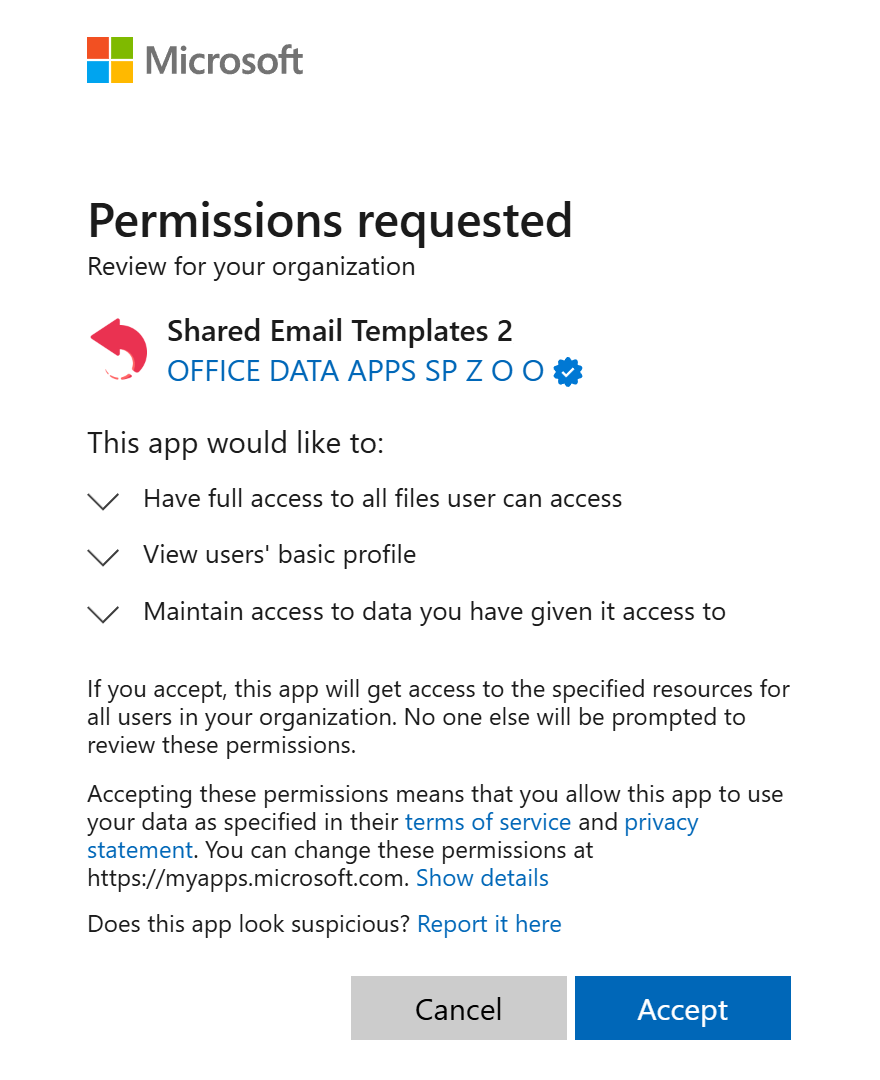
- Have full access to all files user can access
- View users’ basic profile
- Maintain access to data you have given it access to
Each permission is described in the Complete list of required permissions.
To grant the requested permissions, select Accept.
Access to SharePoint files #
If you attach a file or insert a picture from SharePoint, you might see the Approval required dialog stating that administrator approval is needed for the following permission:
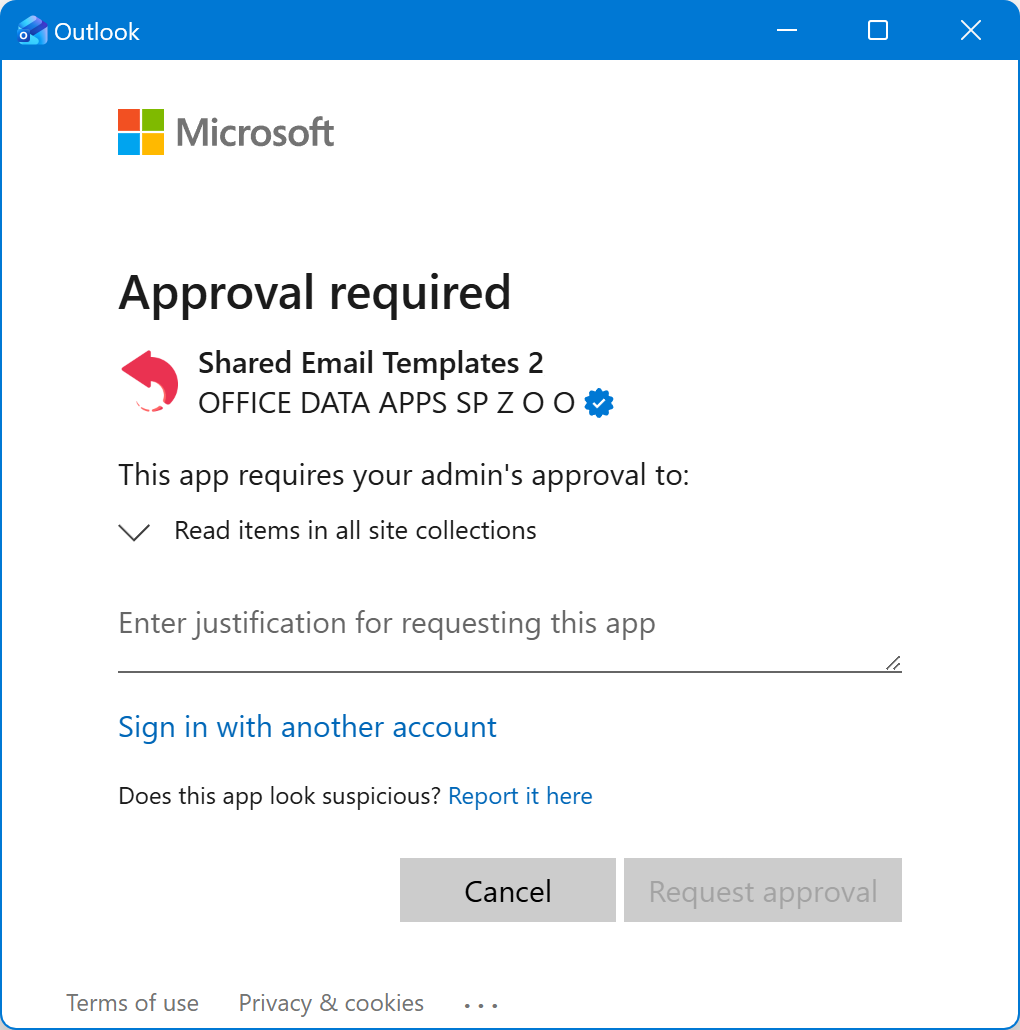
- Read items in all site collections
The permission is described in the Complete list of required permissions. To submit the approval request, enter a justification and select Request approval.
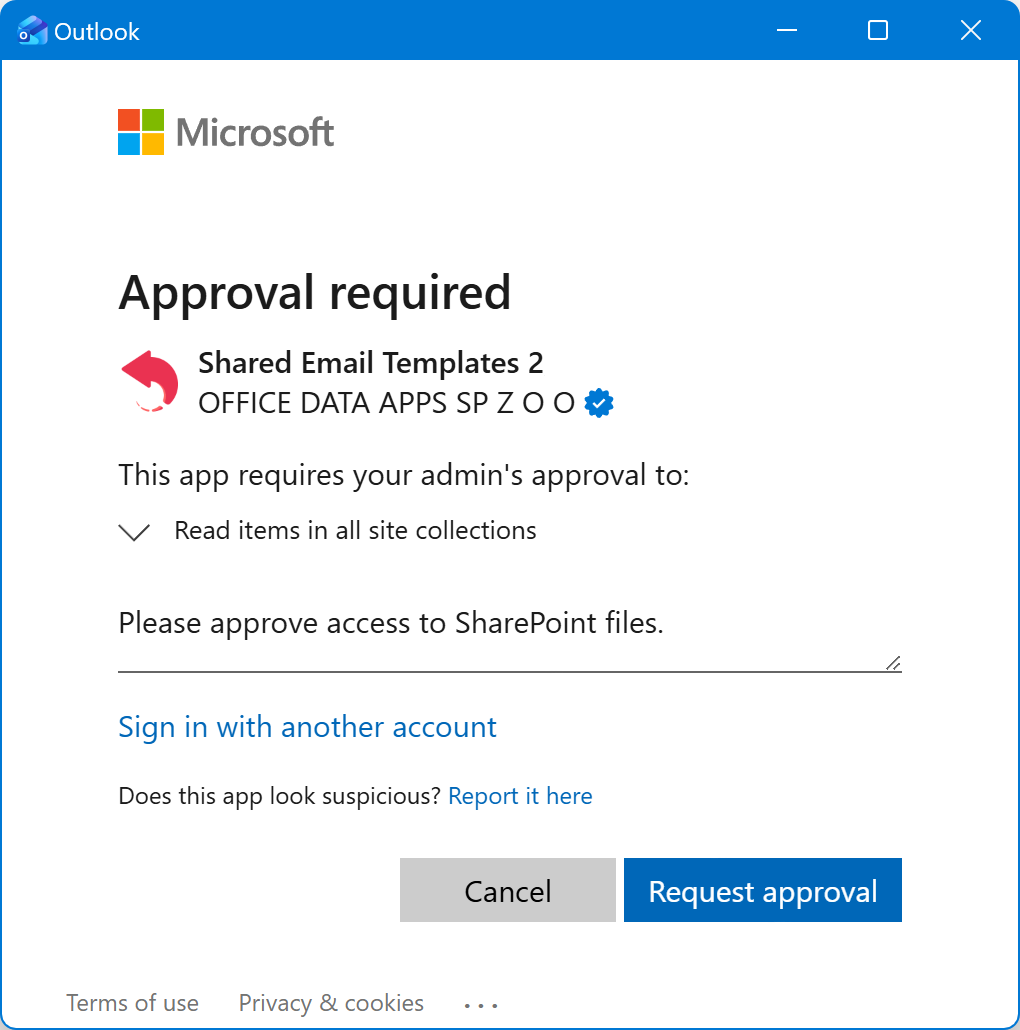
The Request sent dialog will appear. Select Back to app. Once your request is received, you’ll automatically get a confirmation email.
Next, wait for your IT administrator to approve the request. When the request is approved, you’ll get another email.
Steps for IT administrators
If you’re an IT administrator with the required Microsoft Entra role, you’ll automatically receive an email asking you to review the admin consent request. To review and accept the requested permissions in the Microsoft Entra admin center, do the following:
Go to Entra ID > Enterprise apps > Admin consent requests.
On the My Pending tab, select Shared Email Templates 2.
Select Review permissions and consent.
The Permissions requested dialog will appear so that you can review the following permissions:
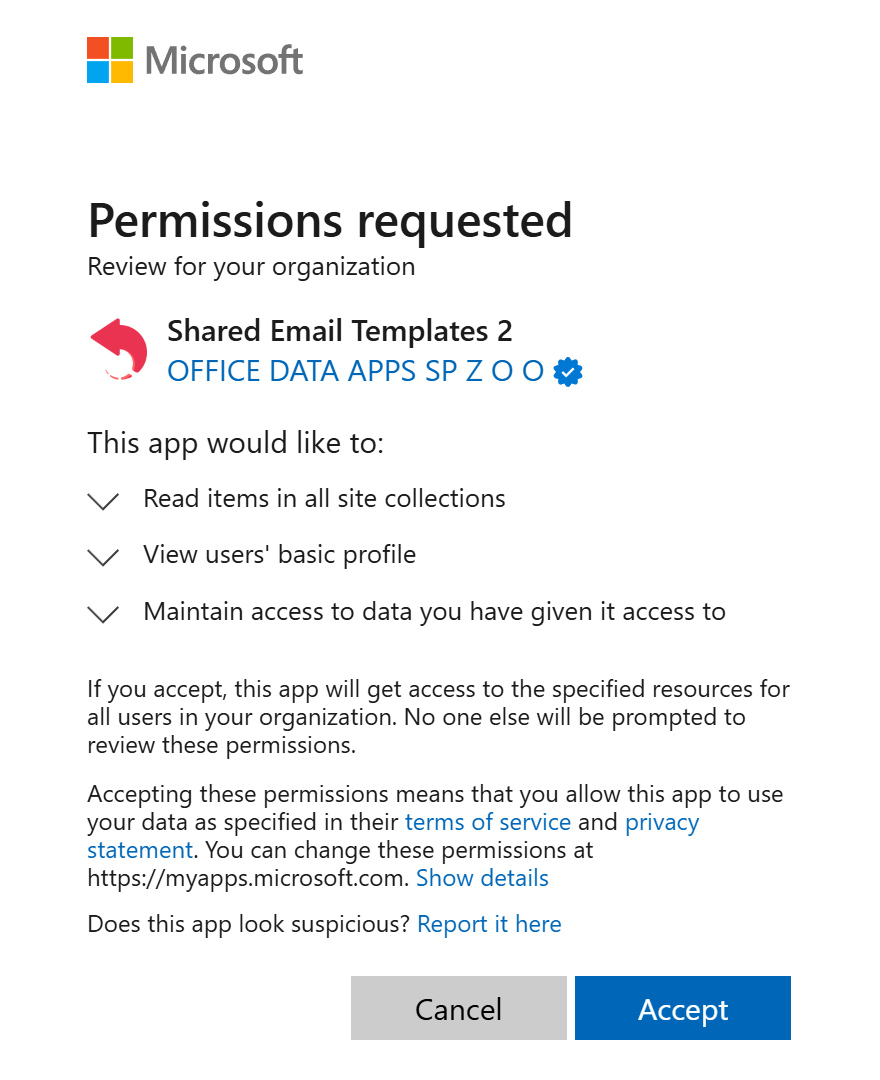
- Read items in all site collections
- View users’ basic profile
- Maintain access to data you have given it access to
Each permission is described in the Complete list of required permissions.
To grant the requested permissions, select Accept.
Mail merge campaign #
If you schedule or send a mail merge campaign, you might see the Approval required dialog stating that administrator approval is needed for the following permissions:
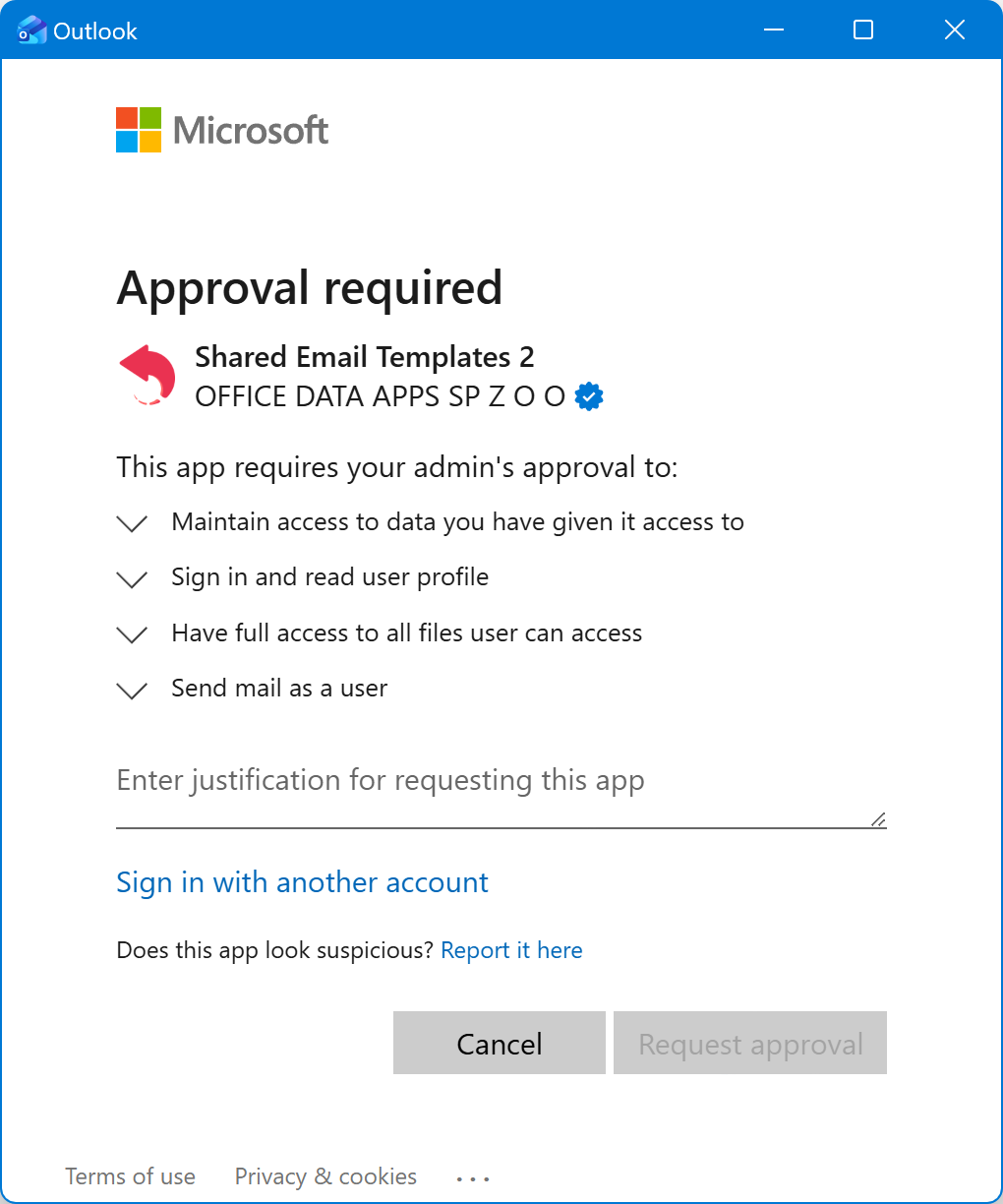
- Maintain access to data you have given it access to
- Sign in and read user profile
- Have full access to all files user can access
- Send mail as a user
Each permission is described in the Complete list of required permissions. To submit the approval request, enter a justification and select Request approval.
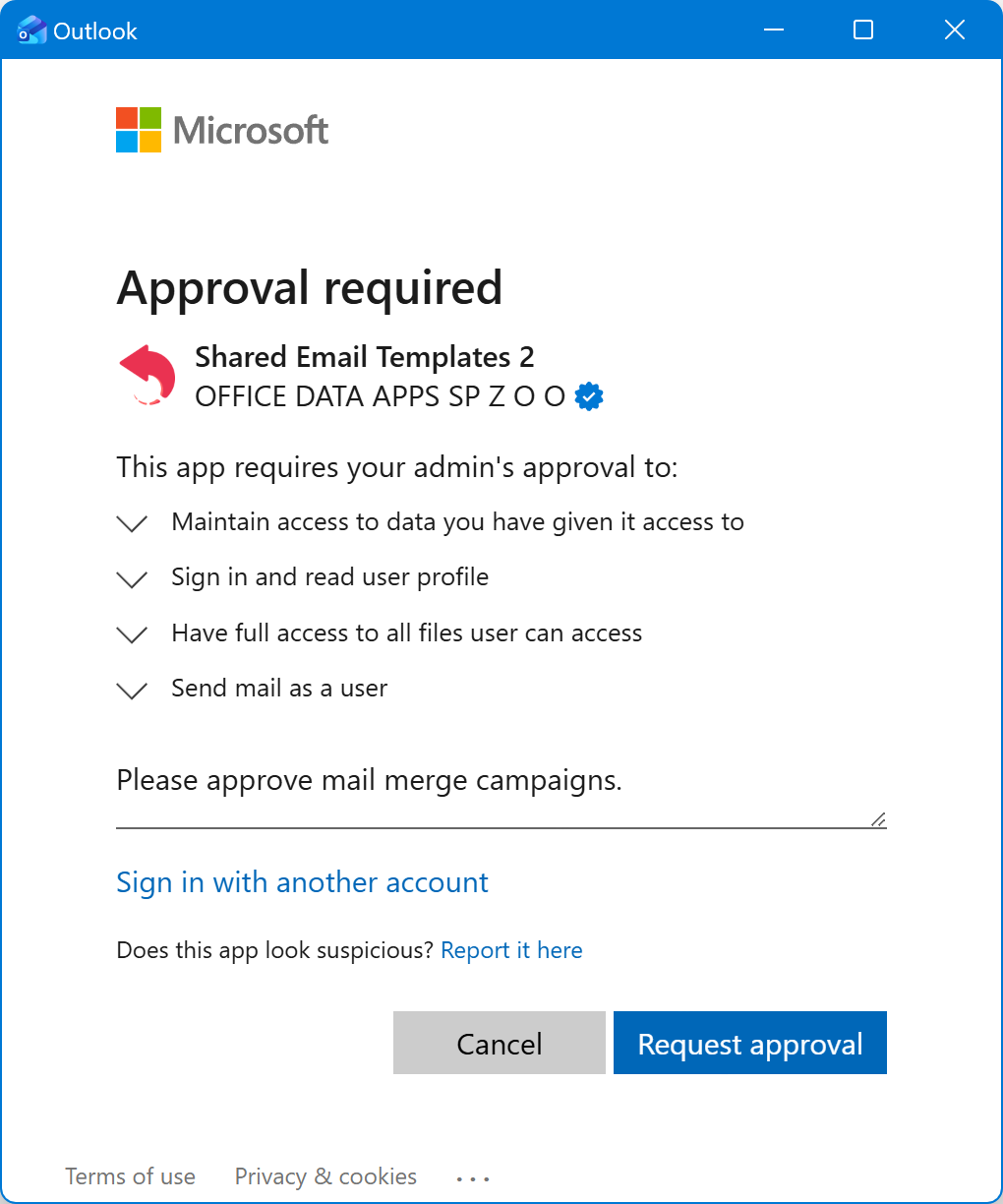
The Request sent dialog will appear. Select Back to app. Once your request is received, you’ll automatically get a confirmation email.
Next, wait for your IT administrator to approve the request. When the request is approved, you’ll get another email.
Steps for IT administrators
If you’re an IT administrator with the required Microsoft Entra role, you’ll automatically receive an email asking you to review the admin consent request. To review and accept the requested permissions in the Microsoft Entra admin center, do the following:
Go to Entra ID > Enterprise apps > Admin consent requests.
On the My Pending tab, select Shared Email Templates 2.
Select Review permissions and consent.
The Permissions requested dialog will appear so that you can review the following permissions:
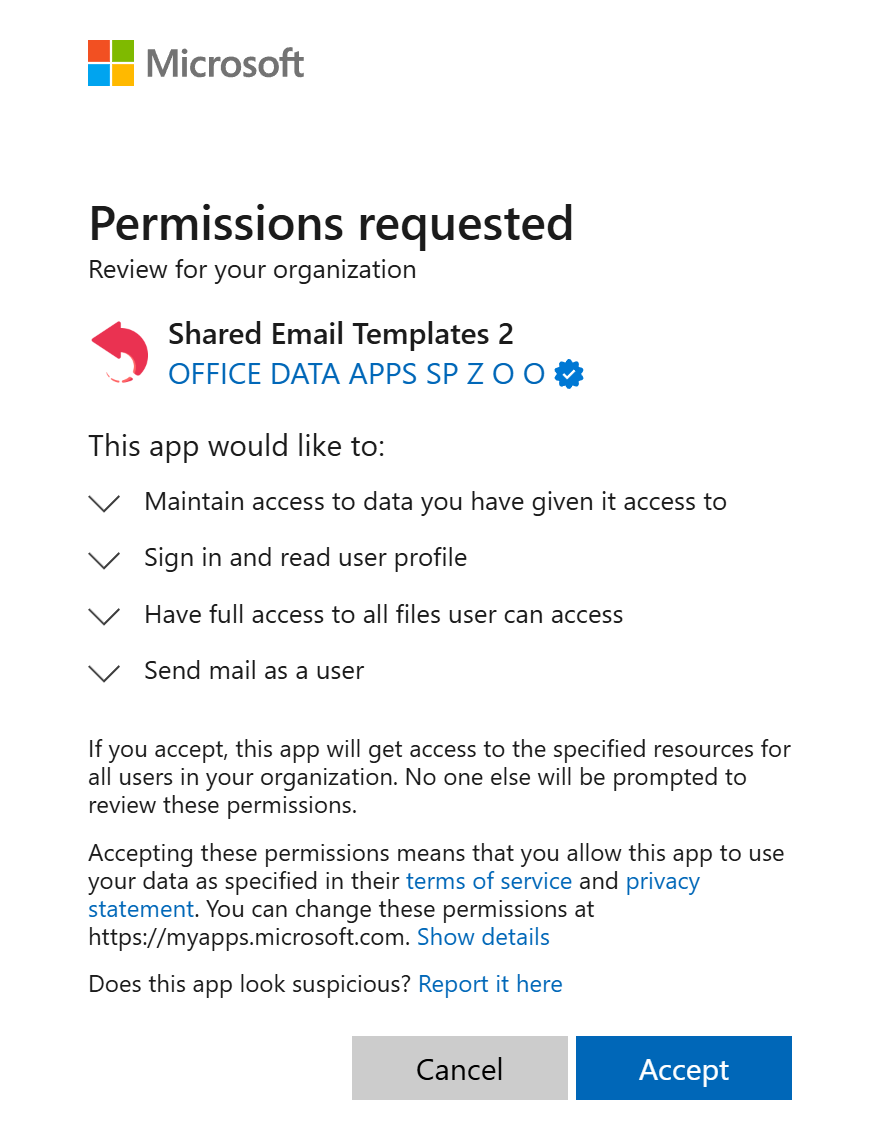
- Maintain access to data you have given it access to
- Sign in and read user profile
- Have full access to all files user can access
- Send mail as a user
Each permission is described in the Complete list of required permissions.
To grant the requested permissions, select Accept.
Import from an Azure AD group #
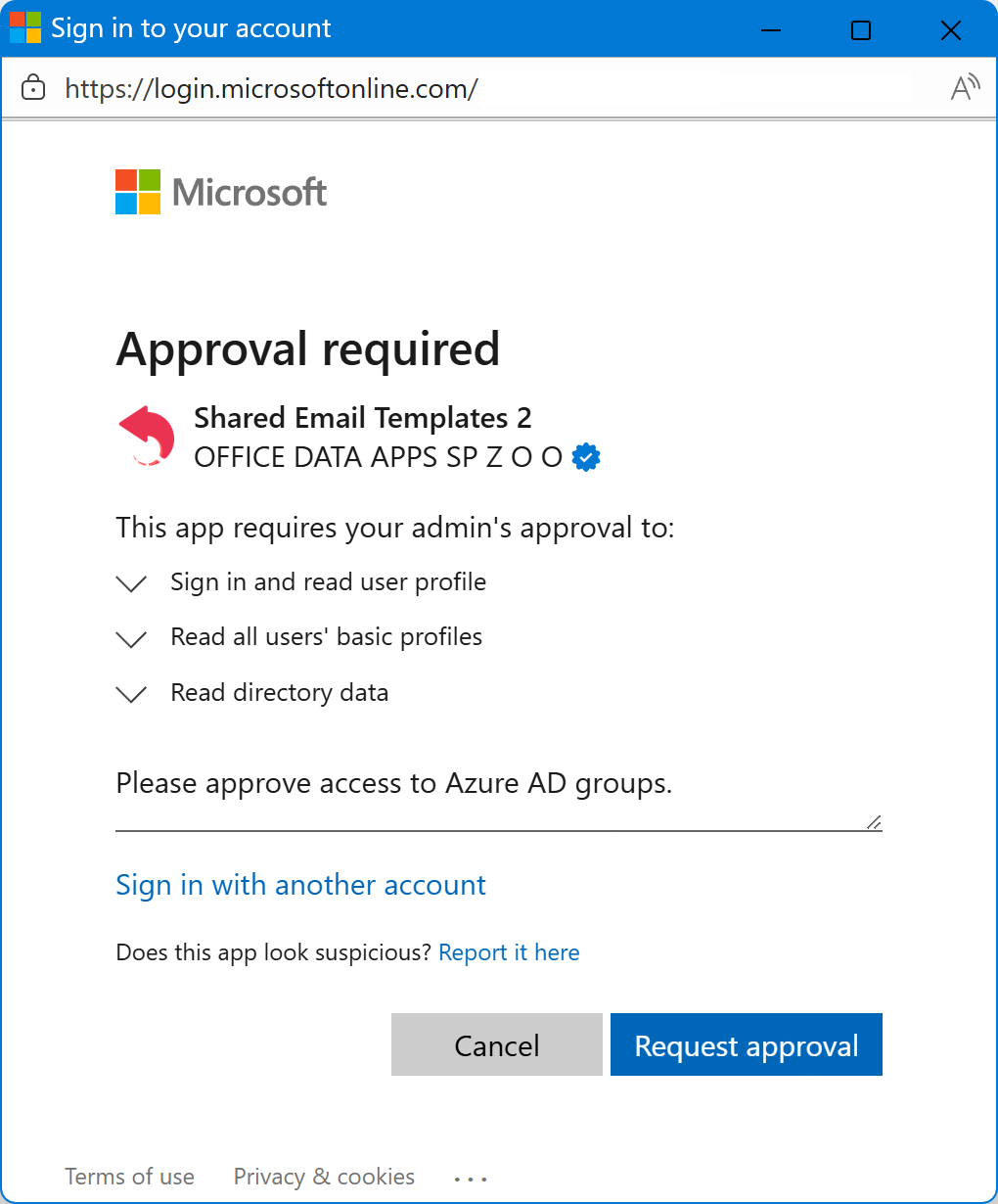
If you import users from an Azure AD group, you might see the Approval required dialog stating that administrator approval is needed for the following permissions:
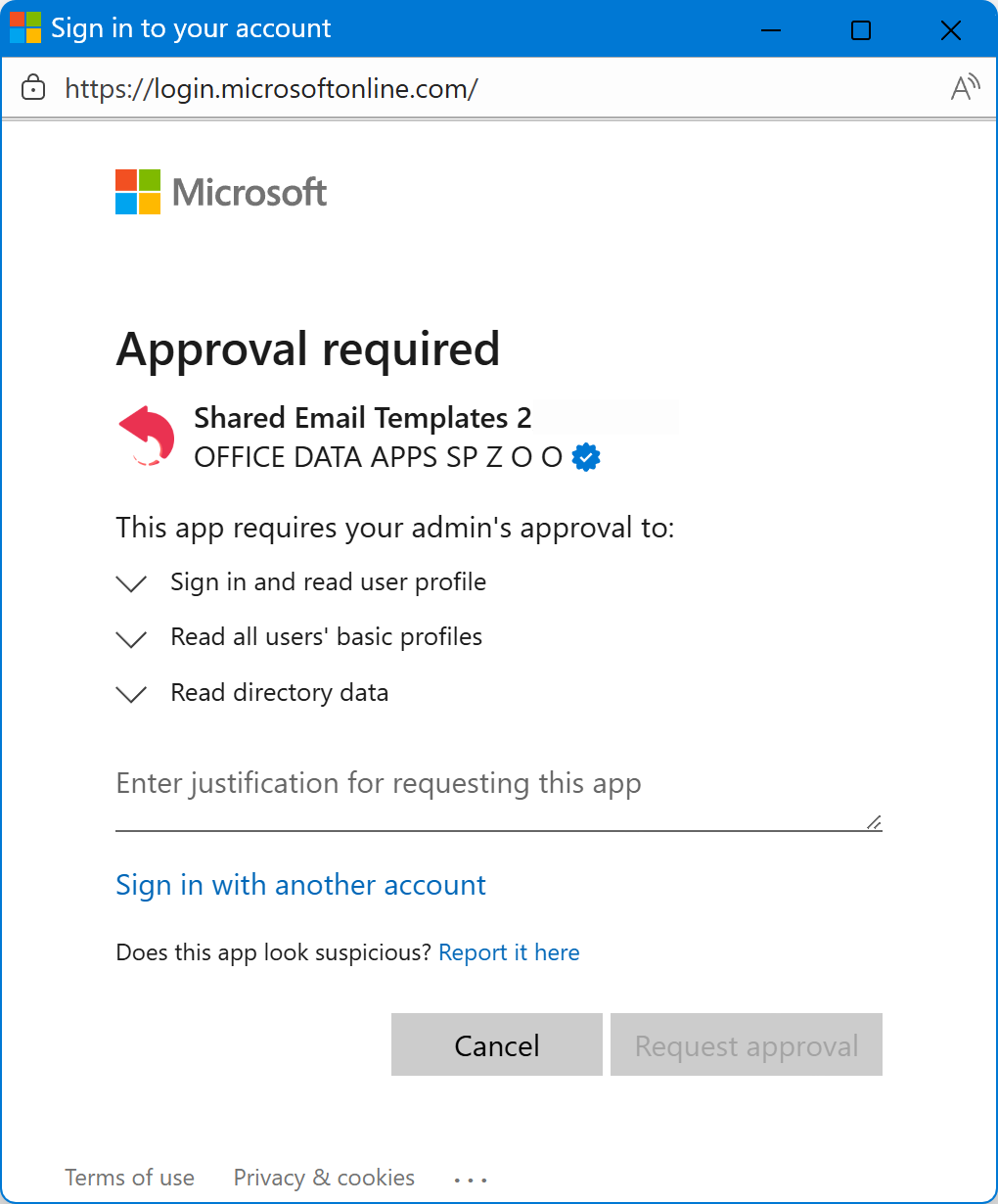
- Sign in and read user profile
- Read all users’ basic profiles
- Read directory data
Each permission is described in the Complete list of required permissions. To submit the approval request, enter a justification and select Request approval.
The Request sent dialog will appear. Select Back to app. Once your request is received, you’ll automatically get a confirmation email.
Next, wait for your IT administrator to approve the request. When the request is approved, you’ll get another email.
Steps for IT administrators
If you’re an IT administrator with the required Microsoft Entra role, you’ll automatically receive an email asking you to review the admin consent request. To review and accept the requested permissions in the Microsoft Entra admin center, do the following:
Go to Entra ID > Enterprise apps > Admin consent requests.
On the My Pending tab, select Shared Email Templates 2.
Select Review permissions and consent.
The Permissions requested dialog will appear so that you can review the following permissions:
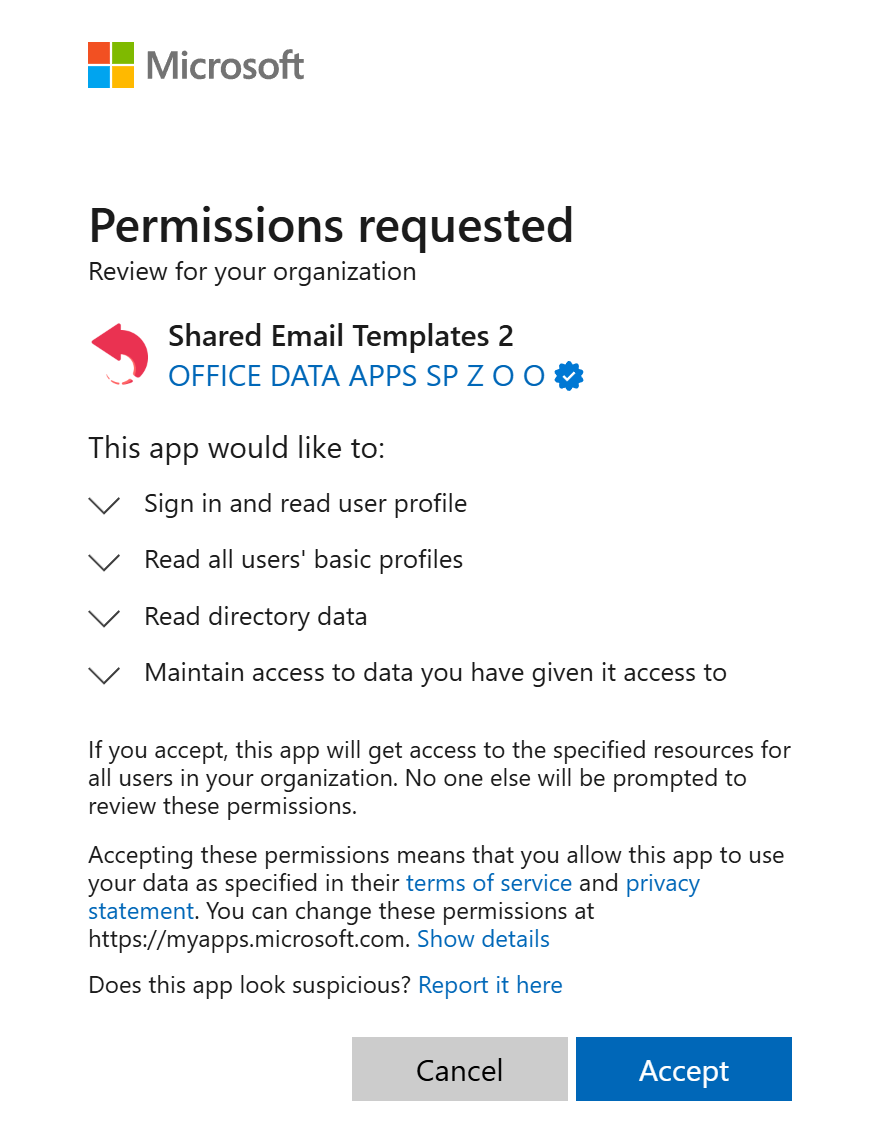
- Sign in and read user profile
- Read all users’ basic profiles
- Read directory data
- Maintain access to data you have given it access to
Each permission is described in the Complete list of required permissions.
To grant the requested permissions, select Accept.
Connecting an Outlook folder (deprecated Linked Outlook folders feature) #
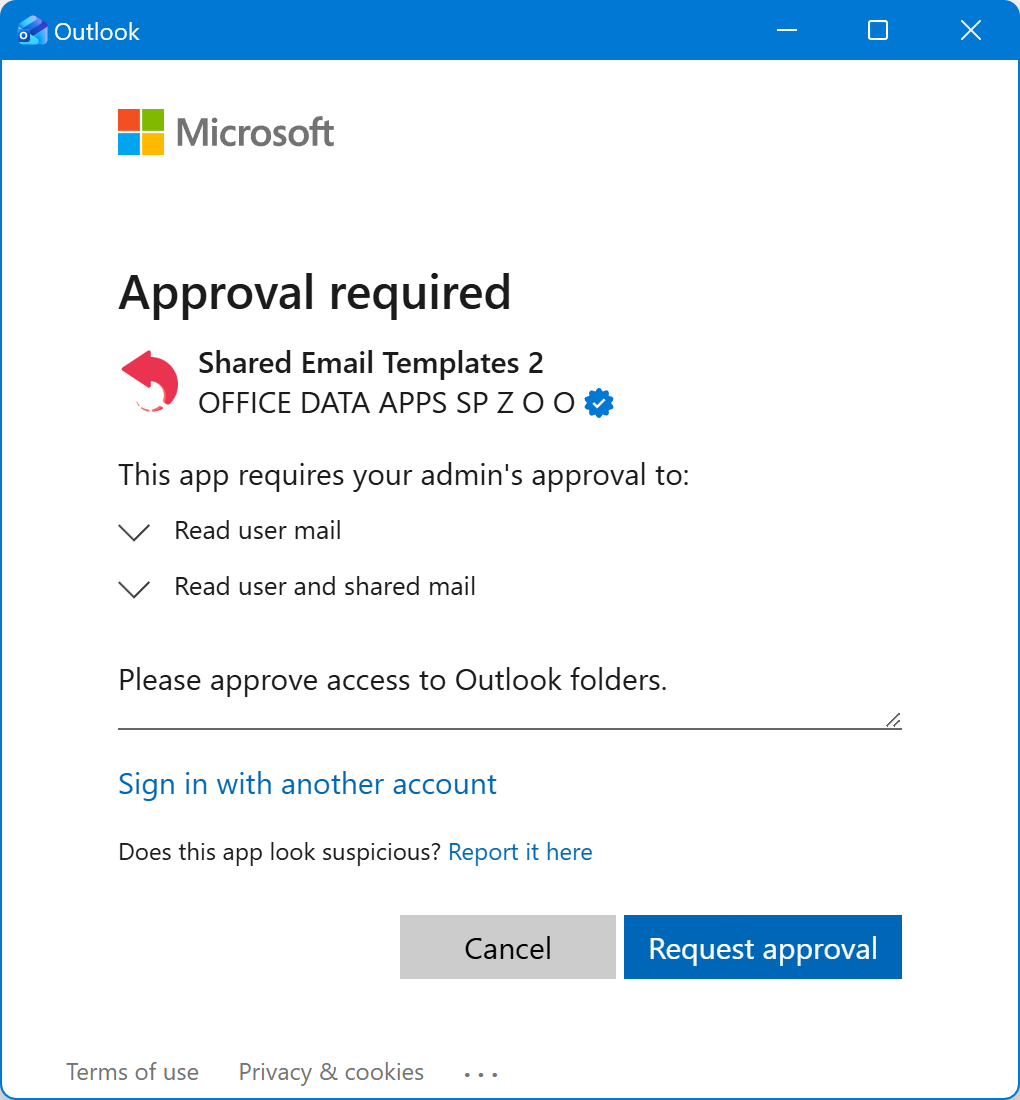
If you connect an Outlook folder to use the deprecated Linked Outlook folders feature, you might see the Approval required dialog stating that administrator approval is needed for the following permissions:
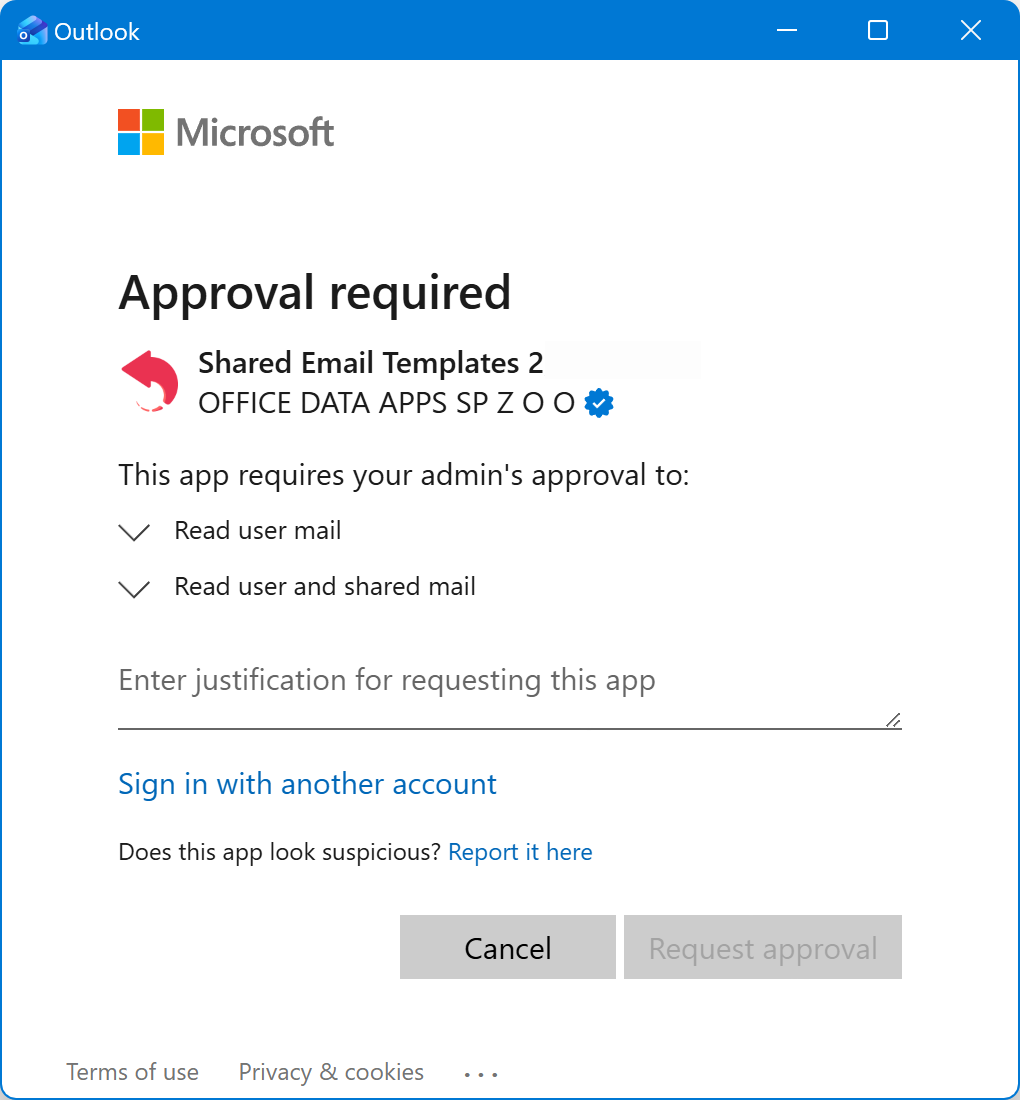
- Read user mail
- Read user and shared mail
Each permission is described in the Complete list of required permissions. To submit the approval request, enter a justification and select Request approval.
The Request sent dialog will appear. Select Back to app. Once your request is received, you’ll automatically get a confirmation email.
Next, wait for your IT administrator to approve the request. When the request is approved, you’ll get another email.
Steps for IT administrators
If you’re an IT administrator with the required Microsoft Entra role, you’ll automatically receive an email asking you to review the admin consent request. To review and accept the requested permissions in the Microsoft Entra admin center, do the following:
Go to Entra ID > Enterprise apps > Admin consent requests.
On the My Pending tab, select Shared Email Templates 2.
Select Review permissions and consent.
The Permissions requested dialog will appear so that you can review the following permissions:
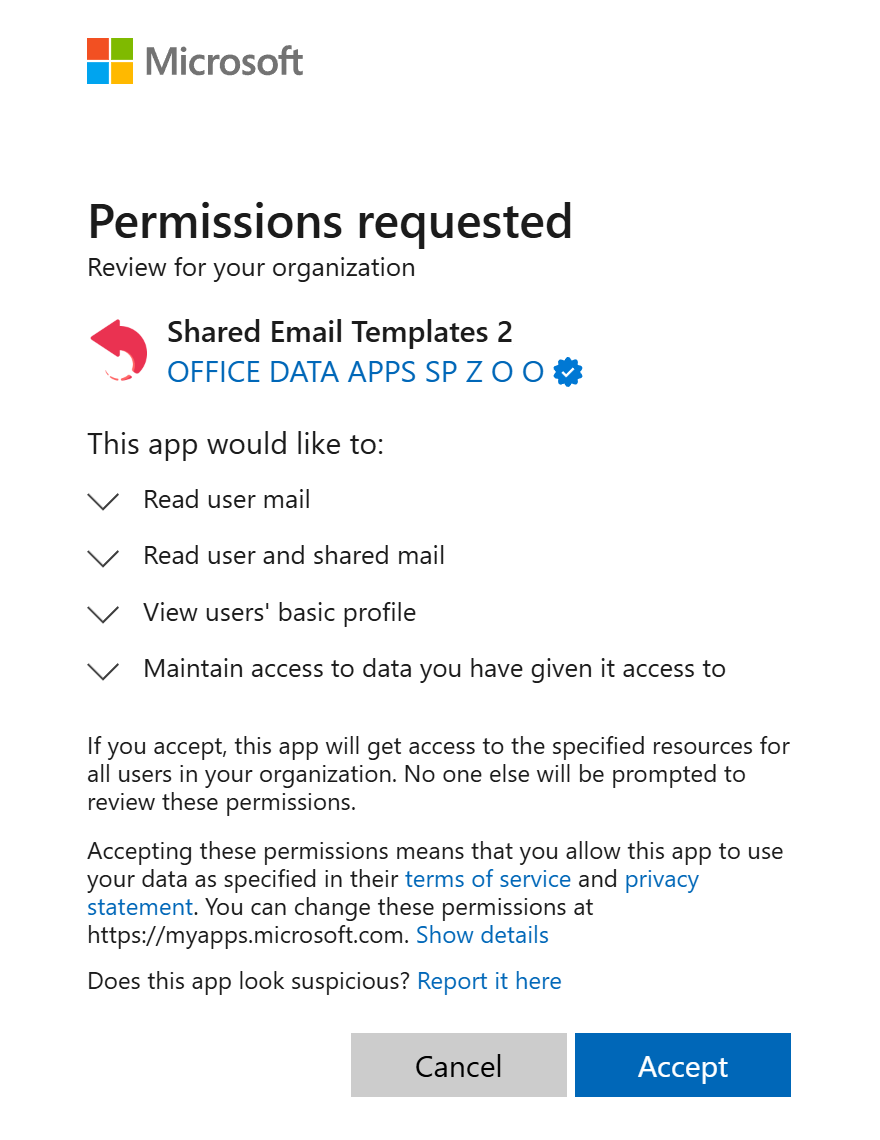
- Read user mail
- Read user and shared mail
- View users’ basic profile
- Maintain access to data you have given it access to
Each permission is described in the Complete list of required permissions.
To grant the requested permissions, select Accept.