
Outlook drafts as templates (deprecated)
In this article
You can use your Outlook drafts as templates in Shared Email Templates. To do this, you create an Outlook folder, store your drafts in this folder and connect this folder to Shared Email Templates. These drafts will be displayed in your templates list and you’ll be able to use them to create new messages or quick replies.
You can also learn a few tricks on how to create and manage drafts in Outlook and use them in Shared Email Templates in our How to use Outlook drafts as email templates blog post.
Before you start #
When you use Outlook drafts in the add-in, please consider the following points.
- Linked Outlook folders. To use your Outlook drafts as templates, you collect them all in one or several Outlook folders and then link these folders to My Templates or a team.
- No automatic synchronization. The linked Outlook folders are not synchronized automatically with Shared Email Templates and you’ll have to refresh data after each edit made in these Outlook folders.
- Edits only in Outlook. You can edit your drafts as regular Outlook messages directly in Outlook, not in a linked folder in Shared Email Templates.
- Sharing within one business domain only. The linked Outlook folders can be shared within one Office 365 business domain. For example, if your Outlook business account is user@company.com, you can’t share your drafts with a colleague with an email account user@business.com
- No sharing for personal or free accounts. If you have a paid personal Office 365 account (Home, Personal or Student) or a free outlook.com account, you can’t share your Outlook drafts in Shared Email Templates.
- Rich text formatting is not displayed in the Preview field. When you stand on the template, in the Preview field, you will see the template content in plain text, rich text formatting is not displayed.
Step 1: Create a new Outlook folder and save drafts there #
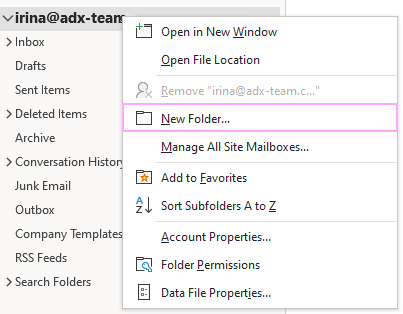
In Outlook, right-click the root Outlook folder or any subfolder and select New Folder:
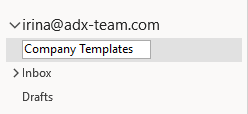
Name your folder and press the Enter key:
If you want your drafts to be available to other people in your Shared Email Templates team, you have to grant access to the created Outlook folder to your teammates.
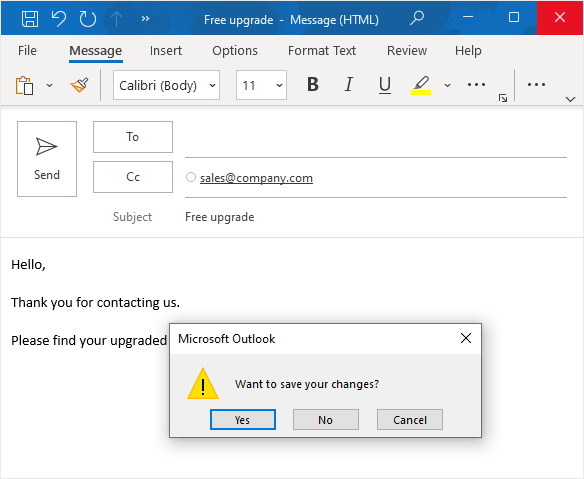
In Outlook, under the Home tab, click the New Email button. Fill all the fields you want to save in your template and click the Close button in the top-right corner of the window. In the dialog box, click Yes:
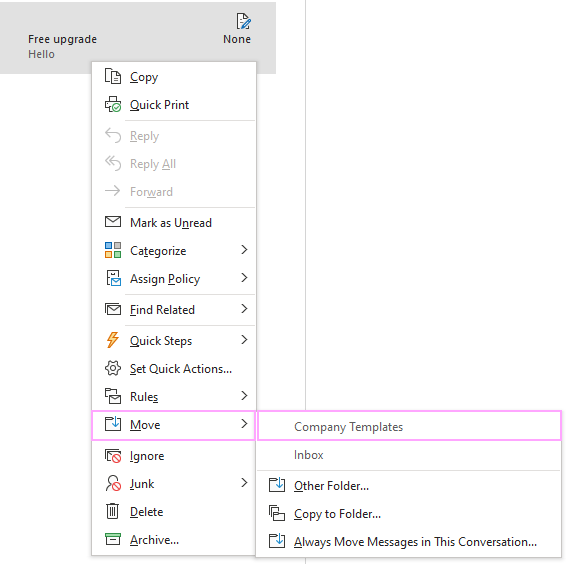
By default, Outlook saves drafts to the Drafts folder. So, stand on the Drafts folder, right-click the draft you want to use as a template, and pick the Move option. Select the folder you will link to Shared Email Templates:
Now, when we have an Outlook folder and a draft in it, let’s connect this folder to Shared Email Templates.
Step 2: Connect an Outlook folder to Shared Email Templates #
To link an Outlook folder to Shared Email Templates, take the following steps:
Start Outlook, create a new mail and run Shared Email Templates.
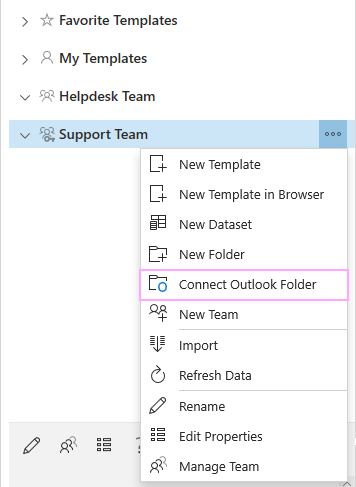
Right-click a Shared Email Templates team or the My Templates folder and select the Connect Outlook Folder option:
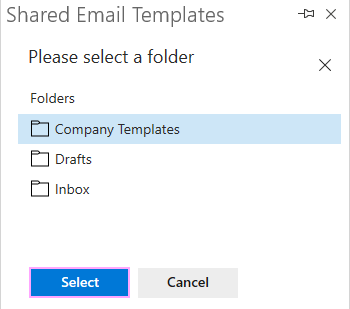
Pick the Outlook folder and hit the Select button:
You will see the linked Outlook folder and its messages. It is marked by a blue “folder” icon with a letter “O”:
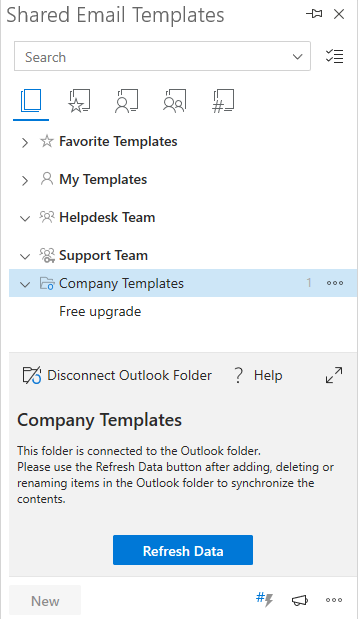
When you stand on the template, in the Preview field, you will see the template contents in plain text, rich text formatting is not displayed.
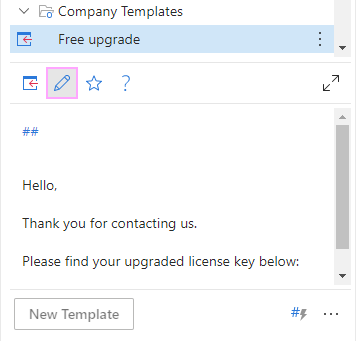
If you’ve got the Editor or Admin permissions in the team, you can open a template in Outlook, stand on it in the tree and click the Edit icon:
Refresh data #
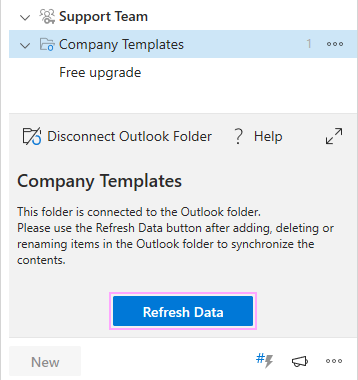
If you change, add, delete, or rename your drafts in Outlook, you’ll need to refresh data in Shared Email Templates.
Outlook may need up to 5 minutes to process changes you’ve made in your Outlook drafts, so we recommend that you wait a couple of minutes before refreshing the linked folder in Shared Email Templates.
There are two ways to refresh data:
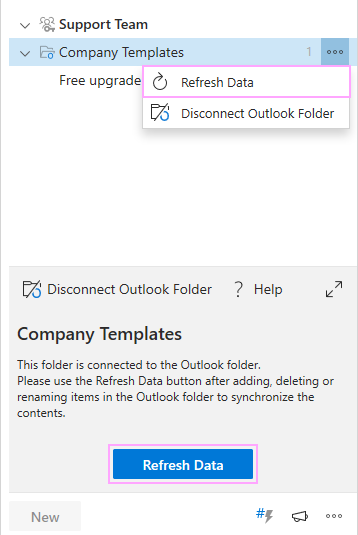
Click the Refresh Data button at the bottom of the pane when you stand on the folder:
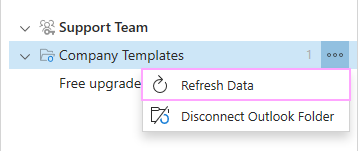
Right-click the linked folder and pick the Refresh Data option:
Disconnect an Outlook folder #
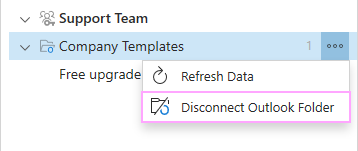
If you no longer need to use drafts from a folder, right-click it and hit Disconnect Outlook Folder:
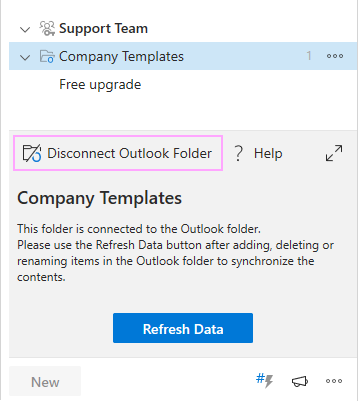
Also, you can stand on the folder and click on Disconnect Outlook Folder in the preview pane:
Share your Outlook drafts with a team #
If you want to use Outlook drafts in a Shared Email Templates team, bear in mind that the linked Outlook folder won’t be available to your teammates if you don’t give access to your initial Outlook folder to them.
Give access to your Outlook folder #
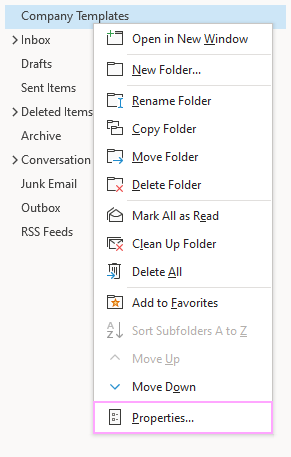
In Outlook, right-click the folder with your drafts and select Properties:
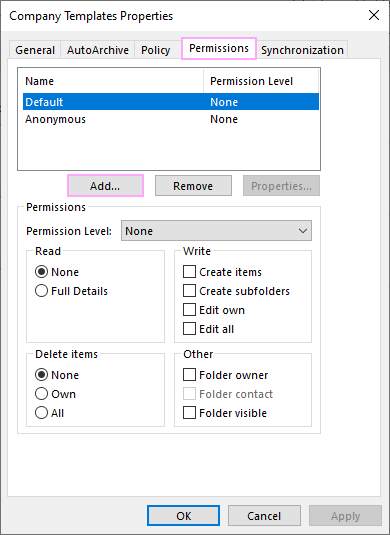
Open the Permissions tab and click Add:
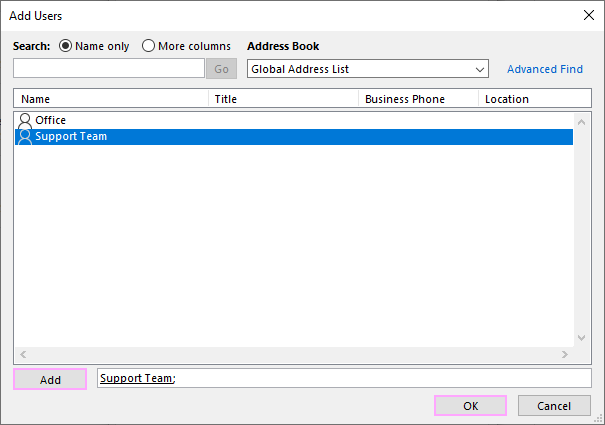
In the Add Users dialog window, find the Outlook account(s) you want your drafts to share with, click the Add button and then hit OK:
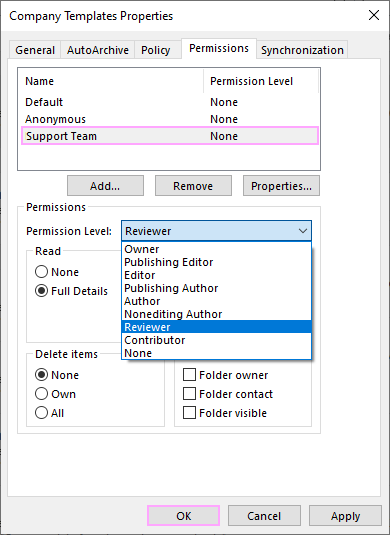
In the Properties dialog window, stand on the name of your colleague, open the Permission Level drop-down list, and pick Reviewer. Click OK:
Now enable the Folder Visible option for all the parent folders, including your Outlook mailbox:
Right-click the root folder of your mailbox and pick Folder Permissions:
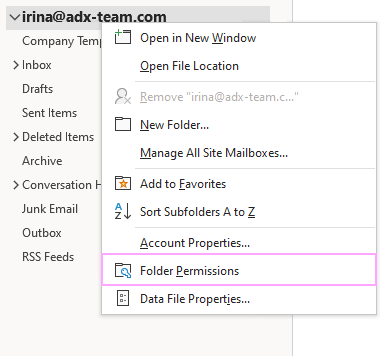
For the mailbox, the sufficient permission level is Folder visible, you can simply check this box in the Properties dialog window:
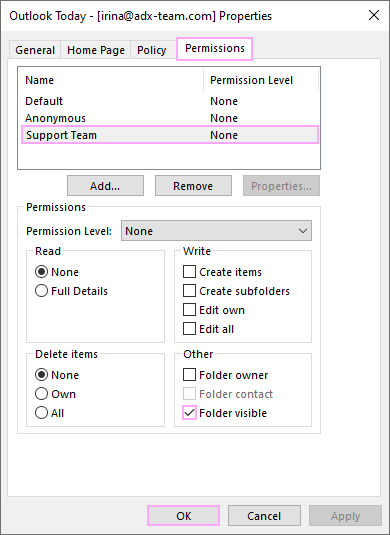
That’s it! Now you can invite mates to your Shared Email Templates team if you haven’t done this yet.
Known issues #
If you were invited to a team and you try to paste a shared template from an Outlook folder to your email, the following error message may pop up:
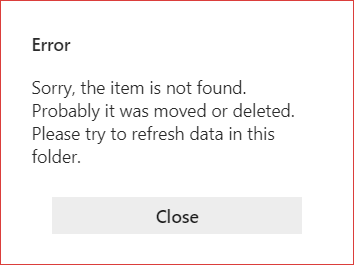
There are two reasons why this happens:
- This item was moved or deleted by the owner of the folder or somebody else with corresponding permissions.
- The Outlook folder that contains this templates is not shared with you in Outlook and thus you cannot use templates from this folder in Shared Email Templates.
Unfortunately, we cannot detect, which of the cases is yours, so, please, right-click the team and select Refresh Data or stand on the team and click the blue Refresh Data button:
If you get an error message again, this means, that you do not have the access permission to this Outlook folder. Please contact the owner of the folder.