
Pass email (retired)
In this article
THE PASS EMAIL FEATURE IS RETIRED.
If your organization uses shared mailboxes, the Pass Email button on the Outlook ribbon will help you easily assign email messages that are awaiting a reply to your teammates.
How to pass an email message #
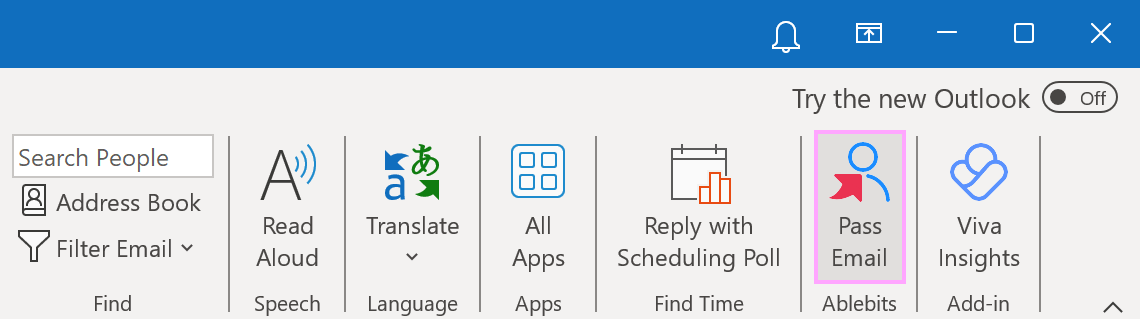
In your shared mailbox, select an email message that you want to pass to a teammate and click Pass Email in the Ablebits group on the ribbon:
The Shared Email Templates pane will appear in Outlook showing members of your teams in Shared Email Templates on the Pass to tab. Select the teammate you’re going to assign the task of replying to the selected email message, add a comment if necessary, and then click Pass.
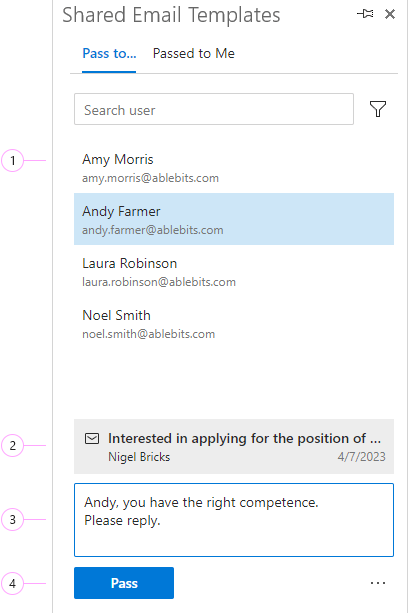
- The list of teammates is available here.
- Under the list of teammates, the selected email message is shown.
- This is a comment box.
- Here is the Pass button.
As soon as you click the Pass button, a confirmation message containing the subject of the email and the name of the teammate responsible for replying will show up in the Shared Email Templates pane.
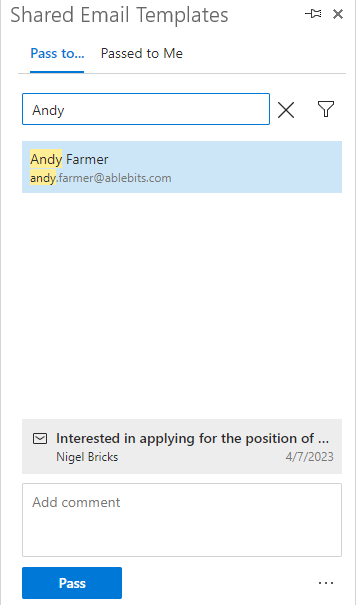
To easily find a teammate in the list, type their name in the search box:
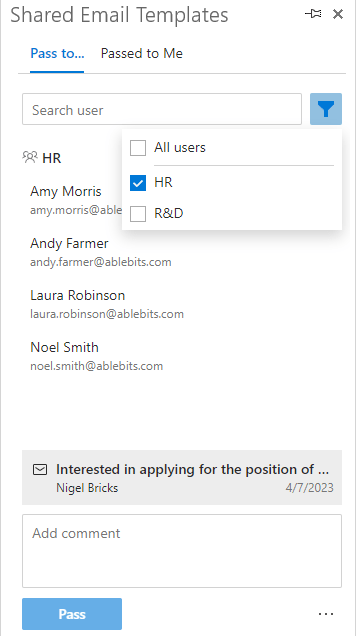
To narrow down the list of teammates, apply a filter:
How to find out what email messages have been passed to you #
As soon as email messages are passed to you, a notification icon will appear in the lower-right corner of the Shared Email Templates pane:
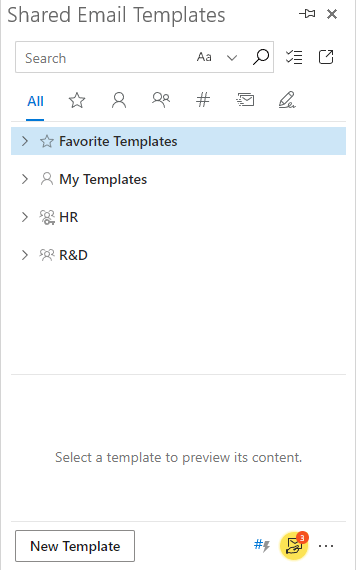
To find out what email messages you should reply to, select any message in your mailbox and click the Pass Email button on the Outlook ribbon:
On the Passed to Me tab, you’ll see a list of notifications. Double-click a notification to open the email message that it refers to.
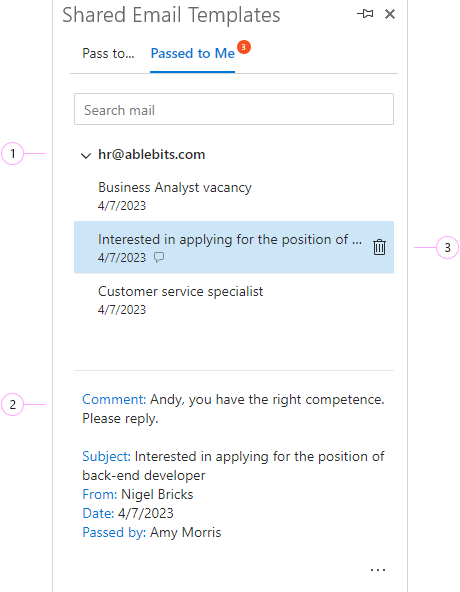
- This is a source mailbox that contains the email messages that have been passed to you.
- Here are the details associated with the email message that the selected notification refers to: a comment (if there’s any), the subject, sender, and date of the email message, along with the name of the person who has passed this email message to you.
- Notifications are available in the list for two weeks. To remove a notification from the list, select it and then click the trash button.
If the list of notifications appears dimmed, it means that you have the wrong mailbox selected.
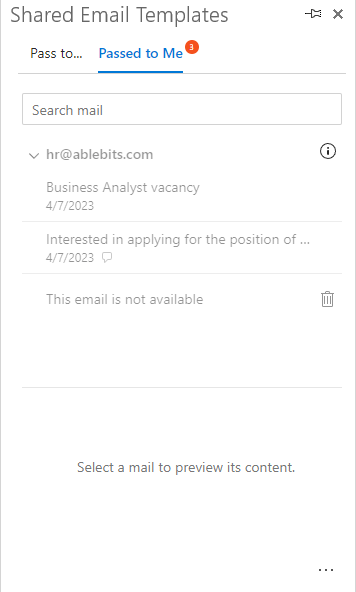
To make the list active, go to the mailbox to which the assigned email messages were delivered, select any email message, and click the Pass Email button on the ribbon.