How to activate a subscription key
In this article
The instructions below are for those users who have personal Shared Email Templates accounts. If you have a company account, your subscription is managed by your company account administrator and therefore it’s not possible for you to activate or deactivate a subscription key right from your profile, as both the Enter Subscription Key button and the Deactivate button are absent.
Step 1: Start Shared Email Templates #
To learn how to start the add-in, visit this help page: How to open the add-in pane in Outlook.
Step 2: Sign in to Shared Email Templates #
Detailed information on how to sign in to your Shared Email Templates account is available here.
If you haven’t created an account yet, follow these instructions.
Step 3: Enter your subscription key #
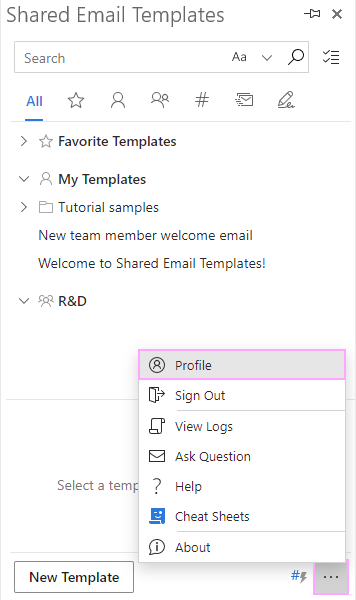
Click the three dots in the lower-right corner of the Shared Email Templates pane and select Profile:
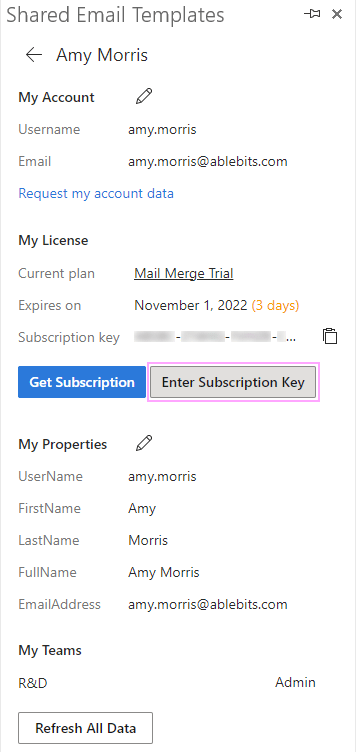
Click the Enter Subscription Key button:
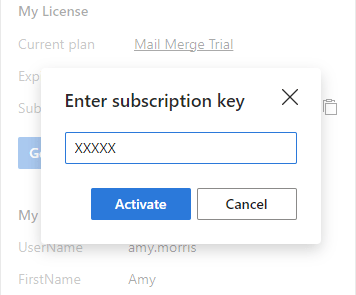
Paste your subscription key into the corresponding field and click Activate:
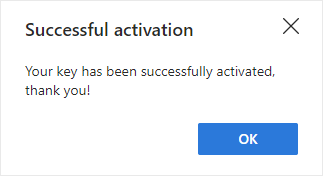
You’ll see the Successful activation dialog window:
How to deactivate your subscription key #
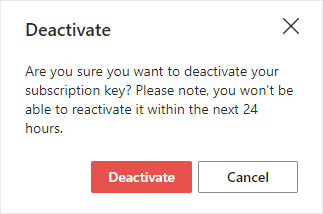
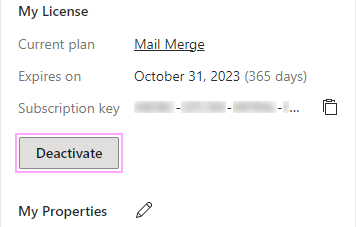
To deactivate your subscription key, click the Deactivate button:
Confirm the deactivation: