
Create and manage a personal account
In this article
Create a personal account #
The Shared Email Templates add-in offers two sign-up options: Sign up with email and Sign up with Microsoft.
| Sign up with email | Sign up with Microsoft |
|---|---|
| You sign up with your email address. | You sign up with your Microsoft work or school account. |
| You need to create a password. | You use your existing Microsoft password (we will not have access to it). |
Sign up with email #
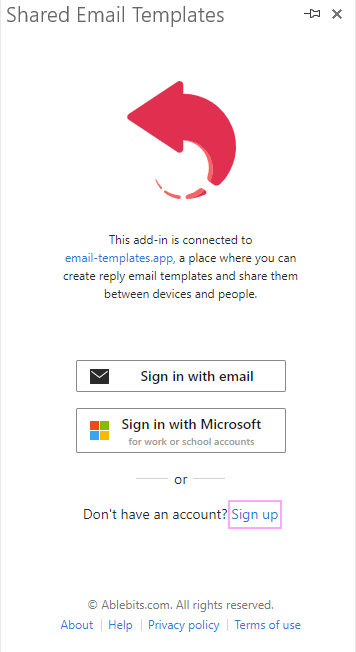
Start Shared Email Templates in Outlook and click Sign up in the add-in pane:
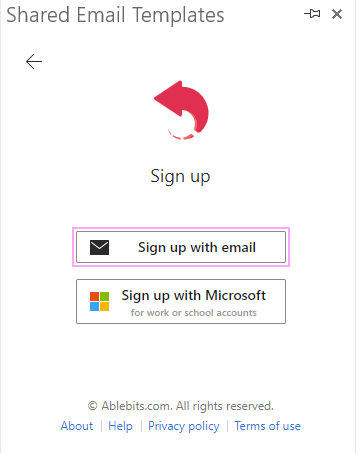
Select the Sign up with email button:
Decide which account you need: a company account or a personal one. Here are the differences between them:
Personal account Company account A personal account suits you well if you’re going to use your templates yourself or share them within a small team. A company account is designed to address the needs of large teams that are managed by company administrators. You can create your account on your own. Only company administrators can create accounts for their users. You can create a team and invite other people to join it. Only company administrators can manage users and teams. You need to activate your subscription yourself. Only company administrators can assign subscription keys to their users. Inviting a company account user to a personal team is not possible. Adding a personal account user to a company team is not possible. If you’re going to create a company account, find our step-by-step instructions here.
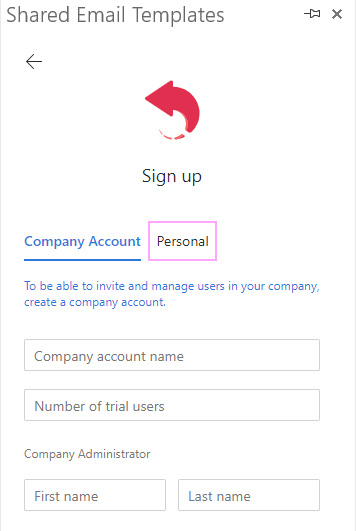
If you want to create a personal account, switch to the Personal tab:
You’ll see a registration form:
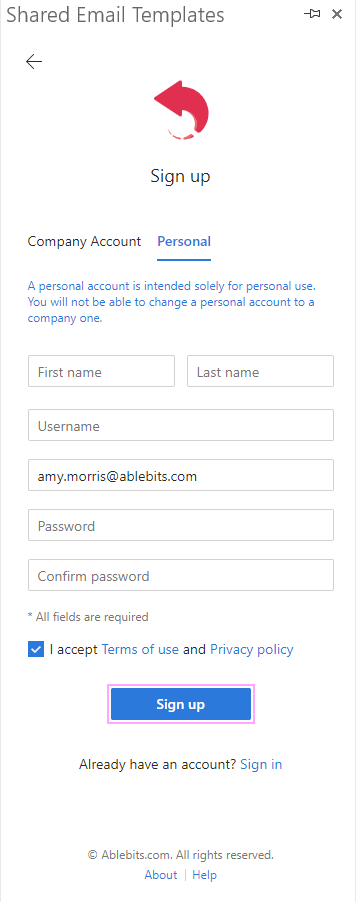
Enter the required details, accept the Shared Email Templates Terms of Use and Privacy Policy, and click Sign up.
If you’re currently running Outlook under another email, a confirmation message will be sent to the email address you specified in the sign-up form so that you can verify that email address.
Sign up with Microsoft #
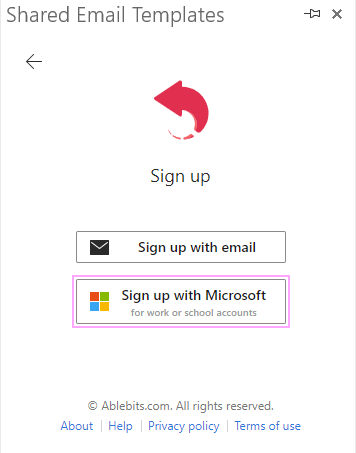
Open the Shared Email Templates pane in Outlook and click Sign up:
Select the Sign up with Microsoft button:
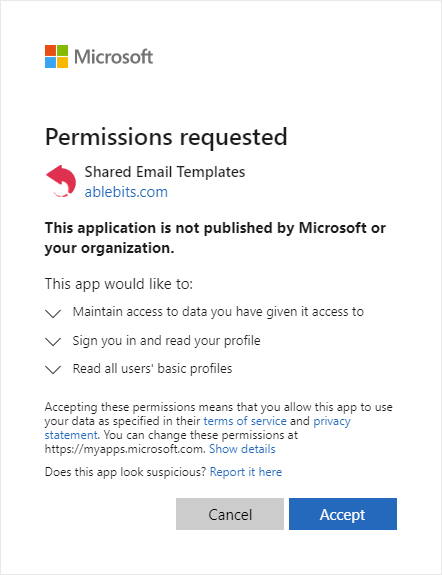
A Microsoft dialog window will show up. Sign in to your Microsoft work or school account to proceed. Then you’ll be asked to accept the Shared Email Templates permissions:
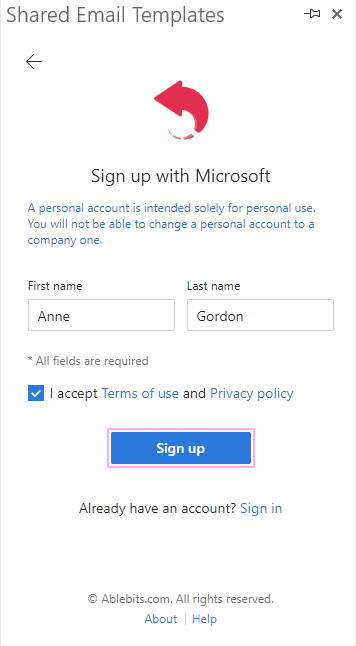
As soon as the requested permissions are granted, you’ll see a registration form. Check the First name and Last name fields. If you accept the Shared Email Templates Terms of Use and Privacy Policy, select the corresponding checkbox, and then click Sign up:
Your Shared Email Templates account is created.
Sign in to your account #
Sign in with email #
Select the Sign in with email button in the Shared Email Templates pane:
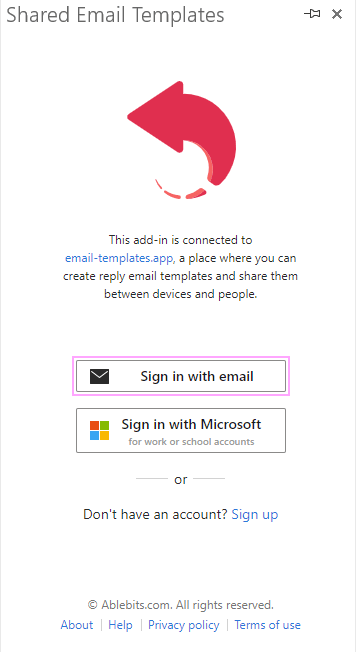
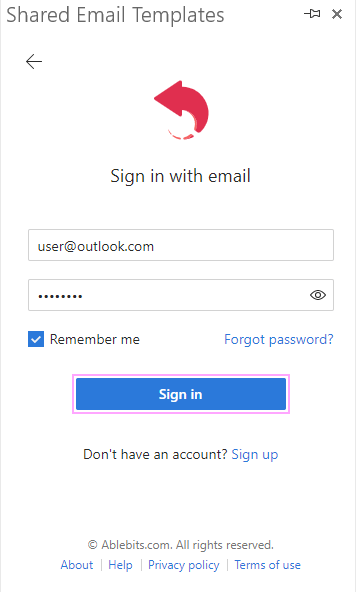
Enter your username or email address and password. Click Sign in:
Sign in with Microsoft #
Click the Sign in with Microsoft button in the add-in pane in Outlook:
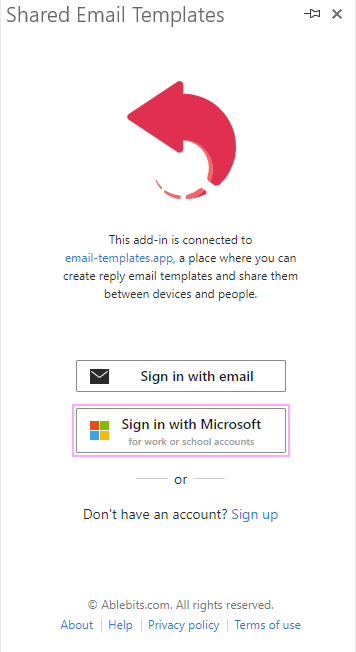
In the Microsoft dialog window that will show up, select your Microsoft work or school account that you want to sign in with.
Manage your profile #
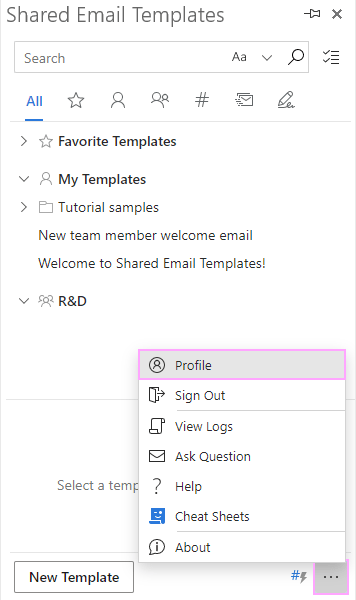
To manage your profile, click the three dots in the lower-right corner of the add-in pane and select Profile:
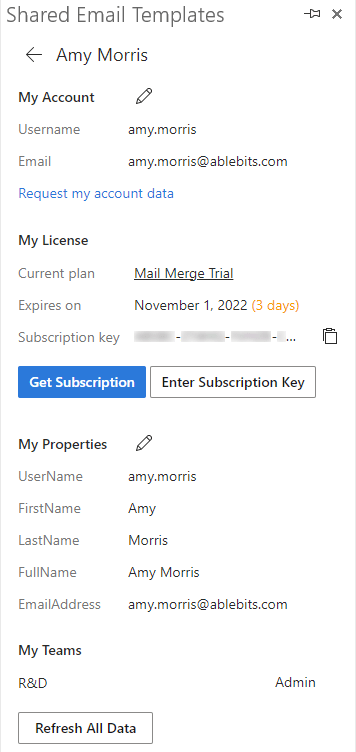
You’ll see four sections: My Account, My License, My Properties, and My Teams.
My Account #
To edit your account, click the Edit Account icon:
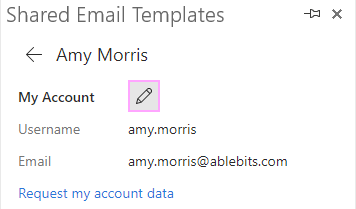
You can change your name, email, date of birth, and password.
You can choose between two macros styles: Default and Dashed.
You can also delete your account if you want to.
Checking the Use single sign-on (SSO) where possible option in your profile enables the single sign-on feature (SSO). As a result, Shared Email Templates will require you to authenticate just once, and then you can insert images or attach files from OneDrive and SharePoint without repeated authentication checks. To learn more, visit this help page: Single sign-on (SSO) for OneDrive and SharePoint.
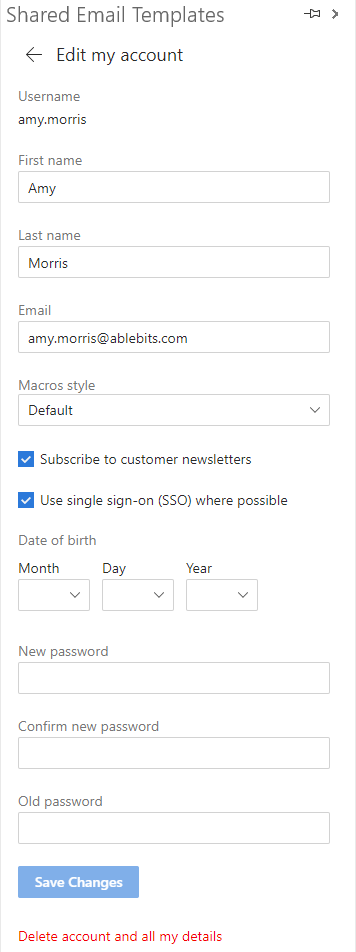
To keep the changes you’ve made, click the Save Changes button.
My License #
The My License section contains information on the current subscription plan and its expiration date. Here you can activate and deactivate your subscription key.
If the automatic renewal of your subscription is enabled, there’s a check mark next to Auto-renewal:
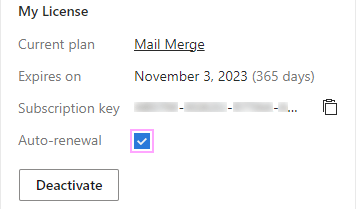
When the subscription period is almost over, the Renew button appears, and you can click it to renew your subscription manually by placing a renewal order.
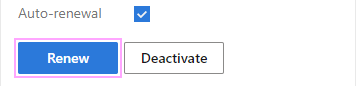
Or, if auto-renewal is on and the card that was used for the original order is still valid, you can wait until the subscription is renewed automatically.
In both cases, you won’t need to enter and activate the subscription key: it doesn’t change. Only the expiration date gets extended.
To turn auto-renewal off, clear the Auto-renewal checkbox. As soon as the automatic renewal of your subscription is canceled, a confirmation email from 2Checkout is to be delivered.
My Properties #
To see the properties of your account or create new ones, click the Edit properties icon:
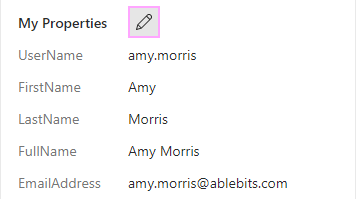
To learn more, visit the How to use properties in your templates page.
My Teams #
If you’ve already created or joined some teams, you’ll see their list in the My Teams section. On the right of a team’s name, your user permissions will be stated.

Get your personal data #
You can make a request for the personal data associated with your profile (except for passwords) by going to Profile > My Account > Request my account data:
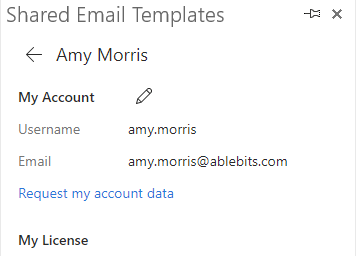
As soon as you click Request my account data, an email message containing the requested information will be sent to the email address that is stated in your Shared Email Templates account. If the message is missing from your inbox, check your junk email.
Delete your account #
If you want to delete your account, click the three dots in the lower-right corner of the add-in pane and select Profile:
Then click the Edit Account icon:
To delete your account, click Delete account and all my details at the bottom of the add-in pane:
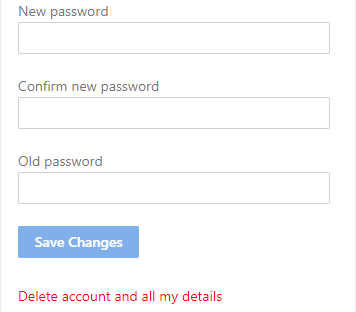
If you’ve got a team where you’re the only Admin, you won’t be able to delete your account until you give the Admin permissions to another team member or close the team.
If there is no Delete account and all my details in Edit my account, it means that you have a company account which can be deleted only by a company administrator.