Accept an invitation to a team
In this article
If you’ve received an invitation from your colleague to join a team in Shared Email Templates for Outlook, follow the steps below. If there is no Shared Email Templates in your Outlook yet, install the add-in first.
Step 1: Accept the invitation #
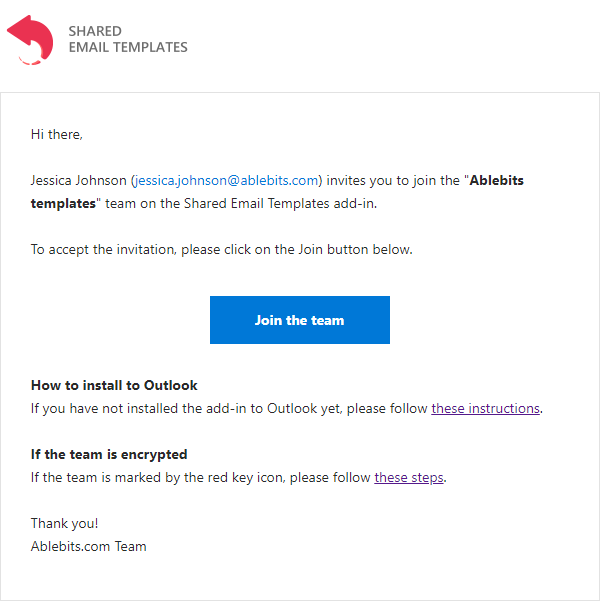
When a colleague invites you to a team, you’ll receive an invitation email. Open the email and select Join the team.
Step 2: Create an account or sign in #
After you select Join the team, a new tab will open in your default browser.
If you don’t have a Shared Email Templates account yet, a sign-up form will appear. Fill out the form and select Sign up.
If you already have an account, you might see your new team in the web app right away, or you might be prompted to sign in.
To use the team templates for your emails, open Shared Email Templates in Outlook. Sign in if prompted.
Activate your subscription key #
Besides the invitation to a team, you might get an email that contains your subscription key and the Team Password (if the team is encrypted).
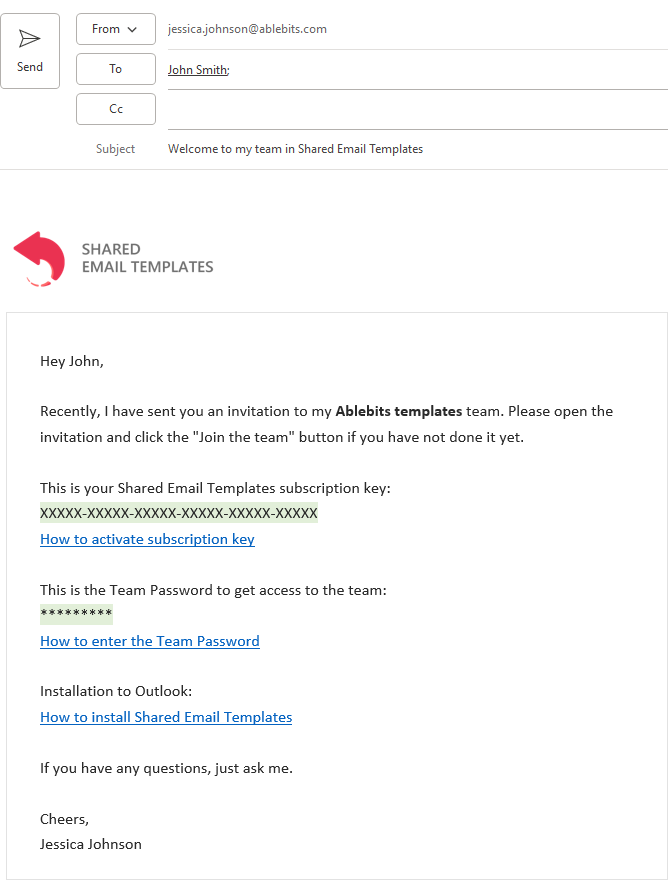
Copy the subscription key from this email, sign in to your Shared Email Templates account, and activate the key.
Join an encrypted team #
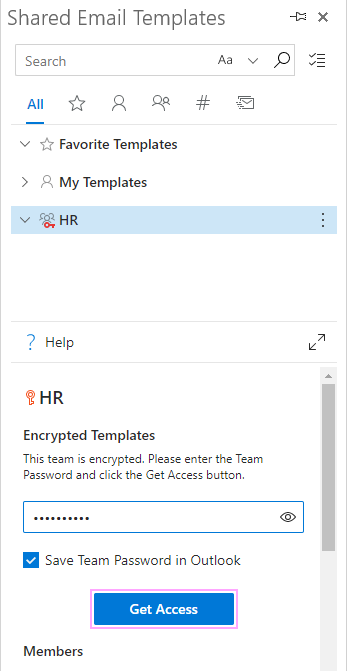
To get access to an encrypted team, select it and find the Team Password field. Paste the Team Password, which you received from your colleague, into this field and select Get access.