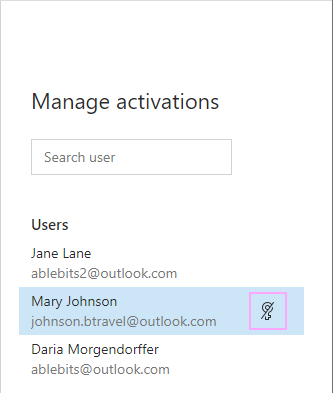
The Manage keys option
In this article
If you buy two or more Shared Email Templates subscriptions within the same order, you’ll receive a subscription key covering them all. If your email address was stated as the billing one in the order form, the Manage Keys option will be available to you in the Shared Email Templates web app. With this option, you can see the subscription key(s) that you purchased, learn how many activations are available, check a list of users who activated the key(s) you provided, and deactivate any of your keys for a certain user if necessary.
When the Manage Keys option appears #
The Manage Keys option becomes available in the Shared Email Templates web app only if both conditions below are met:
- You’re the purchaser and your email address in the Shared Email Templates account is the same as the email address you used when ordering the subscriptions.
- You have at least one key covering two or more subscriptions.
How to manage subscription keys and activations #
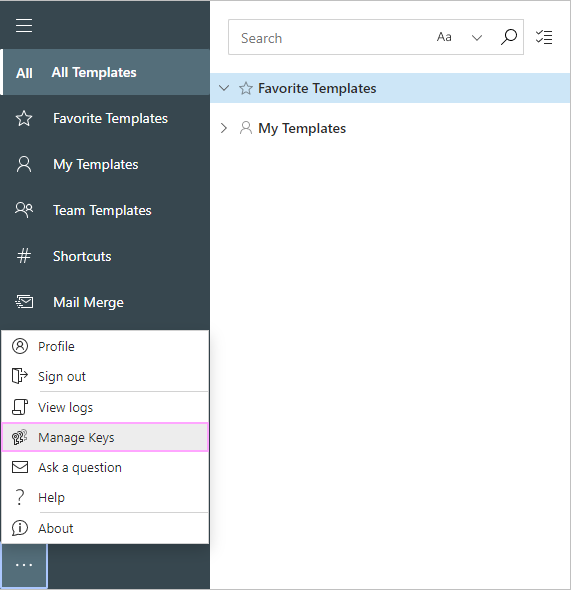
In the Shared Email Templates web app, click the three dots in the lower-left corner and select Manage Keys:
You’ll see your subscription keys, their expiration dates, available activations, and subscription plans that your keys relate to.
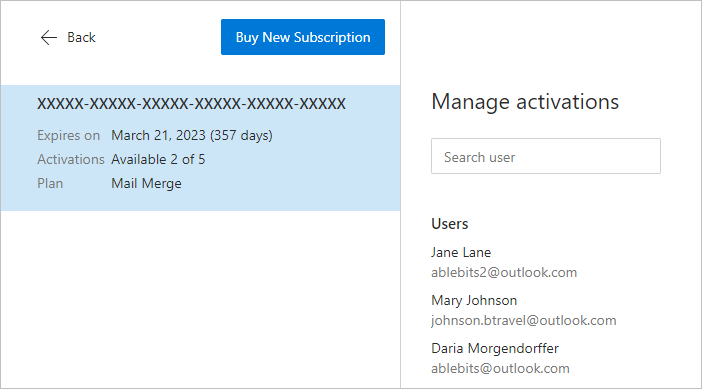
On the right, there will be a list of users who activated your key. To deactivate the key for any of them, select the user of interest and click Deactivate: