
Shared Email Templates
Create teams to share email templates for Outlook
In this article
Company account admins can create and manage teams.
Start a team #
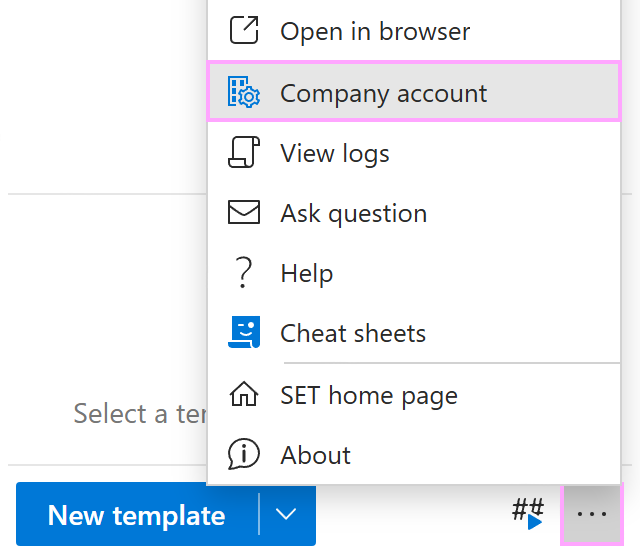
In the Shared Email Templates pane in Outlook, open the More (…) menu and select Company account.
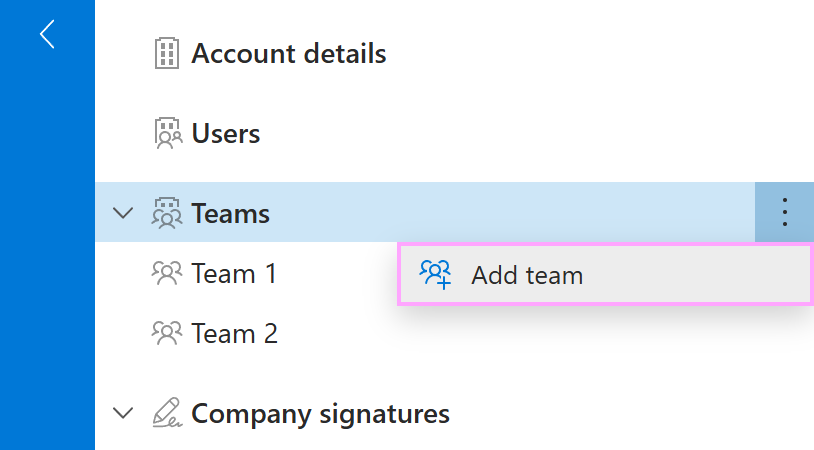
In the Shared Email Templates app that automatically opens in your default browser, right-click Teams and select Add team.
In the form that appears, enter a name for the new team. You can also add a description and set a password to protect the team templates with end-to-end encryption.
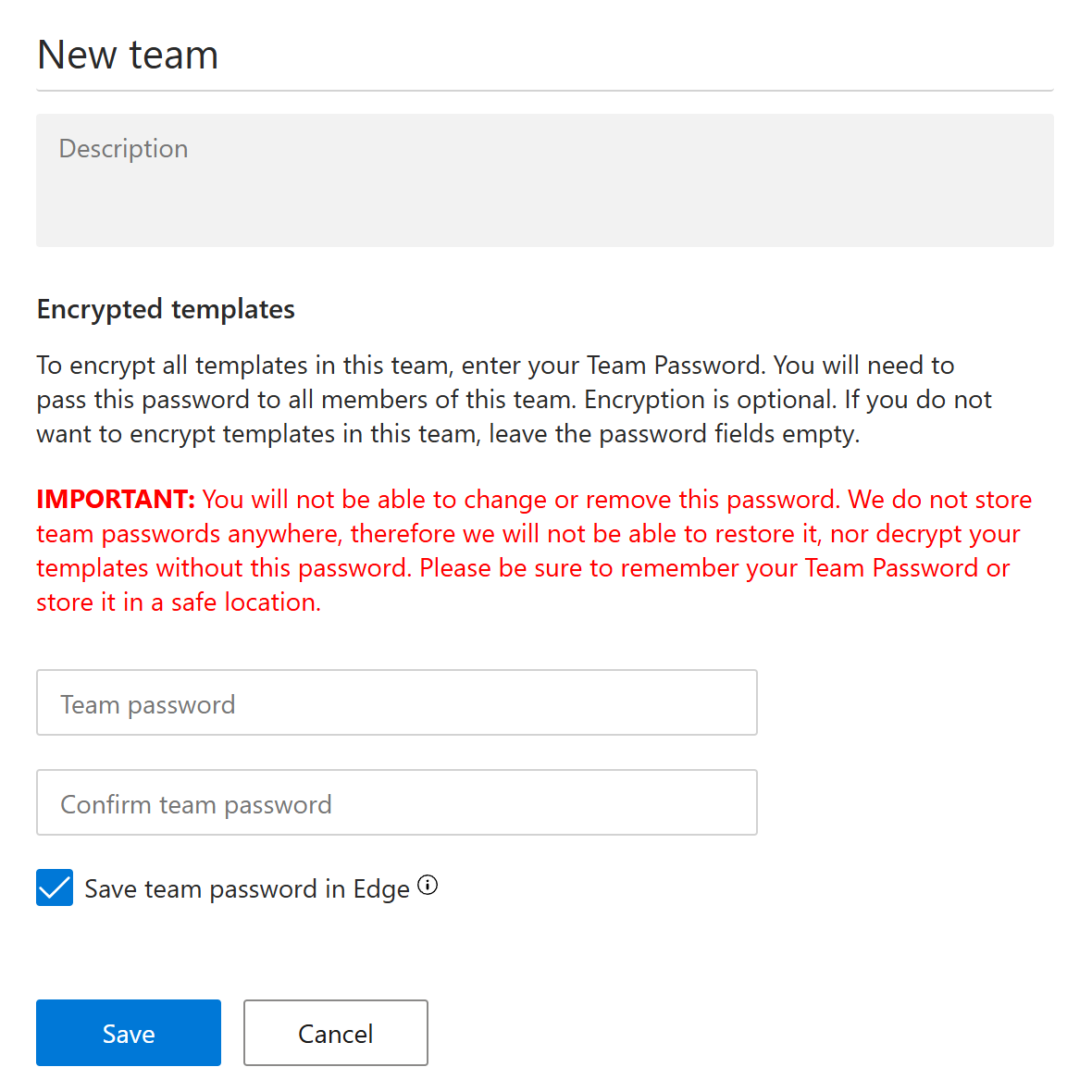
When you’re done, select Save.
Add users and grant permissions #
- In Outlook, open the More (…) menu at the bottom of the Shared Email Templates pane. Then select Company account.
- In the Shared Email Templates web app, right-click a team and select Add users.
- You’ll see a list of users who are not members of the team. Select those users whom you want to join the team, decide on their permissions (User or Editor), and then select Add.
How to import users from Azure AD #
- On the More (…) menu in the Shared Email Templates pane, select Company account.
- When the Shared Email Templates app automatically opens in your default browser, right-click a team and select Import users.
- With the Microsoft Active Directory option selected in the dialog that will appear, click Import.
- Sign in to your Microsoft work or school account.
- Select the users who should join the team, grant them permissions (User or Editor), and, if necessary, change a subscription key that was assigned automatically.
- Select Import.
How to import users from an Azure AD group #
- At the bottom of the Shared Email Templates pane, click the three dots to open the More (…) menu. Then select Company account.
- In the Shared Email Templates web app, right-click a team and select Import users.
- Select the Microsoft Active Directory group option and click Import.
- Sign in to your Microsoft work or school account.
- Select an Azure AD group, and then click Next.
- Select those users whom you want to add to the team, grant them permissions (User or Editor), and, if necessary, change a subscription key that was assigned automatically.
- Select Import.