
Invite colleagues to your company account
In this article
To invite colleagues to your Shared Email Templates company account, you’ll need to add them as users.
Import users from Azure AD #
On the More (…) menu in the Shared Email Templates pane in Outlook, select Company account.

In the Shared Email Templates app that will automatically open in your default browser, go to Users.
Select Import users.
With the Microsoft Active Directory option selected, click Import.
Sign in to your Microsoft work or school account using the Microsoft dialog that will appear.
In the Import users dialog, select those of your colleagues whom you want to join your company account.
If you want to change a subscription key that was assigned automatically, use any of the two following options: Assign key or Assign key to selected users.

Select Import.
Import users from an Azure AD group #
In Outlook, open the More (…) menu in the Shared Email Templates pane. Then select Company account.
In the Shared Email Templates app in your browser, go to Users.
Select Import users.
In the dialog that will appear, select Microsoft Active Directory group, and then click Import.
Sign in to your Microsoft work or school account using the Microsoft dialog that will appear.
In the Select group dialog, select a group, and then click Next.
In the Import users dialog, select group members.
If you want to change a subscription key that was assigned automatically, use any of the two following options: Assign key or Assign key to selected users.
Select Import.
Import users from a CSV file #
Prepare an Excel file containing a table that has the following columns: FirstName, LastName, Username, Email, and Key. Optionally, you can include three more columns: Password, Teams, and Permissions.
If several teams are intended for one and the same user and therefore should be listed within the same cell, separate their names with a semicolon. For example, “Sales;Support”.
If a user is supposed to have different roles in the teams they’re going to join, type in user permissions in the same order as the corresponding teams using capital letters: U for User and E for Editor. Separate the letters standing for permissions with a semicolon. For example, “U;E”.
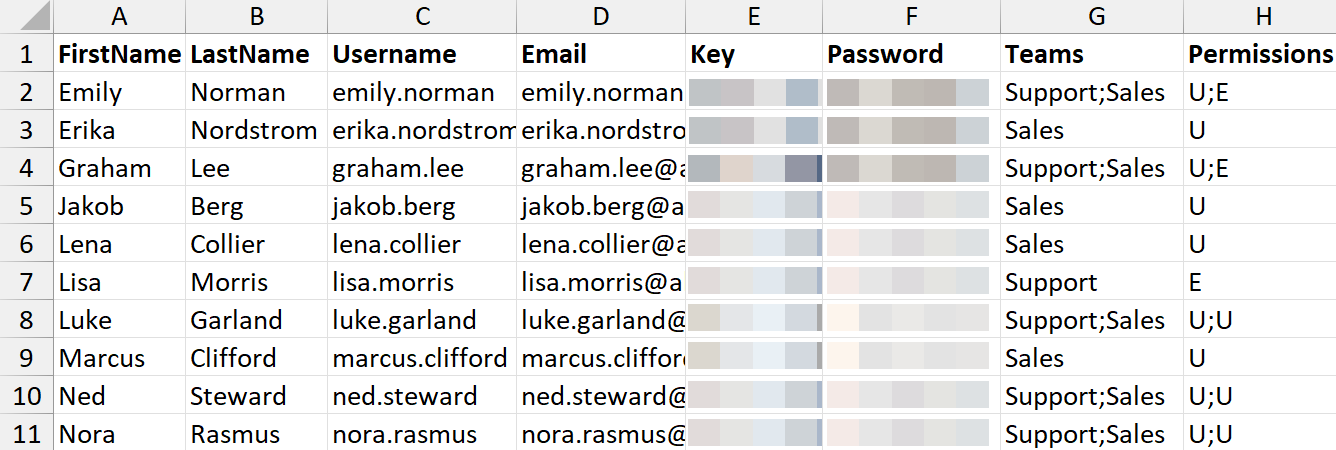
When your table is filled with all the necessary data, save your file in a CSV format.
In Outlook, open the Shared Email Templates pane. Then select Company account from the More (…) menu.
In the Shared Email Templates web app, go to Users.
Select Import users.
In the Import users dialog, select .CSV file, and then click Import.
Select the file you want to use.
Select Open.
User import results #
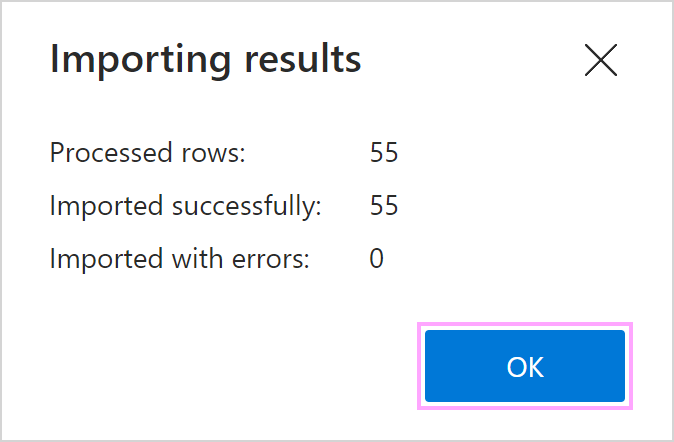
As soon as users are imported into your company account, a dialog showing the user import results will appear. You’ll see how many rows have been processed and how many users have been imported successfully. To close the dialog, select OK.
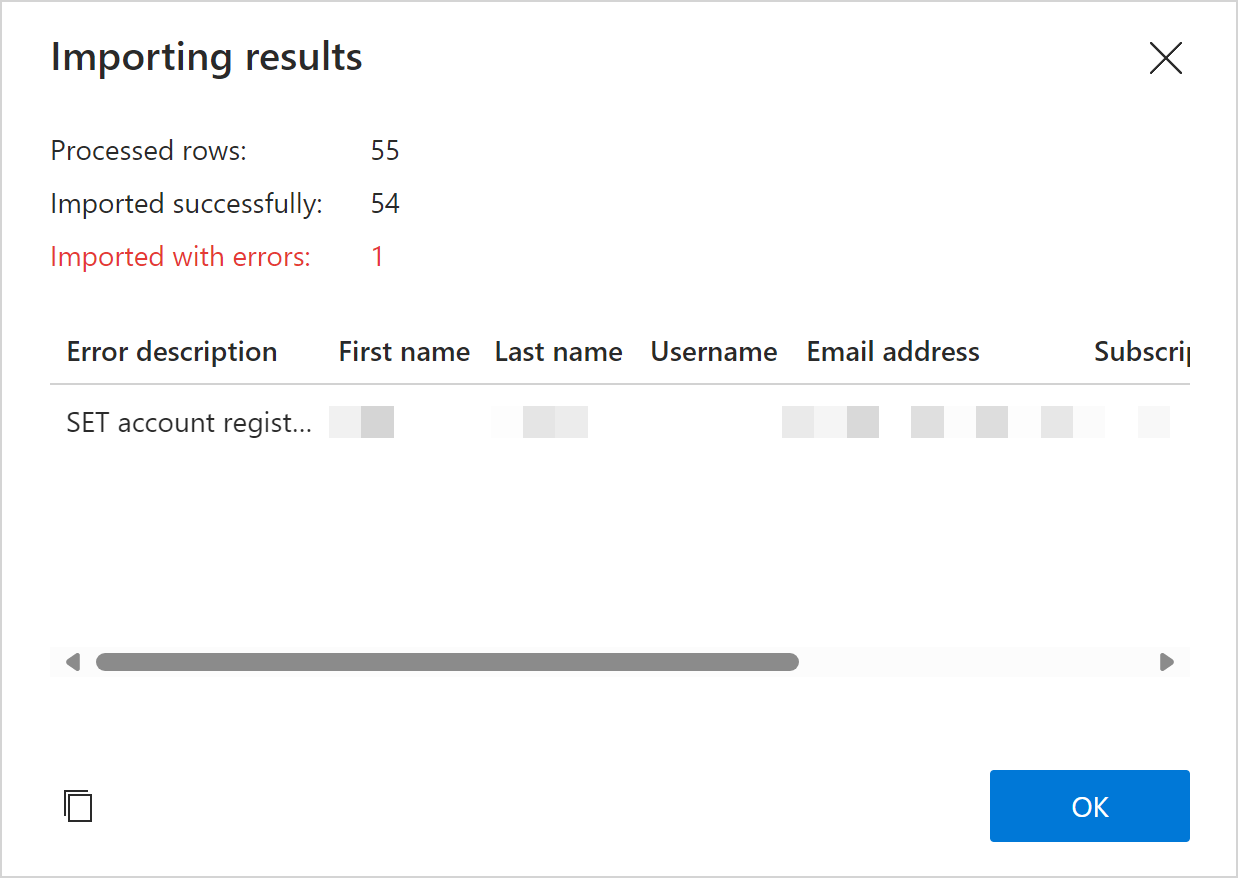
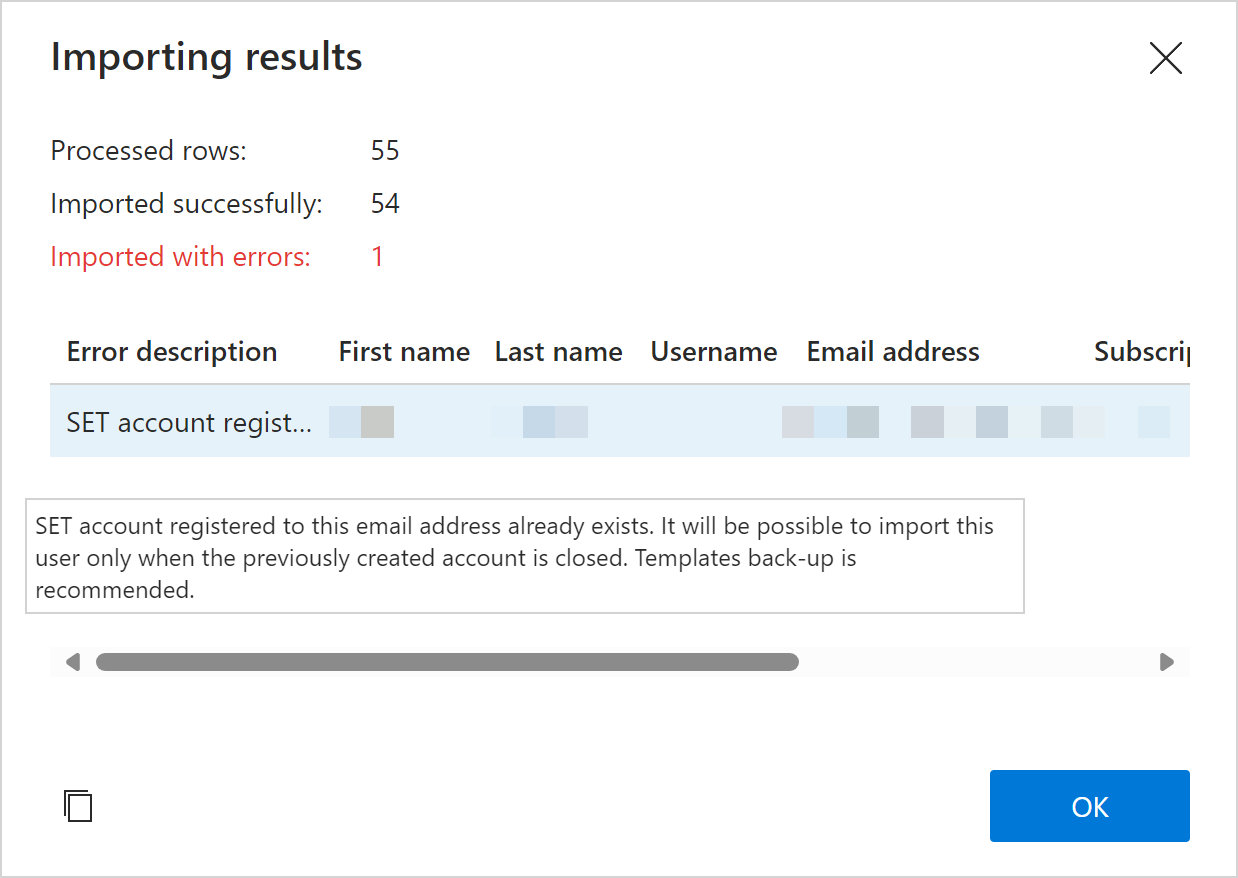
If something goes wrong, the dialog will contain detailed information on the occurred errors. For example, an error will occur if your colleague already has a Shared Email Templates account and therefore can’t be added to yours.
To see an error description in full, hover the cursor over it.
Create user accounts manually #
In the Shared Email Templates pane, select Company account on the More (…) menu.
When the Shared Email Templates app opens in your default browser, go to Users.
Select Create user.
A sidebar with the form to be filled in will appear. Fill in the User account section.
In the License section, click the Subscription key box to assign a key to the user.
In the Teams section, select Add to team to let the user join the necessary team right away. In the Add to team dialog, select a team, choose a role that the user is supposed to take on there (User or Editor), and then click Add.
When you’re finished, select Create.
Invitation emails #
As soon as you add your colleagues to your account, they will receive notification emails inviting them to sign in to their Shared Email Templates account either with their email address and a one-time password or with their Microsoft work or school account credentials.
When signing in to their accounts for the first time, your colleagues will be requested to accept the Terms of use and Privacy policy.
If your colleagues are given a one-time password, they’ll be asked to change it.