
Sign up for a Shared Email Templates company account
In this article
When you sign up for Shared Email Templates, you create a company account and become its admin. This lets you:
- Manage the company account.
- Create and manage user accounts.
- Create and manage teams.
- Assign user roles and permissions.
- Configure account and team settings.
- Purchase and manage subscriptions.
Choose a sign-up option #
If you’ve already added Shared Email Templates to Outlook, open the add-in.
In the Shared Email Templates pane, select Sign up.

Decide which of the two sign-up options suits you best.
Sign up with email Sign up with Microsoft You sign up with your email address. You sign up with your Microsoft work or school account. You need to create a password. You use your existing Microsoft password.
Sign up with Microsoft #
Select Sign up with Microsoft.
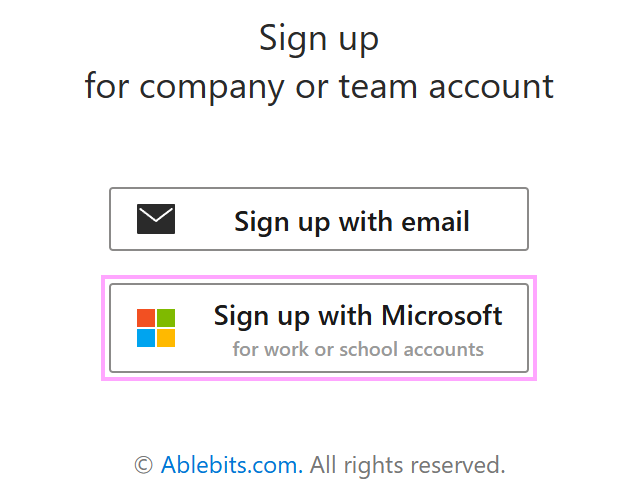
Use a Microsoft dialog that will appear to sign in to your Microsoft work or school account.
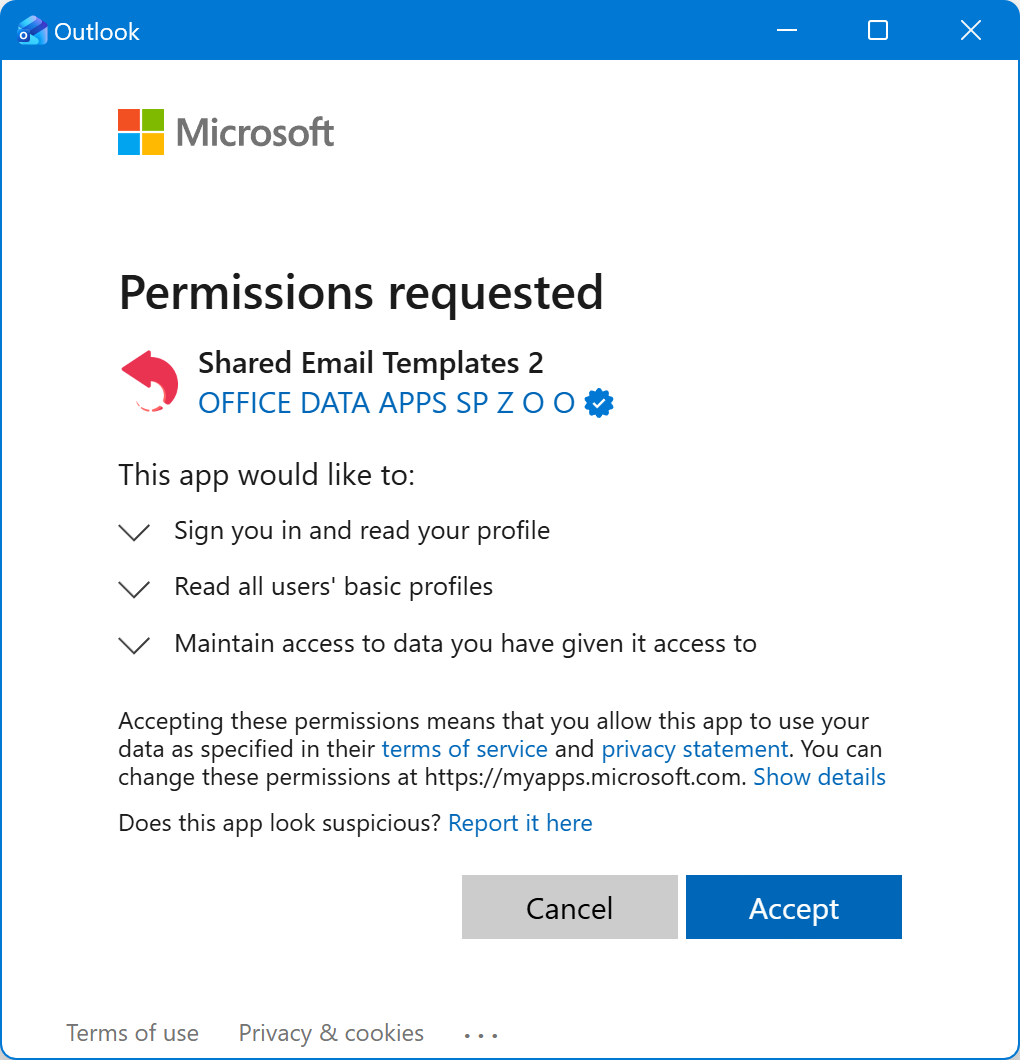
A list of permissions requested by Shared Email Templates will show up. To grant the permissions and proceed with the registration process, select Accept.
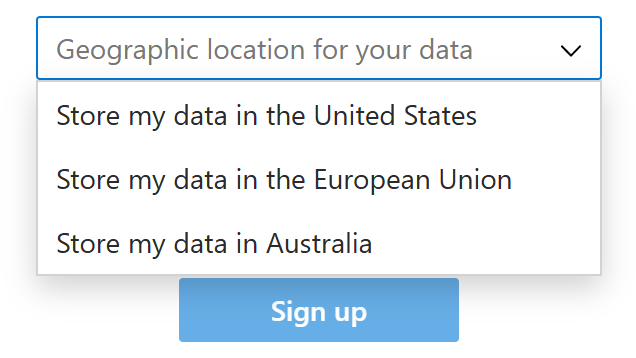
Choose a geographic location for your data.
Read and accept the Terms of use and Privacy policy.
Select Sign up.
Your Shared Email Templates company account is created. Now you can manage your Shared Email Templates users, teams, and subscriptions by using the Company account option.
Sign up with email #
Select Sign up with email.
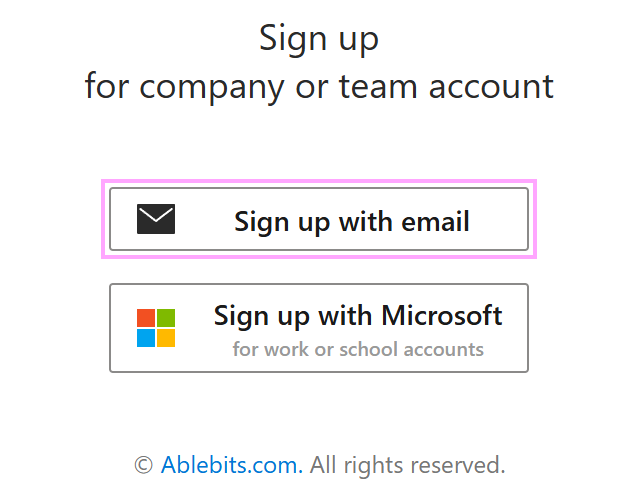
Enter you email address and password.
Select a geographic location for your data.
Read and accept the Terms of use and Privacy policy.
Select Sign up.
Your Shared Email Templates company account is ready to operate. With the Company account option available to you, you can easily manage users, teams, and subscriptions.
What’s next? #
To start sharing your templates, add colleagues to your company account and create teams.