
How to join a company account via an email invite
In this article
If a teammate invited you to join a Shared Email Templates company account and you’re looking for step-by-step guidance, you’re in the right place.
Accept your colleague’s invite to Shared Email Templates #

If you’re invited to a company account that was created by signing up with email, you’ll get an invitation to join the account by signing in with your email address and a one-time password. If the company account you’re invited to was created by signing up with Microsoft, an invitation email will say that you need to sign in with your Microsoft work or school account credentials.
If you can’t find the invitation email that you were supposed to receive in your Inbox, check the Junk Email folder for an email from the Ablebits Support Team. That email will have “You are welcome to join…” in the subject line.
To accept the invitation, follow the steps below.
Join an encrypted team #
Encrypted teams are marked with a red key icon. To get access to their templates, you’ll need a password from your company account admin.
And here are the steps to follow:
In the Shared Email Templates pane in Outlook, select the encrypted team you want to join.
Enter your team password into the Encrypted templates dialog that will appear.
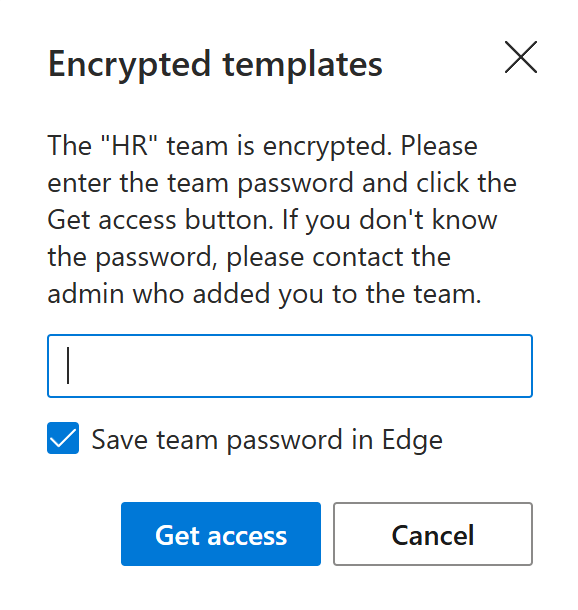
Select the Get access button.
Now you’re part of the encrypted team and can use its templates.
What’s next? #
Explore Shared Email Templates resources:
More in this section #
How to update your profile and change settings
Learn how to update your user profile and adjust settings.How to add custom properties to your user profile
Learn what predefined properties your user profile has and how to add custom ones.