
How to update your profile and change settings
In this article
How to update your user profile #
To access your user profile, select the More (…) button in the lower-right corner of the Shared Email Templates pane in Outlook, and then select Profile.
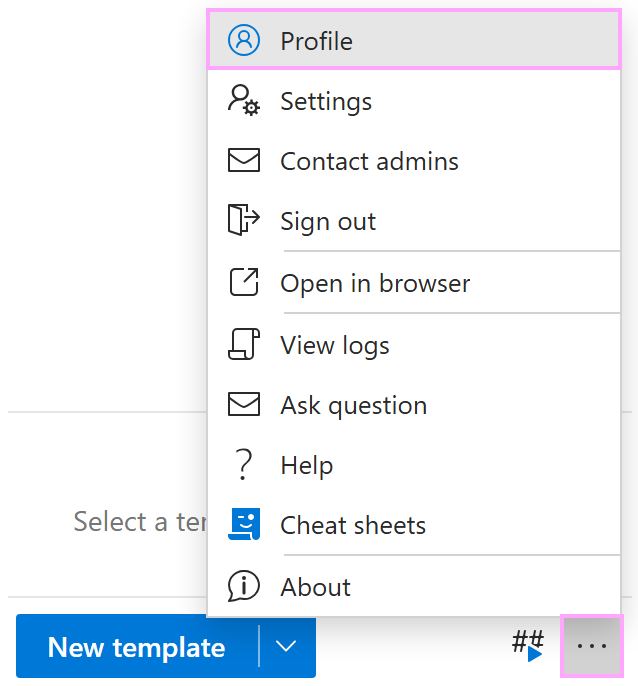
Your profile has the following sections:
My account
To add or change your photo, update your name, email, date of birth, or change your password (only for accounts created via signing up with email), select the Edit account icon.My license
To copy your subscription key, select the Copy the key to clipboard icon.My default signatures
To set your default signatures, select the Select signatures icon.My properties
To view predefined user profile properties and add custom ones, select the Edit properties icon.My teams
View your teams and permissions (Editor or Read only).
How to change settings #
To open Settings, select the More button (…) in the lower-right corner of the Shared Email Templates pane, and then select Settings.
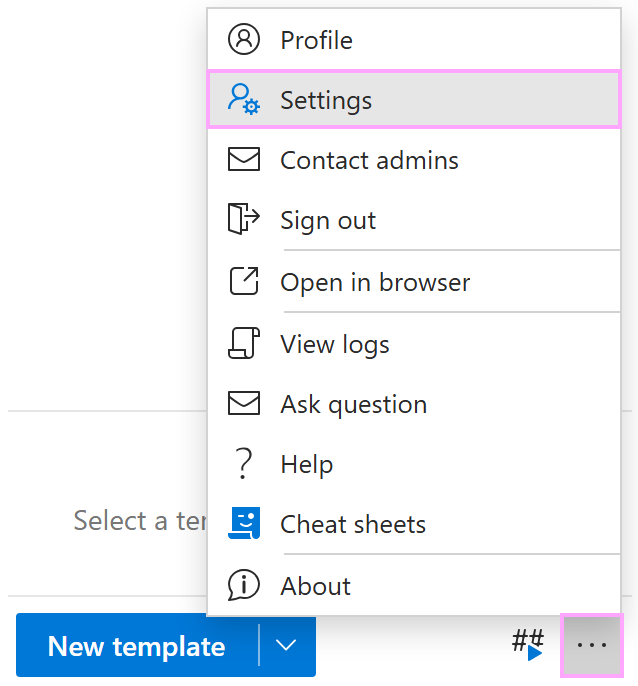
Here you can:
- Select your preferred display language.
- Choose between two macros styles.
- Manage notifications about features, tips, and more.
- Subscribe to newsletters.
- Manage single sign-on (SSO).
- Replace InsertPicture macro placeholders in your templates with pictures from OneDrive, SharePoint, and properties.
- Choose to use templates without waiting until they are synced.