
Add internal notes to Outlook email templates
To leave internal notes in Outlook email templates for yourself and your teammates, use the Note macro. Those notes will stay in the templates, they won’t show up in your email messages.
To add a note, follow these steps:
When creating or editing a template, select the
 Insert macro button on the template editor toolbar.
Select Note.
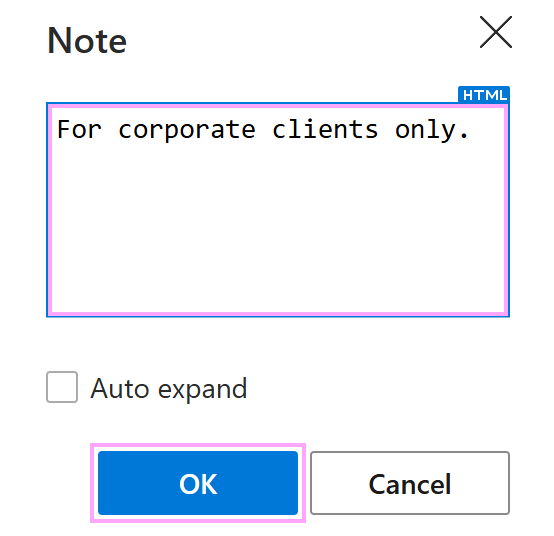
In the Note dialog, enter your note. Then select OK.
Save your template.
In the template preview, the Note macro placeholder looks like this:
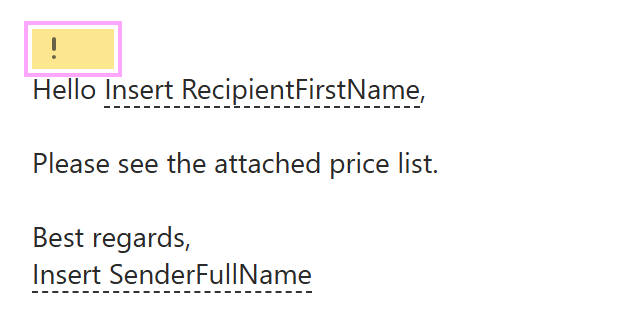
To see the text of a note, hover the cursor over the macro placeholder.
To open the note, click the macro placeholder.
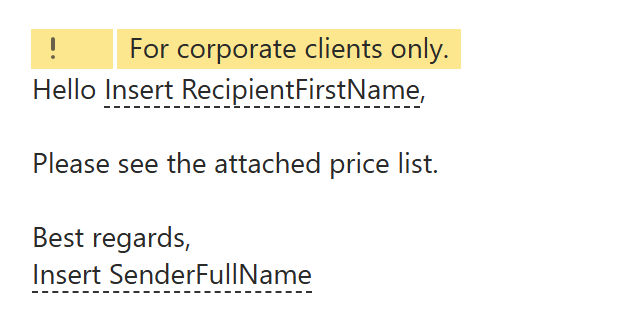
If you want notes to open automatically, choose one of the two following ways:
When inserting the Note macro into a message template, select the Auto expand checkbox in the Note dialog.
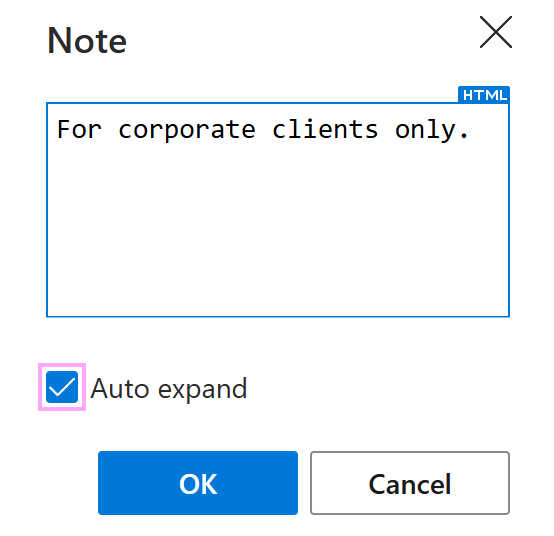
As a result, the note will open automatically.
Save AutoExpandNoteMacros as a custom user profile property or as a custom team property, specifying true as the Text or HTML value.
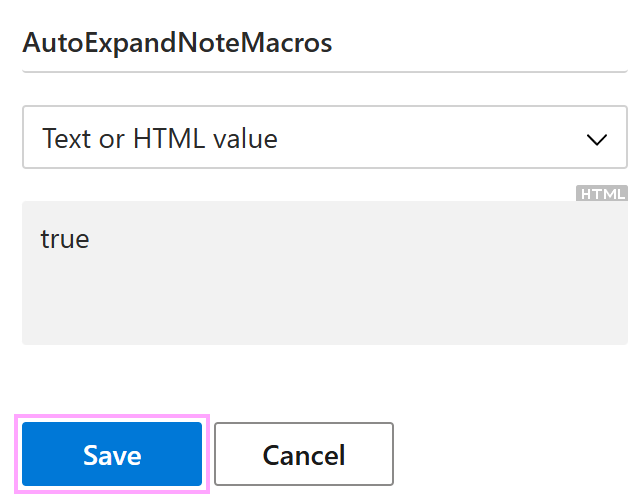
As a result, notes in your personal or team templates will open automatically.