Copy, move, and delete templates for Outlook
In this article
Copy a template #
In the Shared Email Templates pane in Outlook, right-click the template you want to copy and select the
 Copy to option.
Choose the destination folder, open it, and then select Copy here.
Copy a template to clipboard #
To copy the text of an Outlook email template to the clipboard, right-click the template, and then select the  Copy to clipboard option.
If your template contains macros that add information to the message body and you want to copy not the macros themselves but the values they return, keep the Alt key pressed when selecting Copy to clipboard. Compare:
Copy to clipboard
Hello,
I’m happy to offer you an additional ~%WhatToEnter{“title”:“Choose a discount”,“type”:“dropdown”, “items”:[“5% discount”,“10% discount”,“15% discount”],“editable”:false,“required”:true,“multiselect”: false,“separator”:""} on any product of your choice.Copy to clipboard with the Alt key pressed
Hello,
I’m happy to offer you an additional 10% discount on any product of your choice.
Move a template #
Right-click the message template you want to move to another folder, and then select the
 Move to option.
Choose the destination folder, open it, and then select Move here.
Delete a template #
Right-click the email template that is no longer needed and select the  Delete option.
Copy, move, or delete multiple templates #
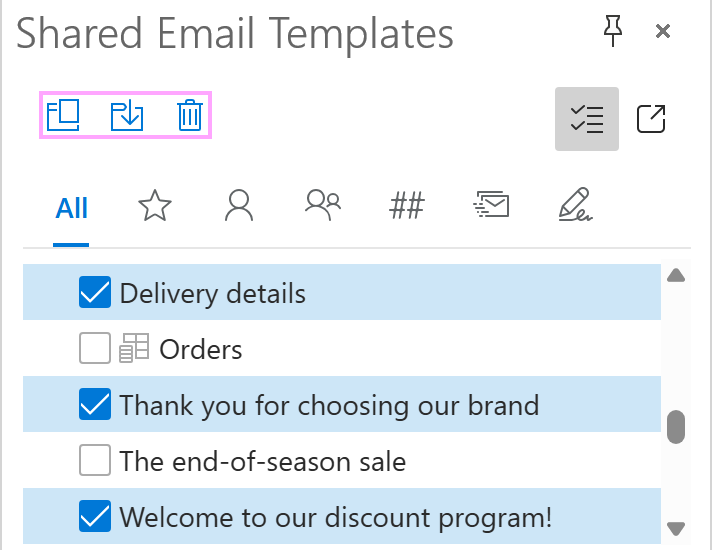
In the upper-right corner of the Shared Email Templates pane in Outlook, click the Selection mode button.
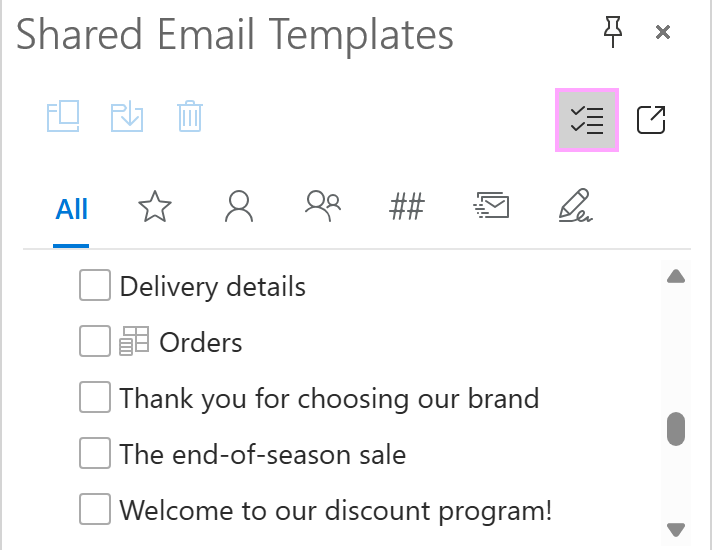
Select the templates you want to copy, move, or delete in one go.
To proceed, select the action itself by clicking the corresponding button: Copy to, Move to, or Delete.