
Edit an Outlook email template

- To edit a template in the Shared Email Templates pane in Outlook, right-click the template, and then select the
 Edit option on the menu.
 - To edit a template in the Shared Email Templates app in your default browser, right-click the template, and then select the
 Edit in browser option.
When editing an Outlook email template, you can insert macros, create datasets, fill in message fields, choose files to attach, add pictures and buttons, insert shortcuts, select a signature, change text formatting, create tables, add and remove hyperlinks, view HTML and the template content, and insert the template into an email message.
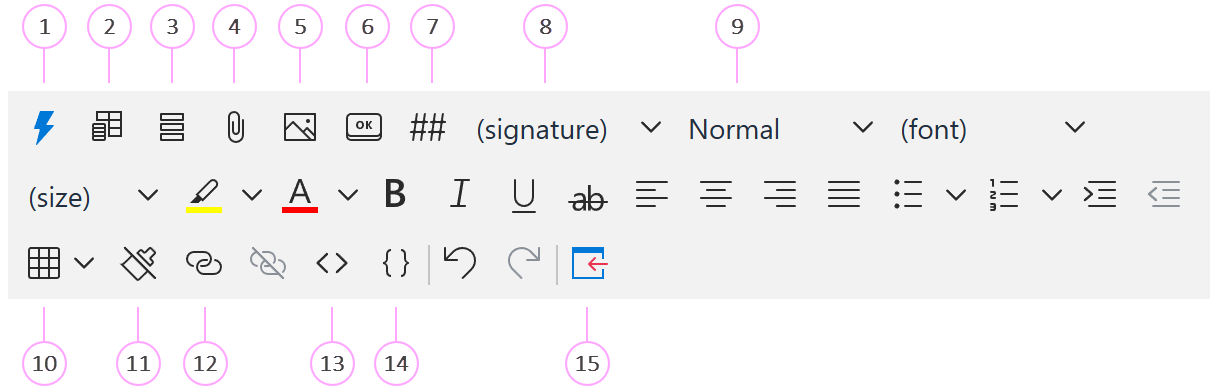
Insert macro. Add a macro to the template.
Embedded dataset. Create a small dataset (simple or Excel-based) to use as a data source. The dataset stays within the template. It doesn’t appear in email messages that you compose using the template.
Message fields. Fill in the To, Cc, Bcc, and Subject fields.
Message attachments. Select files to be attached. Learn more.
Insert picture. Open a list of the InsertPicture macro options to choose any you need. Learn more.
Insert button. Add a button to the template.
Insert shortcut. Open a list of available shortcuts to select the necessary one.
Signature. Select an email signature from a dropdown list. The Signature dropdown list is available on the template editor toolbar if you have signatures associated with the folder where you’re currently creating or editing your template.
Select a style for your text: Normal, Heading 1, Heading 2, or Heading 3.
Table. Insert a table into the template. To change the style applied to the table by default, right-click the table, select the Style option, and then select the style you want to apply.
Clear formatting. Clear formatting of the selected text.
Insert/edit hyperlink. Add a hyperlink to the selected text by entering a URL. You can also add a title that will appear when you hover the cursor over the linked text in the template.
View HTML. View and edit the template in HTML.
View template content. View the content of the template, including HTML, message fields, or message attachments.
Insert. Insert the template into an Outlook email message.