
Use an email template in Outlook
In this article
Insert a whole template into an email #
To insert an entire template into an Outlook email message, select the template in the Shared Email Templates pane, and then select the Insert button.
To insert an entire template when creating or editing it, select the  Insert button on the template editor toolbar.
Insert part of a template into an email #
To insert part of an Outlook email template, select the template, then select the part you want to insert and select the Insert button in the preview pane.
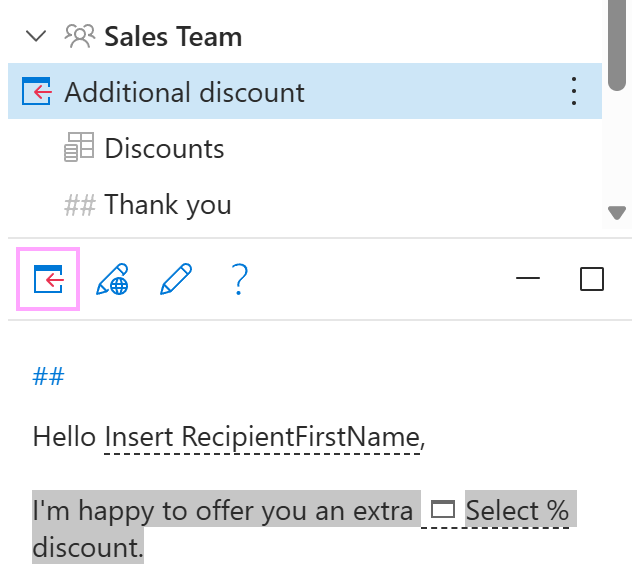
To insert part of the template you’re creating or editing, select this part, and then select the Insert button on the template editor toolbar.
Disable inserting a template #
With the DisableIf macro, you can prevent a message template from being inserted when a specific condition is met. To add the macro to your template, follow the steps below.
In the template you’re creating or editing, place the cursor where you want the DisableIf macro placeholder to appear.
Select the
 Insert macro button on the template editor toolbar.
Select Disable if.
Use the macro dialog to set up a condition under which the template won’t be inserted.
- Select the field(s) to check: body, from, to, cc, bcc, subject, location, recipient first, last, or full name, sender first, last, or full name.
- Select the condition type: contains, doesn’t contain, contains any of, contains none of, is equal to, is equal to any of, is equal to none of, is empty, is not empty, matches regex, or doesn’t match regex.
- Enter the text or regular expression that the specified field(s) will be checked for.
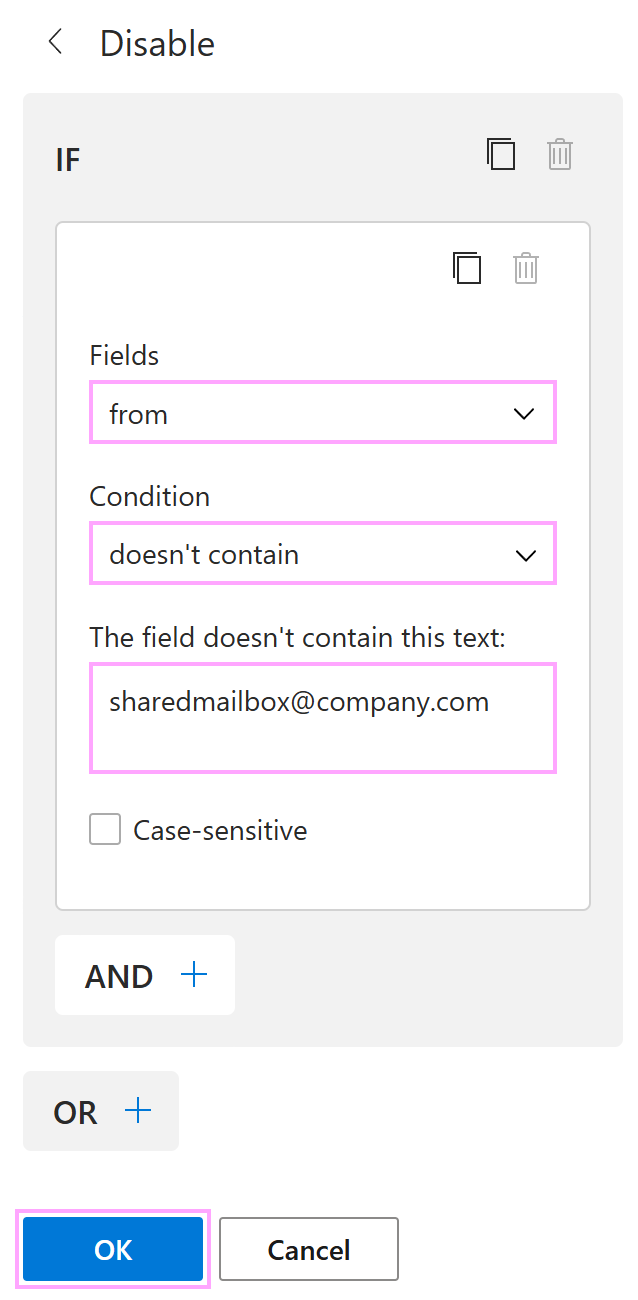
For example, to ensure that your template is inserted into an Outlook email only if the From field contains the shared mailbox address, configure the condition as follows:
- Under Fields, select from.
- Under Condition, select doesn’t contain.
- In the text box, enter the email address of your shared mailbox.
When you’re done configuring the condition, select OK.
To keep the changes, save your template.
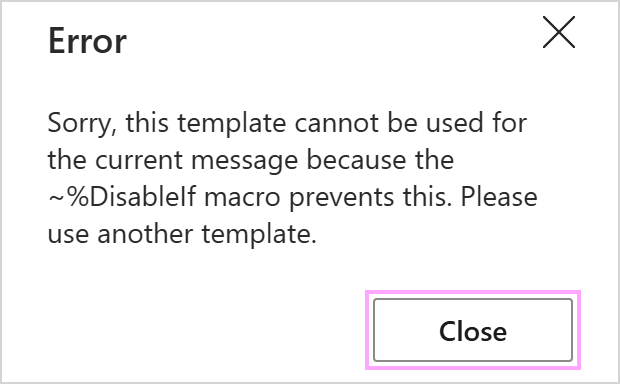
If the condition is met when you insert the template, you’ll see an error message informing you that the template can’t be used.
Clear the message body #
To clear the message body when inserting your email template, you’ll need the Clear macro.
Start editing your template. On the template editor toolbar, select the
Insert macro button.Select Clear.
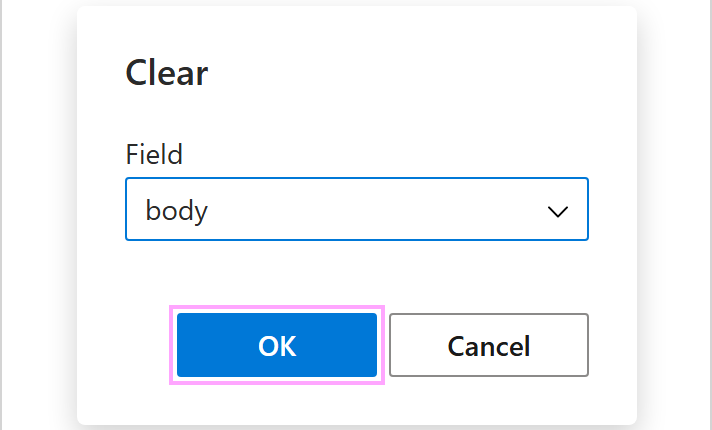
The Clear dialog will appear. With the body field selected, click OK.
Save the template.